operation-cp45.pdf - 第310页
Samsung Component Placer CP-45F(V)/FS Operations Manual 15-24 Figur e 15-13. “ Sys. Setup : System Pr efer ence - Signal ” dialog box <T y pe> combo box Select the signal tower type. Available types are as follow…
Sys.Setup Command
15-23
are displayed in mm.
<inch> option button: when this button is selected, the scales on all screens
are displayed in inch.
<mil> option button: when this button is selected, the scales on all screens
are displayed in mil.
<Confirm before Move> option button group
<None> option button: when this button is selected, does not display the
confirm message box when the movement command is transferred to the
equipment.
<Z axis> option button: If this button is selected, when the movement
command is transferred to the equipment, displays the confirm message box
if the command is for Z axis movement.
<XY, Z axis> option button: If this button is selected, when the movement
command is transmitted to the equipment, displays the confirm message box
if the command is for XY, and Z axes movement.
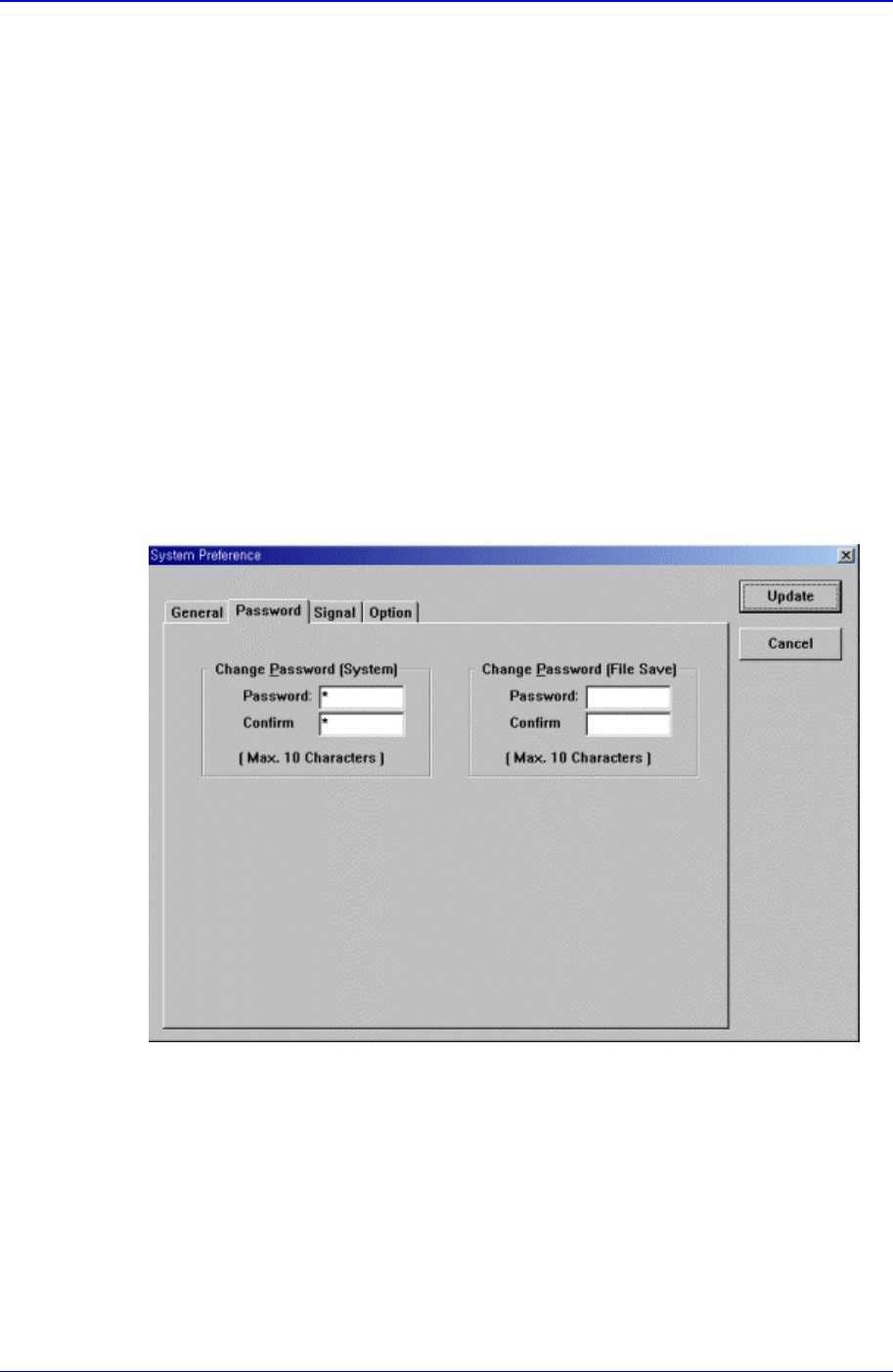
<Password> option button
A password is necessary for system setup. Select the password to use. When this
button is selected, the following screen is displayed.
Figure 15-12. “Sys. Setup : System Preference - Password” dialog box
<Password> edit box
Set the password.
<Confirm> edit box
Set again to confirm the set password.
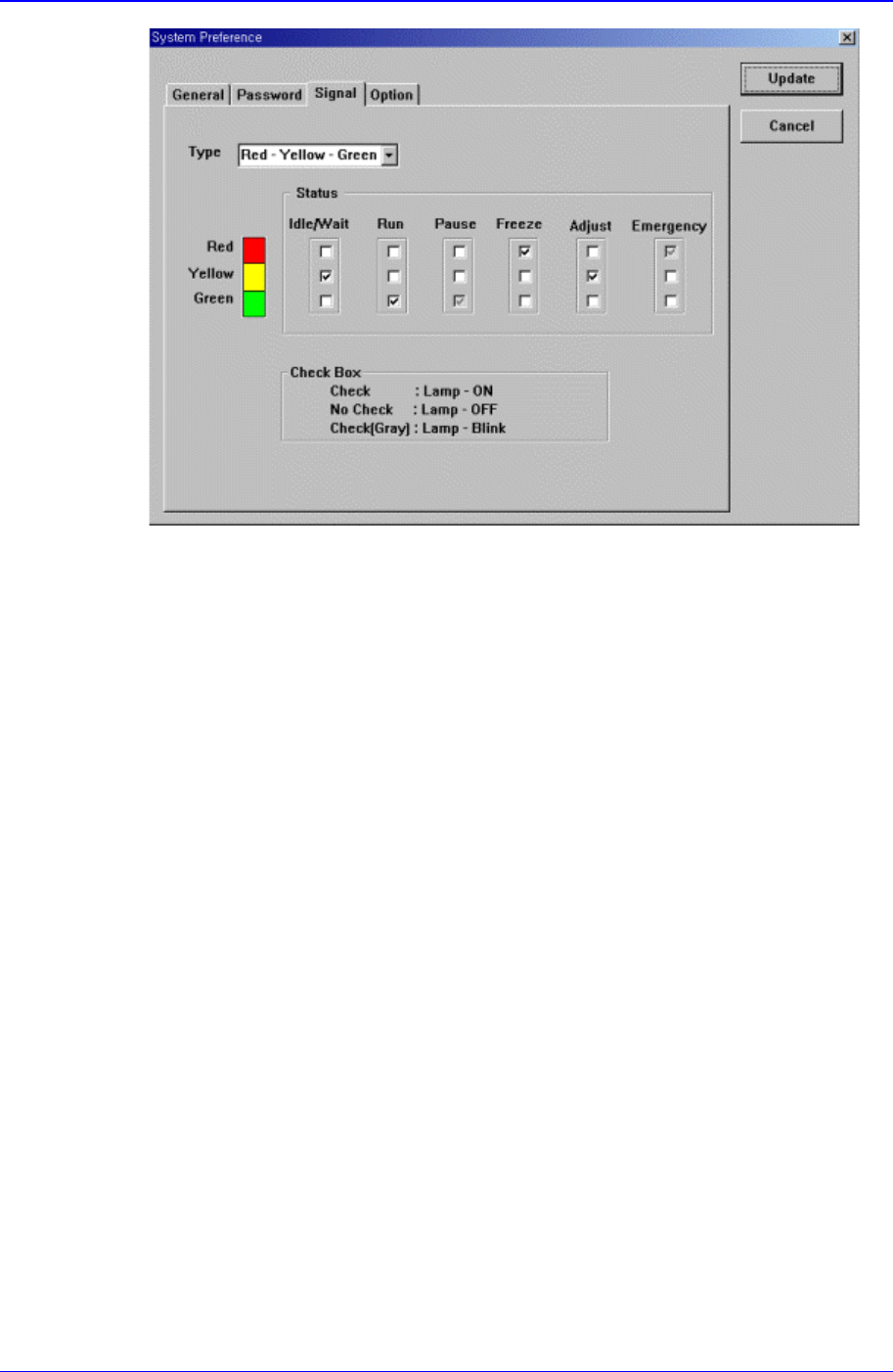
<Signal> option button
Set the status of the signal tower lamp. When this button is selected, the following
screen is displayed.
Samsung Component Placer CP-45F(V)/FS Operations Manual
15-24
Figure 15-13. “Sys. Setup : System Preference - Signal” dialog box
<Type> combo box
Select the signal tower type. Available types are as follows.
Red – Yellow – Green: When the signal tower lamp consists of “Red – Yellow –
Green”.
Red – Blue – Green: When the signal tower lamp consists of “Red – Blue –
Green”.
<Status> group
Set the status of the signal tower lamp corresponding to the equipment status.
For example, if you want to turn on the “Yellow” lamp of the signal tower in the
idle/wait status, check the corresponding “Yellow” lamp check box among the 3
check boxes under the Idle/Wait.
The status and meanings of the check boxes are as follows.
Checked: Turns on the corresponding lamp.
Not checked: Turns off the corresponding lamp.
Checked in gray: Flickers the corresponding lamp.
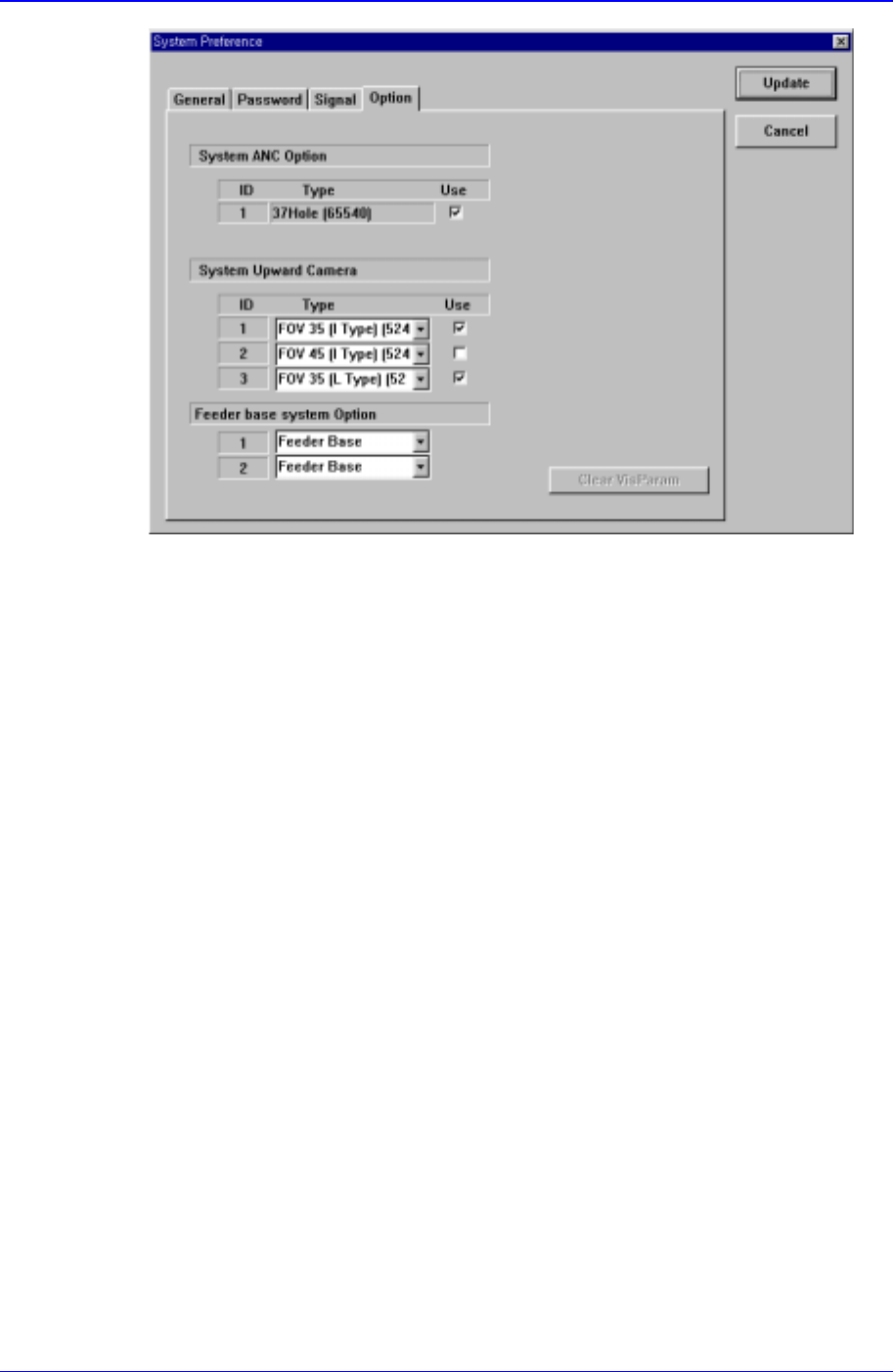
<Option> option button
Set whether to use or not to use the ANC and camera and set the constant parameter
to be used for the vision system. When this button is selected, the following screen is
displayed.
Sys.Setup Command
15-25
Figure 15-14. “Sys. Setup : System Preference - Option” dialog box
<System ANC Option> check box
Set whether to use or not to use the ANC type available for the equipment. To
use the corresponding ANC type, check the check box.
<System Upward Camera> check box
Set whether to use or not to use the fix camera type available for the equipment.
To use the corresponding camera type, check the check box.
<Vis. Option Parameter> Grid group
Set the constant parameter available for the vision system. The number of
available parameters is 20.
<Use Non Stop > check box
사용자가 Non Stop Feeder 를 사용시에만 체크를 합니다. 피더의
공급방식에 따라 Feeder Base, Feeder Base Docking, Feeder Base
Docking+IQ 로 구분되어 있습니다.
<Buzzer> check box
이 체크박스를 체크하면, Non Stop Feeder 로 작업시 부품의 잔여량
기준값에 미달할 경우 신호음을 발생시킵니다.
<Update> button
Transmits the set option to the equipment and closes the dialog box.
<Cancel> button
Ignores the set option and closes the dialog box.