operation-cp45.pdf - 第174页
Samsung Component Placer CP-45F(V)/FS Operations Manual 11-20 T each the first position of the bad mar k. When the “ Enter ” key is pressed after teaching, the following screen is displayed. T each the position of the ne…
PCB Edit Command
11-19
the current position of the XY axis.
<Device> combo box
To move or to read in the position of the XY axis, select the corresponding
device. Available devices are as follows.
Move Cam: Selects the teaching camera.
Head1: Selects Head1.
Head2: Selects Head2.
Head3: Selects Head3.
Head4: Selects Head4.
Head5: Selects Head5.
Head6: Selects Head6.
<Move> button
Moves the XY axis to the device selected in <Device>. Before executing
“Move, the cell in the grid corresponding to the desired position must be
clicked on with a mouse.
<Get> button
Reads in the current position of the XY axis of the device selected in
<Device>. Before executing, “Get”, the cell in the grid corresponding to the
desired position must be clicked on with a mouse.
<6. Logic> group
Select the color of bad mark. Available colors of bad marks are as follows.
Black: the mark looks darker than the surroundings.
White: the mark looks lighter than the surroundings.
<7. Offset> group
Used to set the offset value between bad marks automatically.
<X> edit box
Set the offset value of X.
<Y> edit box
Set the offset value of Y.
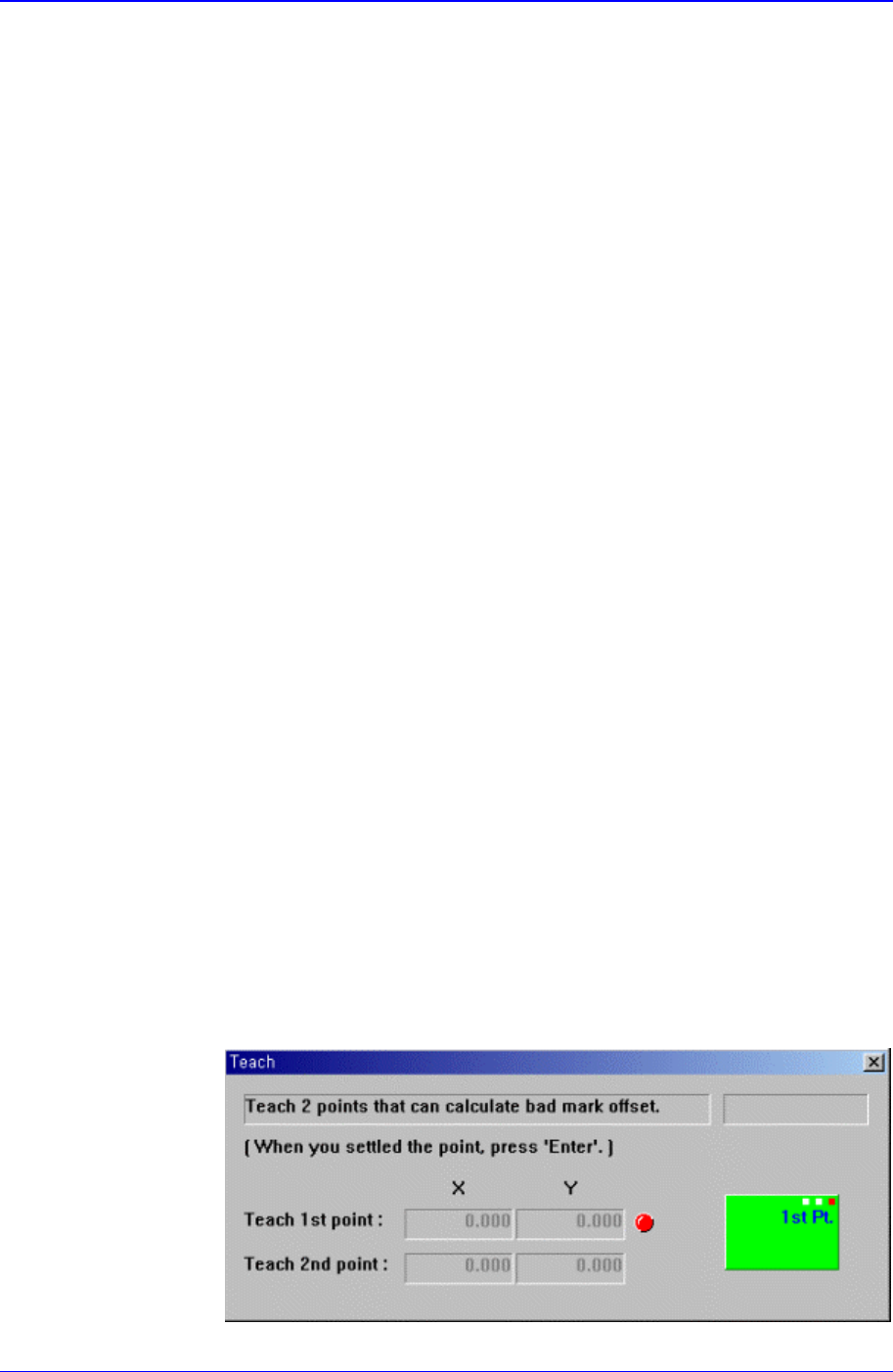
<Teach> button
Teach the offset value of bad mark by using the same method as teaching the
PCB size. When this button is clicked on, the following screens are displayed
in succession.
Samsung Component Placer CP-45F(V)/FS Operations Manual
11-20
Teach the first position of the bad mark. When the “Enter” key is pressed
after teaching, the following screen is displayed.
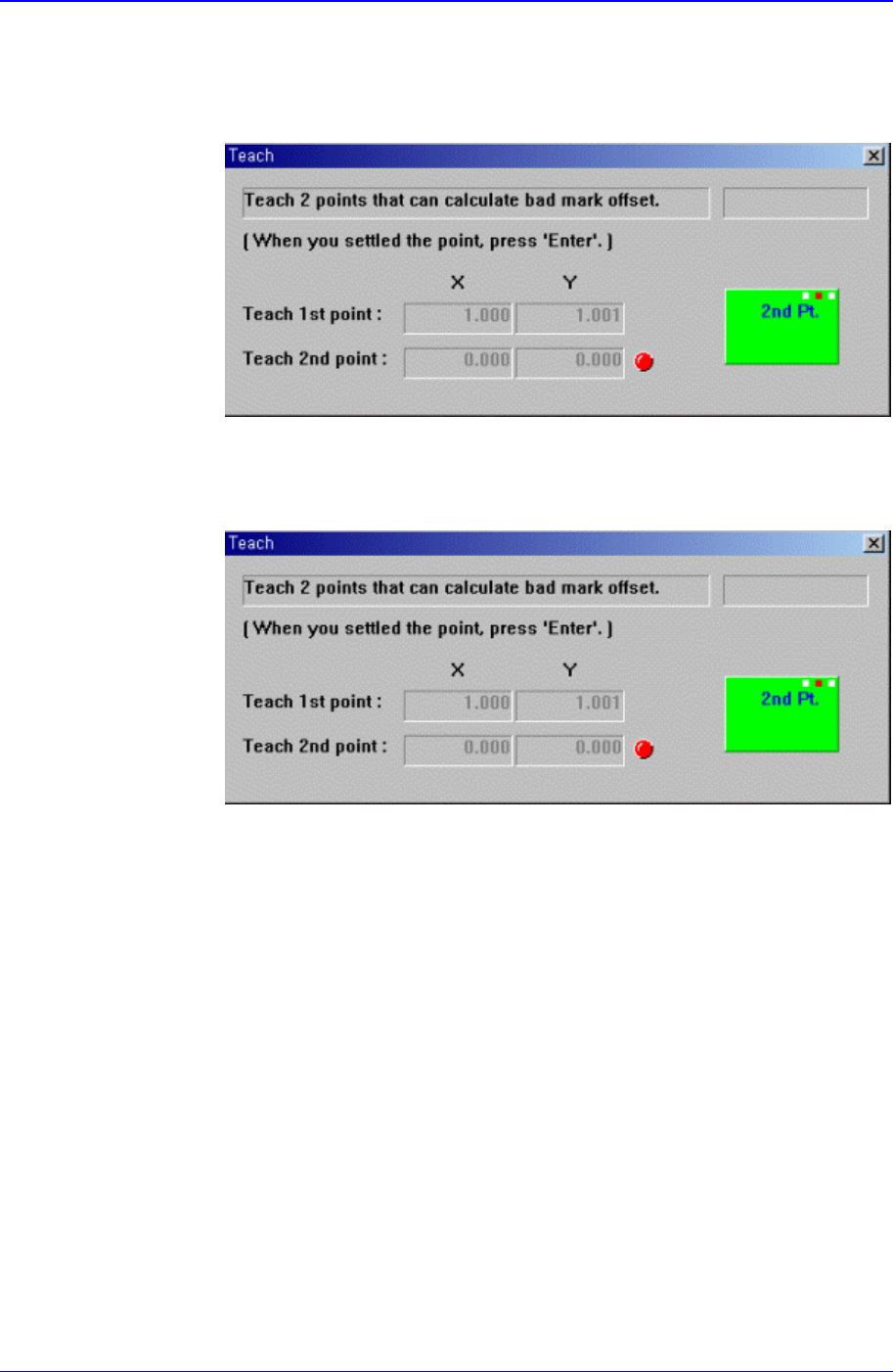
Teach the position of the neighboring bad mark. When the “Enter” key is
pressed after teaching, the following screen is displayed.
Press the “Enter” key to complete the bad mark offset value teaching
operation.
<Apply> button
Automatically creates the bad mark position data by using the offset value set
in this group.
<8. Camera No.> combo box
Select the camera to search the bad mark. At present, it is fixed to “Move
Camera”.
<9. Search Area> group
Set the area in which to search the bad mark. The main purpose of this feature is
to limit the search range for when there are forms similar to the mark near the
mark such that they can interfere with recognition on certain PCBs.
<Width X> edit box
Set the value of search range in X axis direction. In general, it is 6 mm.
<Width Y> edit box
Set the value of search range in Y axis direction. In general, it is 6 mm.
PCB Edit Command
11-21
<10. Parameter> group
<Threshold> edit box
Set the threshold value of <Bad Mark Logic> for bad mark inspection. For
example, if <Bad Mark Logic> is “Black” and the <Threshold> value is 100,
then all the values under 100 in the vision image are recognized as black, and
if <Bad Mark Logic> is “White” and the <Threshold> value is 100, then all
values over 100 are recognized as white.
<Light> group
Set the light value for bad mark inspection. In general it is 7, but adjust it
appropriately according to the condition of PCB and bad mark.
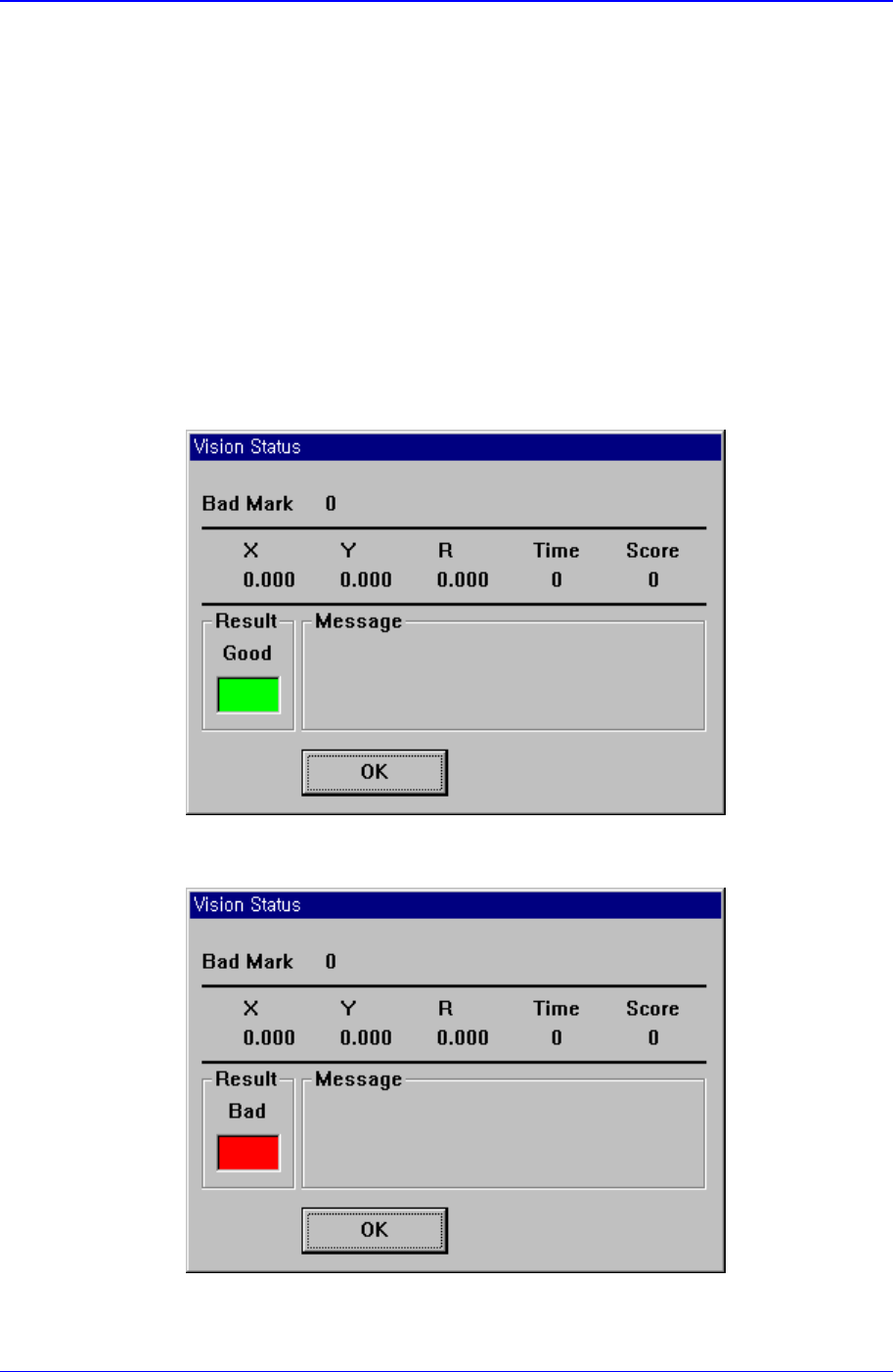
<Test> button
By using the registered mark information, tests the mark.. The accuracy of the
registered mark data can be verified. When the test is successful, the following
message box is displayed.
When the test is not successful, the following message box is displayed.
<OK> button