operation-cp45.pdf - 第258页
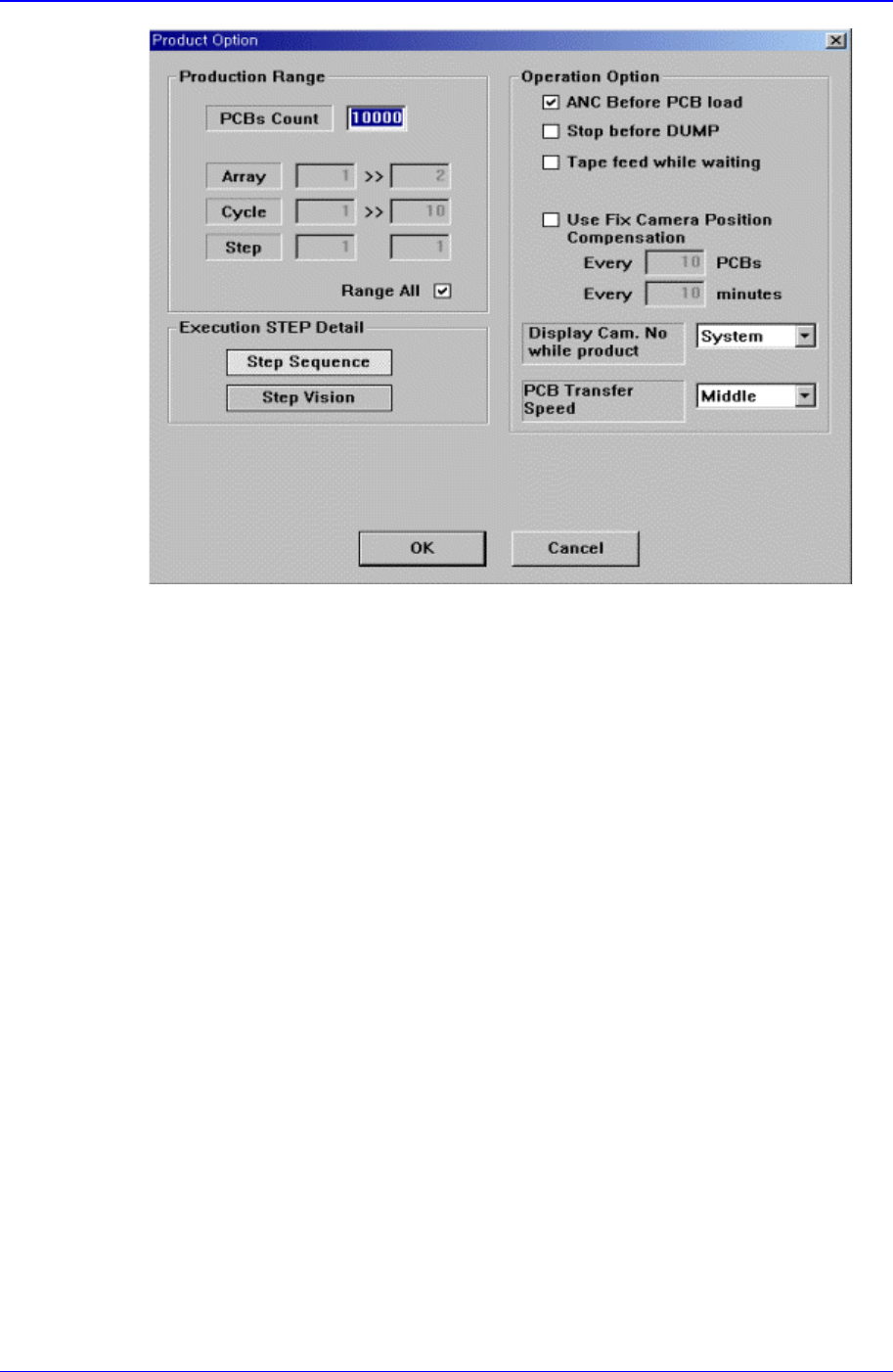
Samsung Component Placer CP-45F(V)/FS Operations Manual 12-4 Figur e 12-4. “ Pr oduction Option ” dial og <Production Range> group Set the operation range. <PCBs Count> Static box Set the number of PCBs t…

Production Command
12-3
Displays the total number of steps.
<Total Cycles> option button
Displays the total number of cycles.
<Total Array> option button
Displays the total number of Array PCBs.
<Working Status> group
Displays the status of operation in progress.
<Place Progress> Static box
Displays the progress of placement operation with a percentage and a progress
bar.
<Current Cycle> Static box
Displays the cycle in progress.
<Current Array> Static box
Displays the step in progress.
<Produced PCBs> Static box
Displays the number of produced PCBs.
<Reset> button
Initializes the number of produced PCBs to “0”.
<Speed> group
Set the speed of axis.
<Execution Mode> group
Set the execution mode.
<Step> option button
Sets to a mode in which the motion stops after each step of motion.
<Continuous> option button
Sets to a mode of continuous motion.
<Operation Mode> group
Set the operation mode. Available modes are as follows.
Normal Run: Operates normally.
Dry Run: Operates without picking up components actually. When all the steps are
completed, stops operation.
Dry Repeat Run: Operates without picking up components actually. When all the
steps are completed, repeats operation from the first.
Dry1 Run:
Dry1 Repeat Run:
Dry2 Run:
Dry2 Repeat Run:
<Option> button
Carries out the function of setting the operation scope. When this button is clicked on,
the following dialog boxes are displayed.
Samsung Component Placer CP-45F(V)/FS Operations Manual
12-4
Figure 12-4. “Production Option” dialog
<Production Range> group
Set the operation range.
<PCBs Count> Static box
Set the number of PCBs to be produced.
<Array> Static box
It is activated when the “Range All” button is not checked.
If there are Array PCBs, set the range of arrays to operate.
<Cycle> Static box
It is activated when the “Range All” button is not checked.
Set the range of cycles to operate.
<Step> Static box
It is activated when the “Range All” button is not checked.
Set the step to operate.
The step under the start cycle sets the step to start operation in the start cycle,
and the step under the finish cycle sets the step to finish operation in the
finish cycle.
<Range All> check box
Check it when the entire area is to be operated.
<Execution STEP Detail> group
If the execution mode is “Step”, set more detailed step execution.
<Step Sequence> option button
Selects the step execution on the sequence.

Production Command
12-5
<Step Vision> option button
Selects the step execution on vision.
<Operation Option> group
Set the options related to placement.
<ANC before PCB load> check box
Check it to perform ANC operation before loading the PCB.
<Stop before DUMP> check box
Check it to stop operation after dumping the component.
<STEP Stop (Z-Axis)> check box
Check it to stop the Z axis during “Step” execution.
<Use Fix Camera Position Compensation>
<Every ( ) PCBs/minutes> edit box
To guard against the possibility of the fix camera position being changed
during operation, it checks and corrects the Fiducial Mark on the Fix
Camera after producing a certain a of PCBs or a certain a of time.
<Display Cam. No while product> combo box
A combo box to select the camera for the vision monitor during production.
PCB Transfer Speed combo box
A combo box to adjust the speed of transferring the PCB on the conveyor.
<OK> button
Saves the set options and closes the dialog box.
<Cancel> button
Ignores the set options and closes the dialog box.
12.2. Start [F2]
When the “PCB Download” operation has been completed, this button is activated while
the placement is not in progress, and it is inactivated while the placement is in progress.
This command transmits the command to start the placement related to the downloaded
PCB data to the equipment.
12.3. Stop [F3]
When the “PCB Download” operation has been completed, this button is activated while
the placement is in progress, and it is inactivated while the placement is not in progress.
This command transmits the command to stop the placement related to the downloaded
PCB data to the equipment.
Caution
Pressing the Start switch without checking the presence of
worker nearby could cause injury.
Be sure to check if there is any worker near the machine
before pressing the Start switch.