operation-cp45.pdf - 第200页
Samsung Component Placer CP-45F(V)/FS Operations Manual 11-46 Set align option data. <T olerance H> edit box Set the highest tolerance for component recognition with a percentage. <T olerance L> edit box …

PCB Edit Command
11-45
<Camera No.> combo box
Select the camera to recognize the component.
<Light Control> button
Set the light for the camera to recognize the component.
<Size> group
Set the Align size.
<Body X> edit box
Set the component size in X direction.
<Body Y> edit box
Set the component size in Y direction.
<Up Lead Num> edit box
Set the number of upper leads.
<Up Lead W> edit box
Set the length of the upper lead in X direction.
<Up Lead L> edit box
Set the length of the upper lead in Y direction
<Up Lead P> edit box
Set the pitch between upper leads.
<Down Lead Num> edit box
Set the number of lower leads.
<Down Lead W> edit box
Set the length of lower lead in X direction.
<Down Lead L> edit box
Set the length of lower lead in Y direction.
<Down Lead P> edit box
Set the pitch between lower leads.
<Align Z> edit box
Set the height for recognition. Based on the component surface, if the top is to be
recognized, set - value and if the bottom is to be recognized, set + value.
<Threshold> edit box
When there is a pre-treatment process for component recognition and the gray
level image is converted into binary, it is the value used to determine black and
white.
The value range is 0 – 255(0: black, 255: white), and this value serves to
differentiate the component from the background. When the set value is 0, the
value is set automatically during component recognition.
<Auto> check box
Check it when the <Threshold> value is set automatically.
<Binary> button
Displays the binary image of the component on the vision monitor screen.
<Option> group

Samsung Component Placer CP-45F(V)/FS Operations Manual
11-46
Set align option data.
<Tolerance H> edit box
Set the highest tolerance for component recognition with a percentage.
<Tolerance L> edit box
Set the lowest tolerance for component recognition with a percentage.
<Algorithm White Body> check box
Check it if the color of the component body is “White Body”.
<Algorithm Heat> check box
Check it if a radiator is attached to the component body.
<Offset X> edit box
Set the X offset value when the component is placed (After the component is
recognized, it is the value added after the component placement point
adjustment.)
<Offset Y> edit box
Set the Y offset value when the component is placed (After the component is
recognized, it is the value added after the component placement point
adjustment)
<Offset R> edit box
Set the R offset value when the component is placed(After the component is
recognized, the value is to be added after the component placement point
adjustment)
<Outline> button
Displays the outline of the component on the vision monitor by using the set align
data.
<Move…> button
Performs component pickups or moves to the fix camera.
<Test> button
Tests component recognition by using the set align data.
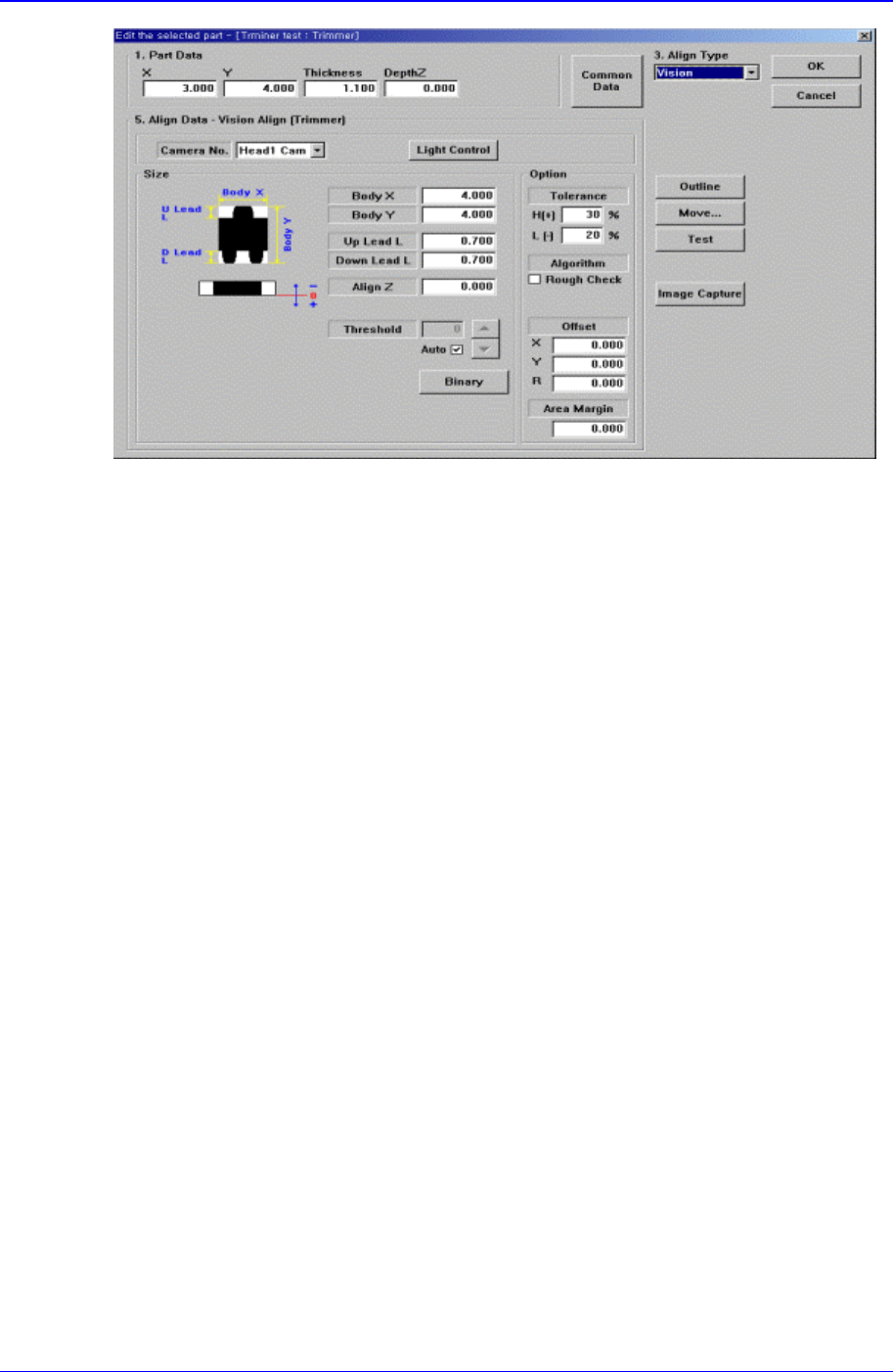
11.1.5. Trimmer component data setting
Set align data for Trimmer components.
PCB Edit Command
11-47
Figure 11-31 “Align Type = Vision, Package Group = Trimmer” dialog box
<Camera No.> combo box
Select the camera to recognize the component.
<Light Control> button
Set the light for the camera to recognize the component.
<Size> group
Set the align size
<Body X> edit box
Set the component size in X direction.
<Body Y> edit box
Set the component size in Y direction.
<Up Lead L> edit box
Set the length of the upper lead in Y direction
<Down Lead L> edit box
Set the length of the lower lead in Y direction
<Align Z> edit box
Set the height for recognition. Based on the component surface, if the top is to be
recognized, set - value and if the bottom is to be recognized, set + value.
<Threshold> edit box
When there is a pre-treatment process for component recognition and the gray
level image is converted into binary, it is the value used as the criteria to
determine black and white.
The value range is 0 – 255(0: black, 255: white), and this value serves to
differentiate the component from the background. When the set value is 0, the
value is set automatically during component recognition.
<Auto> check box
Check it if the <Threshold> value is set automatically.
<Binary> button