operation-cp45.pdf - 第192页
Samsung Component Placer CP-45F(V)/FS Operations Manual 11-38 <V acuum ON/OFF> button T urns on/of f the vacuum generator of the head for com ponent pickups or release. <T est> button T ests co mponent re…
PCB Edit Command
11-37
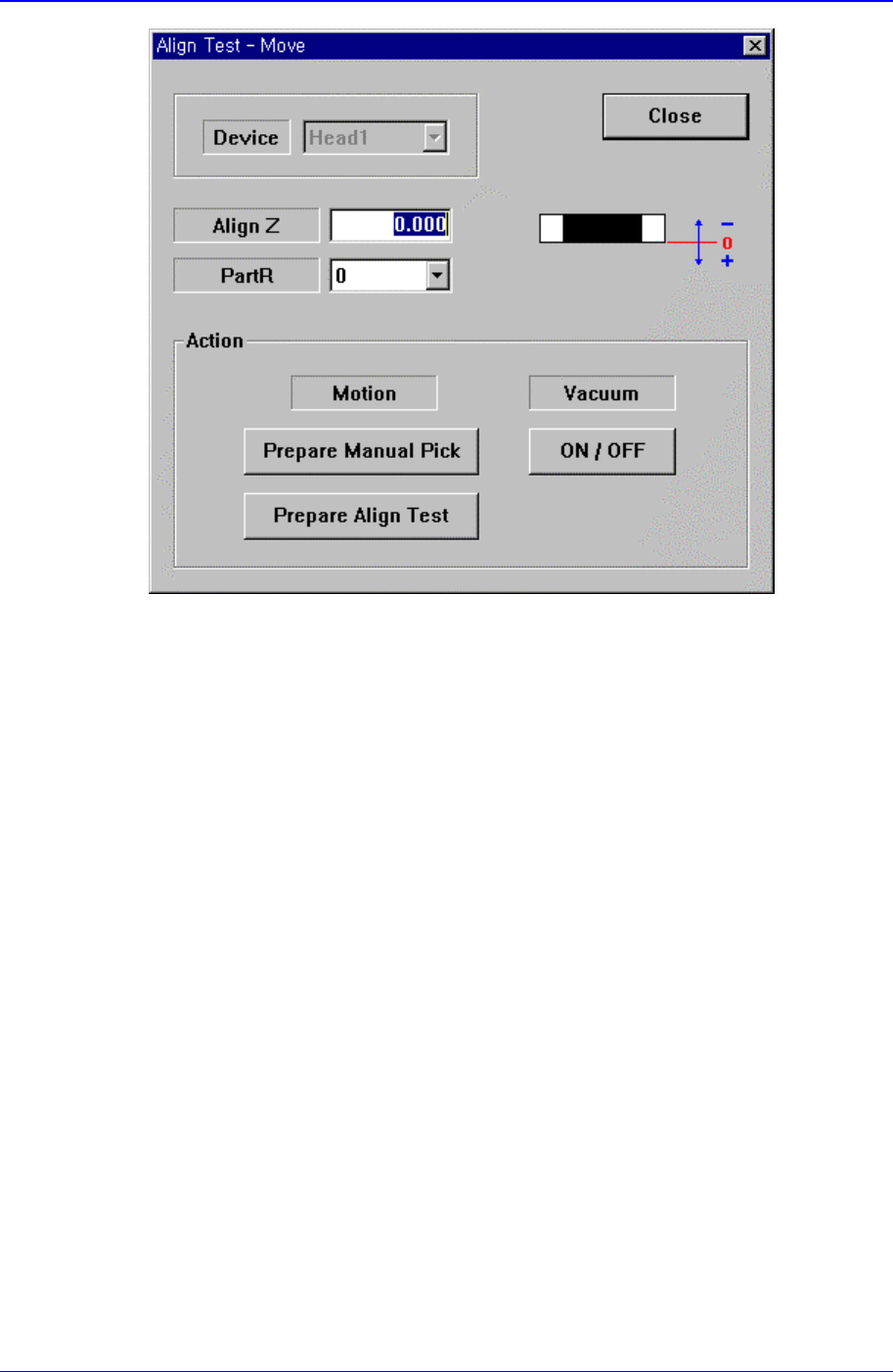
<Device> combo box
To move the XY axis, select the corresponding device. Applicable devices are as
follows.
Head1: Selects Head1.
Head2: Selects Head2.
Head3: Selects Head3.
Head4: Selects Head4.
Head5: Selects Head5.
Head6: Selects Head6.
When the <Camera No> has been set to the head camera in component align data,
the <Device> combo box is inactivated.
<Align Z> edit box
Set the height for recognition. Based on the component surface, if the top is to be
recognized, set - value, and if the bottom is to be recognized, set + value.
<Action> group
<Prepare Manual Pick> button
Moves the head block to the pickups point when the component is to be
adsorbed to the head manually. Moves to the Home position of the
equipment.
<Prepare Align Test> button
Prepares for the component align test. If the <Camera No.> to be aligned is
the fly camera, moves the Z axis of the head to the align height, closes the
mirror and sets the light. If the <Camera No.> to be aligned is the fix camera,
moves the Z axis of the head to a safe height, moves the head block to the fix
camera position, and then moves the Z axis of the head to the align height.
Samsung Component Placer CP-45F(V)/FS Operations Manual
11-38
<Vacuum ON/OFF> button
Turns on/off the vacuum generator of the head for component pickups or
release.
<Test> button
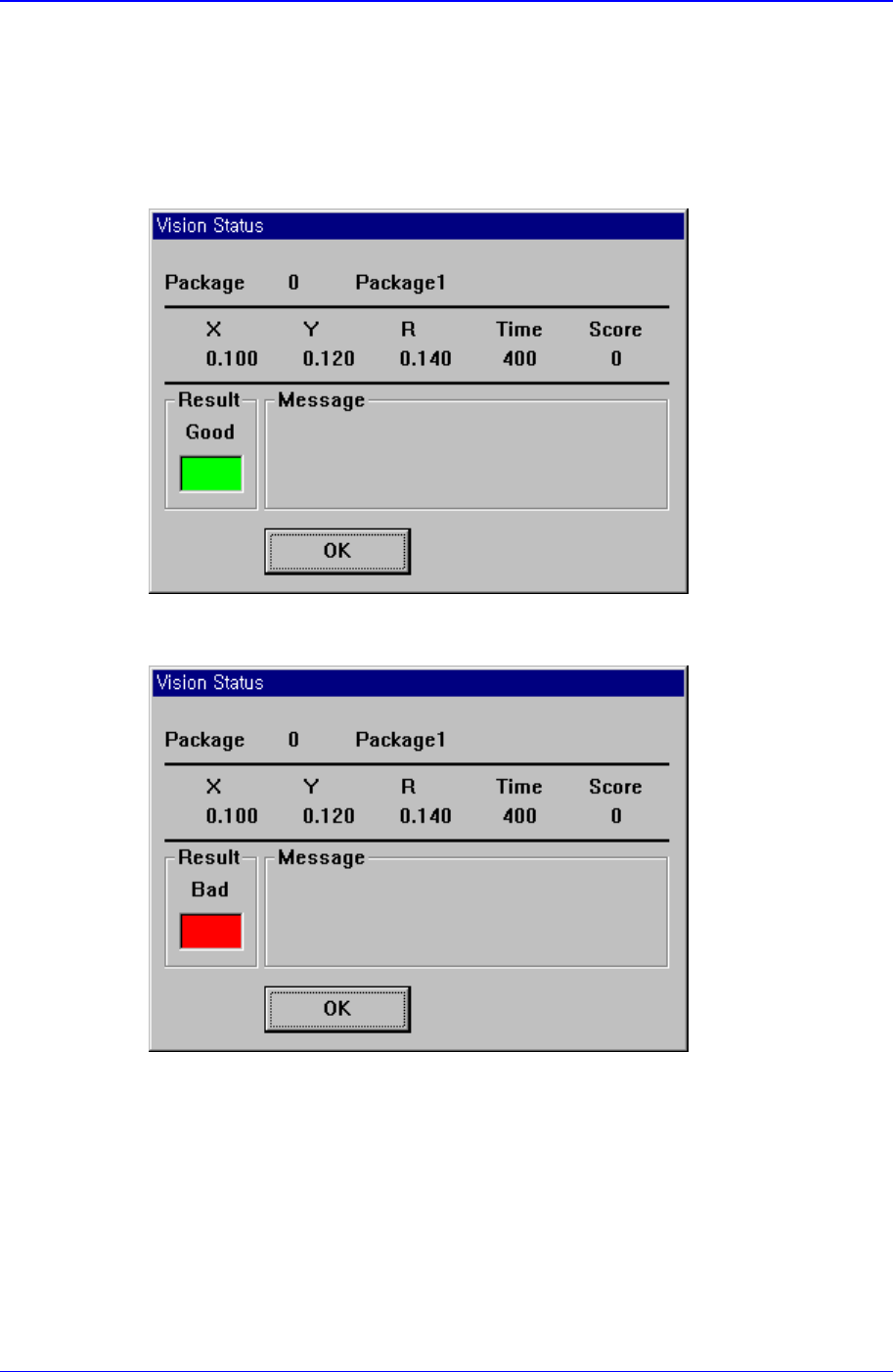
Tests component recognition by using the set align data. When the test is successful,
the following message box is displayed.
When the test is not successful, the following message box is displayed.
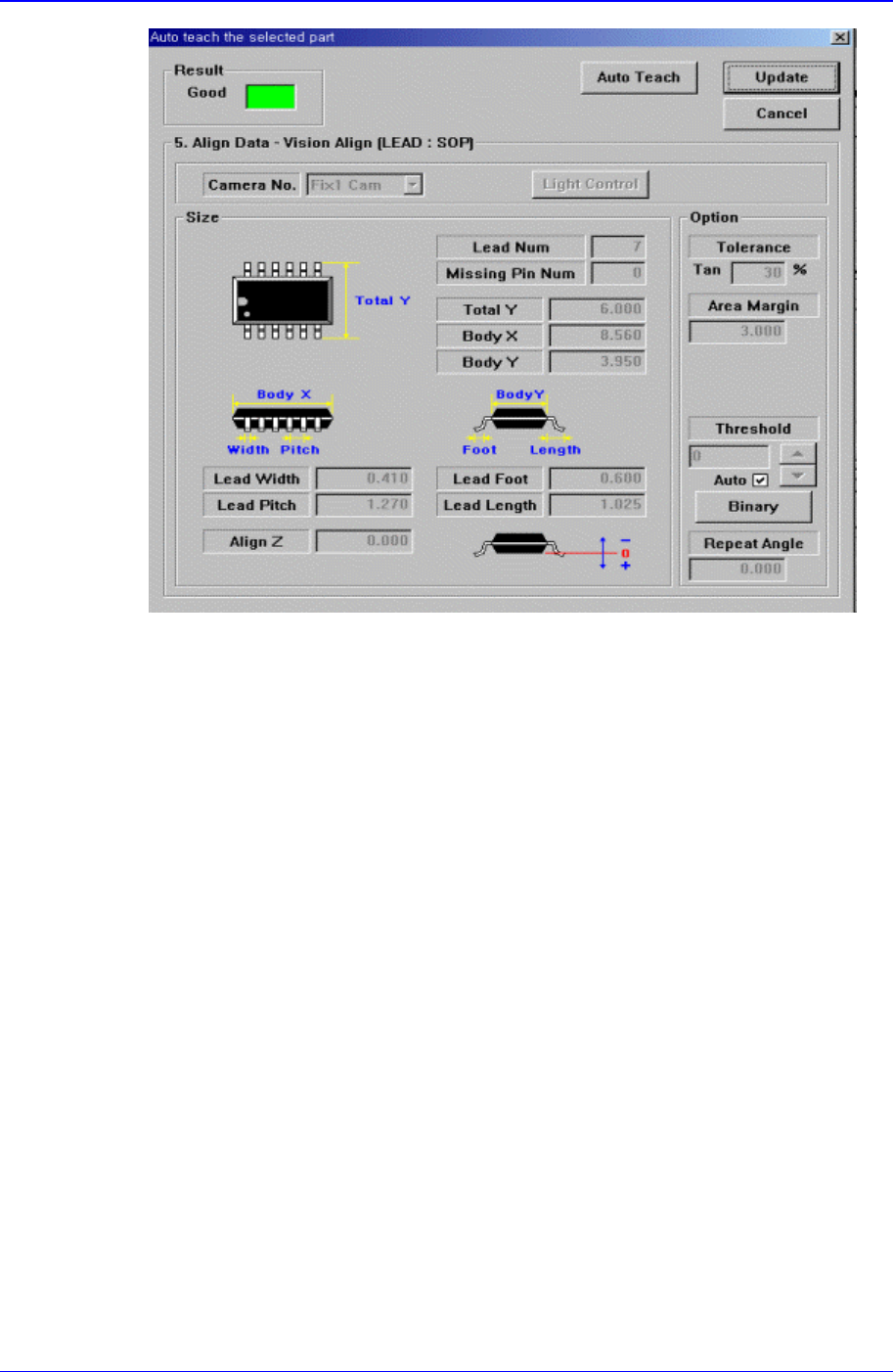
<Auto Teach> button
Automatically finds out the component align data. When auto teach is successful, the
following message box is displayed.
PCB Edit Command
11-39
Figure 11-26.”Auto Teach the selected part-Good” message box
<Result>
Displays the success or failure of Auto Teach.
<Auto Teach> button
Executes Auto Teach.
<Update> button
Saves the component align data obtained by Auto Teach and closes the message
box.
<Cancel> button
Closes the message box without saving the data obtained by Auto Teach.
When Auto Teach fails, the following message box is displayed.