operation-cp45.pdf - 第215页
PCB Edit Command 1 1-61 Set the lead parameter and lead group. Please refer to <11.1.15.1 Lead Parameter>, and <11.1.15.2 Lead Group> . <Option> group Set the align option data. <Area Margin> …
Samsung Component Placer CP-45F(V)/FS Operations Manual
11-60
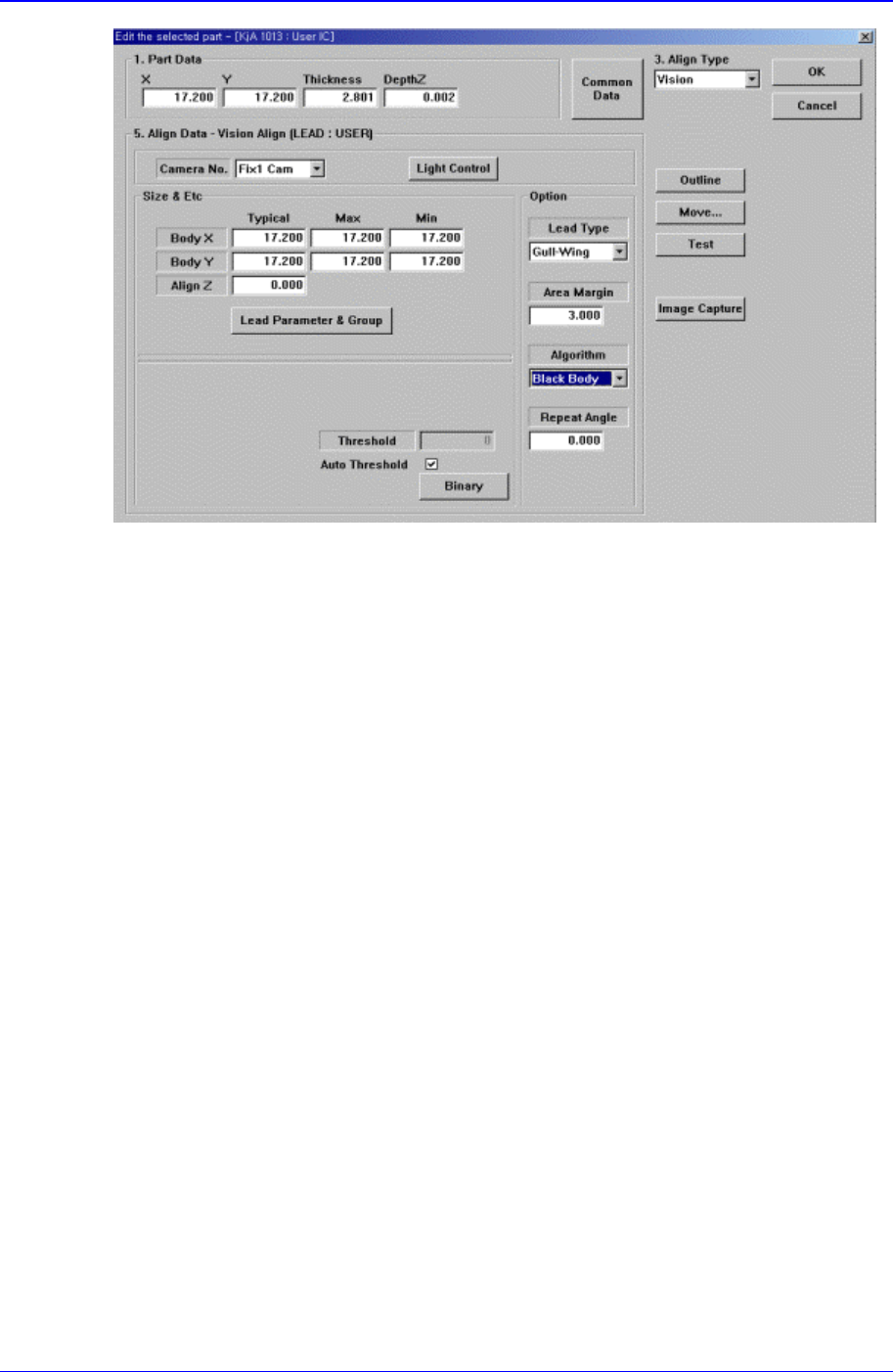
Figure 11-39. “Align Type = Vision, Package Group = User IC” dialog box
<Camera No.> combo box
Select the camera to recognize the component.
<Light Control> button
Set the light for the camera to recognize the component.
<Size & Etc> group
Set the align size.
<Body X Typical> edit box
Set the size of component body in X direction.
<Body X Max> edit box
Set the maximum size of component body in X direction.
<Body X Min> edit box
Set the minimum size of component body in X direction.
<Body Y Typical> edit box
Set the size of component body in Y direction.
<Body Y Max> edit box
Set the maximum size of component body in Y direction.
<Body Y Min> edit box
Set the minimum size of component body in Y direction.
<Align Z> edit box
Set the height for recognition. Based on the component surface, if the top is to be
recognized, set - value and if the bottom is to be recognized, set + value.
<Lead Parameter & Group> button
PCB Edit Command
11-61
Set the lead parameter and lead group. Please refer to <11.1.15.1 Lead
Parameter>, and <11.1.15.2 Lead Group>.
<Option> group
Set the align option data.
<Area Margin> edit box
Set the limit for the image to be off the center of the screen when the component
is recognized. For example, if this value is 5mm, then the image of the
component should be within 5mm of the center of the screen.
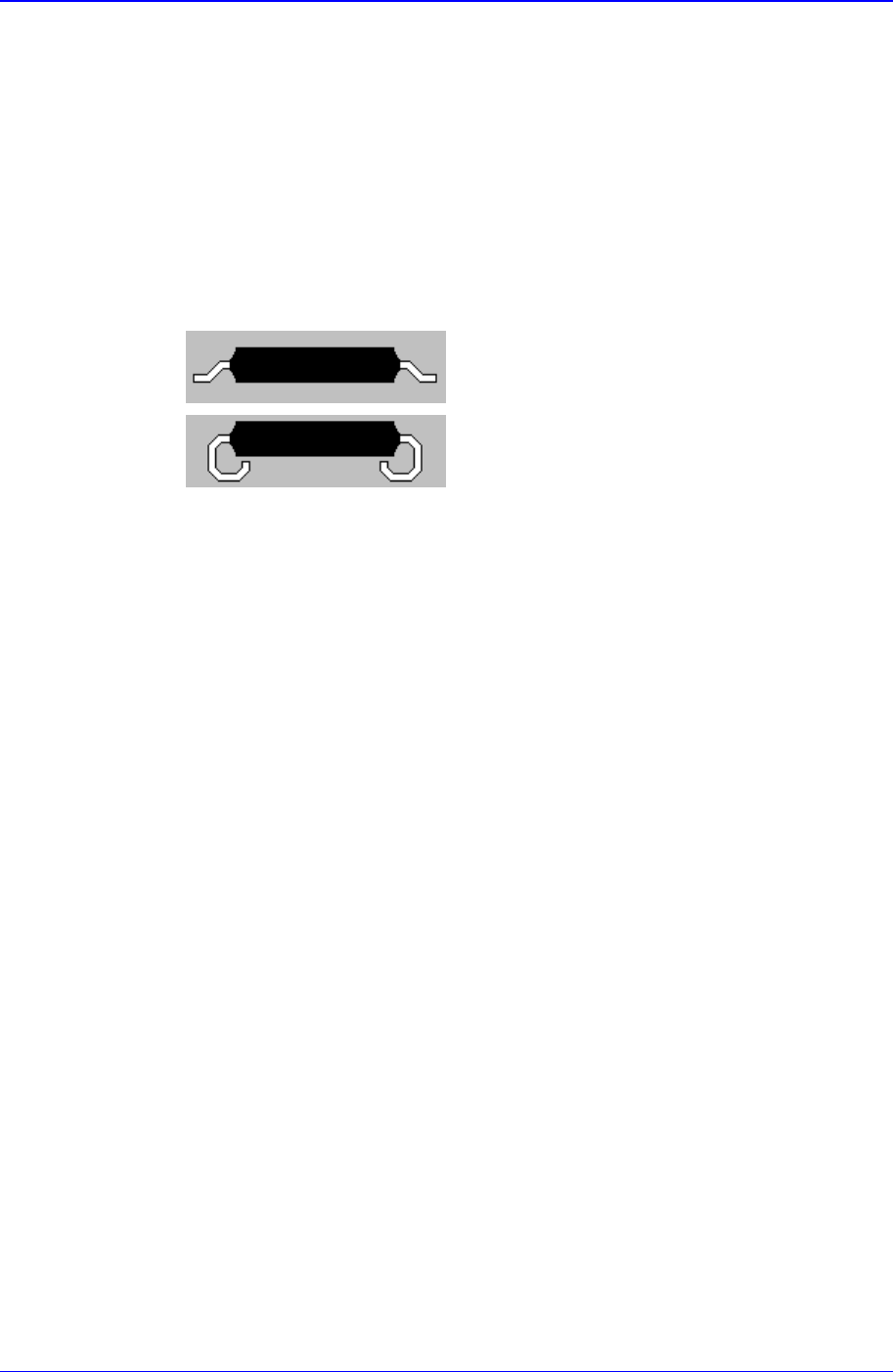
<Lead Type> combo box
Select the lead type. Available lead types are as follows.
Gull-Wing: Leads protrude outward as QFP.
J-Lead: Leads roll inward as PLCC.
<Algorithm> combo box
Select the algorithm to recognize the component. Available algorithms are as
follows.
Black Body: Method to process IC types fast. In general, applied to IC types.
All Body: Applied to various types of components, but it takes long to process.
Applied to non IC types or hard to recognize components.
Odd with No Lead: Applied to odd type components without leads.
Odd with Lead: Applied to odd type components with leads.
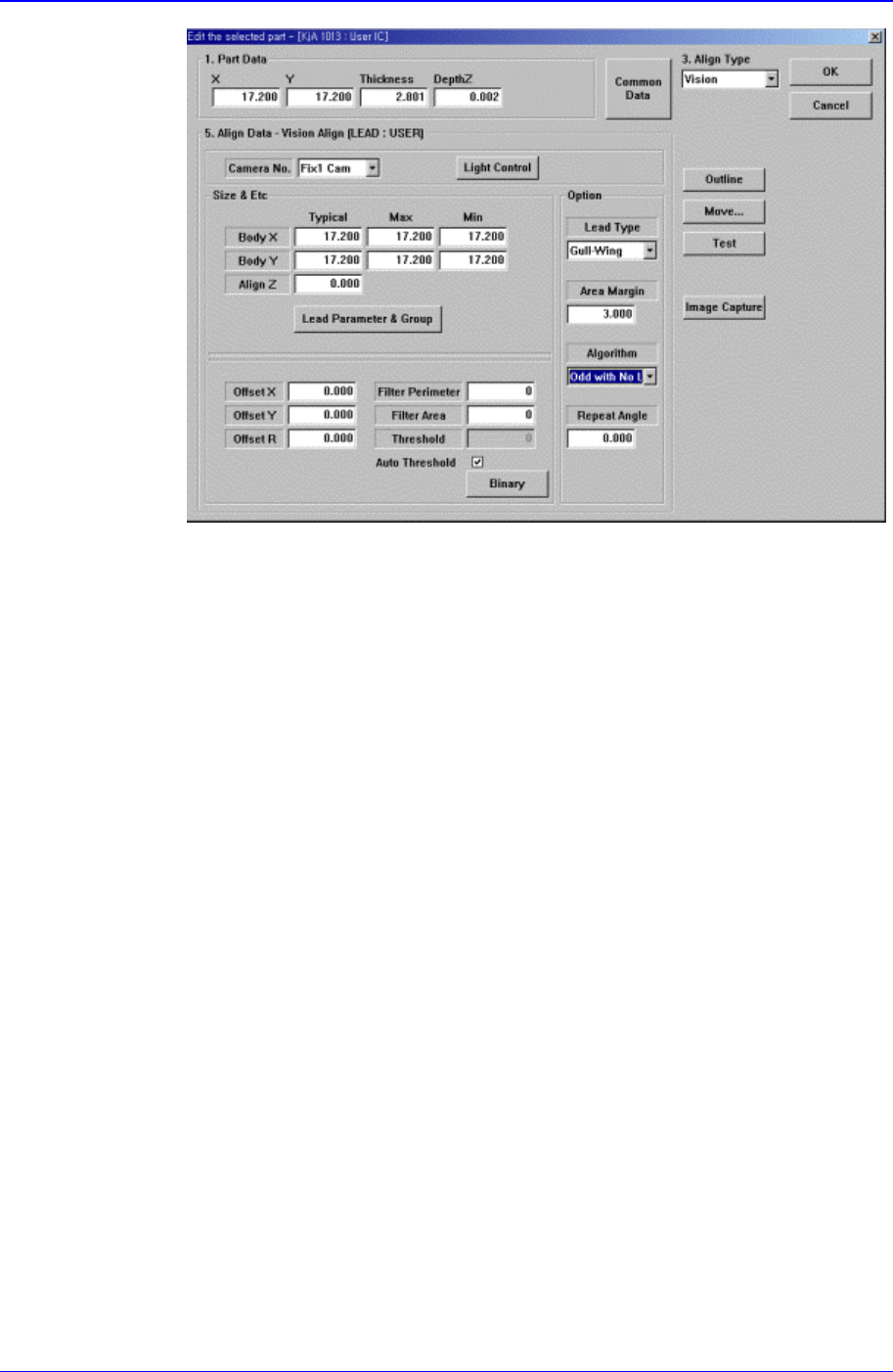
When <Algorithm> is “Odd with No Lead” or “Odd with Lead”, the following
dialog box is displayed.
Samsung Component Placer CP-45F(V)/FS Operations Manual
11-62
Figure 11-40 “Align Type = Vision, Package Group = User IC, Algorithm = Odd with
Lead” dialog box
<Offset X> edit box
Set the offset value between the component centroid and the actual
component center in X direction.
<Offset Y> edit box
Set the offset value between the component centroid and the actual
component center in Y direction.
<Offset R> edit box
Set the offset value between the angle of the main axis of the component and
the actual angle.
<Filter Perimeter> edit box
Set the value to remove noise in the component vision image. If the
perimeter of the object in the image is smaller than this value, it is processed
as noise.
<Filter Area> edit
Set the value to remove noise in the component vision image. If the area of
the object in the image is smaller than this value, it is processed as noise.
<Threshold> edit box
When there is a pre-treatment process for component recognition and the
gray level image is converted into binary, it is the value used as the criteria to
determine black and white.
The value range is 0 – 255(0: black, 255: white), and this value serves to
differentiate the component from the background. When the set value is 0,
the value is set automatically during component recognition.
<Auto Threshold> check box
Check it to set the <Threshold> value automatically.