operation-cp45.pdf - 第171页
PCB Edit Command 1 1-17 When the test is not successful, the following message box is displayed. <Repeat…> button It is not explained here as it is displayed in the debug mode only. <Bad Mark…> button A b…
Samsung Component Placer CP-45F(V)/FS Operations Manual
11-16
By using the registered mark information, finds the exact size of the mark. After
the size of the actual mark is found, the following message box is displayed. If
you want to update it with the data found, click on the<Yes> button, otherwise
click on the <No> button.
<Outline> button
Displays the shape of the mark on the vision monitor screen by referring to the
registered mark data. This feature is used to check whether the registered value
coincides with the actual mark.
<Test> button
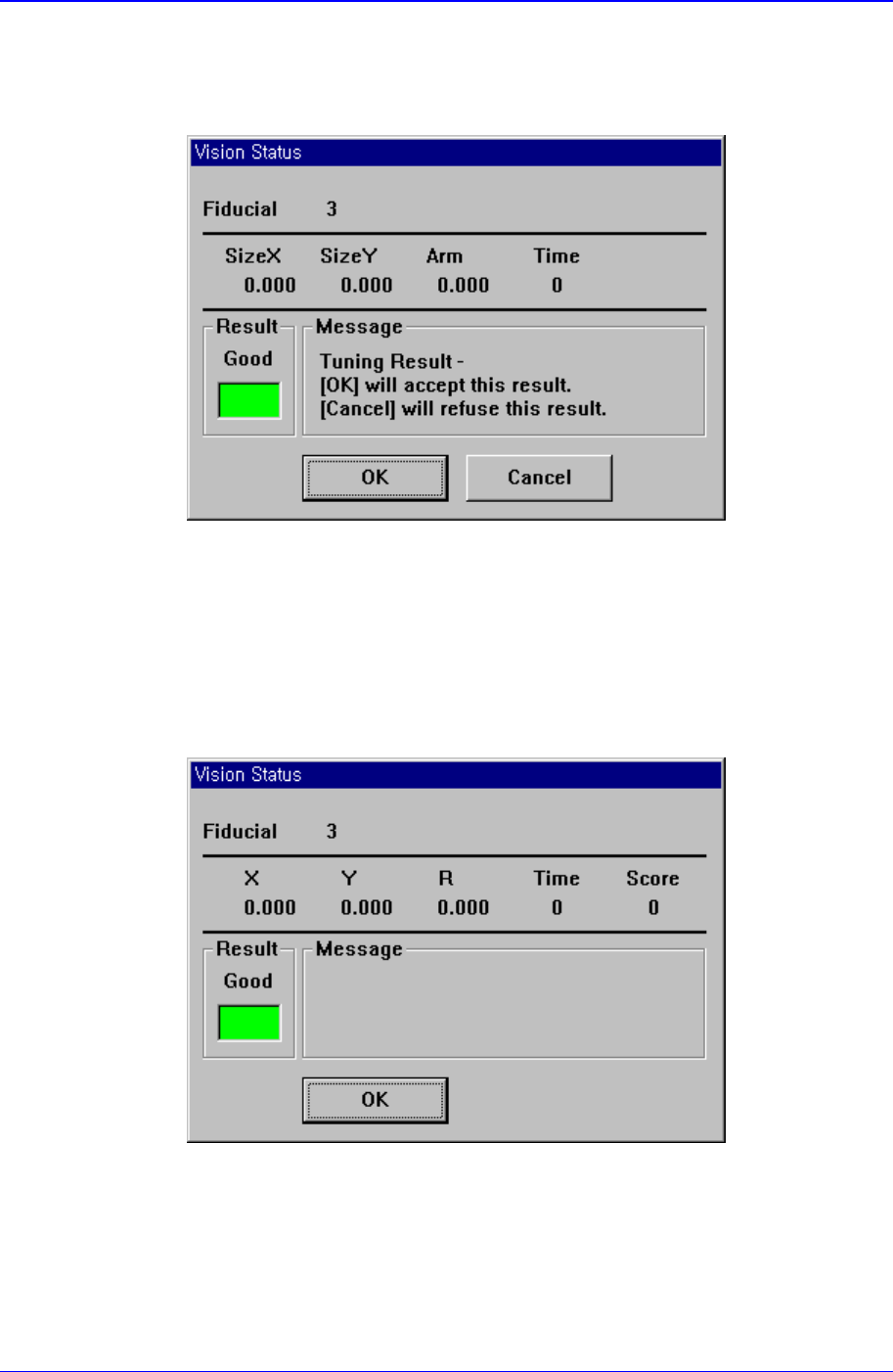
By using the registered mark information, tests the mark.. The accuracy of the
registered mark data can be verified. When the test is successful, the following
message box is displayed.
PCB Edit Command
11-17
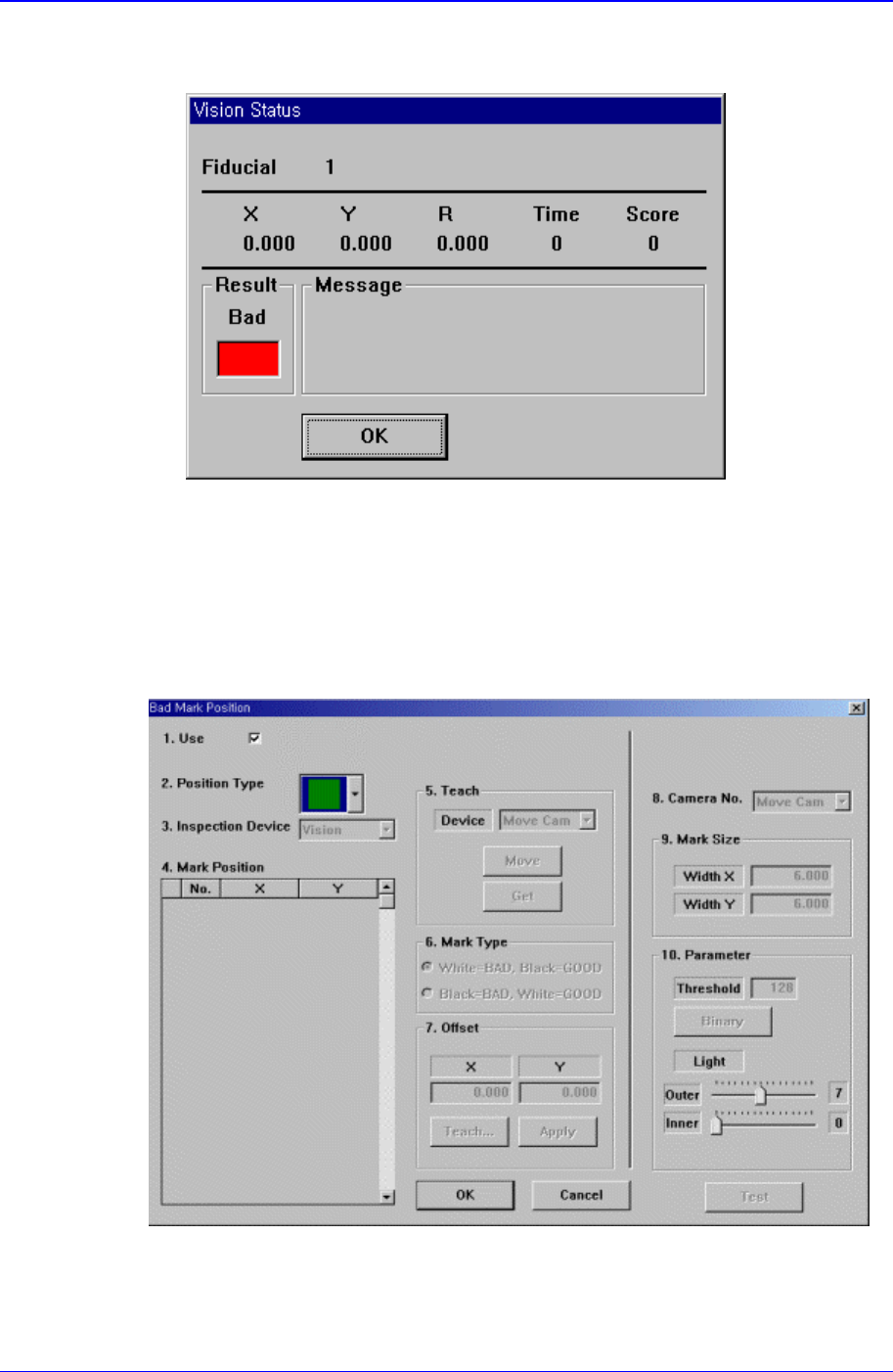
When the test is not successful, the following message box is displayed.
<Repeat…> button
It is not explained here as it is displayed in the debug mode only.
<Bad Mark…> button
A bad mark is a mark that identifies whether the loaded PCB is good or bad. The
PCB marked as bad is not operated. When this button is clicked on, the following
dialog box to edit bad mark data is displayed.
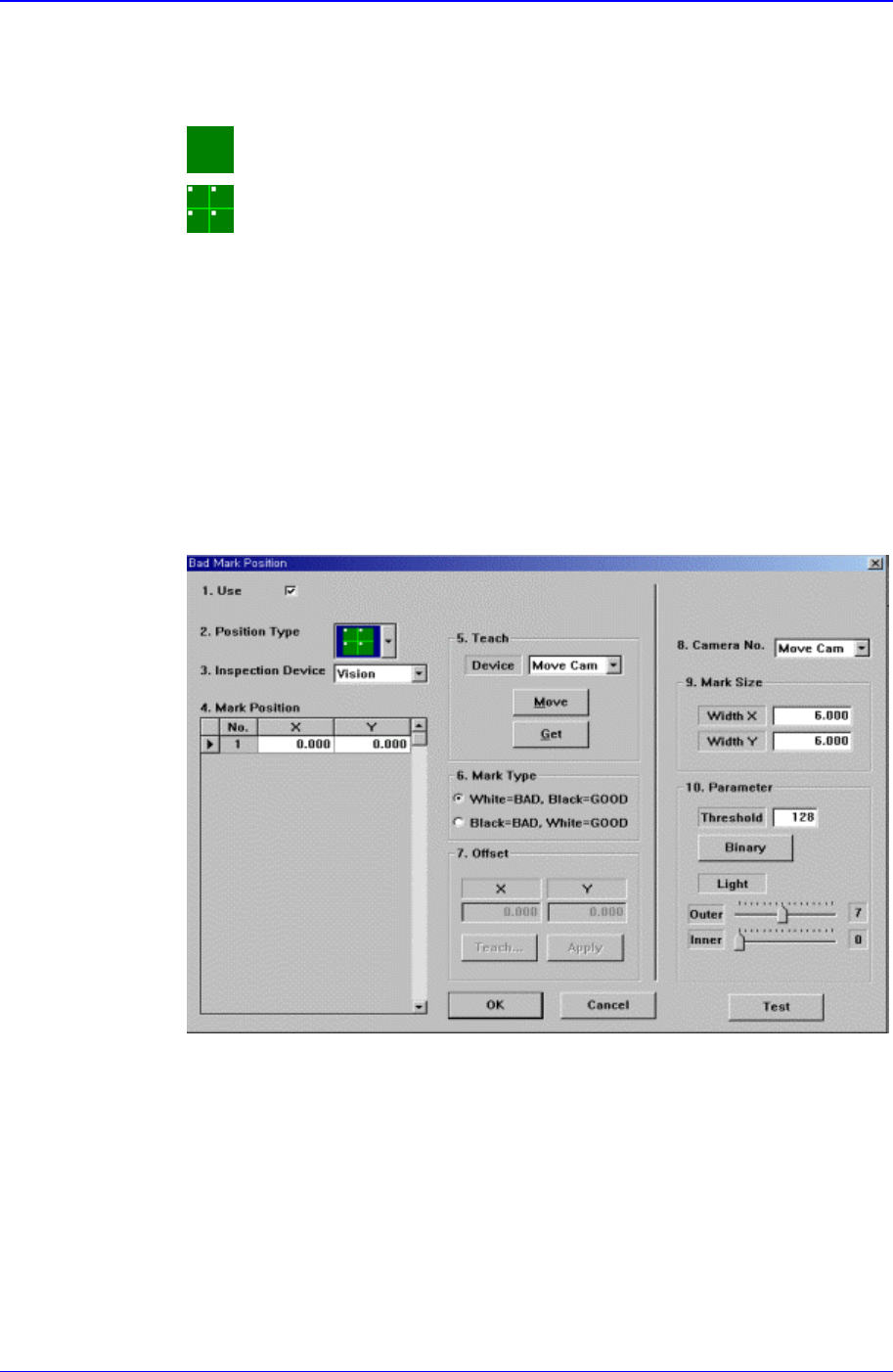
Figure 11-14. “Bad Mark Position” dialog box(When the Position Type is “None”)
<1.Use> check box
Samsung Component Placer CP-45F(V)/FS Operations Manual
11-18
Use it to select or check the use of bad mark.
<2. Position Type> combo box
Select the position of bad mark. Available positions of bad marks are as follows.
None: No bad mark.
Array: 1 bad mark in each array PCB.
<3. Inspection Device> combo box
Select the device for bad mark inspection. Available devices are as follows.
Vision: Recognizes with the move camera in the head block.
<4. Mark Position> group
When <Position Type> is not “None”, data is generated according to the selected
<Position Type>. The number of data generated is as follows.
When the <Position Type> is “Array”: 1
When the <Position Type> is “Panel”: The number of Array PCBs
For example, when “Array” is selected in <Position Type>, the following dialog
box is displayed. (When the number of Array PCBs is 4)
Figure 11-15. “Bad Mark Position” dialog box(When the Position Type is “Panel”)
<No> column
A serial number of bad mark data.
<X> column
The X position value of the bad mark.
<Y> column
The Y position value of the bad mark.
<5. Teach> group
Used to move the XY axis of the equipment to the specified position or to read in