operation-cp45.pdf - 第267页
Utility Command 13-1 Chapter 13. Utility Command The utility command is composed of 6 submenus: Print , Production Information, Copy Between PCB Files, File Manager , Bypass, and W armup . This command provides convenien…

Samsung Component Placer CP-45F(V)/FS Operations Manual
12-12
Displays the production a.
<Bad Mark Skipped PCB Count>
Displays the total number of PCBs skipped because of bad mark indication.
<PCB In Count used for In-Line>
Displays the total number of PCBs loaded on the equipment.
<Fiducial Skip Count>
Displays the total number of PCBs for which the fiducial mark inspection have
been skipped.
<Part Count>
Displays the total number of components placed.
Utility Command
13-1
Chapter 13. Utility Command
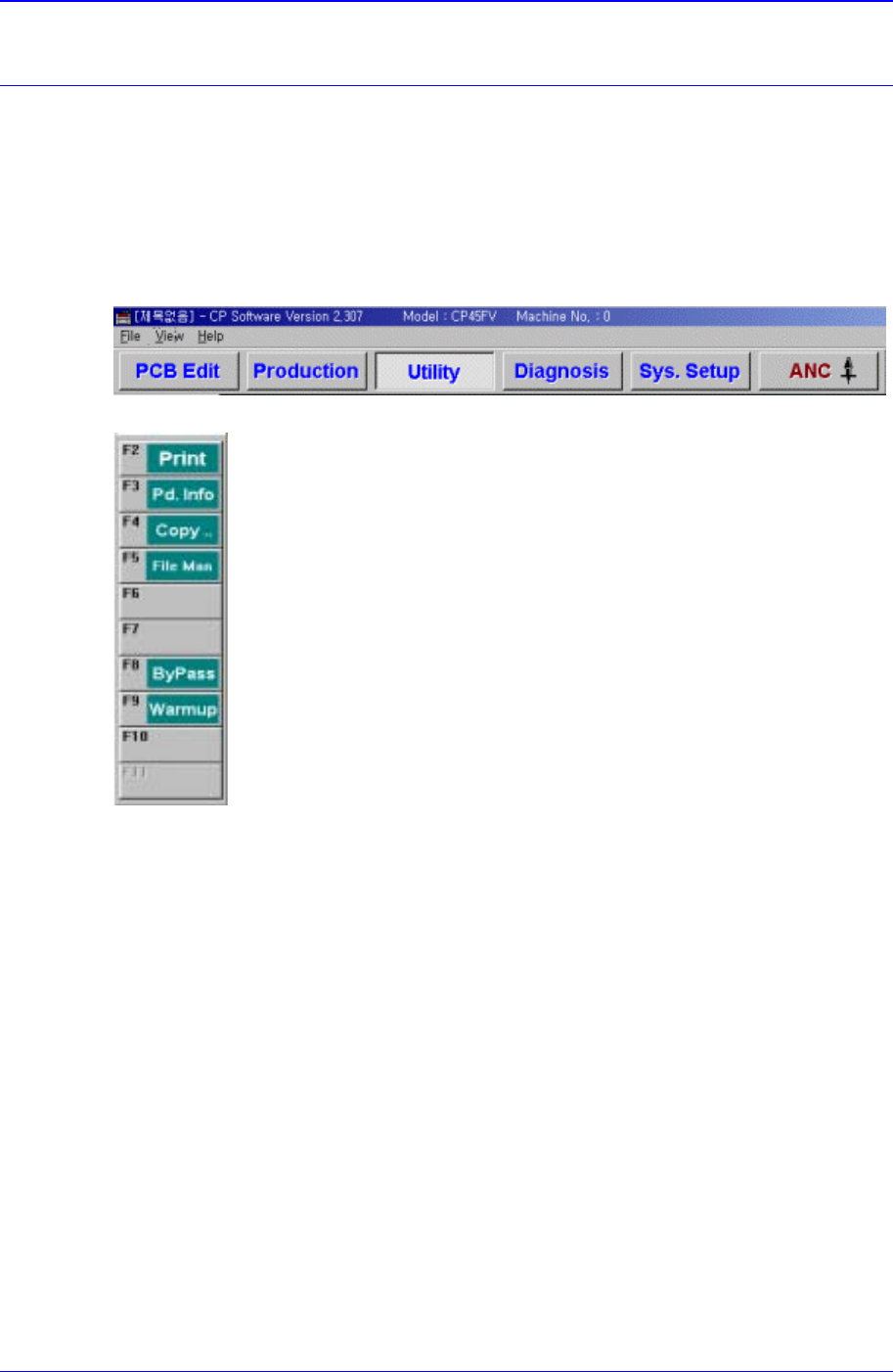
The utility command is composed of 6 submenus: Print, Production Information, Copy
Between PCB Files, File Manager, Bypass, and Warmup.
This command provides convenience of operation and provides product information
when the machine is started.
When a submenu of the <Utility> command is selected, the corresponding dialog box is
displayed on the screen. While the dialog box corresponding to the submenu is displayed,
selecting the menu again activates the corresponding dialog box.
Figure 13-1. When the Utility command is selected
Figure 13-2. Submenus of the Utility command
13.1. Print... [F2]
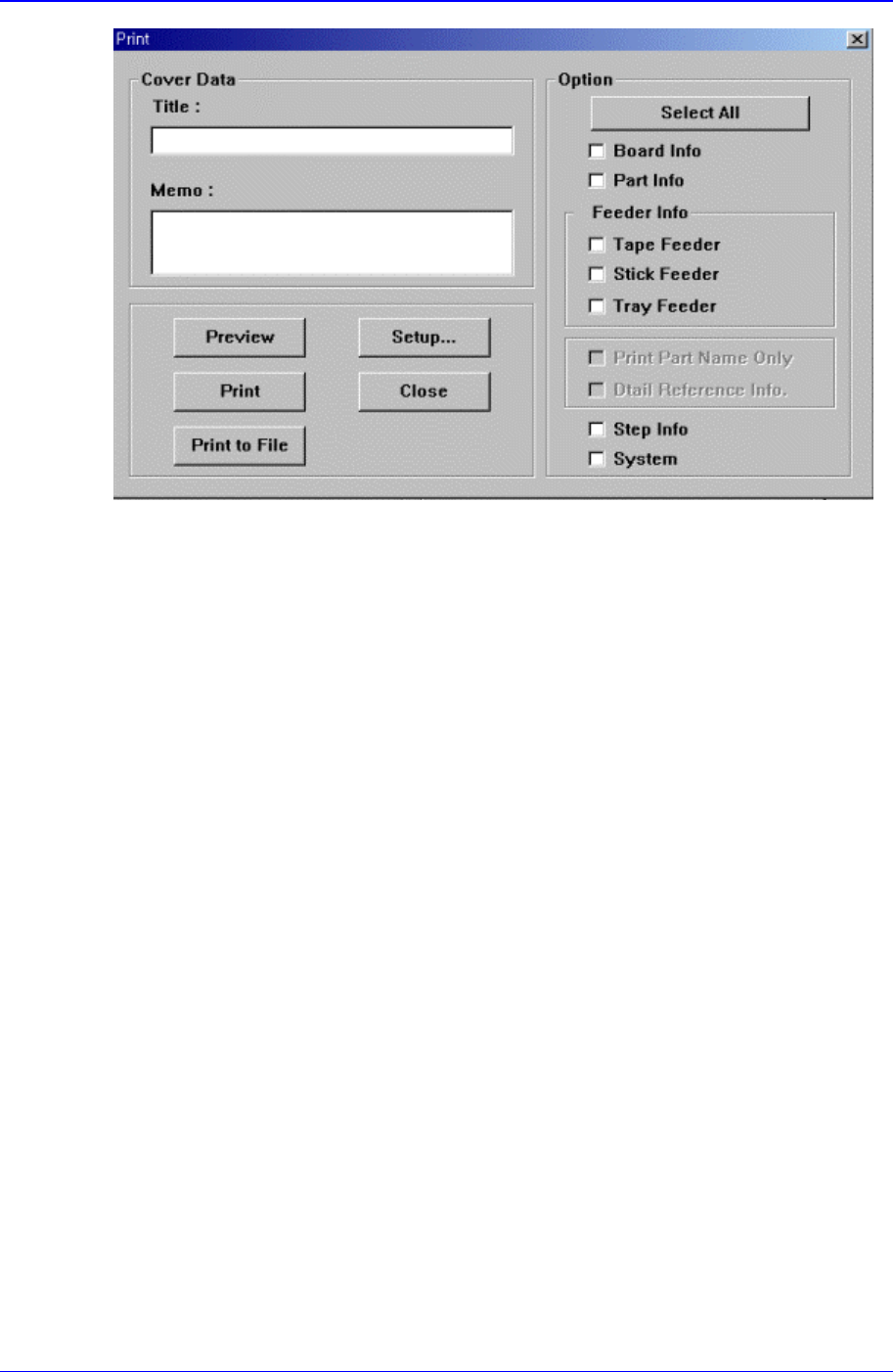
The <Print...> command is used to print PCB files. When this command is selected, the
following dialog box is displayed.
Samsung Component Placer CP-45F(V)/FS Operations Manual
13-2
Figure 13-3. “Print “ dialog box
<Cover Data> group
Used to enter necessary information when a cover for the output is wanted. Enter the
title of the output in the “Title” edit box, and enter a short message to be displayed on
the cover in the “Memo” edit box.
<Option> check box group
<Board Info.>check box
Select the information on PCB Boards.
<Part Info.> check box
Select the information on components.
<Feeder Info> check box
Select the information on the feeder to print.
<Step Info.>check box
Select the information on operation sequence.
<System>check box
Select the information on the system parameter of the equipment.
<Preview> button
Displays the content to be printed on the screen first.
<Setup…> button
Sets the printer.
<Print> button
Prints the checked content and closes the “Print “ dialog box.
<Cancel> button
Cancels the execution of <Print> command and closes the “Print “ dialog box.