operation-cp45.pdf - 第307页
Sys.Setup Command 15-21 Lowers the Z axis of the h ead selected in the Device. <No real motion> check box Determines whether to really execute the nozzle pick/put motion or to manipulate the data only. When it is…

Samsung Component Placer CP-45F(V)/FS Operations Manual
15-20
<Fly Camera Offset> button
Calibrates the offset of the fly camera.
<Head Offset> button
Calibrates the offset of the head.
<Camera Offset> button
Calibrates the offset of the fix camera.
<Mark Dia (Sheet)> edit box
Set the diameter of the calibration tool for the move camera.
<Tool Mark Dia> edit box
Set the diameter of the calibration tool for the fix camera.
<Tool Height> edit box
Set the length of the calibration tool.
<White Mark> check box
In the case of white mark, check it.
<Score> edit box
Set the recognition value to recognize the calibration tool.
<Move Length Head Cam> edit box
Set the distance to move the calibration tool for the move camera.
<Move Length Fix Cam> edit box
Set the distance to move the calibration tool for the fix camera.
<BUT Up/Downl> button
Moves up/down the BUT(Back Up Table).
<Download cam. info> button
Downloads the camera data to the equipment.
<Move to home pos.> button
Moves the device selected in <Device> to Home.
<Mirror open / close> button
Opens or closes the mirror.
<Device> combo box
Select the XY and Z axes.
Move Cam: Selects Teaching Camera.
Head1: Selects Head1.
Head2: Selects Head2.
Head3: Selects Head3.
Head4: Selects Head4.
Head5: Selects Head5.
Head6: Selects Head6.
<Move to fix 1 Cam.> button
Moves the device selected in the Device to the position of the fix camera.
<Z axis Up/Down> button
Sys.Setup Command
15-21
Lowers the Z axis of the head selected in the Device.
<No real motion> check box
Determines whether to really execute the nozzle pick/put motion or to manipulate
the data only. When it is checked, only the data is manipulated.
<Put all nozzle> button
Puts all nozzles in the head.
<Put> button
Puts the nozzle in the head selected in the Device.
<Pick> button
Picks the calibration tool with the head selected in the Device.
<Update> button
Saves the set data and closes the screen.
<Cancel> button
Ignores the set data and closes the screen.
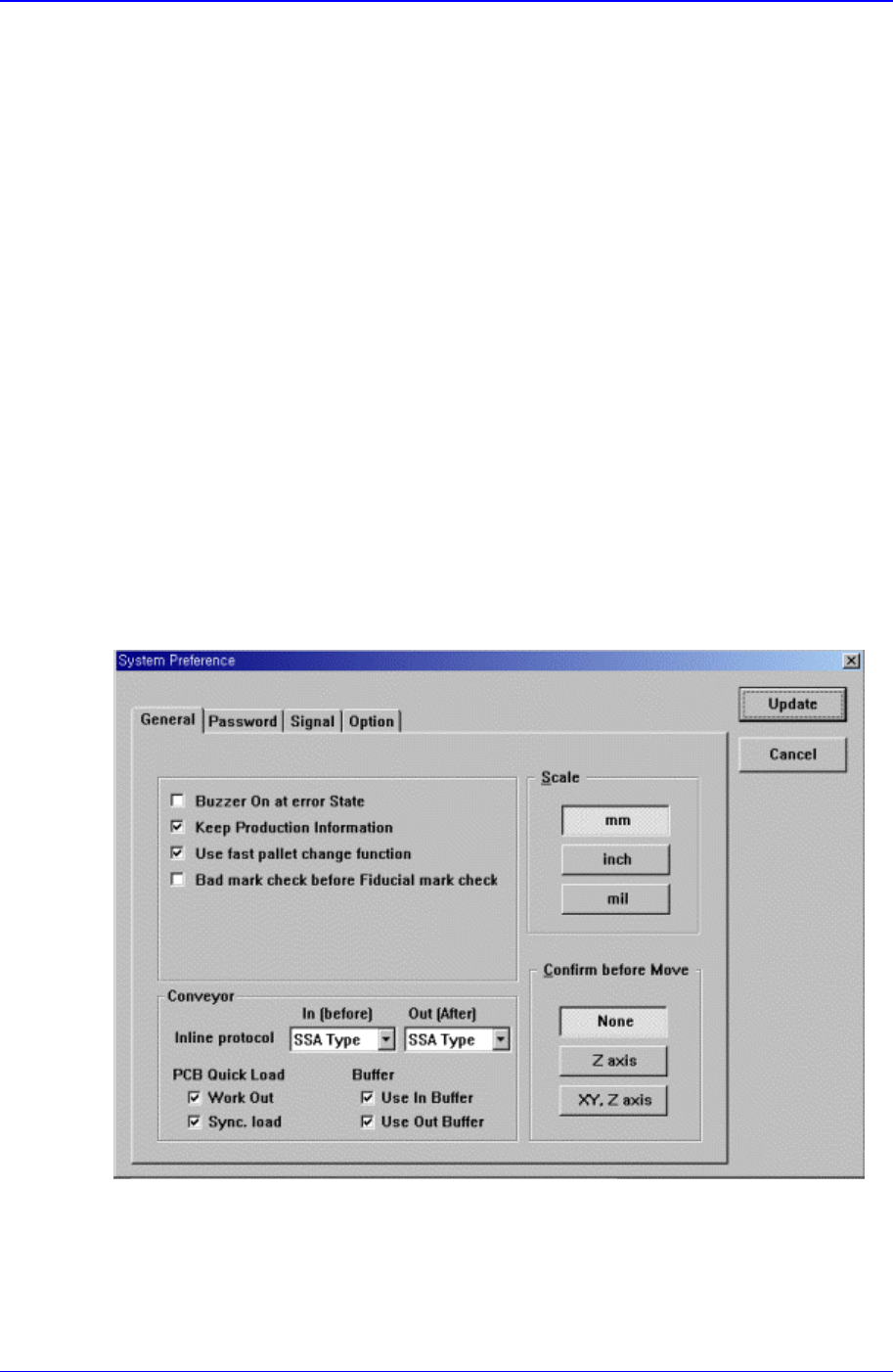
15.9. Pref. [F9]
Sets various options needed for equipment operation.
When this button is clicked on, the following dialog box is displayed.
Figure 15-11. “Sys. Setup : System Preference - General” dialog box
<General> option button
Sets various options used in the MMI program.
<Skip the erroneous Component> check box
If this button is checked, when a component fails to be picked up during

Samsung Component Placer CP-45F(V)/FS Operations Manual
15-22
placement, skips the corresponding component, and place it again after all the
rest placement operation is completed.
<Buzzer On at error State> check box
If this button is checked, when an error occurs while a function is being
performed in the equipment, a buzzer rings.
<Keep Production Information> check box
When this button is checked, manages the production management information.
<Use fast pallet change function> check box
여러 Pallet 의 부품으로 장착작업을 할 경우 하나의 Pallet 에서 부품을
흡착한 후 Vision fail 이 나지 않으면 다음 Pallet 를 작업위치에 미리 대
기 시킵니다.
<Bad mark check before Fiducial mark check> check box
If this button is checked, executes bad mark check before fiducial mark check
when the PCB is loaded.
<Palette return after vision inspection> check box
When this button is checked, during tray operation, the palette returns after
vision inspection.
<Load Previous Work PCB data at start up> check box
If this button is checked, when the equipment is turned on, transmits the previous
operation PCB data to the equipment automatically and prepares for operation..
<Auto Search Run> check box
If this button is checked, when a component fails to be recognized during
placement, creates the component data automatically.
<Conveyor – Inline protocol> combo box
For the equipment line operation, select the protocol. Available protocols are as
follows.
<Inline protocol> combo box
Stand alone: Runs the equipment independently without performing line
operation.
SSA Type: For the line operation, uses the protocol specified by this
equipment manufacturer as the communication protocol between the front
and rear equipment.
SMEMA: For the line operation, uses SMEMA protocol as the
communication protocol between the front and rear equipment.
< PCB Quick Load > check box
<Work Out> : when this button is checked, release the PCB quickly.
<Sync. load> : when this button is checked, a PCB is in the working area at
the same time as the PCB finished placement is release from the working
area.
<Conveyor – PCB Quick Load Back Up Table> check box
When this button is checked, the Backup Table is up quickly after the PCB is in
the woking area.
<Scale> option button group
<mm> option button: when this button is selected, the scales on all screens