operation-cp45.pdf - 第301页
Sys.Setup Command 15-15 Wa r n i n g Operation error caused by unauthorized or untrained personnel or insufficient checking before calibration could severely damage the machine or the set up data, or it could cause perso…
Samsung Component Placer CP-45F(V)/FS Operations Manual
15-14
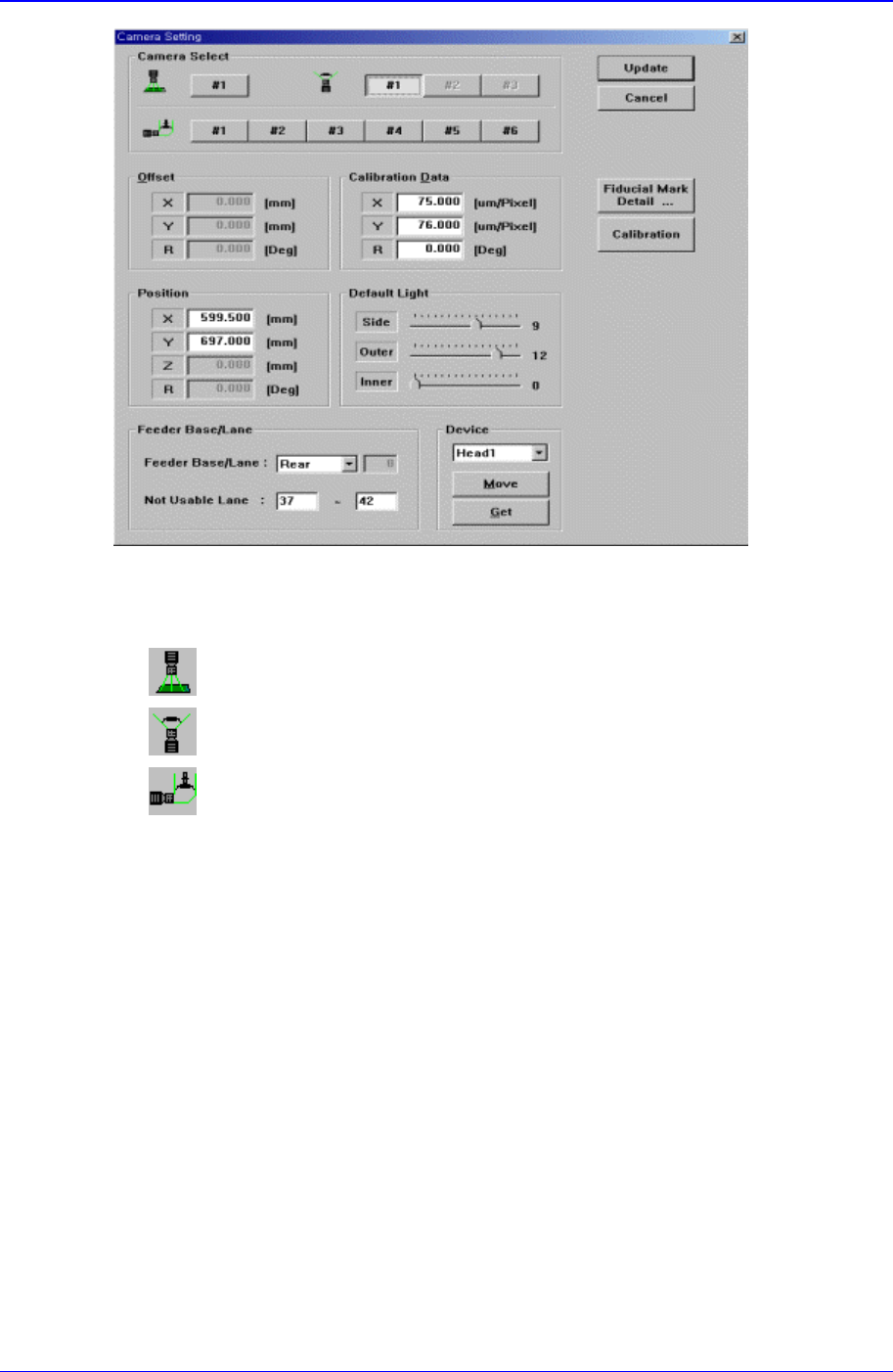
Figure 15-10. “Sys. Setup : Camera Setting – Move Camera” dialog box
<Select> combo box
Select the camera type to set. Available camera types are as follows.
Move Camera : Camera used for position teaching or fiducial mark check.
Fix Camera : Camera used for component check, it is fixed on the feeder lane.
Fly Camera : Camera used for component check, it is attached to each head.
<Camera No> option button
Selects the camera number for each camera type.
For the move camera, no.1, for the fix camera, nos. 1-3, and for the fly camera nos.1-
6 can be selected.
Above screen is the case where the camera type is set to “Move Camera”.
Sys.Setup Command
15-15
Warning
Operation error caused by unauthorized or untrained
personnel or insufficient checking before calibration
could severely damage the machine
or the set up data, or it could cause personal injury of
the operator or the worker near the machine.
Before carrying out calibration, check the item to be
calibrated and check if there is any worker near the
machine.
And calibration must be carried out by an authorized
and trained user only.
Samsung Component Placer CP-45F(V)/FS Operations Manual
15-16
<Calibration Data> group
Set the camera calibration data. It can be set directly or by using the calibration
function.
<X> edit box
Set the resolution of the camera in X direction. The unit used is the number of
pixels per mm.
<Y> edit box
Set the resolution of the camera in Y direction. The unit is the number of pixels
per mm.
<R> edit box
Set the resolution of the camera in R direction. The unit is degree.
<Offset> group
Set the camera offset data.
<X> edit box
Set the offset value of the camera in X direction.
<Y> edit box
Set the offset value of the camera in Y direction.
<R> edit box
Set the offset value of the camera in R direction.
<Default Light> group
Set the default light value.
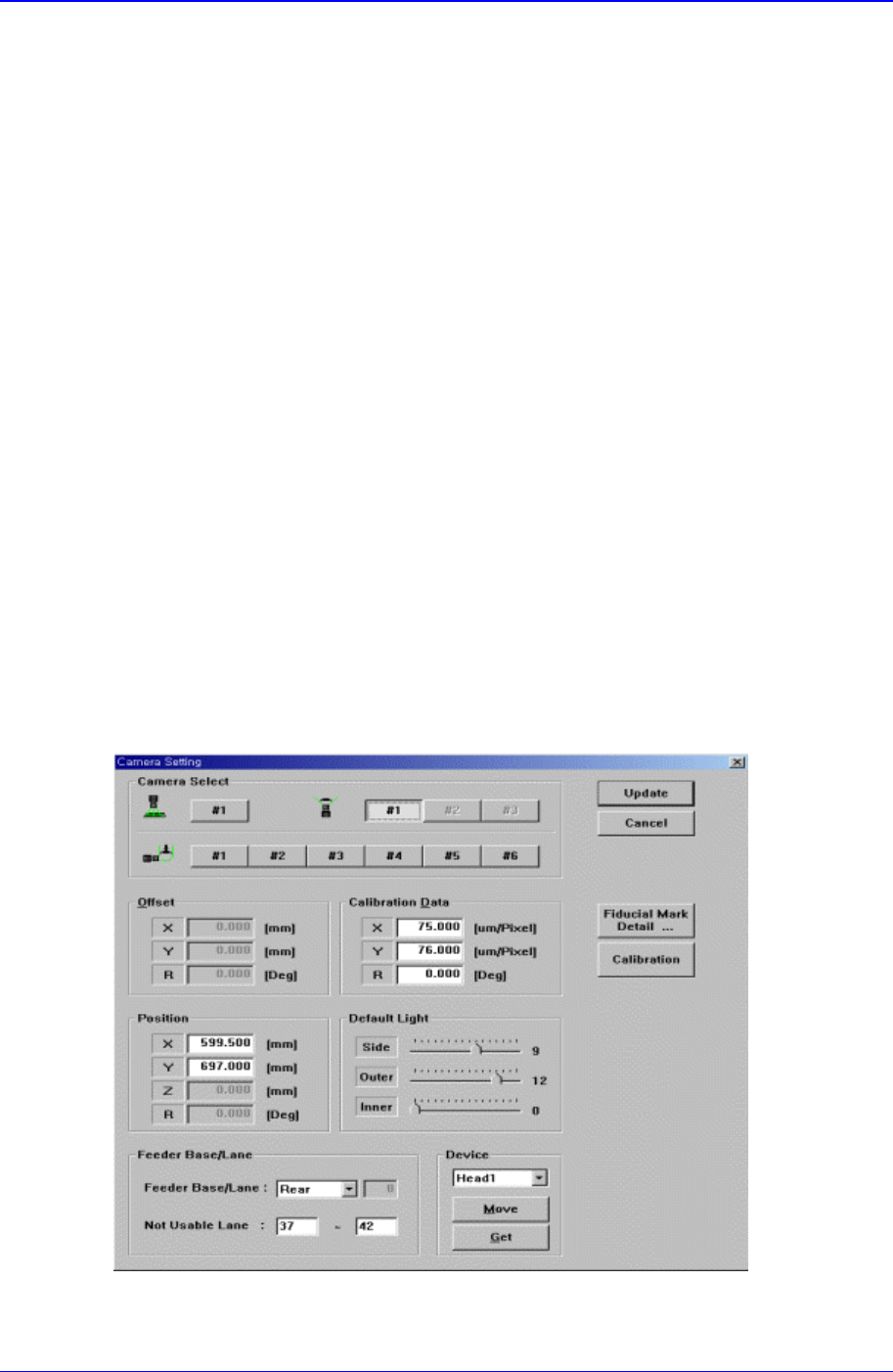
Next screen is the case where the camera type is set to “Fix Camera”.
<Calibration Data> group
Set the camera calibration data. It can be set directly or by using the calibration