operation-cp45.pdf - 第241页
PCB Edit Command 1 1-87 Figur e 1 1-53. “ Tr a y U n i t ” dialog box <Unit> group Select the tray unit to edit. button selects the previous unit, button selects the next unit. <Unit T ype> Displays the t…
Samsung Component Placer CP-45F(V)/FS Operations Manual
11-86
Displays the feeder base where the corresponding stick unit is installed currently.
The numbers displayed are as follows.
0: Not installed on any feeder base.
1: Installed on Feeder Base(Front Feeder Base)1.
2: Installed on Feeder Base(Rear Feeder Base)2.
<Slot No.>
Displays the slot number of the feeder base where the corresponding stick unit is
installed currently. The numbers displayed are as follows.
0: Not installed in any slot.
1 - 52: Installed in the corresponding number slot.
<Change…> button
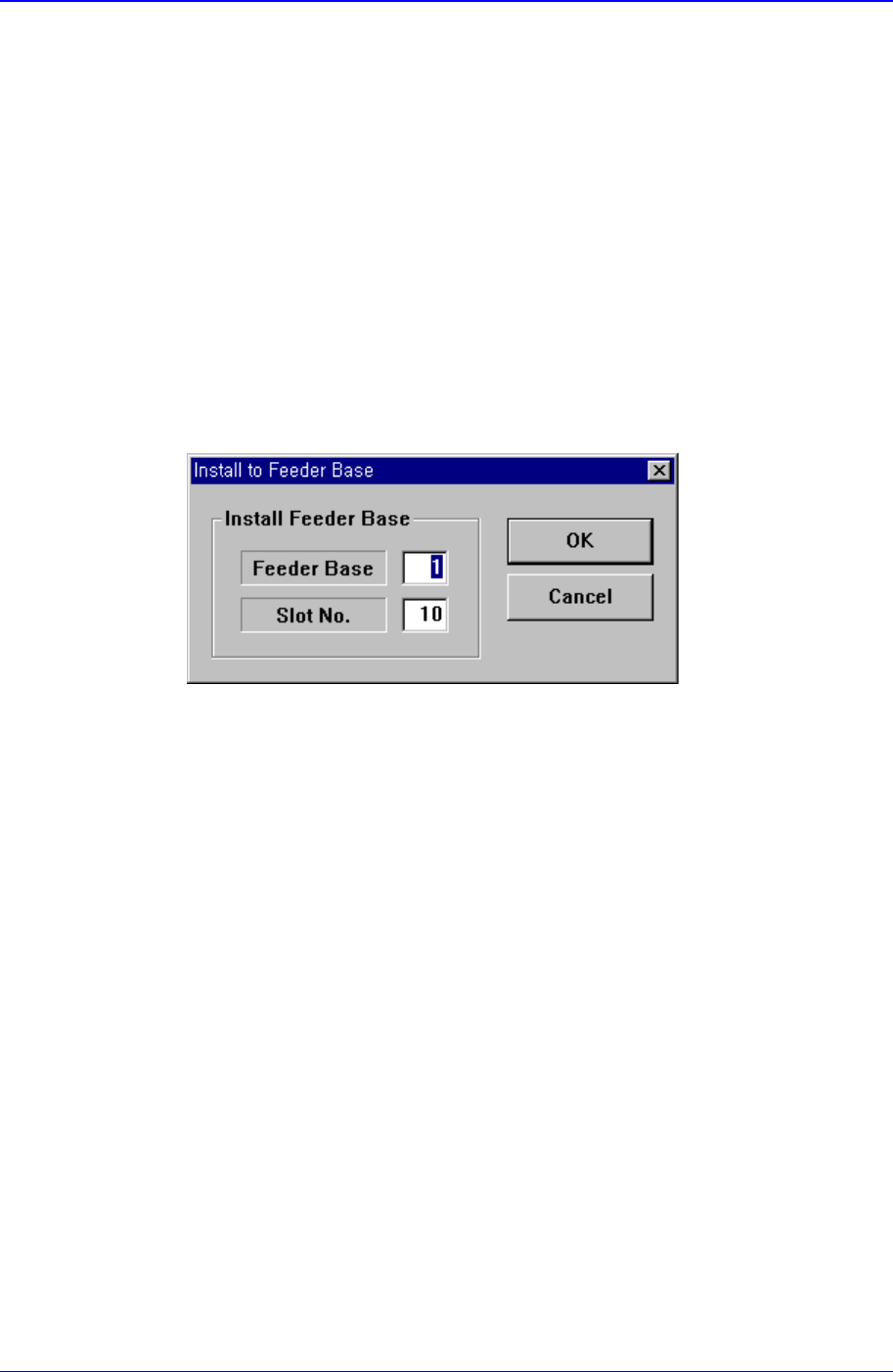
In the case of installing stick unit to the feeder base, change the feeder base unit
and slot number to install. When this button is clicked on, the following dialog
box is displayed.
<Install Feeder Base> group
Feeder Base
Displays the feeder base where the corresponding stick unit is installed
currently. The numbers displayed are as follows.
0: Not installed on any feeder base.
1: Installed on Feeder Base(Front Feeder Base)1.
2: Installed on Feeder Base(Rear Feeder Base)2.
Slot No.
Displays the slot number of the feeder base where the corresponding stick
unit is installed currently. The numbers displayed are as follows.
0: Not installed on any slot.
1 - 52: Installed in the corresponding number slot.
11.2.3. Tray Feeder
Set various data for tray feeders.
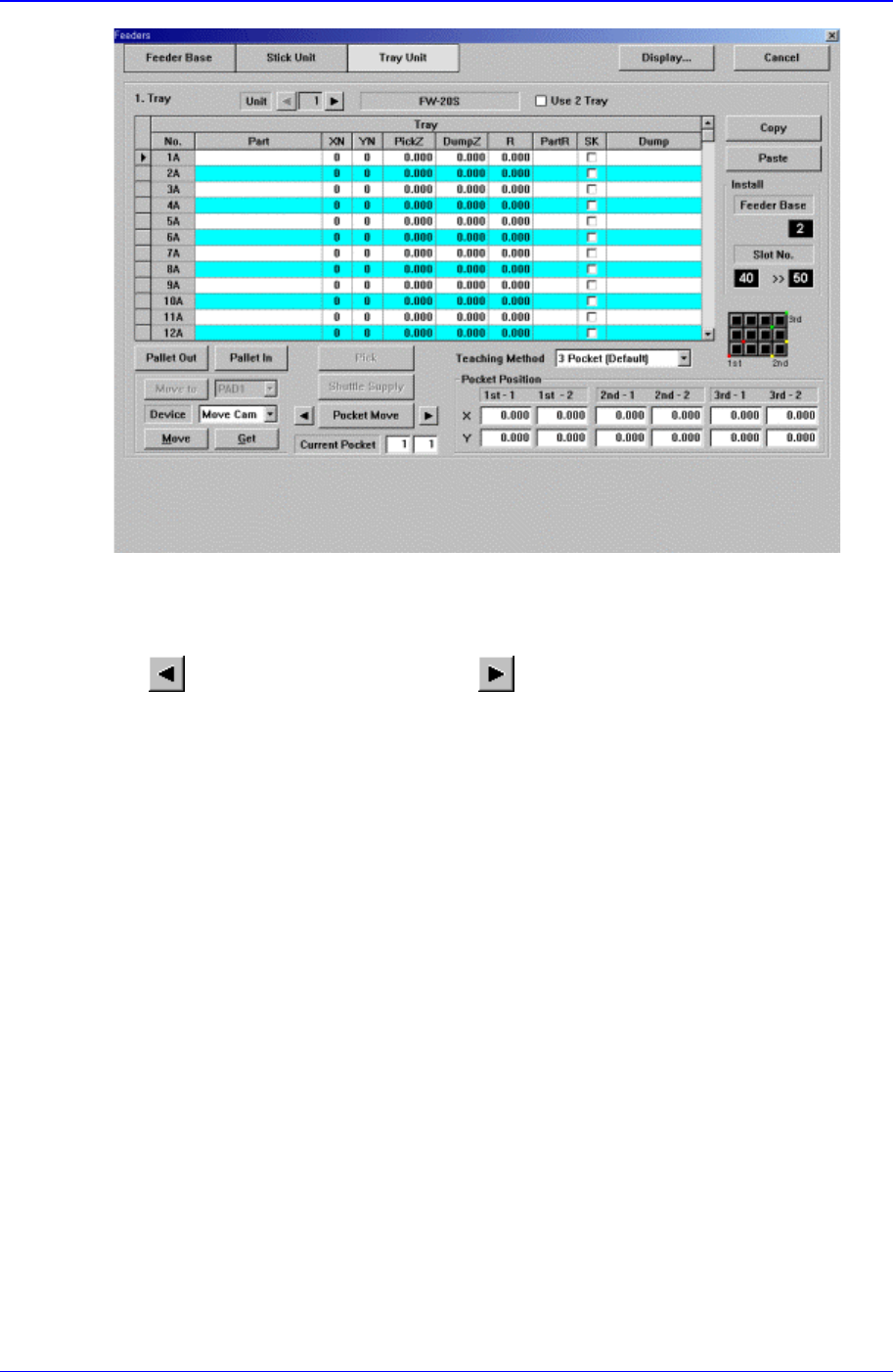
When “Tray Unit” is selected, the initial screen looks as follows.
PCB Edit Command
11-87
Figure 11-53. “Tray Unit” dialog box
<Unit> group
Select the tray unit to edit.
button selects the previous unit, button selects the next unit.
<Unit Type>
Displays the type of selected tray unit. The type of the corresponding tray unit should
be set in the system.
<Use 2 Tray> check box
Select whether to use 2 plate Tray.
To use 2 Tray, check the check box, and not to use 2 plate Tray, do not check the
check box.
<Tray> group
Create and edit data according to the type of the corresponding tray. The above dialog
box is the dialog box displayed when <Type> is set to “Single”.
<No> column
A serial number of the tray unit tray. Basically, “Single” has 5, “FW-20F” and
“FW-20S” have 20 trays.
<Part> column
Samsung Component Placer CP-45F(V)/FS Operations Manual
11-88
Select the part to install on the corresponding tray. When the<Part> column is
clicked on, a combo box appears, and among the components registered in <1.2
Part>, a list of components to be supplied to “Tray” are displayed. Next is the
screen that shows component selection in the combo box of <Part> column.
<XN> column
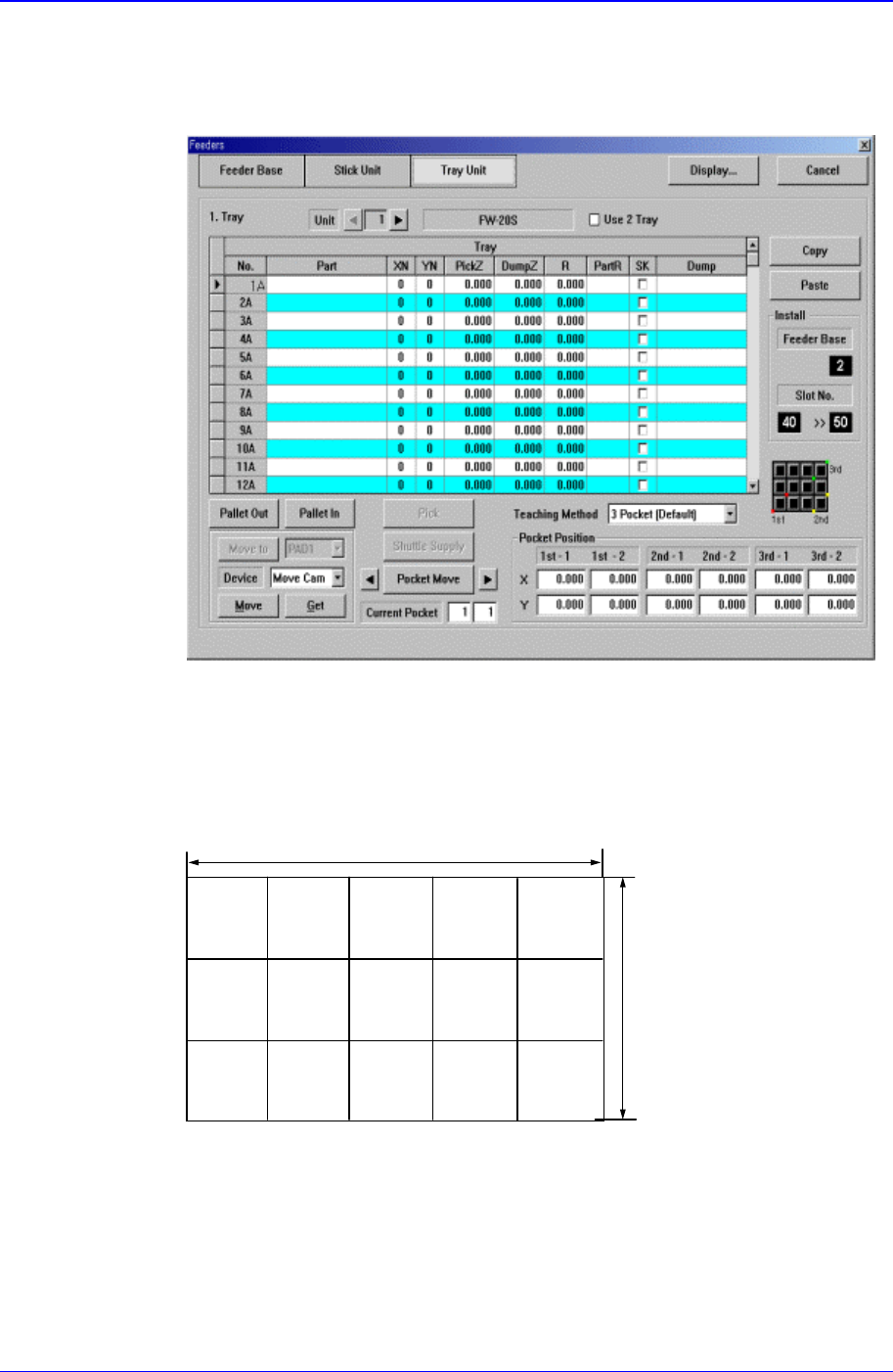
Set the number of components arranged on the tray in X direction.
<YN> column
Set the number of components arranged on the tray in Y direction.
XN=5
YN=3
<PickZ> column
When a tray feeder is installed on the corresponding tray, set the Z position to
pick up the component supplied from the tray feeder.
<DumpZ> column