operation-cp45.pdf - 第221页
PCB Edit Command 1 1-67 Restrictions Adjacent lead groups cannot overlap. In v alid. B ec a u s e the tw o lea d groups a re overl appe d. One lead group uses one lead parameter . In other words, a lead group should …

Samsung Component Placer CP-45F(V)/FS Operations Manual
11-66
Set the first empty lead in the lead group.
As many leads as the number of miss are missing.
<Gap2 Start> column
Set the second empty lead in the lead group.
There are no leads after the lead on the starting number.
<Gap2 Miss> column
Set the second empty lead in the lead group.
As many leads as the number of miss are missing.
<Gap3 Start> column
Set the third empty lead in the lead group.
There are no leads after the lead on the starting number.
<Gap3 Miss> column
Set the third empty lead in the lead group.
As many leads as the number of miss are missing.
<Gap4 Start> column
Set the fourth empty lead in the lead group.
There are no leads after the lead on the starting number.
<Gap4 Miss> column
Set the fourth empty lead in the lead group.
As many leads as the number of miss are missing.
<Outline> button
Displays the outline of the component on the vision monitor by using the set align
data.
PCB Edit Command
11-67
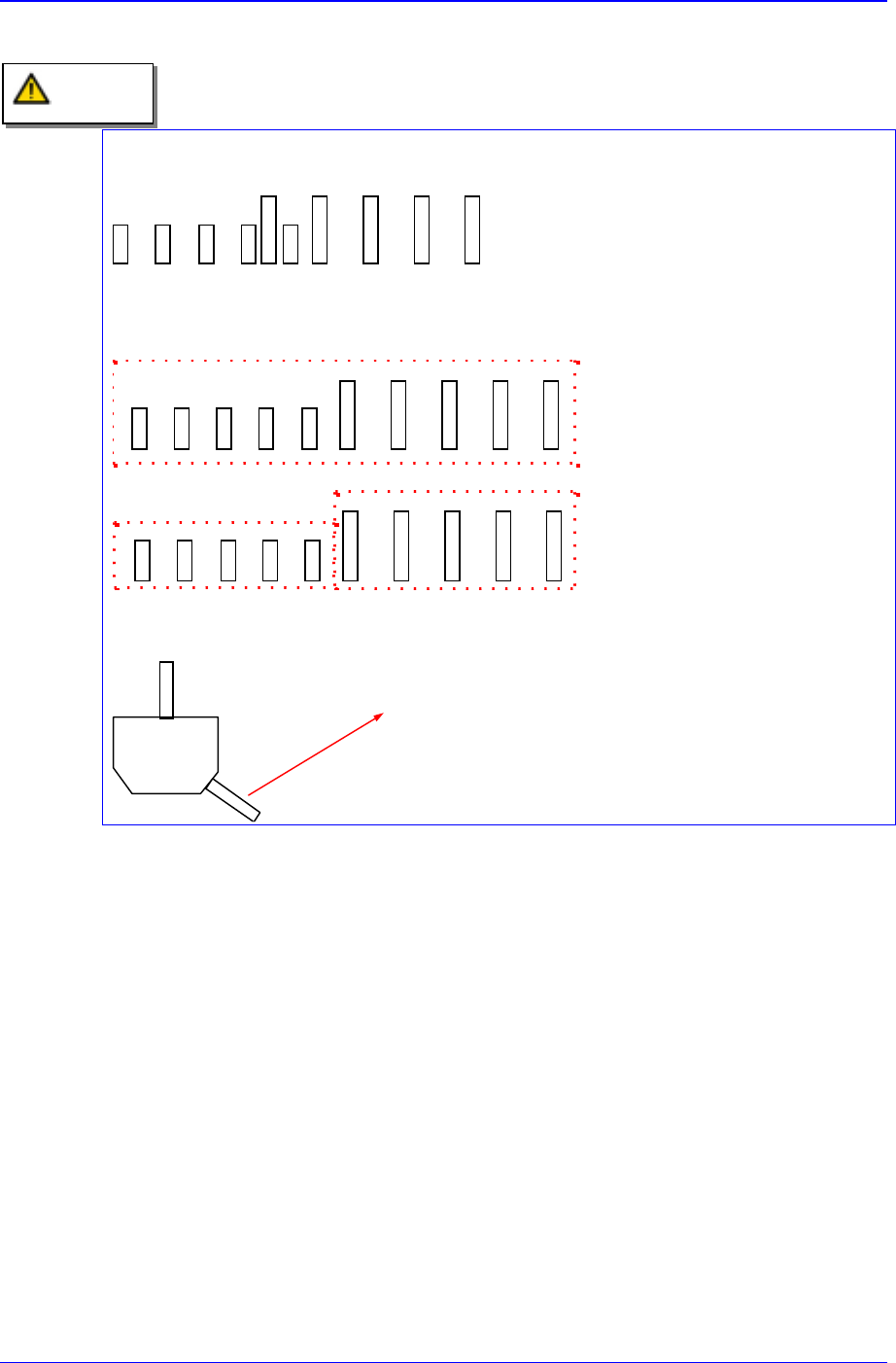
Restrictions
Adjacent lead groups cannot overlap.
Invalid. Because the two lead
groups are overlapped.
One lead group uses one lead parameter. In other words, a lead group should only
contain leads of the same type.
This lead group cannot be
registered as single lead group
because the lead parameters are
different.
These lead groups are registered
as separate lead group because
the lead parameters are different.
Leads groups are placed only at right angle directions.
In this case, this pin cannot be a lead.
Caution
Samsung Component Placer CP-45F(V)/FS Operations Manual
11-68
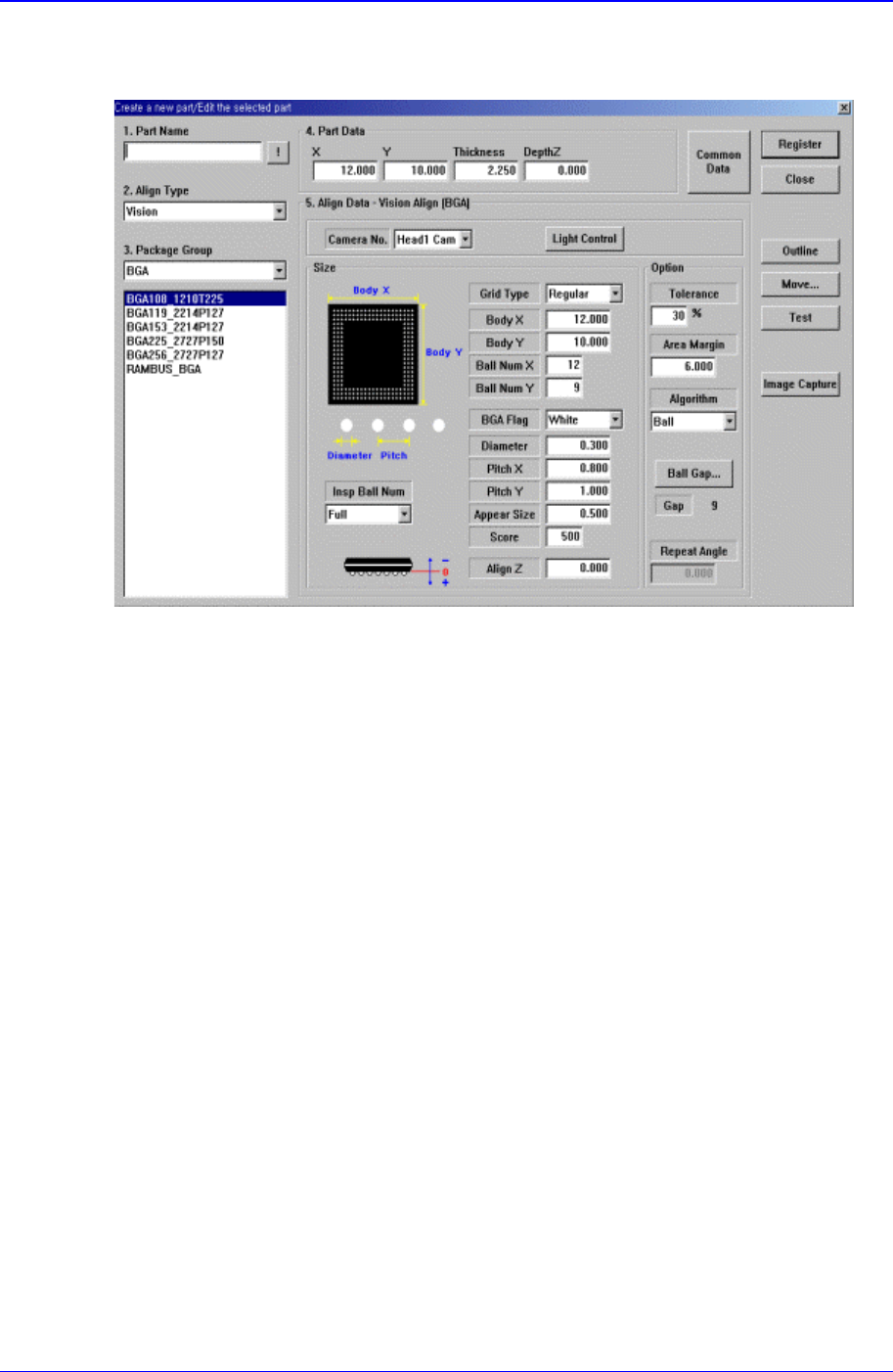
11.1.16. BGA component data setting
Set the align data for BGA components.
Figure 11-43. “Align Type = Vision, Package Group = BGA” dialog box
<Camera No.> combo box
Select the camera to recognize the component.
<Light Control> button
Set the light for the camera to recognize the component.
<Size> group
Set the align size.
<Grid Type> combo box