operation-cp45.pdf - 第203页
PCB Edit Command 1 1-49 Figur e 1 1-32 “ Align T ype = V ision, Package Gr oup = SOP ” di alog box <Camera No.> combo box Select the camera to recognize the component. <Light Control> button Select the li…

Samsung Component Placer CP-45F(V)/FS Operations Manual
11-48
Displays the binary image of the component on the vision monitor screen.
<Option> group
Set the align option data.
<Tolerance H> edit box
Set the highest tolerance for component recognition with a percentage.
<Tolerance L> edit box
Set the lowest tolerance for component recognition with a percentage.
<Algorithm Rough Check> check box
Check it to recognize roughly for component recognition.
<Offset X> edit box
Set the X offset value to be added when the component is placed (After the
component is recognized, it is the value added after the component placement
point adjustment)
<Offset Y> edit box
Set the Y offset value to be added when the component is placed (After the
component is recognized, it is the value added after the component placement
point adjustment.)
<Offset R> edit box
Set the R offset value added when the component is placed (After the component
is recognized, it is the value added after the component placement point is
adjustment.)
<Outline> button
Displays the outline of the component on the vision monitor by using the set align
data.
<Move…> button
Performs component pickups or moves to the fix camera.
<Test> button
Tests component recognition by using the set align data.
11.1.6. Hemt component data setting
Set the align data for Hemt components.
Please refer to “Setting User IC component data”.
11.1.7. SOP component data setting
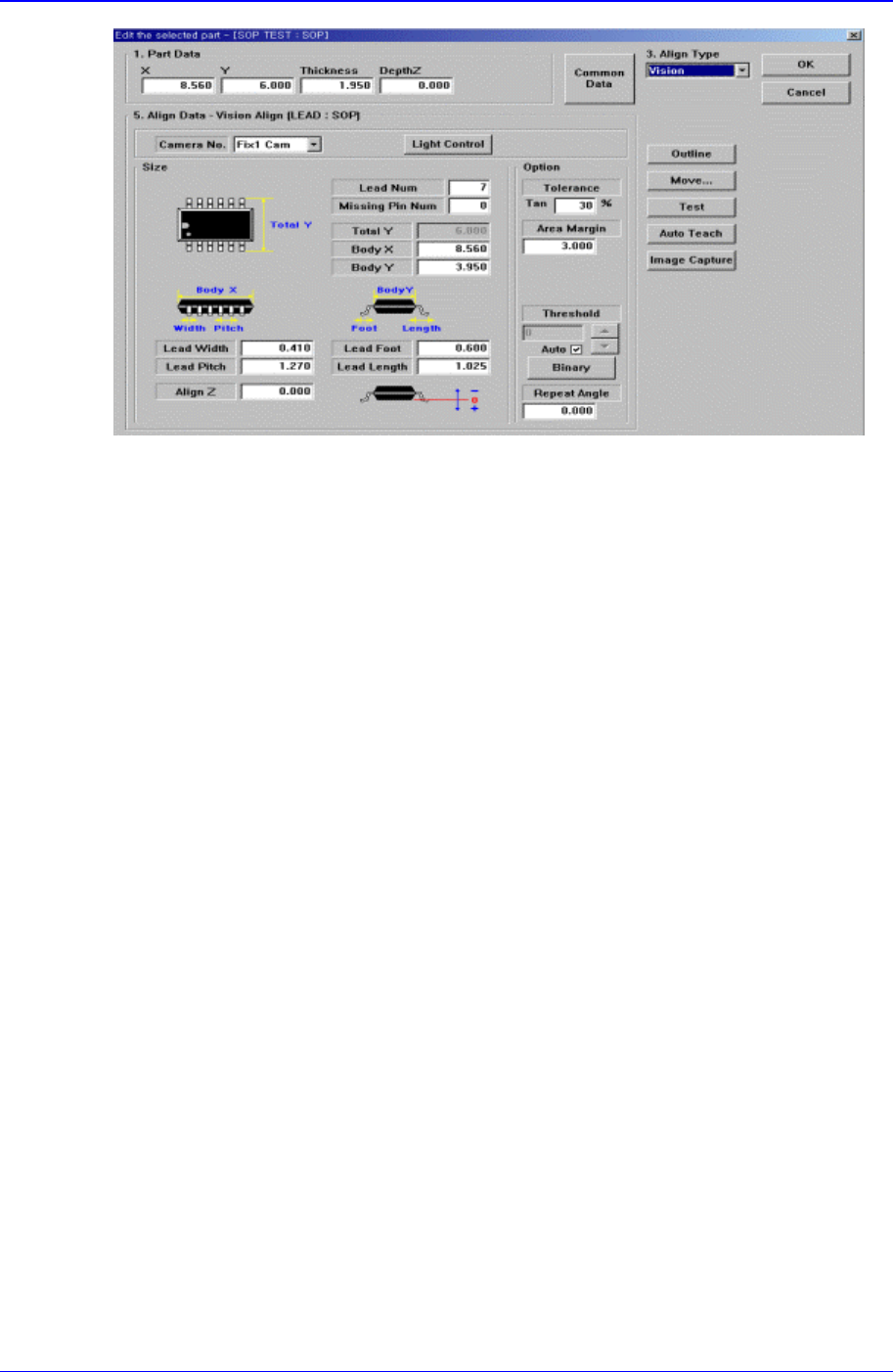
Set the align data for SOP components.
PCB Edit Command
11-49
Figure 11-32 “Align Type = Vision, Package Group = SOP” dialog box
<Camera No.> combo box
Select the camera to recognize the component.
<Light Control> button
Select the light for the camera to recognize the component.
<Size> group
Set the align size.
<Lead Num> edit box
Set the number of leads on a side.
<Missing Pin Num> edit box
Set the number of empty leads at the center of the lead column(group).
<Total Y> edit box
Displays the size of the whole component in Y direction. It is calculated and
displayed when <Body Y> and <Lead Length> are determined. ( <Body Y> +
<Lead Length> * 2)
<Body X> edit box
Set the size of component body in X..
<Body Y> edit box
Set the size of component body in Y.
<Lead Width> edit box
Set the width of lead.
<Lead Pitch> edit box
Set the lead pitch
<Lead Foot> edit box
Set the length of the lead that touches the surface.
<Lead Length> edit box
Set the length of the lead viewed in the Align Camera.
<Align Z> edit box
Samsung Component Placer CP-45F(V)/FS Operations Manual
11-50
Set the height for recognition. Based on the component surface, if the top is to be
recognized, set - value and if the bottom is to be recognized, set + value.
<Option> group
Set the align option data.
<Area Margin> edit box
Set the limit for the image to be off the center of the screen when the component
is recognized. For example, if this value is 5mm, the component image should be
within 5mm of the center of the screen.
<Tolerance Tangential> edit box
Set the allowance tolerance when the lead is pushed to the side. Set it as a
percentage of <Lead Pitch>.
<Outline> button
Displays the outline of the component by using the set align data.
<Move…> button
Performs component pickups or moves to the fix camera.
<Test> button
Tests component recognition by using the set align data.
<Auto Teach> button
Automatically finds out the component align data.
11.1.8. SOJ component data setting
Set the align data for SOJ components.
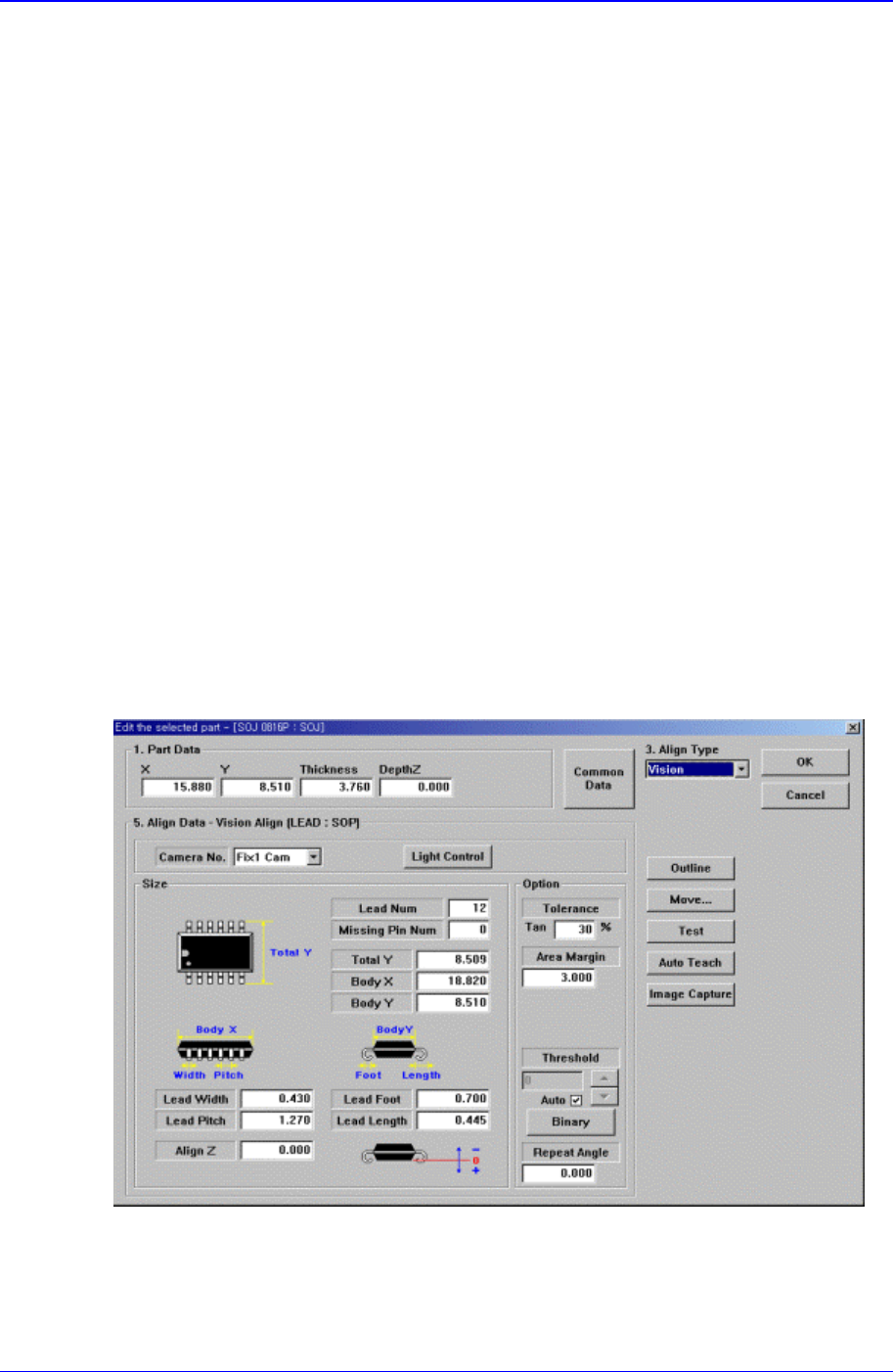
Figure 11-33. “Align Type = Vision, Package Group = SOJ” dialog box
<Camera No.> combo box
Select the camera to recognize the component.
<Light Control> button