CP643 系统参考.pdf - 第364页
12. After the output is completed, save the trace data in a text format. 1) Click [EDIT], then click [SAVE ALL (s)]. 2) Click [EDIT], then click [COPY] (or Ctrl + C). Part 5 Chapter 5 T roubleshooting Edition 1.0 5-5-6 C…
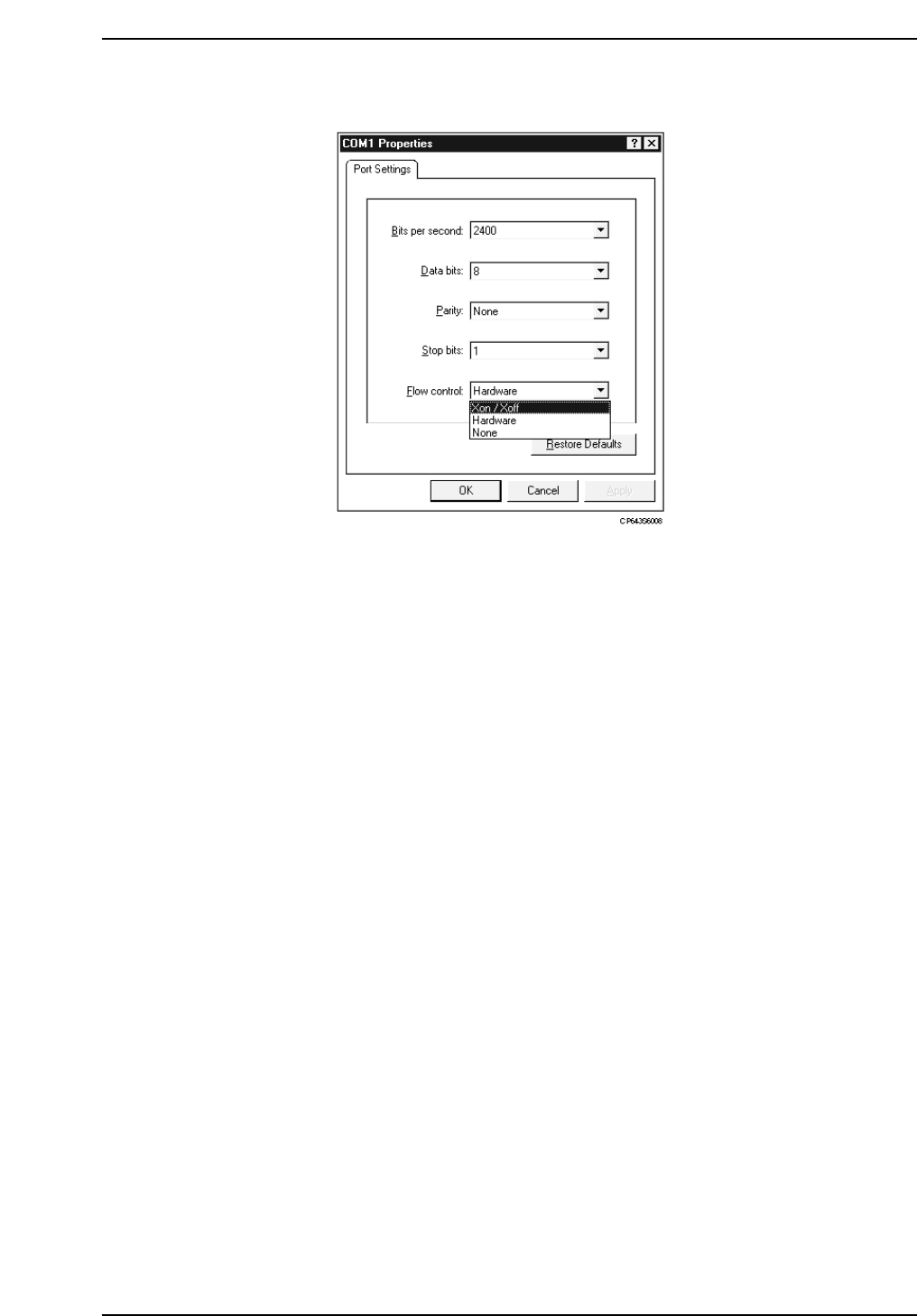
9. Specify an “Xon/Xoff” setting at the “Flow Control” item.
10. Click [OK] to begin the hyper terminal connection.
11. Use the machine control keys as described below.
• For a software (S/W) trace output
Execute the following command sequence: [SET] - [MANUAL] - [MEMORY] -
[ETC.MODE] - [OUT PUT UNIT] - Ten-key input of [1] + [CR] - [ETC MODE] -
[ETC MODE] - [Trace] - [TRACE LIST2] - [OPTION] - [Print OUT] -
[PRINT READY].
• For a servo trace output
Execute the following command sequence: [SET] - [MANUAL] - [MEMORY] –
[SERVO]
1) To obtain common-area data from a specified servo board, continue with the
following inputs:
[COMMON AREA] - Enter board No. - [PRINT] - [PRINT READY]
2) To obtain axis-area data from a specified servo board, continue with the following
inputs:
[AXIS AREA] - Enter board No. - Enter axis No. - [PRINT] - [PRINT READY]
Note: What is an S/W trace?
Stored in the CPU board’s memory, a S/W trace is a record of all system operations. It lists
in chronological order all machine operations and external signal inputs/outputs which have
occurred.
What is a servo trace?
A servo trace is a record of servo system operations only. Because the timing is critical
when obtaining a servo trace, please contact your Fuji representative for assistance.
By using the above commands, the trace data is output to the hyper terminal window.
Part 5 Chapter 5 Troubleshooting
Edition 1.0 5-5-5 CP643E System Reference
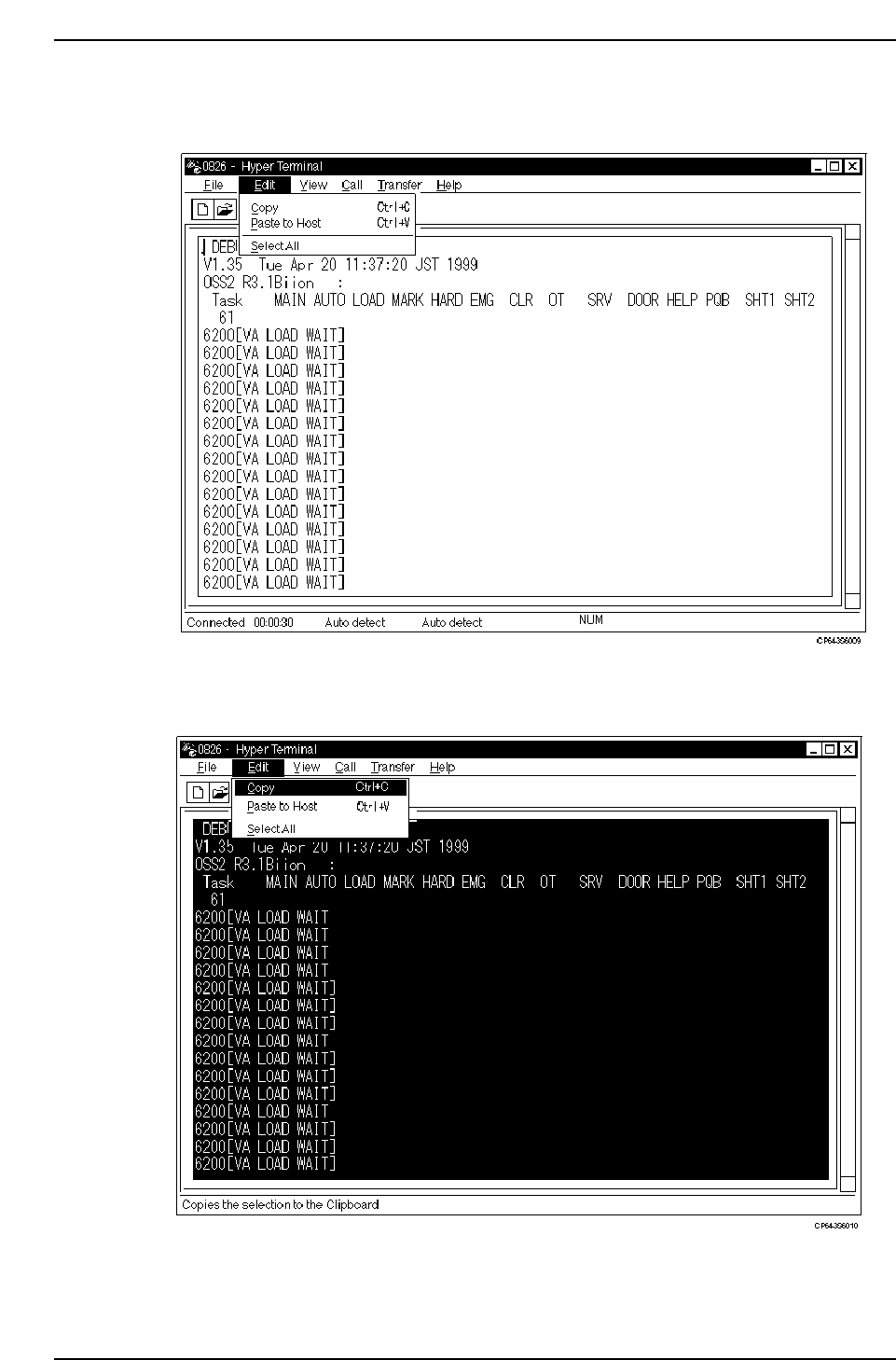
12. After the output is completed, save the trace data in a text format.
1) Click [EDIT], then click [SAVE ALL (s)].
2) Click [EDIT], then click [COPY] (or Ctrl + C).
Part 5 Chapter 5 Troubleshooting
Edition 1.0 5-5-6 CP643E System Reference
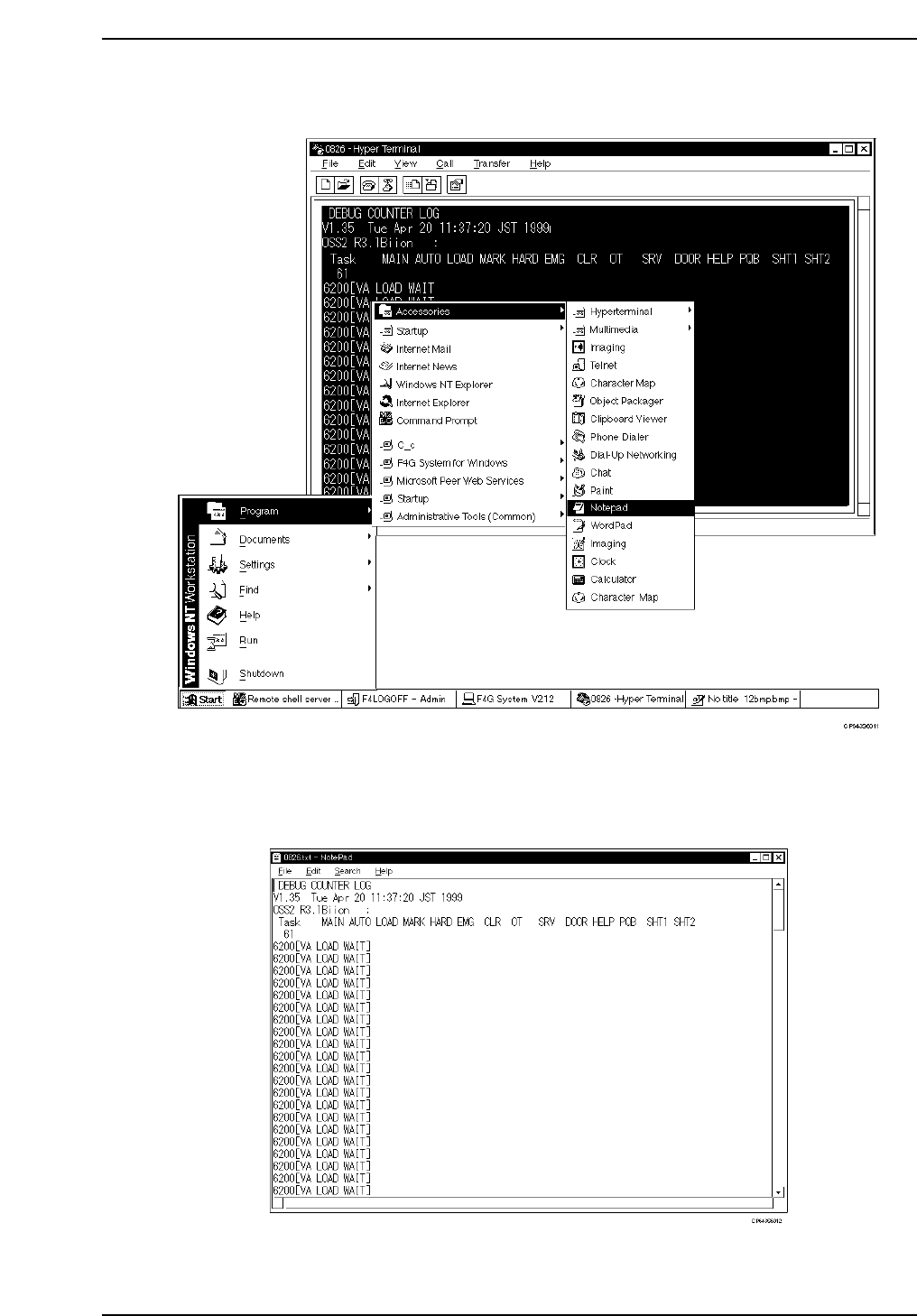
3) At the status bar, click [START], then select [PROGRAM] - [ACCESSORIES] -
[Memo Pad].
4) At Memo Pad, select [EDIT] - [PASTE] (or Ctrl + P).
5) Select [FILE] - [Name and Save (s)] to save the data. If a printout of the data is
required, use the [PRINT] function to print the saved file.
Part 5 Chapter 5 Troubleshooting
Edition 1.0 5-5-7 CP643E System Reference