CP643 系统参考.pdf - 第365页
3) At the status bar, click [START], then select [PROGRAM] - [ACCESSORIES] - [Memo Pad]. 4) At Memo Pad, select [EDIT] - [PASTE] (or Ctrl + P). 5) Select [FILE] - [Name and Save (s)] to save the data. If a printout of th…
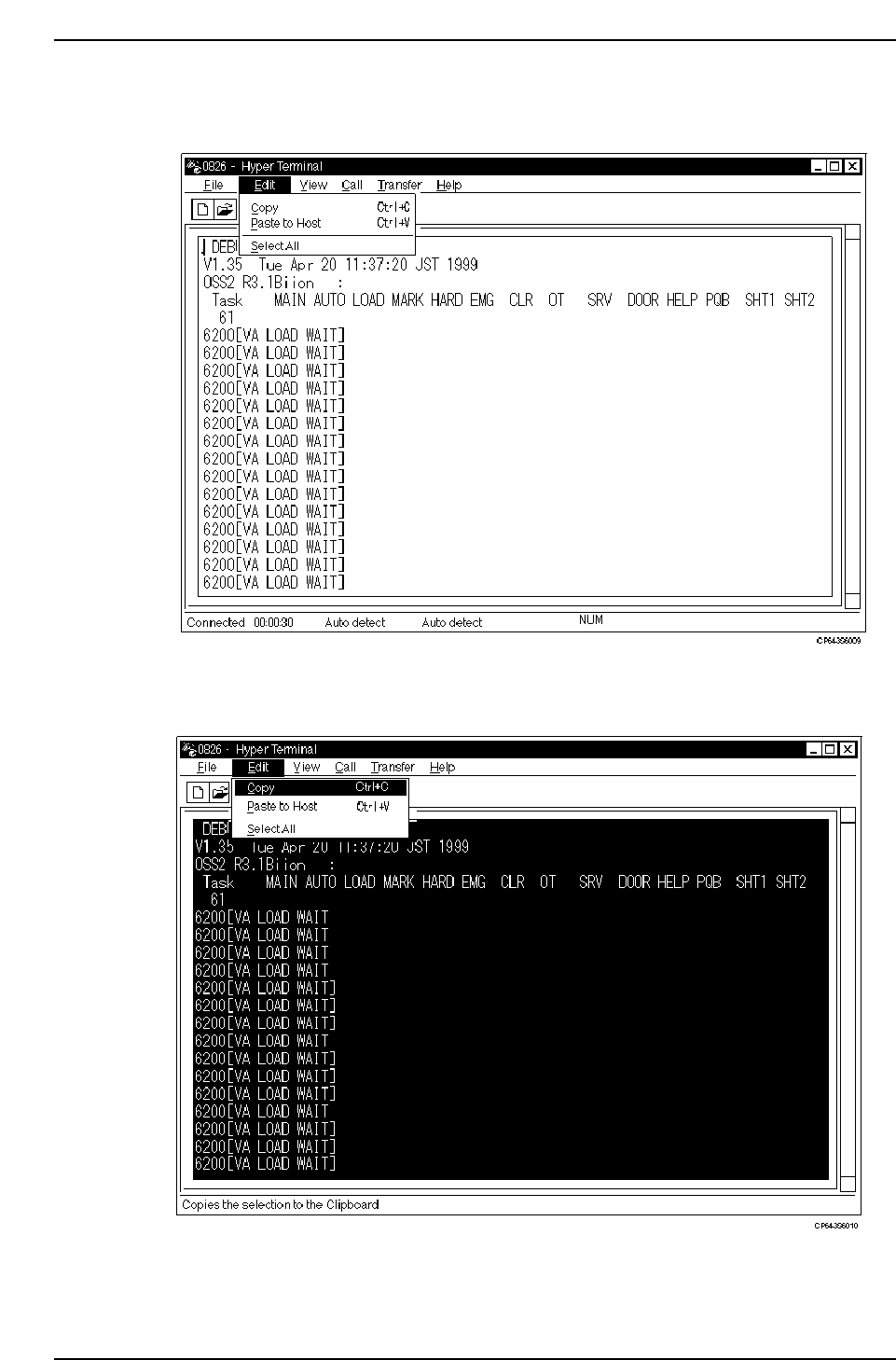
12. After the output is completed, save the trace data in a text format.
1) Click [EDIT], then click [SAVE ALL (s)].
2) Click [EDIT], then click [COPY] (or Ctrl + C).
Part 5 Chapter 5 Troubleshooting
Edition 1.0 5-5-6 CP643E System Reference
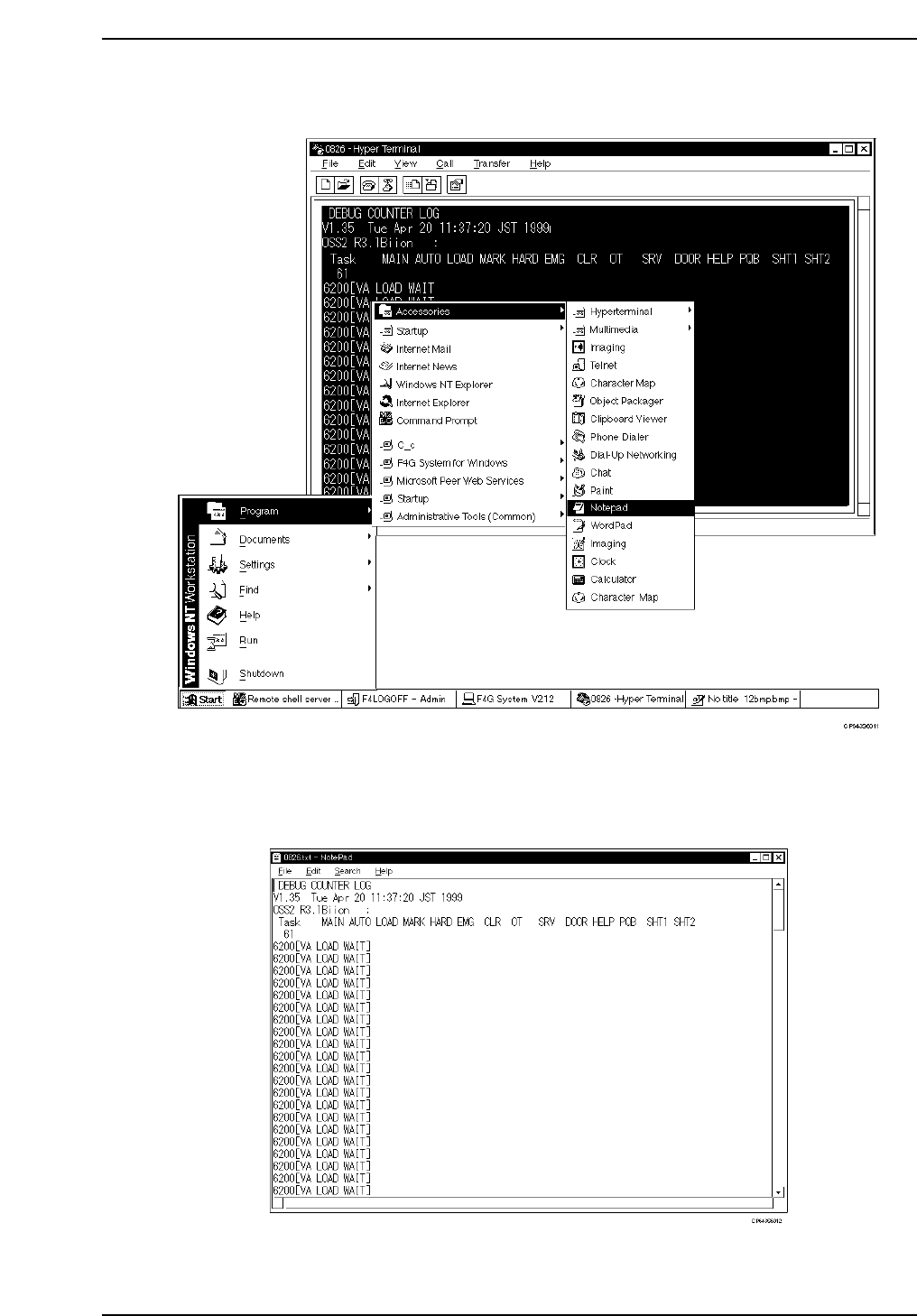
3) At the status bar, click [START], then select [PROGRAM] - [ACCESSORIES] -
[Memo Pad].
4) At Memo Pad, select [EDIT] - [PASTE] (or Ctrl + P).
5) Select [FILE] - [Name and Save (s)] to save the data. If a printout of the data is
required, use the [PRINT] function to print the saved file.
Part 5 Chapter 5 Troubleshooting
Edition 1.0 5-5-7 CP643E System Reference
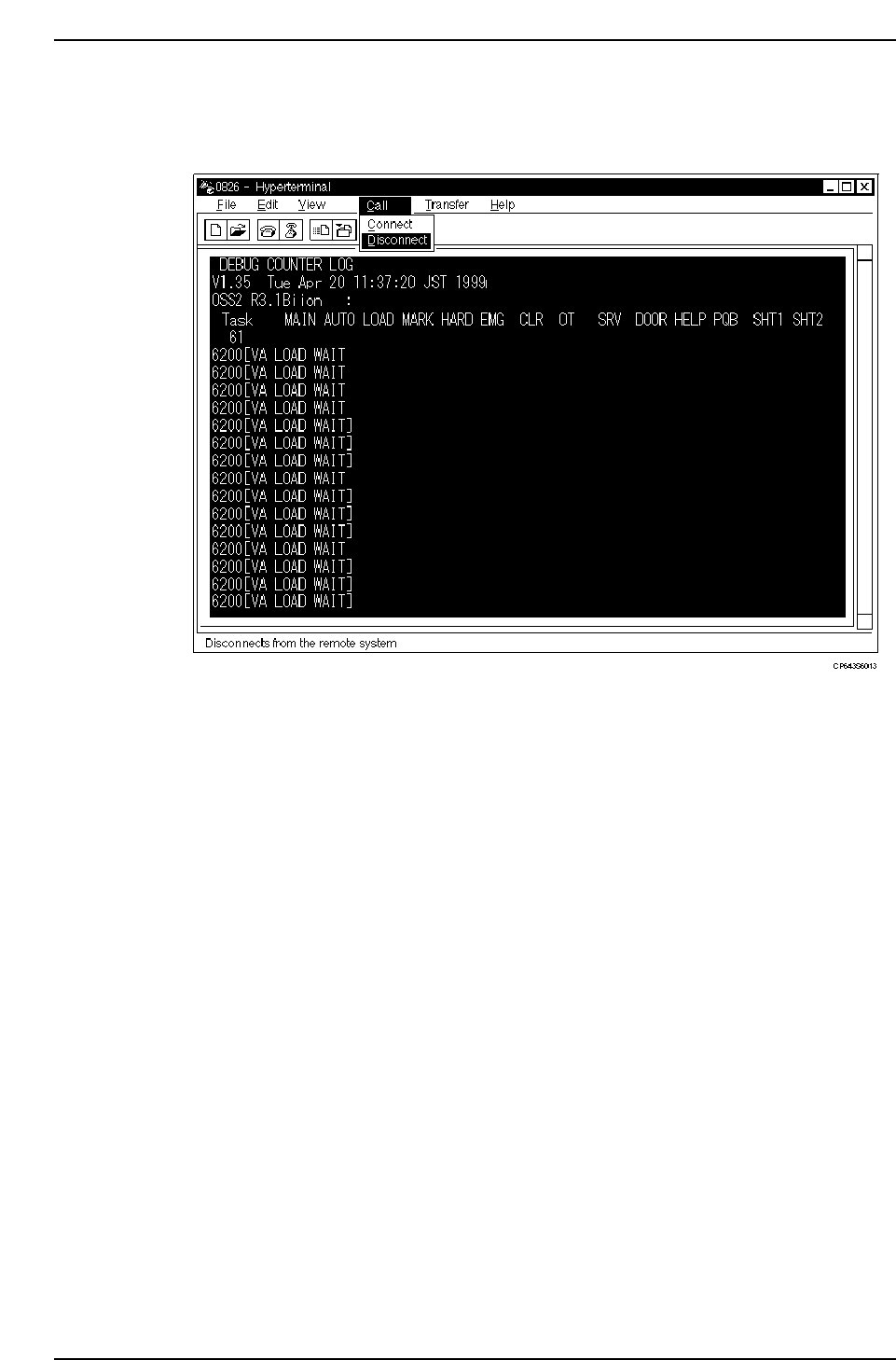
6) Return to the “Hyper Terminal” screen, then select [COMMUNICATION (O)] -
[DISCONNECT (D)] to end the connection. Finally, quit the hyper terminal
application.
5.2.2 When Machine Control Keys Are Inoperative
Output an S/W trace to the printer as follows.
1. Press the EMERGENCY STOP button to shut off the 200V power supply.
2. Press the RESET button.
3. Press the POWER OFF button to turn the 100V power off.
4. Connect the printer cable to the PRINTER port, then, with the CYCLE STOP button
held down, press the POWER ON button. Release the CYCLE STOP button when the
printer starts.
When all outputs to the printer are completed, a normal start-up display appears.
Part 5 Chapter 5 Troubleshooting
Edition 1.0 5-5-8 CP643E System Reference