YV180X_Ope_E.pdf - 第117页
5 -41 EPD8008100 Operation Chapter 5 5 Creating the PCB data 68. LeadPitch Enter the correct lead pitch (lead-to-lead spacing). 69. Bumper Mask This parameter is used for QFPs with bumpers. Enter the distance in millimet…

5
-40
EPD8008100
Operation
Chapter 5
5
Creating the PCB data
5. VISION INFO parameters
41. Alignment Group
Set this parameter to “IC”.
42. Alignment Type
Set this parameter to “QFP” with the [INS], [DEL] or [Space] key.
43. AlignmentModule
This parameter specifies the lighting method for recognizing a component.
Use the default setting (Fore&Back) in most cases. Refer to the description
in “3.3.1 Standard chip components” for more details.
For descriptions of the following VISION INFO. parameters, refer to
“3.3.1 Standard chip components”.
44. Light Selection
45. Lighting Level
46. Comp. Threshold
47. Comp. Tolerance
48. Search Area
49. Datum Angle
50. Comp. Intensity
51. MultiCam. Marker
6. SHAPE INFO. parameters
Set these parameters after specifying the VISION INFO. parameters. If
“Alignment Type” is undefined, the following parameters are not dis-
played.
61. Body Size X, Body Size Y
Enter the correct dimensions including the leads, measured with a vernier
caliper or micrometer.
62. Body Size Z
Enter the correct thickness measured with a vernier caliper or micrometer.
63. Ruler Offset
Refer to the description in “3.4.1 Mini-mold transistors/SOT”.
64. Ruler Width
Refer to the description in “3.4.1 Mini-mold transistors/SOT”.
65. LeadNumber
Enter the number of leads existing in the N and E directions. For the
component direction, see “K Pick Angle deg.”.
66. ReflectLL
Enter the projected length of leads which reflect light during recognition.
Use the default setting in most cases.
67. LeadWidth
Enter the correct lead width.
5
-41
EPD8008100
Operation
Chapter 5
5
Creating the PCB data
68. LeadPitch
Enter the correct lead pitch (lead-to-lead spacing).
69. Bumper Mask
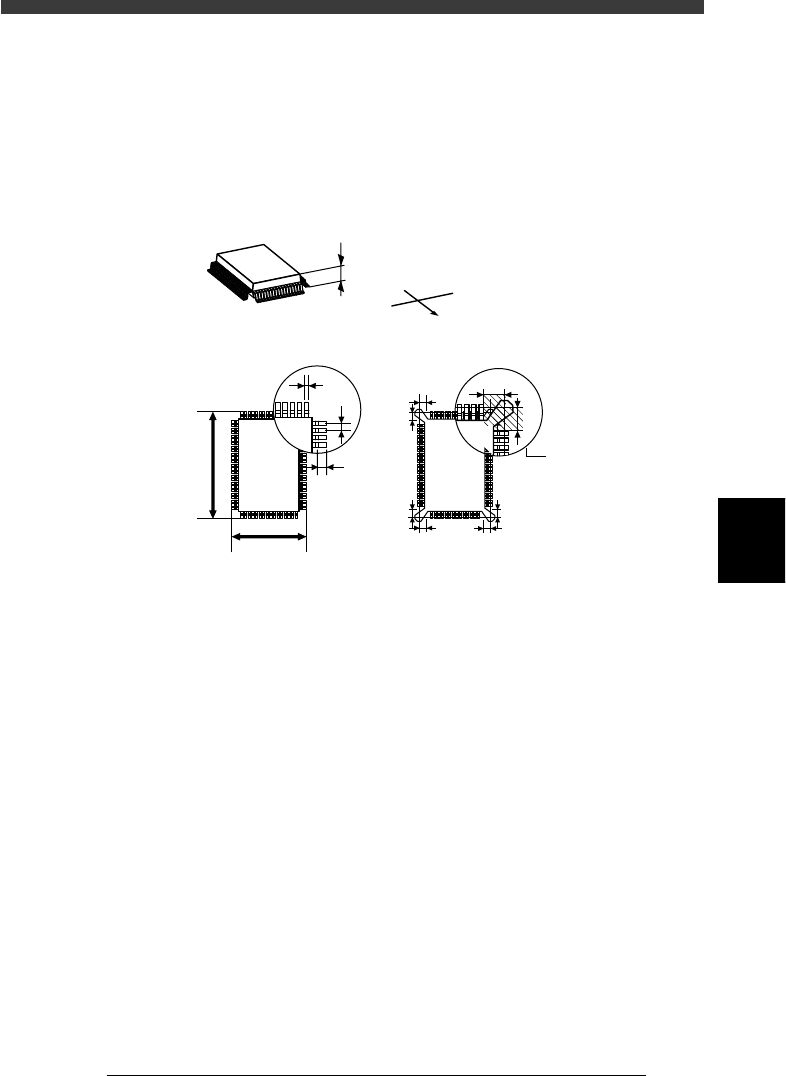
This parameter is used for QFPs with bumpers. Enter the distance in
millimeters from the cross point of the ruler lines, in order to specify the
area by which bumpers are masked and not detected during component
recognition. Enter “0.00” for normal QFPs with no bumpers.
SHAPE INFO. parameters for QFP
23514-C0-00
A
S
E
W
N
C
B
G
G
E
D
F
A : Body Size Z
B : Body Size X
C : Body SizeY
D : Reflect LL
E : LeadPicth
F : LeadWidth
G: Bumper Mask
This area is
not detected
Bottom view
G
G
G
G
G
G
5
-42
EPD8008100
Operation
Chapter 5
5
Creating the PCB data
3.5 Ball lead components
When creating ball lead component data such as BGA, there are two
choices of setting “Alignment Type” in the VIOSN INFO. sub-window:
“Simple BGA” and “BGA”.
3.5.1 Simple BGA
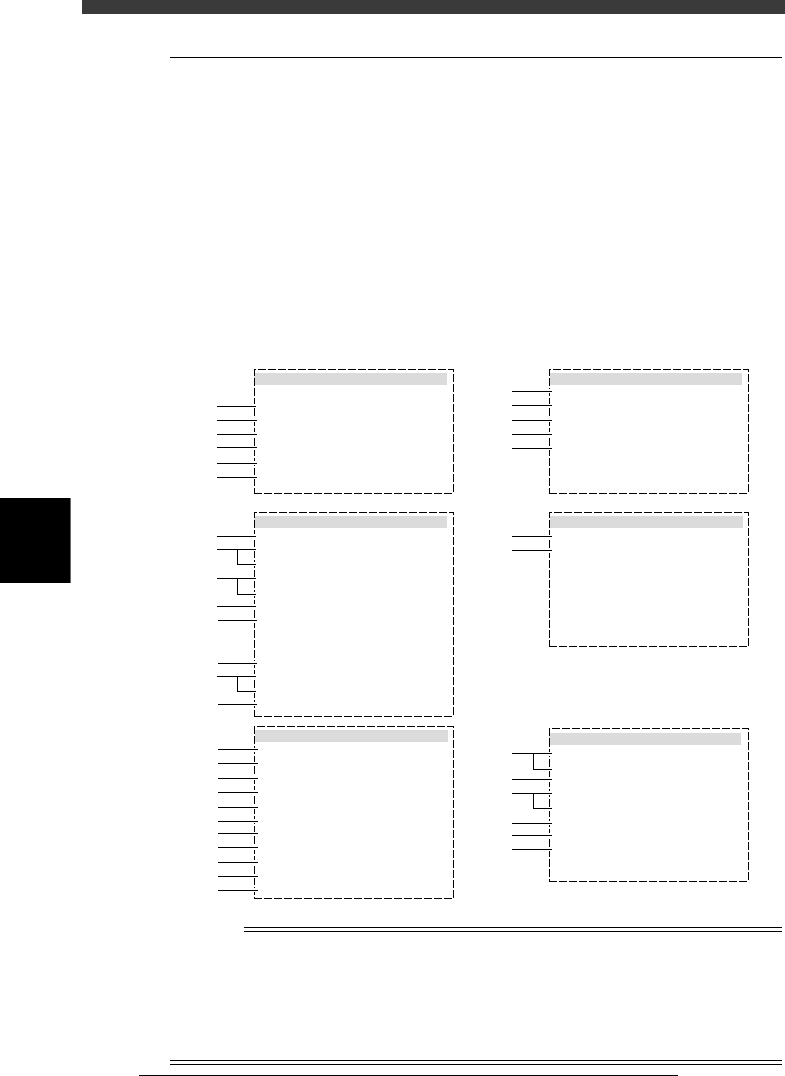
When the Alignment Type parameter is set to “Simple BGA”, BGA
components are registered with the parameters shown below. With this
setting, the BGA arrangement and nicked leads are not checked. To check
them, the Alignment Type parameter shoulde be set to “BGA”. (See the
next section “3.5.2 BGA”.
BGA parameters (when Alignment Type is set to “Simple BGA”)
27515-D8-00
6.SHAPE INFO.
Body Size X
Body Size Y
Body Size Z
Dot number N
Dot number E
BGA diameter
BGA pitch
Dot amount
:
:
:
:
:
:
:
:
23.00
23.00
1.80
13
13
0.75
1.50
169
5.VISION INFO.
Alignment Group
Alignment Type
AlignmentModule
Light Selection
Lighting Level
Comp. Threshold
Comp. Tolerance
Search Area mm
Datum Angle
Comp. Intensity
MulriCam. Marker
:
:
:
:
:
:
:
:
:
:
:
Ball
Simple BGA
Fore
Main + Coax
4/8
Non effective
Norma
NotUsel
30
1.50
0
1.BASIC INFO.
Database No.
Comp. Package
Feeder Type
Required Nozzle
Feeder Set No.
Pos. Definition
Feeder Pos_X mm
:
:
:
:
:
:
:
Tape
32mmEmboss
ForQFP30mm 74
Teaching
950
7
-16.00
2.OPTION INFO.
FixCmpRef.
AIt.Cmp
Use feeder opt.
Comp. Group No.
Correct Pickpos
:
:
:
:
:
Yes
Not Use
0
0
0
3.PICK AND MOUNT INFO.
Pick Angle deg
Pick Timer
Mount Timer
Mnt Height
Pick Sequence
Mount Action
Mount Speed
PickupSpeed
XY Speed
Vacuum Check
Pick Vacuum
Mount Vacuum
Conv. Y Speed
:
:
:
:
:
:
:
:
:
:
:
:
:
4.DUMP INFO.
Dump Way
Retry Times
:
:
Dump POS
2s
s
mm
%
%
%
%
%
0
0.30
0.20
Normal
QFP
30
100
100
SPECIAL CHK
FAST
0.0
10
10
mm
mm
mm
mm
mm
1
2
3
4
5
6
41
42
43
44
45
46
47
48
49
50
51
11
12
13
14
15
31
32
61
62
63
64
64
65
21
22
23
24
25
26
27
28
29
n
NOTE
When setting the parameters shown in the sub-windows above, use the number keys to set
the parameters aligned on the right, while using the [INS], [DEL] or [Space] key to set
the parameters aligned on the left. However, there are some parameters which should be
set or optimized with the Adjust Assistant commands described later in “3.7” in this
chapter.The displayed parameters differ slightly depending on the <3/1/A1 OPTION
CONFIG> settings.