YV180X_Ope_E.pdf - 第257页
6 -22 EPD8013110 Operation Chapter 6 6 Using various functions 4.2 Static component matching “ Static component matching ” is an operation that automatically searches for components with the same names as those registere…
6
-21
EPD8013110
Operation
Chapter 6
6
Using various functions
4.1 Registering the static component
information
Components which are always used with the same setups (feeder set
position) can be registered as static components in the
STATIC_COMPONENTS information.
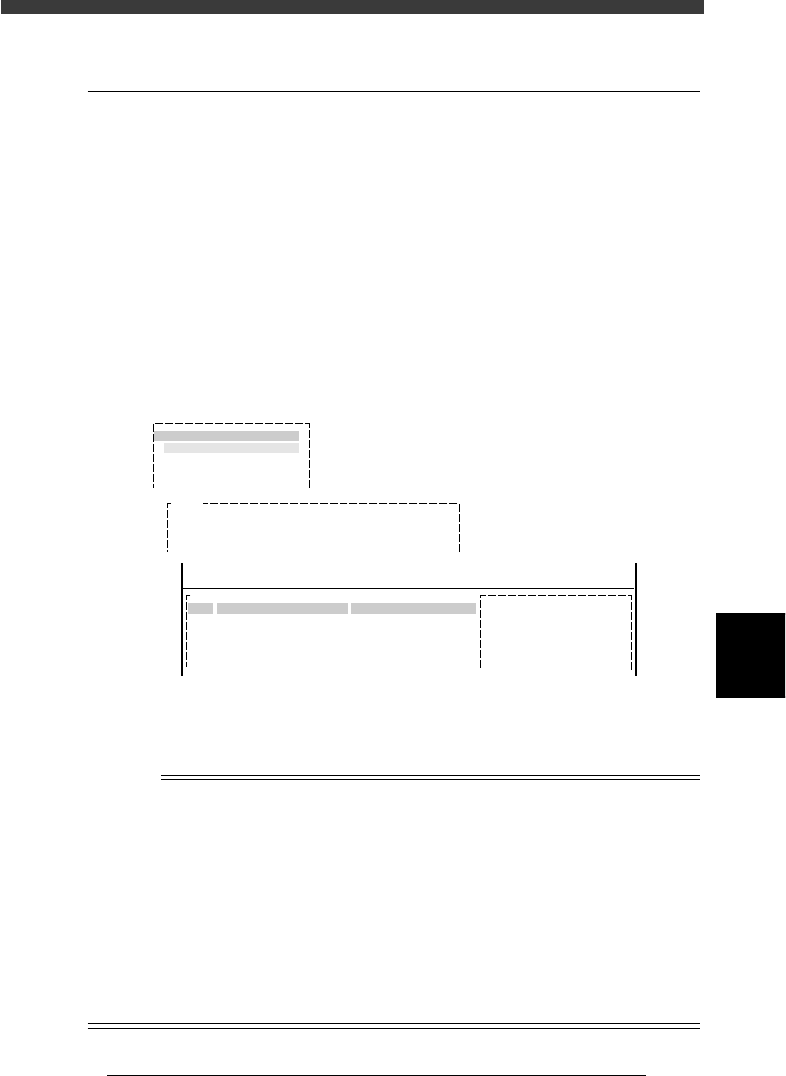
1 Open the STATIC_COMPONENTS information screen.
1. Press the [F2] key (or execute the <2/1/D1 SWITCH PCB DATA>
command) in the <2/1/EDIT_DATA> mode to display the list of
registered PCB names.
2. Press the UP arrow key, and “STATIC-COMPONENTS” appears at the
top line of the PCB name list. Then press the [ENTER] key.
3. Check the message displayed and press the [ENTER] key again to open
the STATIC COMPONENTS information screen.
STATIC COMPONENTS screen
27612-C0-00
pcb name
STATIC_COMPONENTS
CONVEYOR
CUK_92001_1
CUK_92001_0
E1031
The data [STATIC_COMPONENTS] is common component data
available to all PCB data in the machine.
<<<APPLICATION>>> 2/DATA/M
<<MODE>> 1/EDIT_DATA
PCB :STATIC_COMPONENTS___
COMPONENT NAME
COMMENT
OBJ :
No.
1
2
3
4
2 Set static component data.
Complete the component information, while referring to “3 Creating the
component information” in Chapter 5.
Reference
When the component data which you want to register as a static component has already
been registered in the component information, you can copy that data into the STATIC
COMPONENTS information. To copy the data proceed as follows:
1. Select the component data you want to copy, using the <2/1/C4 SELECT DATA> com
mand.
2. Open the STATIC COMPONENTS information screen, and line up the cursor with
the data line you want to copy to.
3. Execute the <2/1/C6 COPY SELECTED LINES> command.
At this point, you must select “OVERWRITE” from the HOW TO COPY? box.
If you select “INSERTION”, this will shift the data numbers of static components
which are already registered and adversely affect PCB data using those static
components.
6
-22
EPD8013110
Operation
Chapter 6
6
Using various functions
4.2 Static component matching
“Static component matching” is an operation that automatically searches
for components with the same names as those registered in the STATIC
COMPONENTS information and copies the parameters and data on those
components into the component information you want to create. Follow
these steps to perform “static component matching”.
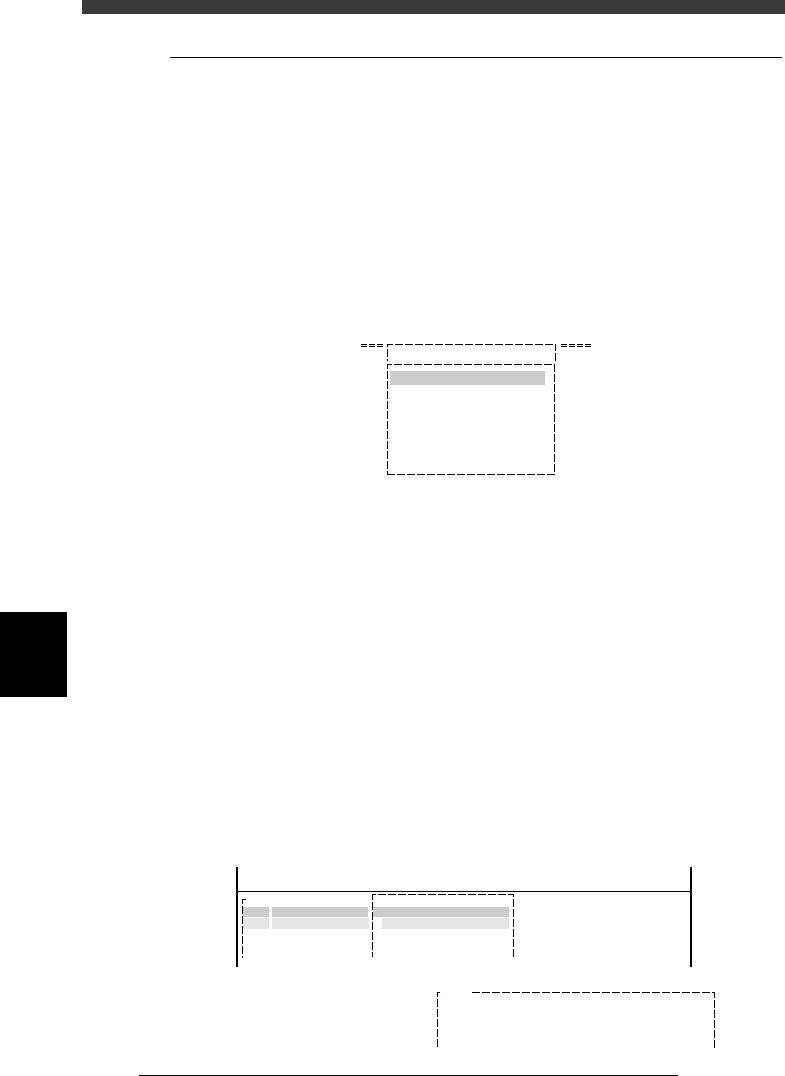
1 Select <2/2/A1 OBJECT SELECTION> and press the [EN-
TER] key.
The OBJECT SELECTION box appears as shown below.
OBJECT SELECTION box
27613-C0-00
OBJECT SELECTION
PCB SELECTION
FIXED PCB SELECTION
FIXED COMP. SEL.
LOAD LAST SELECTION
QUIT
A/ SETTING & RUN
A1 OBJECT SELECTION
2 Select the target PCB.
Select “PCB SELECTION” from the OBJECT SELECTION box and press the
[ENTER] key. A list of the registered PCB names appears. Select the PCB
name for which you want to perform “static component matching”. Select
“QUIT” after selecting the PCB.
3 Select <2/2/A3 COMPONENT INF.> and press the [ENTER]
key.
The component information on the PCB selected in Step 2 is displayed.
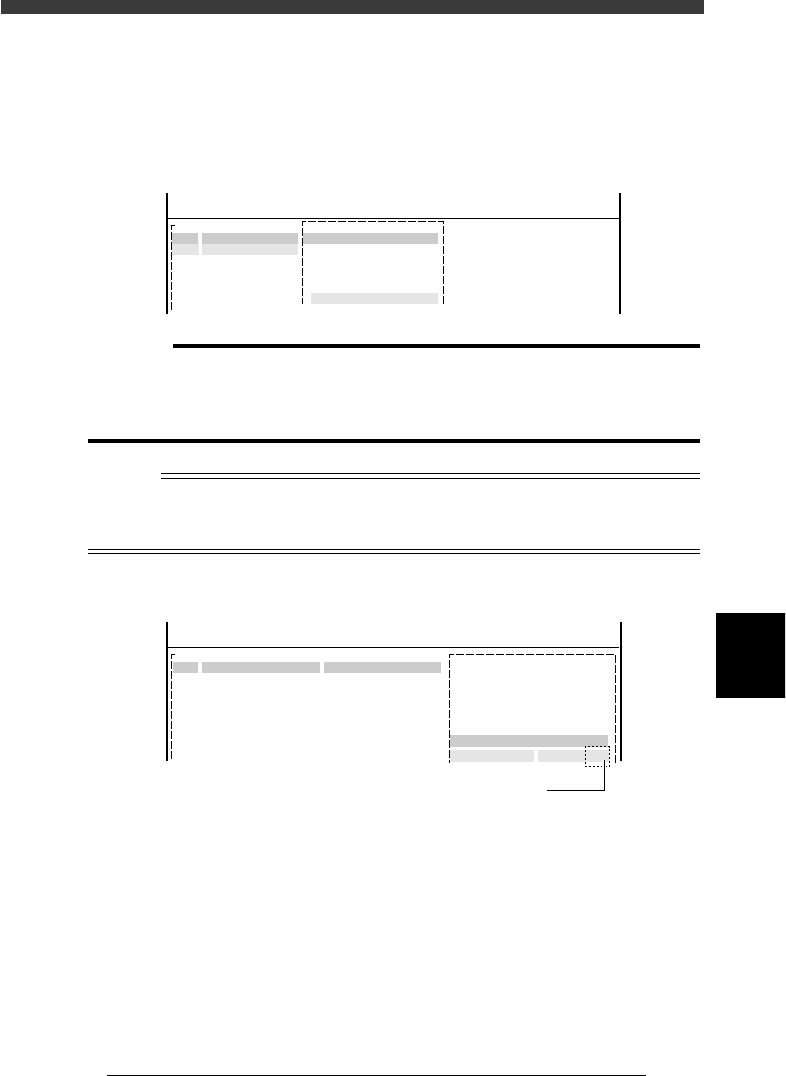
4 Execute the “FIXED COMP.MATCH” command.
Press the [ESC] key to display the COMP.INF.COMMAND menu box, then
select “FIXED COMP.MATCH” and press the [ENTER] key. The machine
searches for components with the same names as those listed in the
STATIC COMPONENTS information, and copies all the data registered for
the static components into the component information of the selected
PCB.
Component Info. screen when executing the FIXED COMP.MATCH command
27614-C0-00
E766
Have you saved component information?
[ESC] key to abort fixed comp. match
Any other key to exec fixed comp. match
<<<APPLICATION>>> 2/DATA/M
<<MODE>> 2/DATA_GENERATOR
Machine
Component Nam
R1005
R1608
R2125
No.
1
2
3
COMP.INF.COMMAND
FIXED COMP. MATCH
6
-23
EPD8013110
Operation
Chapter 6
6
Using various functions
5 Quit the static component matching.
When the static component matching is complete, the display returns to
the component information screen. Press the [ESC] key, and the COMPO-
NENT INF. box appears again. Select “SAVE & EXIT” and press the
[ENTER] key to quit the static component matching.
Component Info. screen with the COMP.INF.COMMAND menu box displayed
27615-C0-00
<<<APPLICATION>>> 2/DATA/M
<<MODE>> 2/DATA_GENERATOR
Machine
Component Nam
R1005
R1608
R2125
No.
1
2
3
COMP.INF.COMMAND
SAVE & EXIT
c
CAUTION
To perform “static component matching”, the component name must be exactly
identical with the static component name (including upper and lower case).
When the “FIXED COMP.MATCH” command is executed, the original data will be
deleted since the static component data overwrites component data of the same name.
Reference
You can utilize static component data without performing “static component matching”.
To do so, enter the static component number in the FixCmpRef. parameter column of the
component information.
Setting the FixCmpRef. parameter
27616-C0-00
1
<<APPLICATION>> 2/DATA/M
<<MODE>>1/EDIT DATA
2.OPTION INFO.
FixCmpRef.
:
PCB :
COMPONENT NAME
R1005
COMMENT
OBJ :Component Info.
No.
1
2
Enter the corresponding
static component number here