YV180X_Ope_E.pdf - 第255页
6 -20 EPD8013110 Operation Chapter 6 6 Using various functions 4. Static component infor mation The ST A TIC_COMPONENTS information is component data that can be shared with multiple PCBs just like the database. When the…

6
-19
EPD8013110
Operation
Chapter 6
6
Using various functions
6 Change the comment.
Enter the desired comment in the COMMENT column as necessary.
7 Change various parameter settings.
Check and change the parameter settings while switching the sub-window
displays with the [F4] key.
8 Confirm the parameter settings by component recognition.
Execute the <2/3/B1 ADJUST ASSISTANT> command to make sure that the
component can be recognized.
9 Save the data.
Press the [ESC] key to exit the current command, then select <2/3/C0 SAVE
& EXIT> and press the [ENTER] key. The created data will be saved.
6
-20
EPD8013110
Operation
Chapter 6
6
Using various functions
4. Static component information
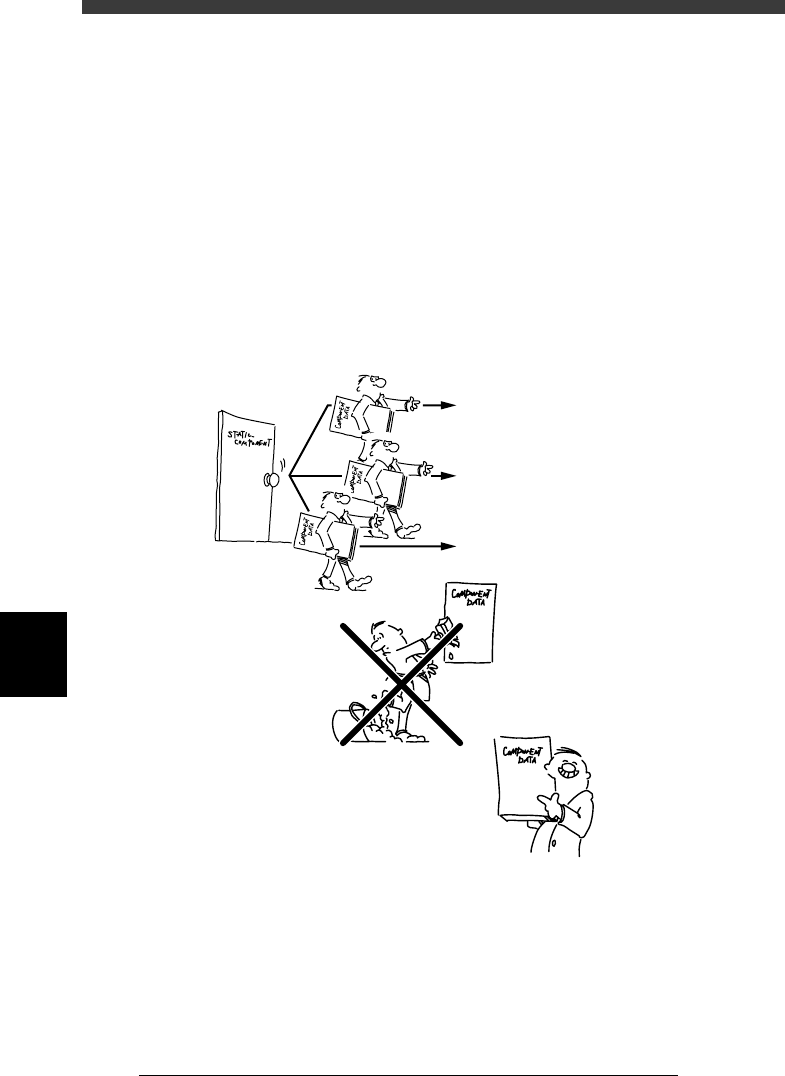
The STATIC_COMPONENTS information is component data that can be
shared with multiple PCBs just like the database. When the PCB data is
switched, this usually switches the component information as well. On the
other hand, the STATIC_COMPONENTS information can be used even if
the PCB data is switched. You can also register information on the compo-
nent setups. This allows you to complete each parameter easily when you
create new component information by simply specifying the static compo-
nent number corresponding to the “FixCmpRef.” parameter in the USER
ITEMS sub-window of the component information.
Static component concept
23606-C0-00
PCB A
PCB B
PCB C
Static component
information
Copy the component information
by specifying the static
component number which can
be shared with multiple PCBs.
No need for changing the setups
and adjusting the parameters
Component information
is easily completed
6
-21
EPD8013110
Operation
Chapter 6
6
Using various functions
4.1 Registering the static component
information
Components which are always used with the same setups (feeder set
position) can be registered as static components in the
STATIC_COMPONENTS information.
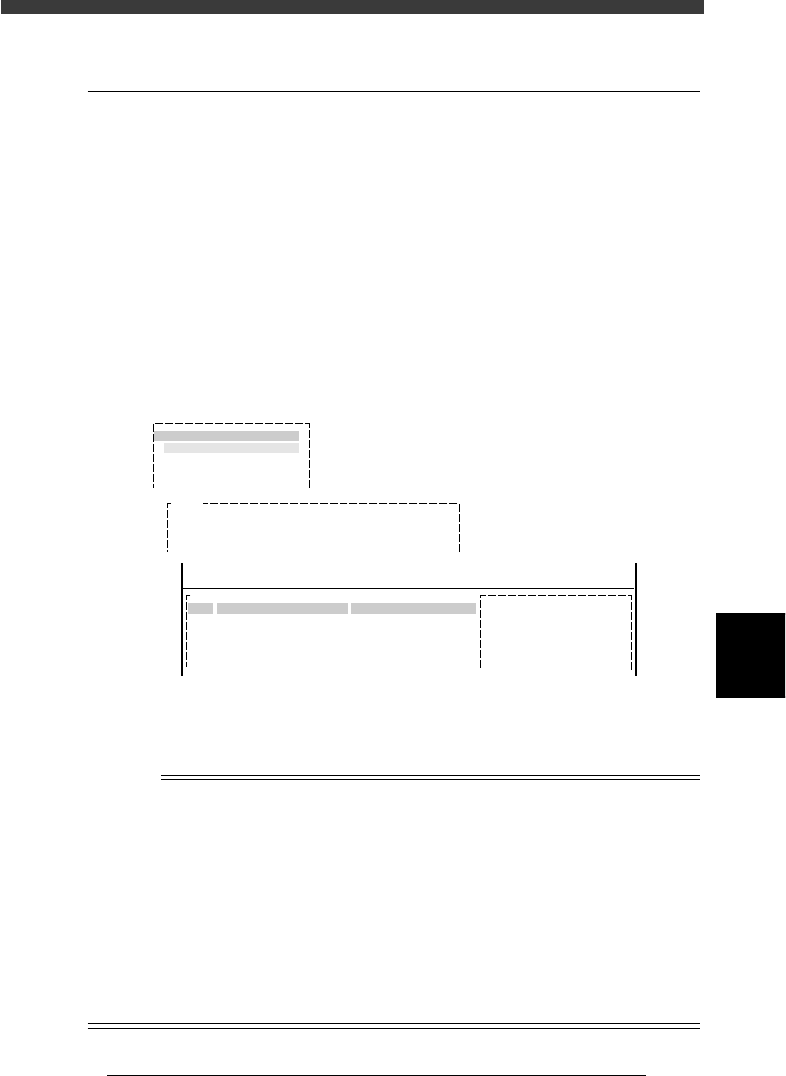
1 Open the STATIC_COMPONENTS information screen.
1. Press the [F2] key (or execute the <2/1/D1 SWITCH PCB DATA>
command) in the <2/1/EDIT_DATA> mode to display the list of
registered PCB names.
2. Press the UP arrow key, and “STATIC-COMPONENTS” appears at the
top line of the PCB name list. Then press the [ENTER] key.
3. Check the message displayed and press the [ENTER] key again to open
the STATIC COMPONENTS information screen.
STATIC COMPONENTS screen
27612-C0-00
pcb name
STATIC_COMPONENTS
CONVEYOR
CUK_92001_1
CUK_92001_0
E1031
The data [STATIC_COMPONENTS] is common component data
available to all PCB data in the machine.
<<<APPLICATION>>> 2/DATA/M
<<MODE>> 1/EDIT_DATA
PCB :STATIC_COMPONENTS___
COMPONENT NAME
COMMENT
OBJ :
No.
1
2
3
4
2 Set static component data.
Complete the component information, while referring to “3 Creating the
component information” in Chapter 5.
Reference
When the component data which you want to register as a static component has already
been registered in the component information, you can copy that data into the STATIC
COMPONENTS information. To copy the data proceed as follows:
1. Select the component data you want to copy, using the <2/1/C4 SELECT DATA> com
mand.
2. Open the STATIC COMPONENTS information screen, and line up the cursor with
the data line you want to copy to.
3. Execute the <2/1/C6 COPY SELECTED LINES> command.
At this point, you must select “OVERWRITE” from the HOW TO COPY? box.
If you select “INSERTION”, this will shift the data numbers of static components
which are already registered and adversely affect PCB data using those static
components.