YV180X_Ope_E.pdf - 第179页
5 -103 EPD8013110 Operation Chapter 5 5 Creating the PCB data 4 Enter the XY data. For single PCBs, enter the XY coordinate data of the center of the mount- ing position relative to the PCB origin (see “ 6.2 ” in this ch…
5
-102
EPD8013110
Operation
Chapter 5
5
Creating the PCB data
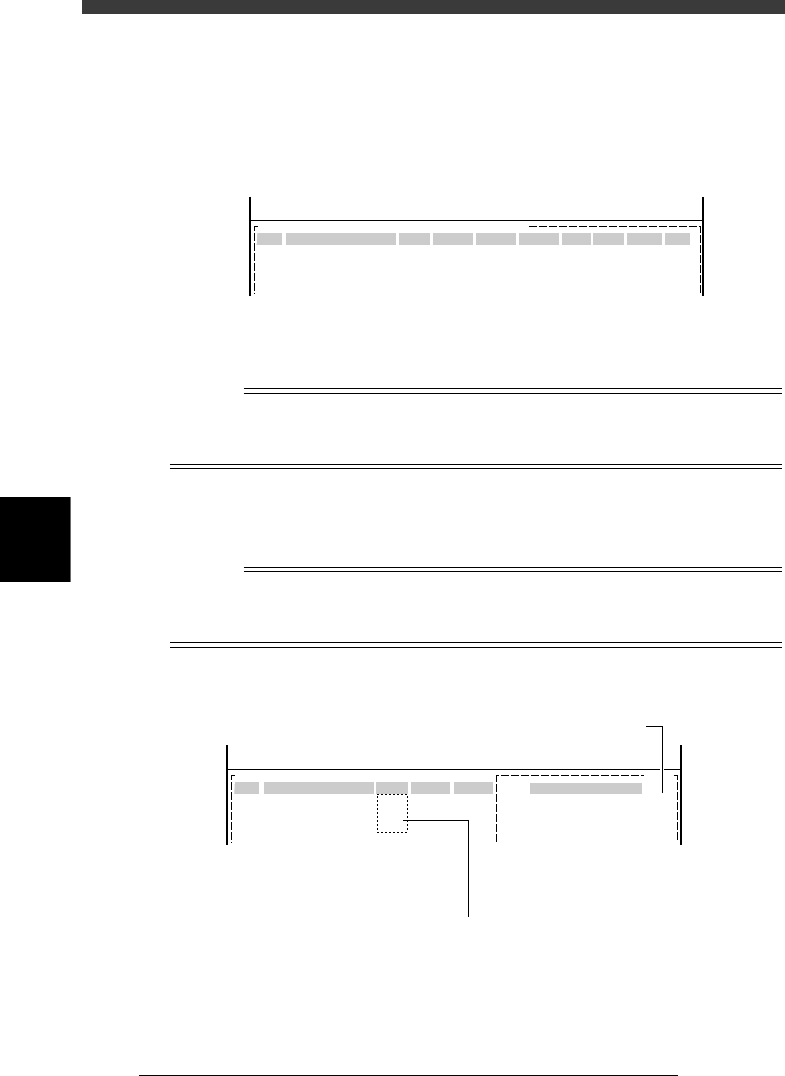
1 Open the Mount Info. screen.
Select “Mount Info.” from the edit item menu box which appears after
registering or selecting a PCB name. If an edit screen is open, press the
[F3] key (or select <2/1/A1 MAIN WINDOW>) to display the edit item
menu box.
Mount Info. screen
27538-C0-00
PCB :
SignOfLandPattern Comp
X
YR
Head
FidMk
BadMk Skip?
OBJ :Mount Info
No.
1
2
3
<<<APPLICATION>>> 2/DATA/M
<<MODE>>1/EDIT_DATA
2 Enter the land pattern name.
Enter the land pattern name or symbol (ex., R23, U12, etc.) printed on the
PCB in the SignOfLandPattern column.
Reference
If you have no material showing the land pattern names in this step, you can enter them
when you confirm and correct the mounting position as described later in “8.2 Checking
the mount information”.
3 Enter the component number.
Enter the number of the component (data No. in the component informa-
tion) to be mounted in the Comp column.
Reference
Pressing the [F4] key displays part of the Component Info. (component No., component
name, feeder set No.) in the sub-window on the right of the screen as shown below. To
close the Component Info. display, press the [F4] key again
Mount Info. and Component Info. screen
27539-C0-00
Main window: mount information Sub-window: component informatio
n
No.
1
2
3
COMPONENT NAME
R1608
R2125
R3126
OBJ:
F 20
F 21
F 22
PCB :
SignOfLandPattern
R3126
Comp
3
X
Y
OBJ :Mount Info
No.
1
2
3
<<<APPLICATION>>> 2/DATA/M
<<MODE>>1/EDIT_DATA
Feeder Set No.
Enter component No. while referring to the sub-window.
5
-103
EPD8013110
Operation
Chapter 5
5
Creating the PCB data
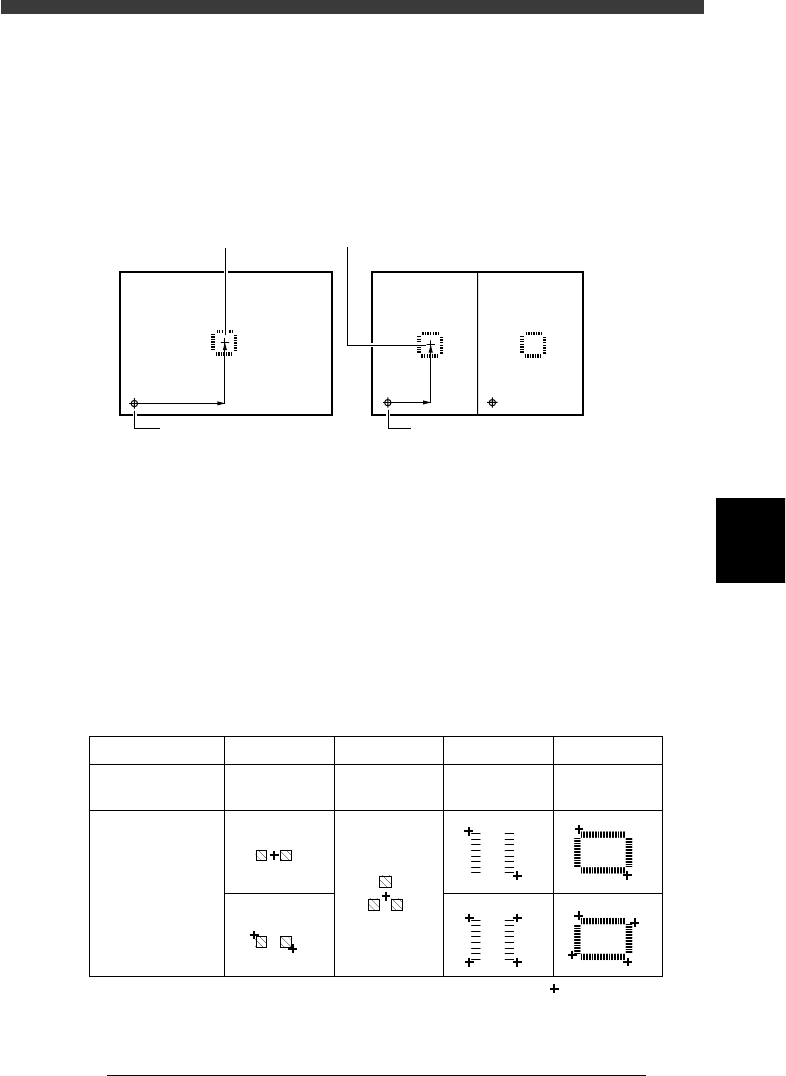
4 Enter the XY data.
For single PCBs, enter the XY coordinate data of the center of the mount-
ing position relative to the PCB origin (see “6.2” in this chapter). In the
case of multi-block PCBs, enter the position data relative to the block
repeat No.1 (see Chapter 6).
You can also use the teaching function to enter the XY coordinate data as
explained below.
Mounting position relative to the PCB origin
23548-C0-00
Block 1 Block 2
Center of mounting position
PCB origin Block repeat No.1
To perform teaching to enter the XY coordinate data, proceed as follows:
1. Move the cursor to the “X” or “Y” column on the Mount Info. screen.
2. Manipulate the joystick to move the teaching camera so that the cross
cursor on the vision monitor is aligned with the teaching position.
For single point input, press the [F10] key twice.
For multi-point inputs, press the [SHIFT]+[F10] keys twice at the first
point and once at the second and third points, then press the [F10] key
only at the final point.
Typical teaching methods are shown in the table below. Use any desired
teaching method.
Teaching method for each component
25516-C0-00
Component type
Teaching method
Teaching point
CHIP Tr. SOP
QFP
: Teaching point
1 or 2-point
input
1-point
input
2 or 4-point
input
2 or 4-point
input
5
-104
EPD8013110
Operation
Chapter 5
5
Creating the PCB data
Reference
To perform teaching at a mounting position, set the teaching conditions as follows.
TEACH-TABLE SEL. (Teaching table): Select the A or B table head you will use.
TEACH-UNIT SEL. (Teaching unit) : Camera
SPEED SELECT (Axis moving speed) : 10 to 20
FIDUCIAL SEL (Fiducial correction) : Use (Select “NotUse” if not using
a fiducial mark.)
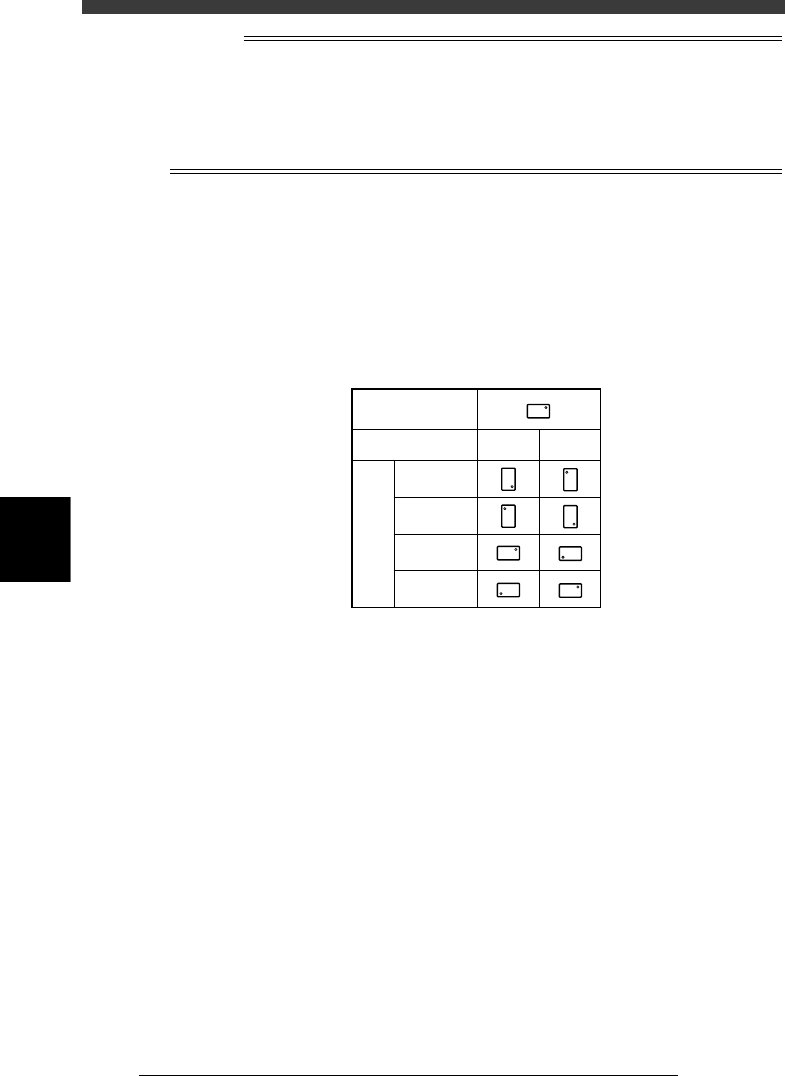
5 Enter the mounting angle in the “R” column.
Enter the angle through which the component must be rotated after
recognition before it is mounted on the PCB. When the pickup angle (in
the PICK AND MOUNT INFO. sub-window of the Component Info.) is 0°,
enter the rotating angle from the loading position, with the counterclock-
wise direction specified as a plus value when viewed from above. When
the pickup angle is 90° or -90°, see the table below.
Mounting angle
25517-C0-00
Loading position
Pickup angle
90 deg. -90 deg.
0 deg.
180 deg.
90 deg.
-90 deg.
Mounting angle
6 Check the head number in the “Head” column.
The head number to be used for mounting is indicated in the “Head”
column. Since the optimum head number is automatically selected when
you run the DATA_GENERATOR command described later, it is not
necessary to enter it here. (Refer to “9. Data optimization” in this chapter
for details.)
If you do not use the DATA_GENERATOR command, enter the head
number you will use for component mounting.
7 Set the fiducial mark number in the “FidMk” column.
Enter the number of the fiducial mark (point, local or 4-point fiducial) to
be used for this mount data. (Refer to “5.2 Local fiducial function” in
Chapter 6.) Note that this setting is valid only when necessary data is input
in the Local Fidu. Info. Enter “0” when not using the fiducial function.
8 Set the badmark number in the “BadMk” column.
Enter the number of the local badmark to be used for this mount data.
(Refer to “6.2 Local badmark” in Chapter 6.) Note that this setting is valid
only when necessary data is input in the LocalBadMrkInfo. Enter “0” when
not using the local badmark function.