YV180X_Ope_E.pdf - 第295页
6 -60 EPD8013110 Operation Chapter 6 6 Using various functions 6 4 Execute the Adjust Assistant. Press the [F6] to open the Adjust Assistant screen. Adjust the image processing parameters with the procedure below in orde…
6
-59
EPD8013110
Operation
Chapter 6
6
Using various functions
3 Set the parameters in the sub-window.
Press the [TAB] key to move the cursor to the sub-window (right window)
and set the following parameters. The display of sub-window can be
switched by pressing the [F4] key.
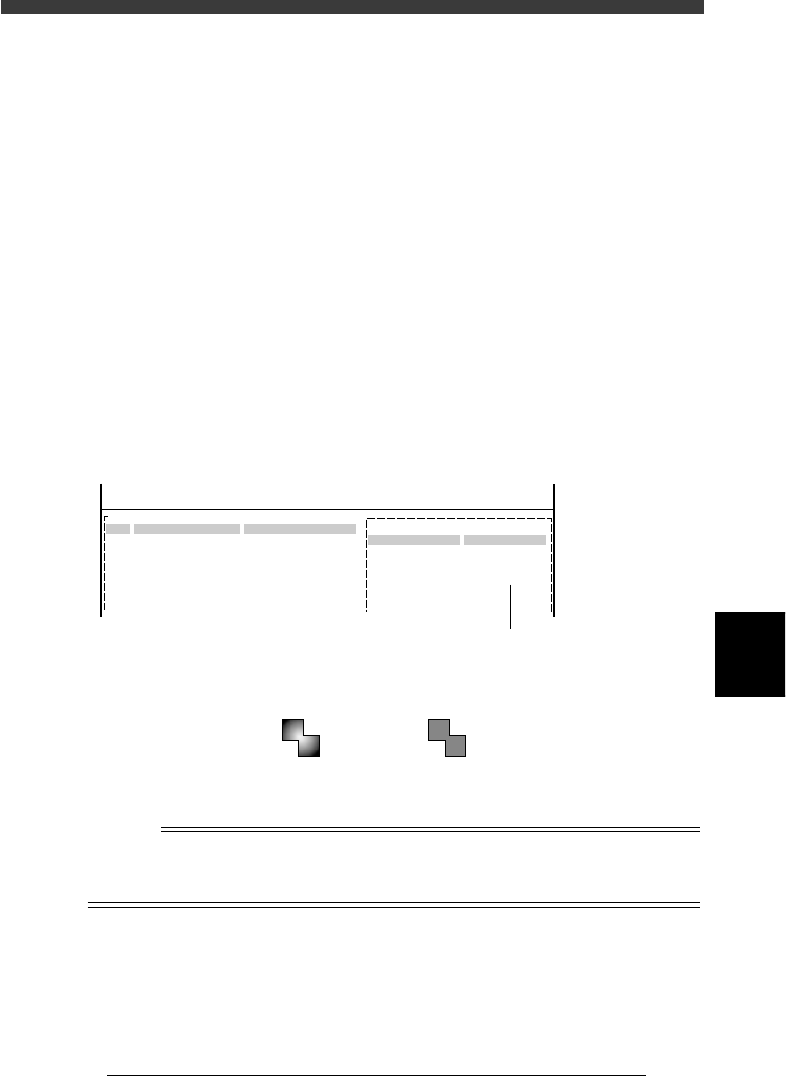
1. Open the Mark Type Info. sub-window and set the “Mark Type”
parameter to “Fiducial”.
2. Open the Vision Info. sub-window and set the “Algorithm Type”
parameter to “PTRN Outline” or “PTRN GrayLev”.
PTRN Outline : In most cases, select this parameter for pattern
matching. When the outline is definite, the
pattern can be recognized even if uneven
brightness portions are present inside the
pattern.
PTRN GrayLev : Selecting this parameter is more effective in
recognizing a pattern whose brightness is
uniform inside the pattern. This parameter
setting requires a longer time to recognize a
pattern than in the “PTRN Outline” setting and
also the data size will be larger.
Vision Info. sub-window
27637-C0-00
PATRN Outline
PCB:
Vision Info.
Edit Term
Algorithm Type
OBJ : Mark Info.
MARK NAMENo.
1
2
3
COMMENT
:
:
<<<APPLICATION>>> 2/DATA/M
<<MODE>> 1/EDIT_DATA
Set this parameter to "PTRN Outline" or "PTRN GreyLev".
Pattern recognition types
23623-C0-00
PTRN Outline
(Uneven bri
g
tness)
PTRN Graylev
(Uniform bri
g
htness
)
Reference
The “Algorithm Type” parameter does not appear in the Vision Info. sub-window if the
“Mark Type” parameter in the Mark Type Info. sub-window has not been set to “Fidu-
cial”.
6
-60
EPD8013110
Operation
Chapter 6
6
Using various functions
6
4 Execute the Adjust Assistant.
Press the [F6] to open the Adjust Assistant screen. Adjust the image
processing parameters with the procedure below in order to obtain a clear
image of the target pattern.
Example of pattern image taken with the Adjust Assistant command
27638-C0-00
FIX PCB
TEACH MARK
VISION TEST
PARAM. SEARCH
SAVE PATTERN
DISP. PATTERN
CHK THRESHOLD
EXIT
Mark Threshold
Tolerance
Search Area
Pattern Number
Pattern Size X
Pattern Size Y
Offset X
Offset Y
(%)
(mm)
129
30
3.00
0
0
0
1.77
4.71
Mark Name : patern
Adjust Assist ItemsCommand
1. Using the FIX PCB command, clamp the PCB you want to use for
pattern matching on the conveyor of the mounter. (For details refer to
“4.3 Executing the Adjust Assistant” in Chapter 5.)
2. Execute the TEACH MARK command and operate the joystick so that
the pattern is displayed in the center of the vision monitor.
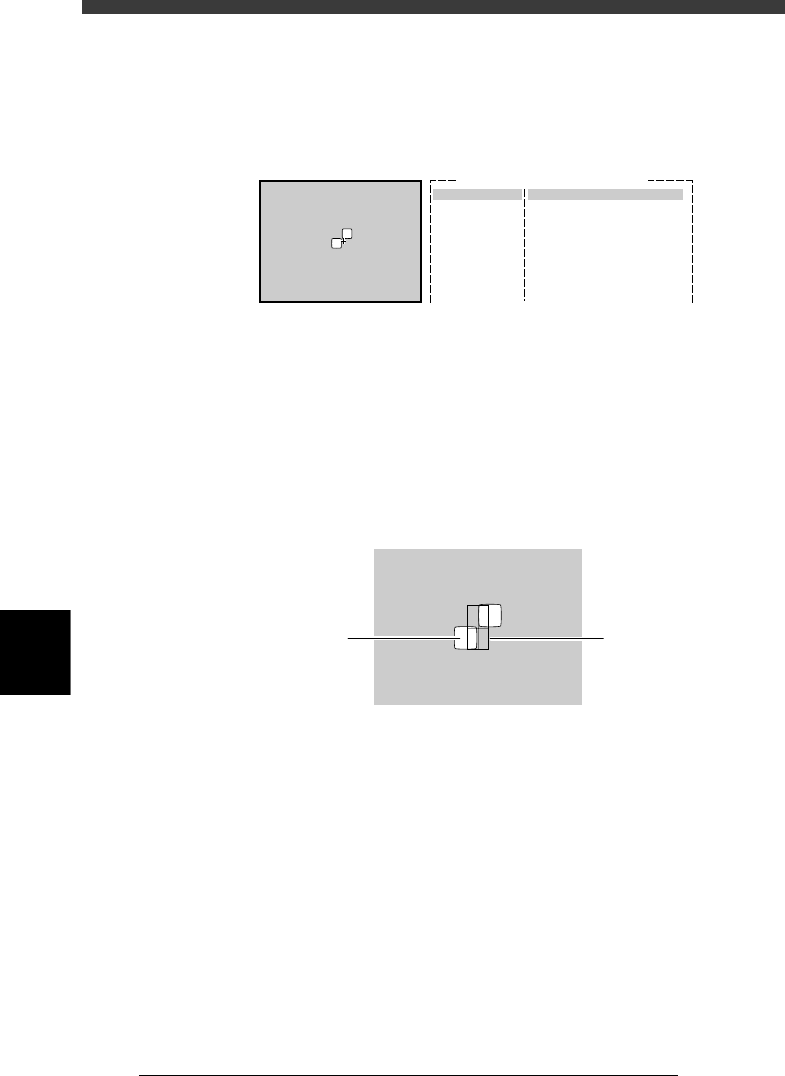
5 Execute the SAVE PATTERN command.
The following screen appears on the vision monitor when the SAVE
PATTERN command is executed.
Pattern registration screen
23624-C0-00
X.Y : 220.205
Size : 71.101
Off : 35.50
Pattern
Windo
w
6 Decide on the pattern size.
Following the message “Please teach template size and position. (Step 1)”
displayed on the operation monitor, enclose the pattern with a square
window by using the [TAB] key and arrow keys. Adjust and determine the
window size and position as explained below, then press the [ENTER] key.
The area enclosed with the window is registered as a template.
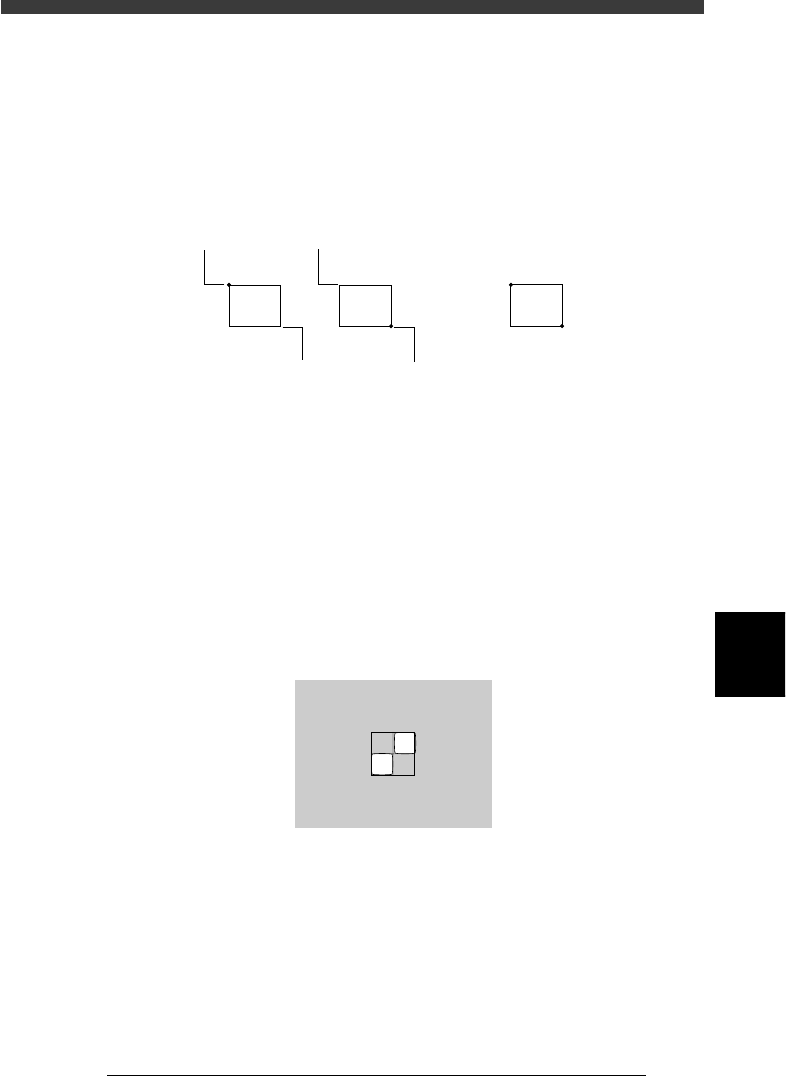
[TAB] key
Each time you press the [TAB] key, the start point (stationary point) of
the window changes to “lower right corner” → “upper left corner” →
“center”. Select the starting point with which you can enclose the
pattern easily.
Lower right corner start (stationary) point:
The window can be enlarged or reduced with the arrow keys, using
the lower right corner of the window as a start point. However, the
window cannot be expanded further right or downwards of the start
point.
6
-61
EPD8013110
Operation
Chapter 6
6
Using various functions
Upper left corner start (stationary) point:
The window can be enlarged or reduced with the arrow keys, using
the upper left corner of the window as a start point. However, the
window cannot be expanded further left or upwards of the start
point.
Center:
The entire window moves with the arrow keys.
Changing the window size and position
23625-C0-00
Moving point
Moving point Start (stationary) point
Start (stationary) point
Entire window moves
Arrow keys
When the lower right or upper left start point is selected, pressing an
arrow key changes the window size. When the center point is selected,
pressing an arrow key moves the entire window. If you press an arrow
key while holding down the [SHIFT] key, the entire window moves to
larger distance.
[ESC] key
Press the [ESC] key if you want to cancel pattern registration.
[ENTER] key
Press the [ENTER] key when the pattern size and position have been
determined, and advance to the next step.
Pattern size adjustment
23626-C0-00
X.Y:134.181
Size
Off
:
:
150.
127.
147
73