YV180X_Ope_E.pdf - 第212页
5 -136 EPD8013110 Operation Chapter 5 5 Creating the PCB data 11. Data backup Making a backup copy of data is recommended for cases in which the registered PCB data is corrupted or lost. T o make a backup cop y of PCB da…
5
-135
EPD8013110
Operation
Chapter 5
5
Creating the PCB data
1 Open the corresponding screen.
In the <1/2/PRD.DATA> mode, open the PCB Info. screen to correct the
PCB origin, and open the Blk Repeat Info. screen to correct the block
repeat settings.
2 Enter the mounting error.
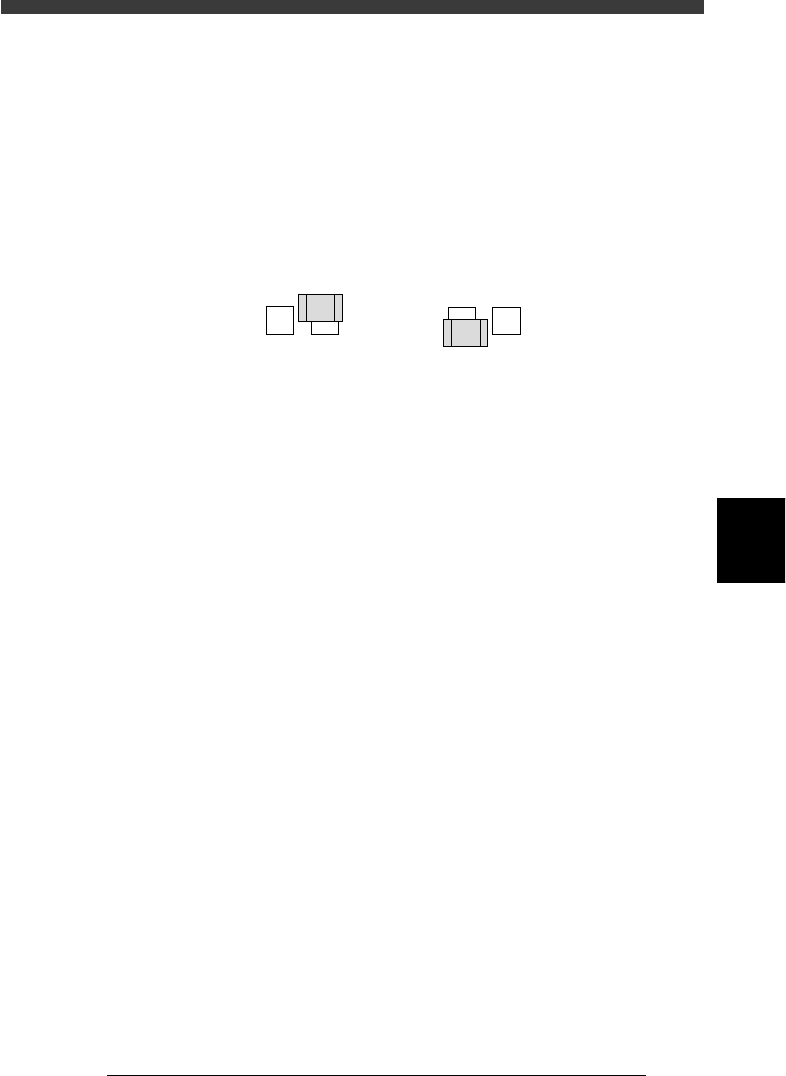
If the position shifts in the plus direction (A in the figure below), subtract
the error from the current coordinate value, and add the error if the
position shifts in the minus direction (B in the figure below).
Mounting position error
21504-C0-00
AB
3 Save the data.
When you have corrected the data, select <1/2/C0 SAVE & EXECUTE> and
press the [ENTER] key. The corrected data will be saved.
4. Mounting position errors even when fiducial marks are used
When the mounting position of the entire PCB or a particular block has
shifted even if the PCB corrections have been made by using the
fiducial marks, an extraneous mark may be recognized due to incorrect
settings for the fiducial mark coordinates. Open the Mark Info. screen in
the <1/2/PRD.DATA> mode, and perform the Adjust Assistant to adjust
the data you want to check. Refer to “4. Creating the mark information”
in this chapter for details on the Adjust Assistant.
5
-136
EPD8013110
Operation
Chapter 5
5
Creating the PCB data
11. Data backup
Making a backup copy of data is recommended for cases in which the
registered PCB data is corrupted or lost. To make a backup copy of PCB
data, you need a PCB data disk specially formatted for the YAMAHA
mounters. This section explains how to format a PCB data disk and make a
backup.
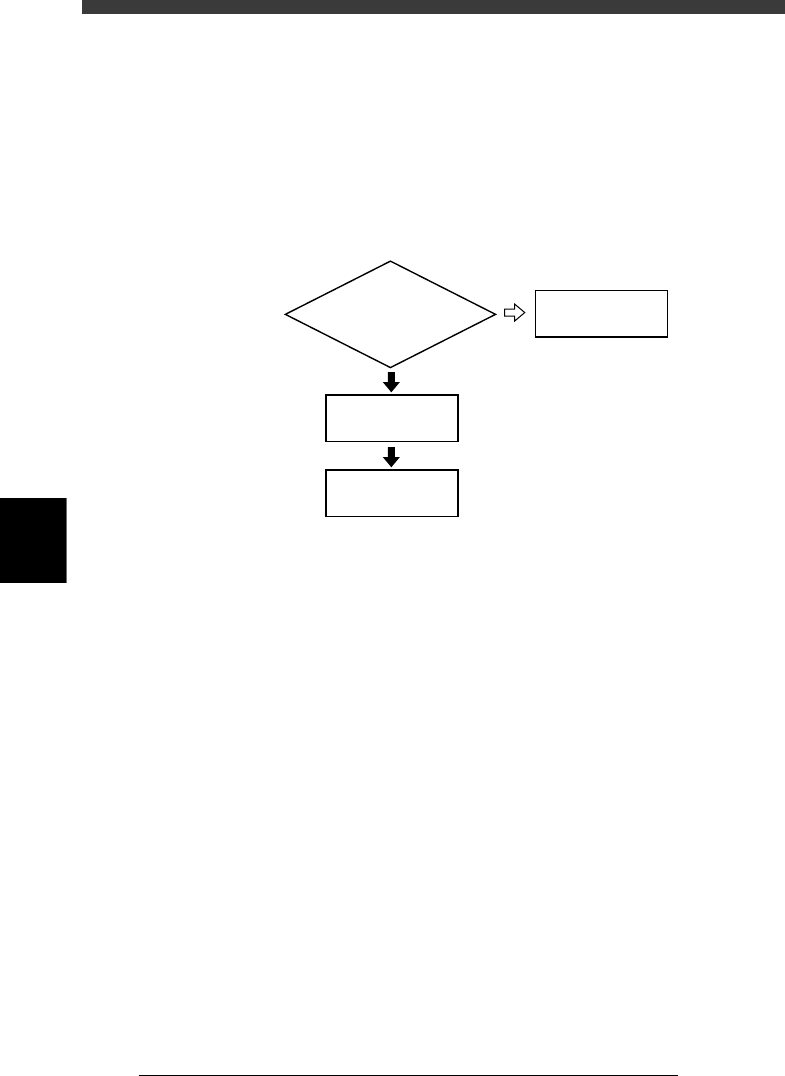
Data backup flow
23559-C0-00
Insert floppy disk
into machine
Do you have PCB disk
for backup ?
4/1/D1/MAKE
PCB DATA DISK
Back up data
11.1
☞
11.2
☞
NO
YES
5
-137
EPD8013110
Operation
Chapter 5
5
Creating the PCB data
11.1 Creating a PCB data disk
A PCB data disk must be formatted specially for the machine (VIOS
specificatins) to make a backup. The following steps explain how to create
a PCB data disk.
Reference
When you use an unformatted floppy disk, it will be first formatted automatically and then
created as a PCB data disk.
1 Insert a floppy disk into the floppy disk drive.
Insert a floppy disk for backup into the floppy disk drive of the machine.
(The floppy disk drive is located on the front lower right panel.)
2 Select the formatting command.
Open the <4/1/DATA_FILE_MNG> mode, press the [ESC] key to display
the command menu window, then select <4/1/D1 MAKE PCB DATA DISK>
and press the [ENTER] key.
3 Create a PCB data disk.
For unformatted disk:
1. When you inserted an unformatted disk into the floppy disk drive in
Step 1, the alert message appears, so check the message and then press
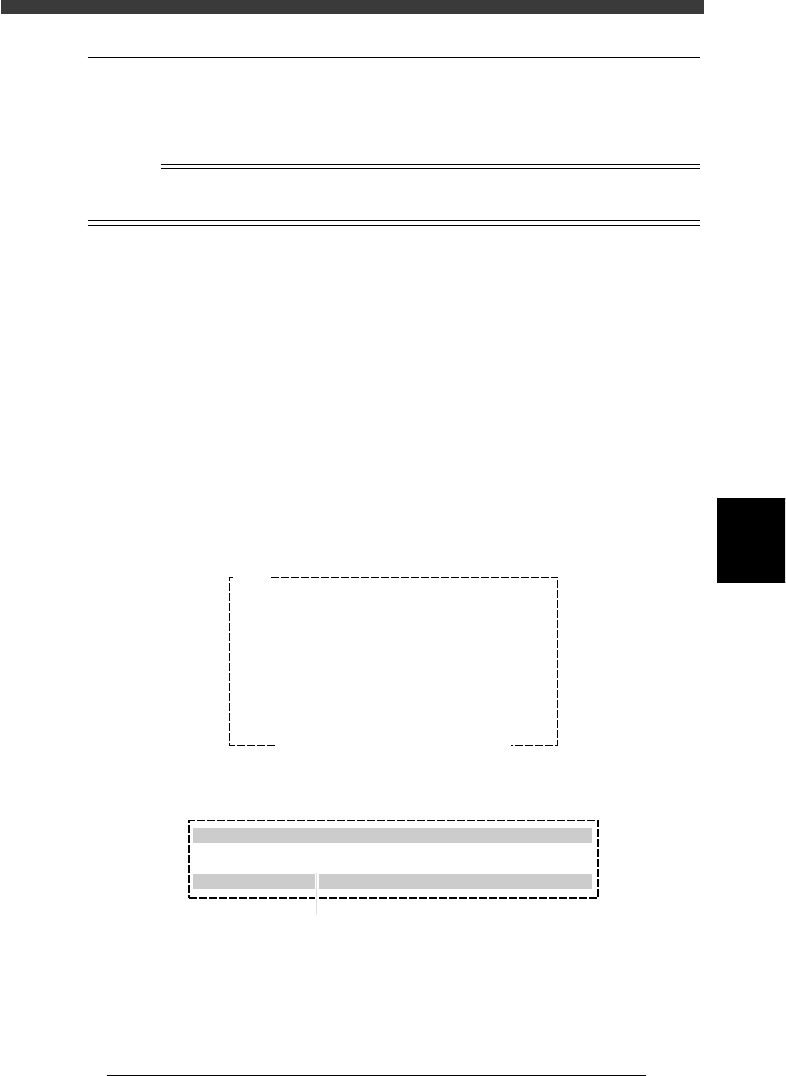
the [ENTER] key. The Format Floppy Disk dialogue box then appears.
Disk format alert message screen
27561-C0-00
Q1005
Drive not ready.
- Floppy disk format is invalid.
- Floppy disk is not inserted correctly.
may be the cause.
Ensure SAFETY and hit [ENTER] key.
Format Floppy Disk dialogue box
27562-C0-00
Format Floppy Disk
Please insert new floppy disk in disk drive
Select disk type? :720MB
[INS][DEL] to change [ESC] to abort.[ENTER] to finish.
Press the [Space], [INS] or [DEL] key to make selection.