YV180X_Ope_E.pdf - 第224页
5 -148 EPD8013110 Operation Chapter 5 5 Creating the PCB data 13. Data editing for pr oduction PCB 13.1 Data editing On a data editing screen, you can copy or mov e the specif ied data to another line, another PCB data, …
5
-147
EPD8013110
Operation
Chapter 5
5
Creating the PCB data
12.3 Automatic trace
This function allows the head or camera to perform automatic trace. When
used with the mount information, the successive mount points can be
continuously traced, and when used with the component information, the
successive pickup points can be continuously traced .
1 Open the Mount Info. or Component Info. screen.
2 Set trace conditions.
See Step 1 in “12.1. Trace” in this chapter.
3 Clamp the PCB on the conveyor.
Use the <2/1/B7 CONVEYOR UNITS> utility to clamp the PCB on the
conveyor.
4 Move the cursor to the data line from which you want to
perform trace.
5 Check the surrounding area for safety.
The teaching unit will move immediately when automatic trace starts. Stay
outside of the axis movement range.
6 Press the [Ctrl] + [F9] keys to perform automatic trace.
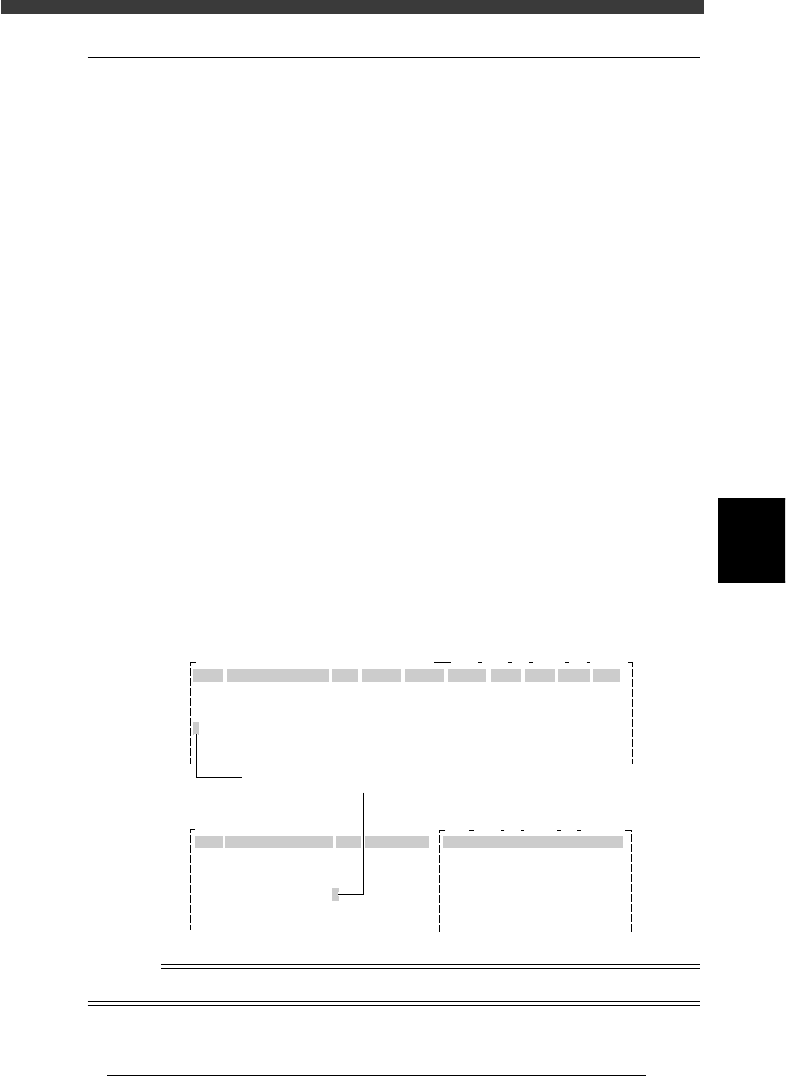
Continuous trace proceeds until an empty line is reached. On the Mount
Info. screen, the cursor blinks in the No. column indicating which mount
point is currently traced. On the Component Information screen, the
cursor blinks in the COMMENT column indicating which pickup point is
currently traced.
Automatic trace
27567-C0-00
CAM 100% X1: 325.33 Y1: -204.13
OBJ :Mount Info.
No.
1
2
3
4
5
SignOfLandPattern
R1005
Comp
1
1
1
1
1
X
10.75
13.75
22.75
22.75
34.75
Y
8.00
9.50
11.00
8.00
8.00
R
0.00
180.00
0.00
0.00
0.00
Head
3
3
3
3
3
PCB :
FidMk
0
0
0
0
0
BadMk
0
0
0
0
0
Skip?
Exec
Exec
Exec
Exec
Exec
OBJ :Component Info.
No.
1
2
3
4
5
COMPONENT NAME
R1005
R1005
R1005
R1005
R1005
COMMENT
1.BASIC INFO.
Database No.
Comp. Package
Feeder Type
Required Nozzle
Feeder Set No.
Pos. Definition
PCB :
:
:
:
:
:
:
Tray
Fix. TF
ForQFP20mm73
Teaching
9
33
CAM 100% X1: 388.00 Y1: -204.13
Currently traced point
Mount Info. screen
Component Info. screen
n
NOTE
To interrupt automatic trace, press any key.
5
-148
EPD8013110
Operation
Chapter 5
5
Creating the PCB data
13. Data editing for production PCB
13.1 Data editing
On a data editing screen, you can copy or move the specified data to
another line, another PCB data, and a static component data file. When
adding or deleting the data, you can insert or delete one or more lines, or
one or more columns as necessary. In addition, it is possible to copy and
delete the data registered in the database.
13.1.1 Copying the specified range
You can copy a specified range of data on the database screen or any
editing screen except the PCB Info. screen. To perform a copy, first select
the range of copy source data, then specify the copy destination. You can
copy the selected range between different types of PCB data or into the
database (user’s area).
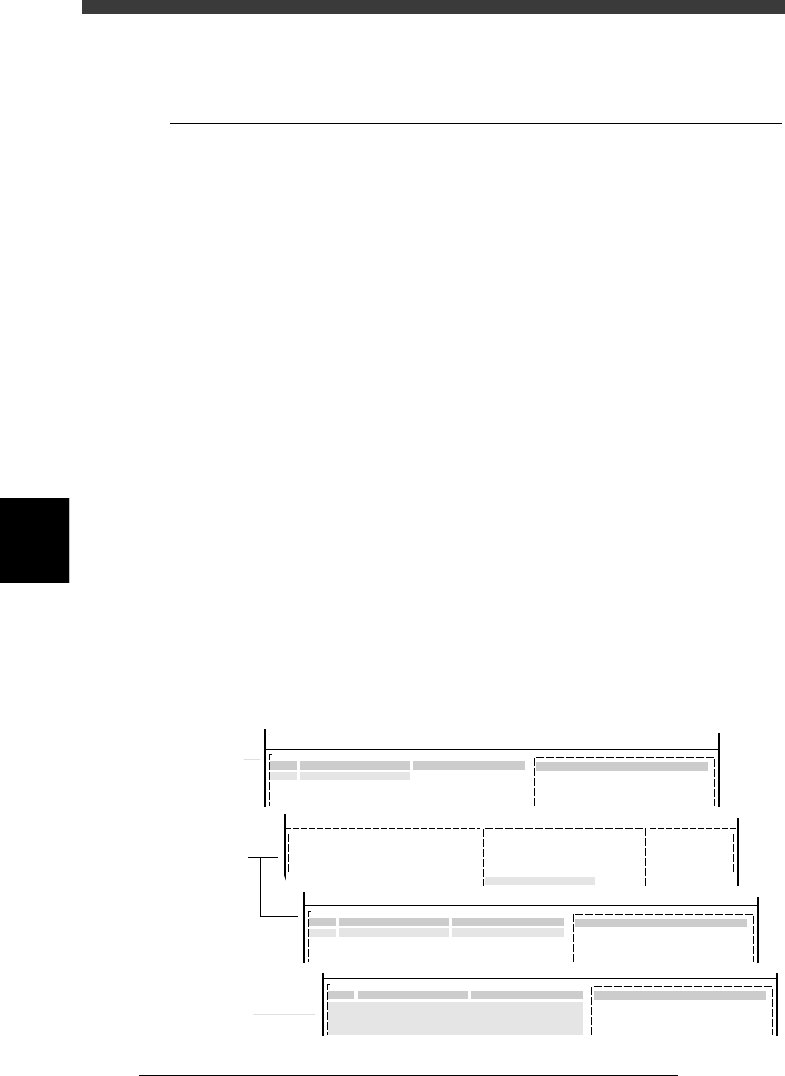
1 Designate the copy source.
1. Use the arrow keys to place the cursor on the first data line to be
copied.
2. Press the [ESC] key to exit the current editing screen, then select <2/1/
C4 SELECT DATA> (<2/3/C4> in DATABASE mode) and press the
[ENTER] key. The selected top line will be highlighted on the screen.
3. Use the arrow keys to move the cursor through the last data line to be
copied.
4. Press the [ENTER] key to select the range. The selected range high-
lighted will slightly change.
Selecting the range
27568-C0-00
<<<APPLICATION>>> 2/DATA/M
<<MODE>> 1/EDIT_DATA
PCB :
OBJ :Component Info.
No.
1
2
3
COMPONENT NAME
R1608
R2125
R3216
COMMENT
1.BASIC INFO.
Database No.
Comp. Package
Feeder Type
:
:
:
Tape
8mmTape
501
<<MODE>> 1/EDIT_DATA
PCB :
OBJ :Component Info.
No.
1
2
3
COMPONENT NAME
R1608
R2125
R3216
COMMENT
1.BASIC INFO.
Database No.
Comp. Package
Feeder Type
:
:
:
Tape
8mmTape
501
PCB :
OBJ :Component Info.
No.
1
2
3
COMPONENT NAME
R1608
R2125
R3216
COMMENT
1.BASIC INFO.
Database No.
Comp. Package
Feeder Type
:
:
:
Tape
8mmTape
501
C/EDIT_TOOL
C4 SELECT DATA
1
2
3
R1608
R2125
R3216
Tape
8mmTape
501
<COMMAND_LIST>
Substep 1
Substep 2
Substep 3
5
-149
EPD8013110
Operation
Chapter 5
5
Creating the PCB data
2 Specify the copy destination.
• To copy to another line:
Use the arrow keys to line up the cursor with the line you want to copy
to.
• To copy into another PCB data file:
Press the [F2] key and select the PCB data into which you want to
copy. The information screen of the selected PCB data will be dis-
played, so line up the cursor with the line you want to copy to.
• To copy into the Static Component Information:
Press the [F2] key and select “STATIC_COMPONENTS_” to open the
Static Component Information screen. Use the arrow keys to line up the
cursor with the line you want to copy to. (This can be used only for the
component information.)
3 Copy the selected range.
1. Select <2/1/C6 COPY SELECTED LINES> and press the [ENTER] key.
(Select <2/3/C6> for the database.)
The “HOW TO COPY?” dialogue box then appears.
2. Select “INSERT” or “OVERWRITE” and press the [ENTER] key.
c
CAUTION
Note that selecting “INSERT” causes the data numbers after the insertion line to shift.
This may affect the PCB data in the static components and database. Likewise, the data
numbers will be shifted when component or fiducial mark data is copied.
4 Cancel the specified range.
Press the [ESC] key to exit the current editing screen, then select <2/1/C5
CANCEL SELECTION> and press the [ENTER] key. The highlighting
disappears.
n
NOTE
With the above procedure, it is not possible to copy the data between DATABASE mode
and EDIT_DATA mode (Component Info. or Mark Info. screen). When you want to copy
into the database, run the <SET FROM DATABASE> command or a reverse of the <SET
FROM DATABASE> command. For more details, see “3. Creating the user database” in
Chapter 5.