YV180X_Ope_E.pdf - 第220页
5 -144 EPD8013110 Operation Chapter 5 5 Creating the PCB data 2. When you press the [T AB] key , the asterisk (*) of the right-hand coordinates disappears as shown in the figure below . This state allows you to enlarge o…
5
-143
EPD8013110
Operation
Chapter 5
5
Creating the PCB data
12.2.2 Vision cursor teaching
Vision cursor teaching allows you to obtain position data which is more
accurate than normal point teaching. A teaching window with any desired
size is displayed on the vision monitor and its center position obtained. The
target mark or pattern must be displayed on the vision monitor.
1 Clamp the PCB on the conveyor and set teaching condi-
tions.
As with point teaching, clamp the PCB on the conveyor, and set teaching
conditions by executing the <2/1/B0 TEACH, TRACE CONDITION>
command. In this case, the teaching unit must be set to “Camera”.
2 Move the camera to the target position.
Check safety and stay out of the axis movement range, then manipulate
the YPU joystick to move the camera to above the target position.
3 Press the [Ctrl] + [F10] keys.
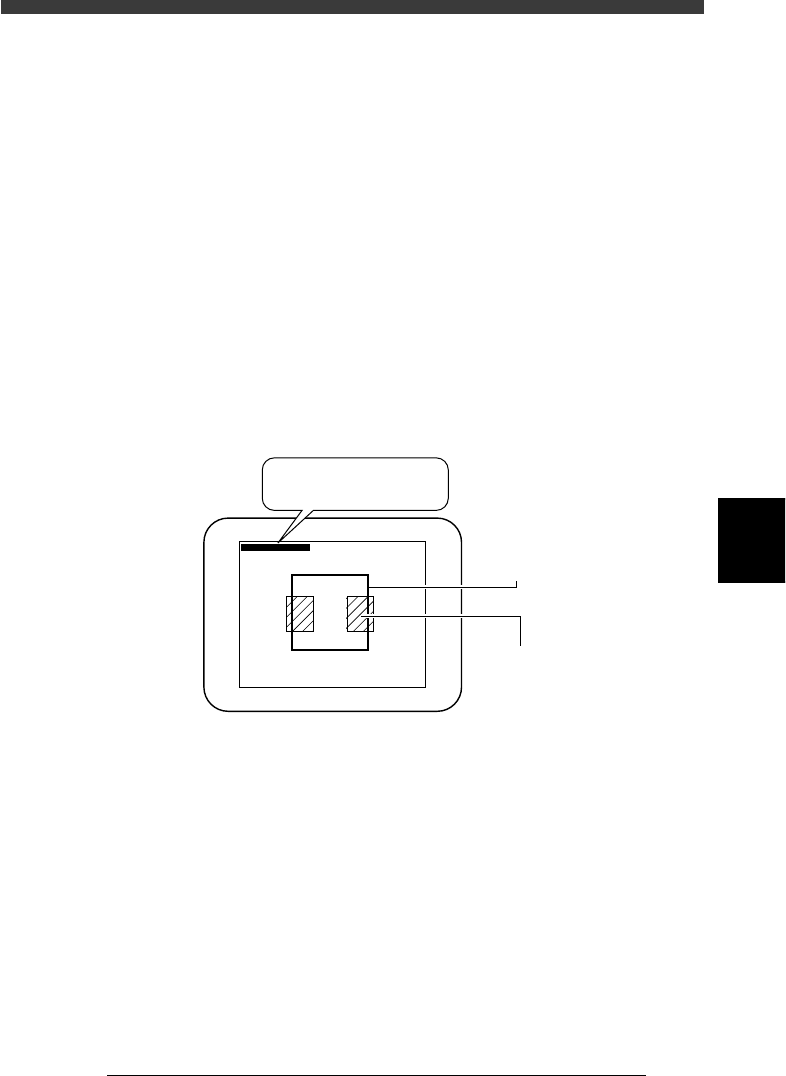
A teaching window appears on the vision monitor as shown below.
Vision cursor teaching
23560-C0-00
∗(180, 170) - (338, 331)
∗(180, 170) - ∗(338, 331)
Teaching windo
w
Land pattern
4 Adjust the teaching window position and size to match the
pattern or mark size.
At the top left of the vision monitor, the coordinates of two diagonal
corners of the window are displayed. Adjust the window position and size
to match the pattern or mark size as follows:
1. When an asterisk (*) is prefixed to each of the two coordinates as
shown above, pressing the arrow keys allows the window to move in
the direction indicated by arrow.
Use the arrow keys to move the window so that its upper left or lower
right corner is properly positioned for the target land patterns or mark.
5
-144
EPD8013110
Operation
Chapter 5
5
Creating the PCB data
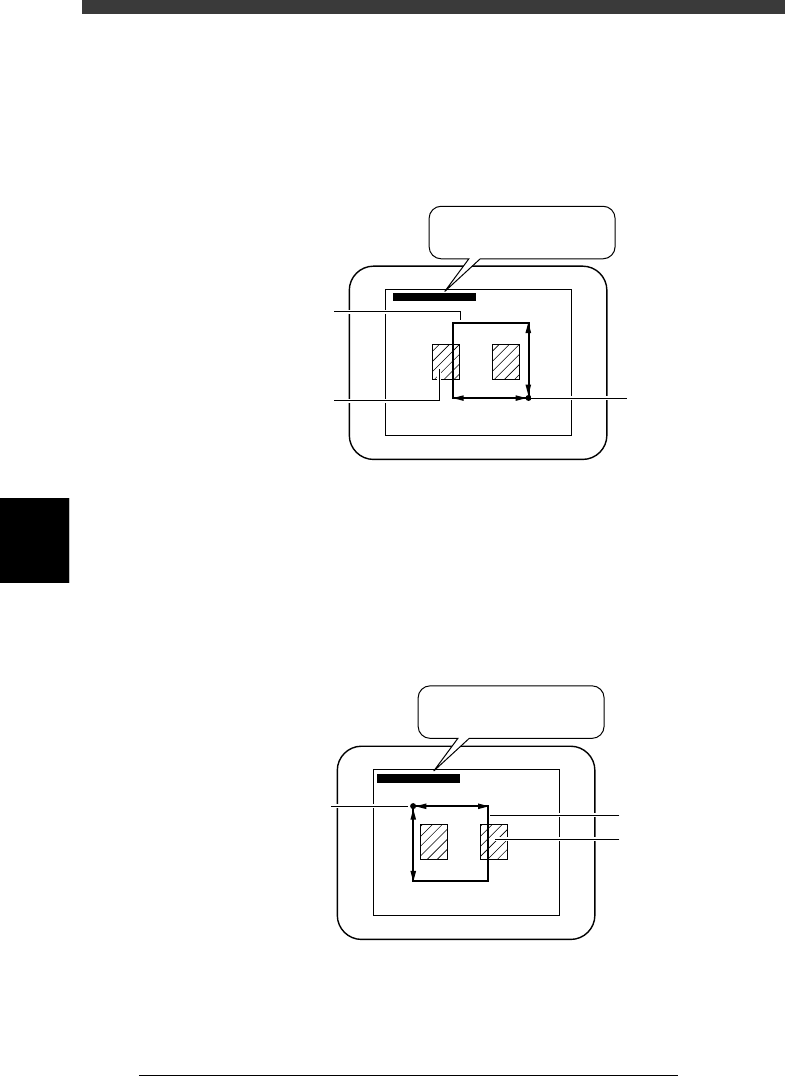
2. When you press the [TAB] key, the asterisk (*) of the right-hand
coordinates disappears as shown in the figure below. This state allows
you to enlarge or reduce the window size by changing the position of
the upper left corner with the arrow keys (the lower right corner is
stationary in this case). Adjust the window size to match the pattern or
mark size.
Adjusting the window size with the lower right corner fixed
23561-C0-00
∗(180, 170) - (338, 331)
∗(180, 170) - (338, 331)
Teaching window
Land pattern
Start (stationary)
point
3. When you want to adjust the window size by changing the position of
the lower right corner, press the [TAB] key again. The asterisk (*) of the
left-hand coordinate pair disappears but an asterisk reappears at the
right-hand coordinates, as shown in the figure below. This state allows
you to enlarge or reduce the window size by changing the position of
the lower right corner with the arrow keys (the upper left corner is
stationary in this case).
Adjusting the window size with the upper left corner fixed
23562-C0-00
(180, 170) - ∗(338, 331)
(180, 170) - ∗(338, 331)
Start (stationary)
point
Teaching windo
w
Land pattern
5
-145
EPD8013110
Operation
Chapter 5
5
Creating the PCB data
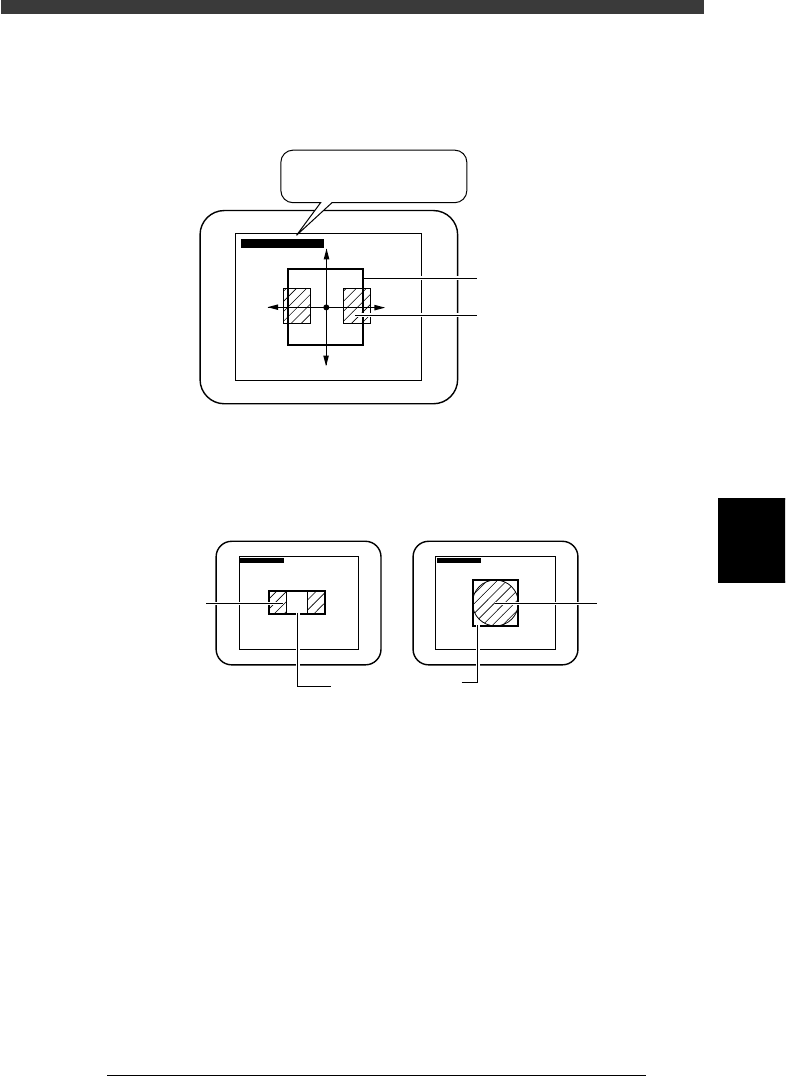
4. When you press the [TAB] once more, an asterisk (*) is prefixed to each
of the two coordinate pairs, allowing you to move the entire window
using the arrow keys.
Moving the entire window
23563-C0-00
∗(180, 170) - ∗(338, 331)
∗(180, 170) - ∗(338, 331)
Teaching windo
w
Land pattern
5. Enclose the target patterns or mark as follows.
Appropriate teaching window size
23564-C0-00
∗(180, 170) - (338, 331) ∗(180, 170) - (338, 331)
For teaching the center of patterns For teaching a mark
Pattern
Teachin
g
window
Mar
k