YV180X_Ope_E.pdf - 第182页
5 -106 EPD8013110 Operation Chapter 5 5 Creating the PCB data 8. Checking the data It is suggested that you check the ne wly created data. This section explains ho w to check the pickup position registered in the compone…

5
-105
EPD8013110
Operation
Chapter 5
5
Creating the PCB data
9 Set the “Skip?” column.
Select “Exec.” to use this mount data, and select “Skip” when not using it.
n
NOTE
If block conversion in <2/2/DATA_GENERATOR> runs on the multi-block PCB data (to
convert multi-block PCB data into single PCB data), the “Exec” settings in the original
data will be saved as “NOTE DATA”.
0 Save the data.
After setting all mount data, press the [ESC] key twice to exit the current
edit screen, then select <2/1/D8 SAVE PCB DATA> and press the [ENTER]
key.

5
-106
EPD8013110
Operation
Chapter 5
5
Creating the PCB data
8. Checking the data
It is suggested that you check the newly created data. This section explains
how to check the pickup position registered in the component information
and the mounting position registered in the mount information.
8.1 Checking the component information
When you have created component information while off-line and set the
Pos. Definition parameter to other than “Automatic”, you must check the
pickup position. Follow the steps below.
1 Open the Component Info. screen.
When the Component Info. screen is already displayed, skip this step.
When another edit screen is open, press the [F3] key (or select <2/1/A1>)
to display the edit item menu box, then select “Component Info.” and
press the [ENTER] key.
2 Set the component feeder on the feeder plate.
When you use a multistick feeder, securely install it on the feeder plate by
inserting the knock pins into the position that matches the Feeder Set No.
registered in the BASIC INFO. sub-window.
3 Check the pickup position.
You can use the trace function (see “12. Teaching and trace”) to check the
pickup position.
1. Move the cursor to the Feeder Pos_X parameter in the BASIC INFO.
sub-window.
2. Press the [F9] key (or run the <2/1/B0 TEACH, TRACE CONDITION>
command) and then set the following conditions.
Teaching table : A or B table
Teaching unit : Camera
Speed : About 20
Fiducial correction : NotUse
After setting the teaching (trace) conditions, the display returns to the
Component Info. screen.
3. Press the [F9] key to perform trace.
The camera moves to the pickup position that is currently registered.
Check that the correct pickup position is displayed on the vision
monitor.
4. If the pickup position is not correct, perform teaching referring to “3.10
Setting the stick feeder component data” to enter the correct pickup
position.
5
-107
EPD8013110
Operation
Chapter 5
5
Creating the PCB data
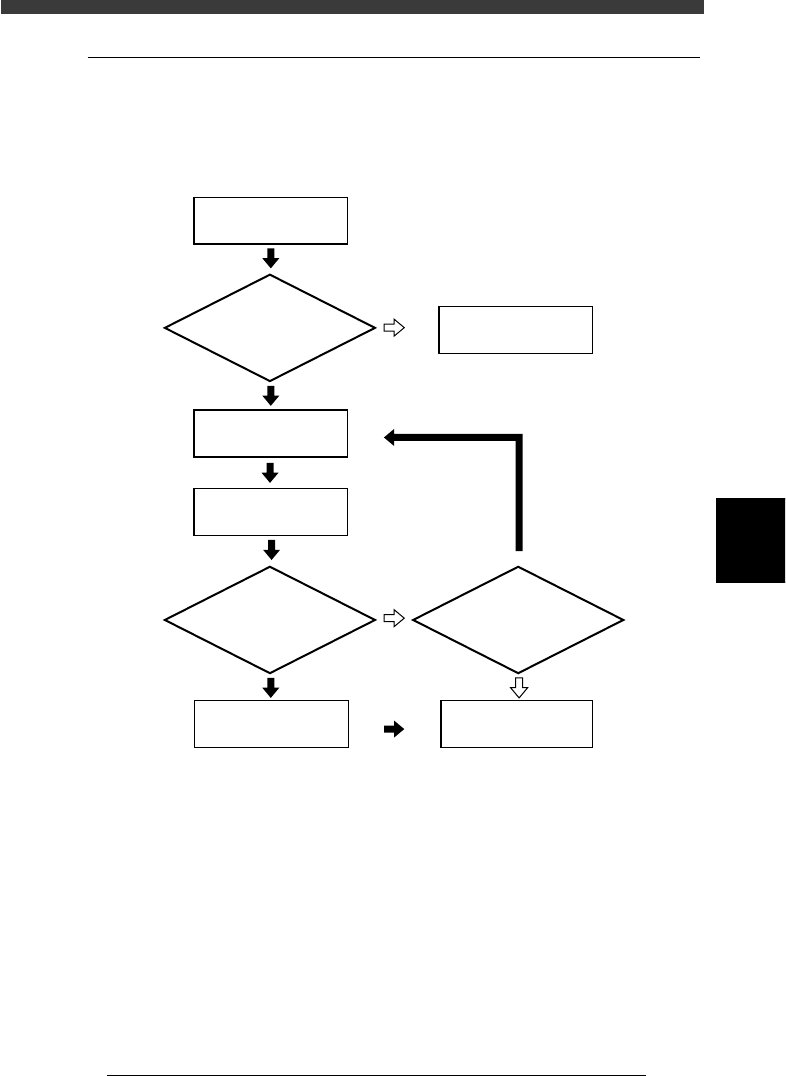
8.2 Checking the mount information
While displaying the component mounting position on the vision monitor,
check and correct the mounting position, land pattern names and compo-
nent numbers.
Flow chart for checking and correcting the mounting position
23549-C0-00
5
☞
Select mount number
whose mounting position
you want to check
Open Mount Info.
Check
mounting position
Teach optimum
coordinate data
Save data
Is PCB clamped?
Correct component
mounting position ?
Continue?
Clamp the PCB
YES
YES
YES
NO
NO
NO