YV180X_Ope_E.pdf - 第152页
5 -76 EPD8013110 Operation Chapter 5 5 Creating the PCB data 4.2 V arious parameter settings This section describes how to set basic parameters in the mark information sub-windo ws. Parameter settings not e xplained here…
5
-75
EPD8013110
Operation
Chapter 5
5
Creating the PCB data
2. Use the UP/DOWN arrow keys or [PageUp] or [PageDown] key to
select the database number of the same mark or the most similar
mark in shape and press the [ENTER] key to make a copy.
The selected database No. is copied into the DataBase Number
column in the Mark Type Info. sub-window as well as other parameters
on the selected mark.
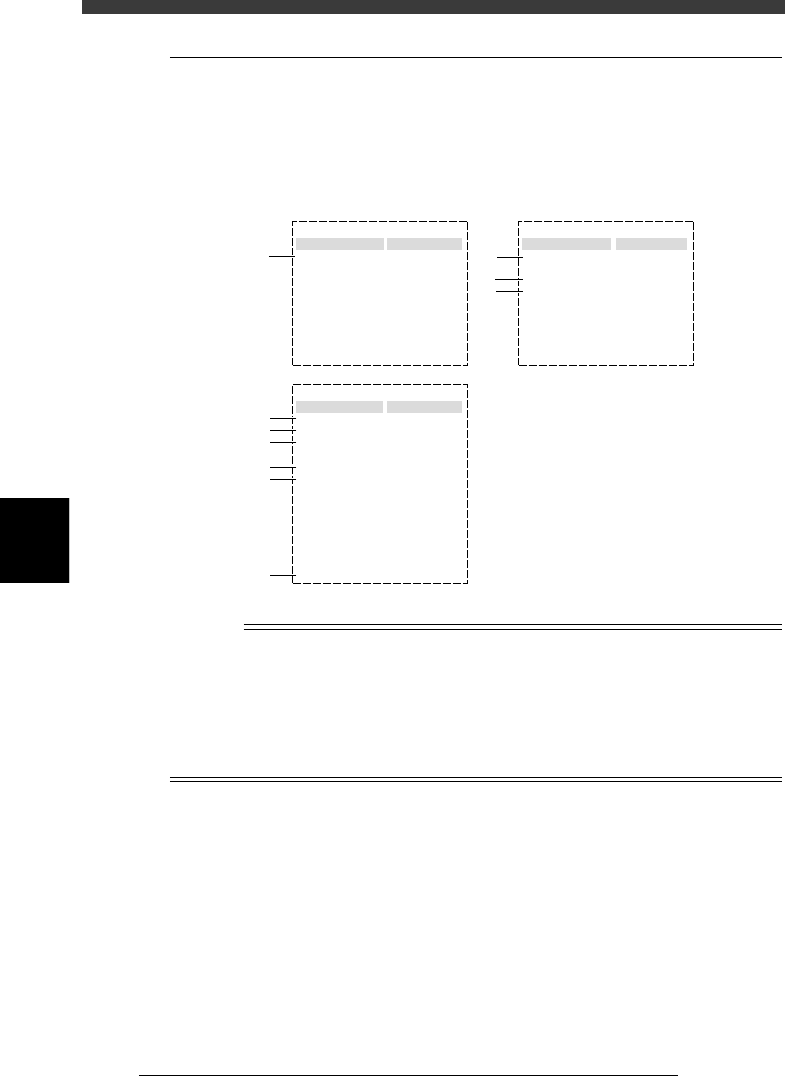
Database number selection screen
27532-C0-00
1
2
3
<<<APPLICATION>>>
<<MODE>> 1/EDIT_DATA
<COMMAND_LIST>
A/DISPLAY
A3
2/DATA/M
1
2
150
151
1.6mm_CIRCLE
1.0mm_CIRCLE
DOUBLE_CIR_1.6Cu
CIRCLE_1.0_Cu
Edit Term
Mark Type
DataBase Number
:
:
:
Fiducial
151
Mark nameDatabase number
Database No. and
parameters are copied.
Reference
You can copy the database information without using the <2/1/A3 VIEW DATABASE
NO.> command, as follows:
Press the [TAB] key to move the cursor to the right-hand screen (sub-window), then
enter the desired database number in the Database Number column in the Mark Type
Info. sub-window. Press the [F7] key to run the SET FROM DATABASE command,
and the information on the selected database number is then copied.
6 Set other parameters in the sub-windows.
Referring to “4.2 Various parameter settings” in this chapter, set other
parameters as necessary.
7 Run the Adjust Assistant.
Refer to “4.3 Adjust Assistant” in this chapter for more details.
8 Save the settings.
Exit the Adjust Assistant mode, then press the [ESC] key twice, select
<2/1/D8 SAVE PCB DATA> and press the [ENTER] key.
5
-76
EPD8013110
Operation
Chapter 5
5
Creating the PCB data
4.2 Various parameter settings
This section describes how to set basic parameters in the mark information
sub-windows. Parameter settings not explained here should be found by
evaluating recognition results obtained with the Adjust Assistant or refer-
ring to the help message displayed by pressing the [F1] key.
Parameters for fiducial mark setting
27533-D8-00
Mark Type Info.
Edit Term
Mark Type
DataBase Number
:
:
:
Fiducial
297
Mark size Info.
Edit Term
MarkOutSizeX
MarkOutSizeY
Area
Perimeter
:
:
:
:
:
1.50
1.50
1.77
4.71
Vision Info.
Edit Term
Shape Type
Surface Type
Algorithm Type
Mark Threshold
Tolerance
Search Area
Outer Light
Inner Light
Coaxial Light
IR Outer Light
IR Inner Light
Cut Inner Noise
Cut Outer Noise
Sequence
:
:
:
:
:
:
:
:
:
:
:
:
:
:
:
Sp. Shape
Reflect
Normal
Standard + 1
Standard + 1
Standard + 1
OFF
Standard + 1
0
0
Normal
115
30
3.00
1
2
3
4
5
6
7
8
9
10
n
NOTE
When setting the parameters shown in the sub-windows above, use the number keys to set
the parameters aligned on the right, while using the [INS], [DEL] or [Space] key to set
the parameters aligned on the left. However, there are some parameters which should be
set or optimized with the Adjust Assistant commands described later in “3.7” in this
chapter.
The Area and Perimeter parameters in the Mark Size Info. sub-window are displayed only
when the Shape parameter in the Vision Info, sub-window is set to “Sp. Shape”.
5
-77
EPD8013110
Operation
Chapter 5
5
Creating the PCB data
Mark Type Info. parameters
1. Mark Type
The “Mark Type” parameter in the Mark Type Info. sub-window should be
set to “Fiducial”.
Vision Info. parameters
2. Shape Type
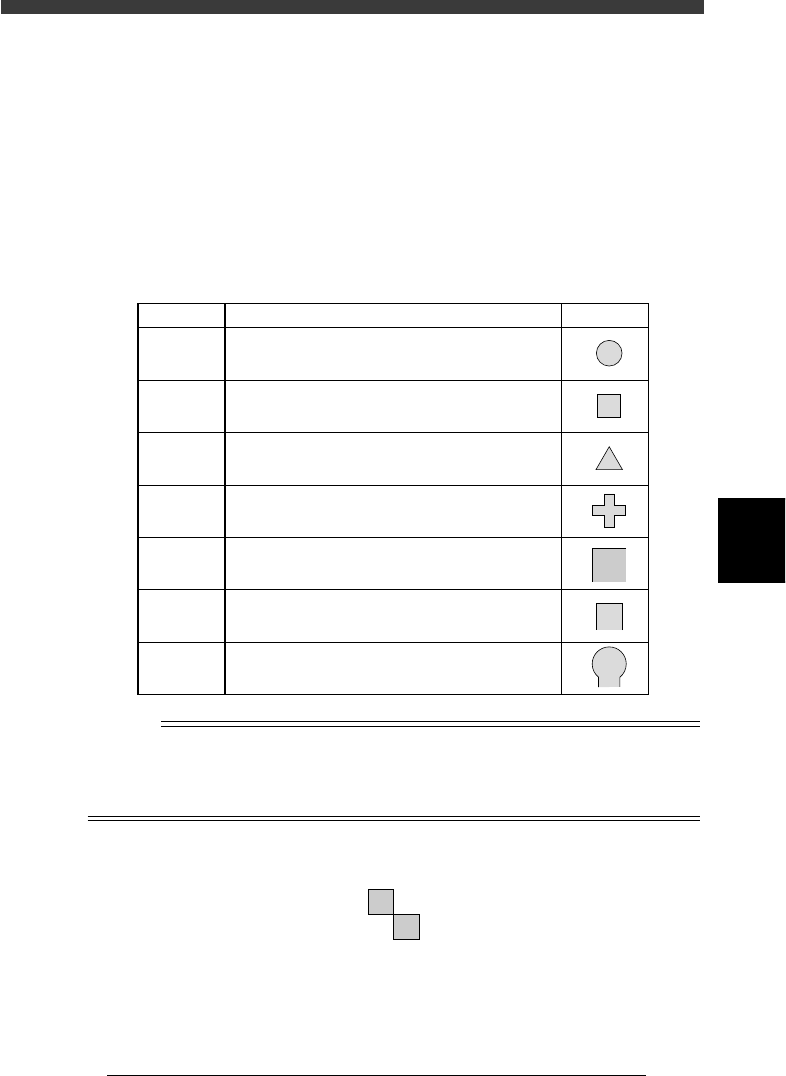
The Shape Type in the Vision Info. sub-window can be selected from the
following 7 types.
Shape Type settings
25512-C0-00
Setting Description
Example
Circle
Square
Triangle
Sp. Shape
Corner
TopEdge
CirEdge
Select to detect a circular mark.
Select to detect a square mark.
Select to detect an equilateral triangular mark.
Select to detect a special mark other than above.
Select to detect a corner of a pattern as a mark.
Select to detect an edge of a pattern as a mark.
This setting is effective in detecting a square edge.
Select to detect an edge of a pattern as a mark.
This setting is effective in detecting a round edge.
Reference
If you use a special mark composed of two or more objects as shown below, set the
Algorithm Type parameter (described later) to “Pattern”. In this case, the “Shape”
parameter is ignored during recognition, so you can set this parameter to any type. (For
more details, see “9. Pattern matching” in Chapter 6.)
Example of special mark
21502-C0-00