YV180X_Ope_E.pdf - 第30页
2 -5 EPD8013110 Operation Chapter 2 2 About VIOS 1.2 VIOS screen structure The illustrations below sho w typical displays of the VIOS softw are screen. Display in the R UNNING mode of the OPERA TION Manager 27202-C0-00 &…
2
-4
EPD8013110
Operation
Chapter 2
2
About VIOS
1.1 Basic operations
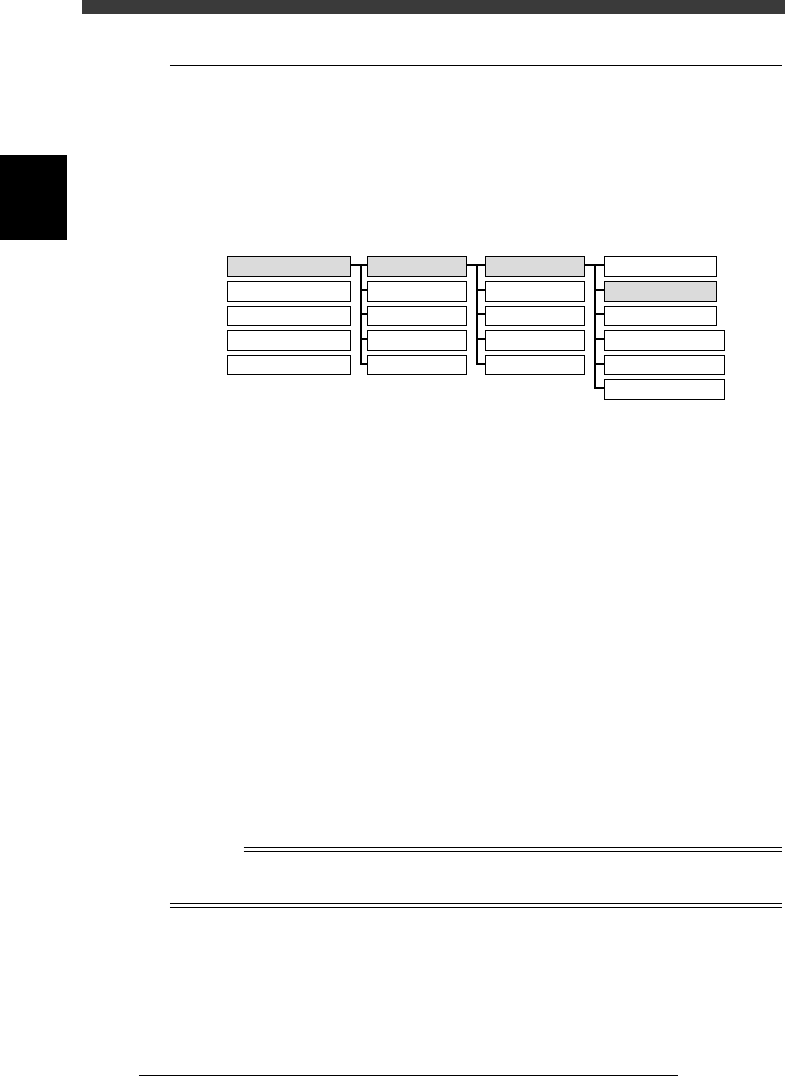
The VIOS software runs from hierarchical menus comprised of APPLICA-
TION, MODE, COMMAND LIST and COMMAND. To start automatic
operation, for example, select <1/ OPERATION/M > - <1/RUNNING> -
<A/RUNNING> and <A2 AUTO RUNNING> as shown below.
Starting automatic operation
23201-C0-00
1/RUNNING
2/PRD.DATA
3/PRD.HISTORY
4/MANUAL
0/EXIT
A/RUNNING
B/CONDITION
C/MONITOR
D/INITIALIZE
E/SKIP&EXIT
A1 STOP RUNNING
A2 AUTO RUNNING
A3 STEP RUNNING
A4 A_TABLE ON/OFF
A5 B_TABLE ON/OFF
A6 PCB TBL ON/OFF
1/OPERATION/M
2/DATA/M
3/MAINTE/M
4/SHELL/M
0/EXIT
APPLICATION MODE COMMAND_LIST COMMAND
There are three methods for selecting each item.
1. Using the arrow keys and [ENTER] key
Use the arrow keys to move the cursor to the item (application, mode
or command) you want to select and press the [ENTER] key.
2. Using the number keys
Directly hit the number or alphabet key for the item you want to select.
For example, instead of executing the <1/1/A2 AUTO RUNNING>
command as explained above, hit the number key in order “1” (1/
OPERATION/M), “1” (1/RUNNING), alphabet key “A” and number
key “2” (A2 AUTO RUNNING).
3. Using function keys and YPU keys
Some commands can be directly executed by pressing the specified
function key. For example, you can directly execute the <B1 ADJUST
ASSISTANT [F6]> command by pressing the [F6] key.
The YPU keys can also be used to directly execute some special
commands by pressing the corresponding keys. (See “5. Data input and
operation devices” in Chapter 1.)
Reference
This manual shows hierarchical menu commands as in <1/1/A2 AUTO RUNNING> which
stands for <Application number/Mode number/Command name>.
2
-5
EPD8013110
Operation
Chapter 2
2
About VIOS
1.2 VIOS screen structure
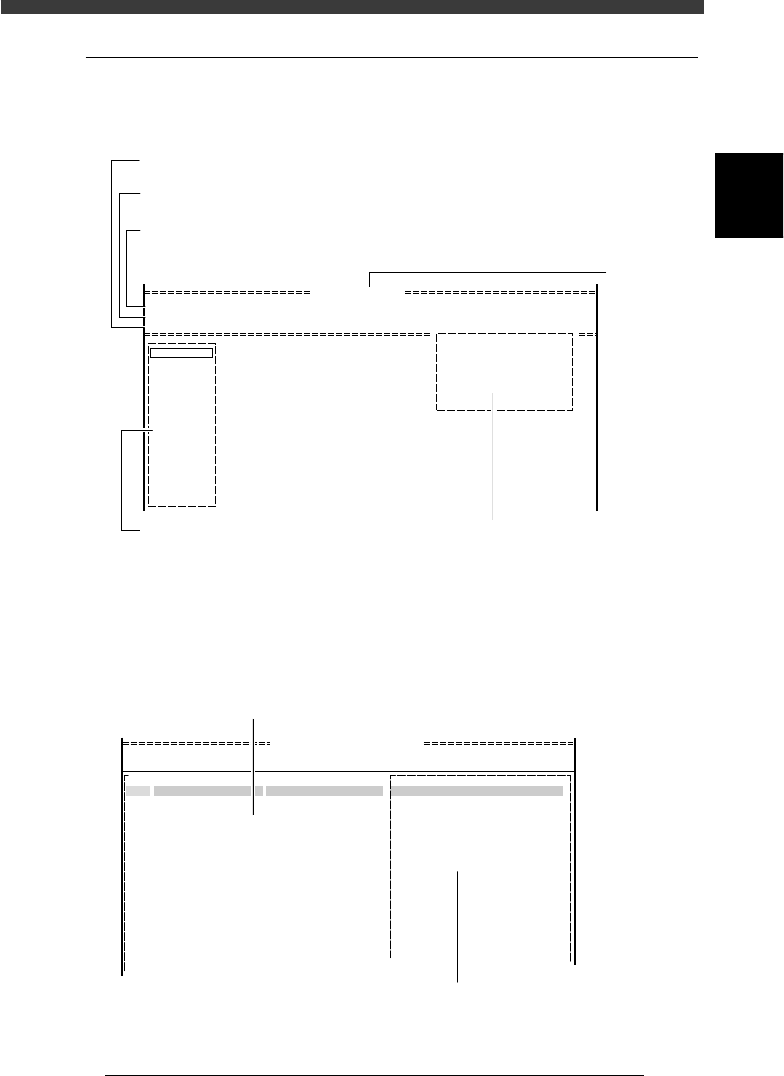
The illustrations below show typical displays of the VIOS software screen.
Display in the RUNNING mode of the OPERATION Manager
27202-C0-00
<<<APPLICATION>>> 1/OPERATION/M 2/DATA/M 3/MAINTE/M 4/SHELL/M 0/EXIT
<<MODE>> 1/RUNNING 2/PRD.DATA 3/PRD.HISTORY 4/MANUAL 0/EXIT
<COMMAND_LIST> A/RUNNING B/CONDITION C/MONITOR D/INITIALIZE E/SKIP&EXIT
Condition
Waiting
Initialized
UseVacChk
UesAlign
Speed 100
D1 WARM UP
D2 INIT.SERVO ORIGIN
D3
D4 ASSISTANT UTILITY
D5 STOPPING UTILITY
D6 RUNNING UTILITY
DATA [ CUK93001 ]
PCB name
Command list
Shows the command menu list available in the selected mode.
Mode
Shows the mode menu available in the selected application manager.
Application
Shows the four main application managers of the VIOS. Available managers
can be specified by password.
Command window
A pull-down submenu of
the selected command menu
Running monitor
Shows the operating status and machine
conditions.
Display in the EDIT_DATA mode of the DATA Manager
(Component information screen)
27203-C0-00
DATA [ CUK93001_00 ]
<<<APPLICATION>>>
<<MODE>> 1/EDIT_DATA
PCB : CUK93001
2/DATA/M
OBJ : Component Info.
No.
1
2
3
4
5
6
7
8
9
10
11
12
13
14
15
1.BASIC INFO.
Database No.
Comp. Package
Feeder Type
Required Nozzle
Feeder Set No.
Pos. Definition
:
:
:
:
:
:
Tray
Fix.TF
For QFP20mm73
Teaching
9
33
COMMENTCOMPONENT NAME
R1005
R2125
Main window
Allows registering basic data such as component name. Pressing the [TAB] key
switches the active screen between this main window and right-hand sub-window.
Sub window
Allows registering and editing various parameters. Pressing
the [TAB] key switches the active screen between this sub-window
and main window. The contents of the sub-window are switched by
pressin
g
the
[
F4
]
ke
y
.
2
-6
EPD8013110
Operation
Chapter 2
2
About VIOS
1.3 Help function
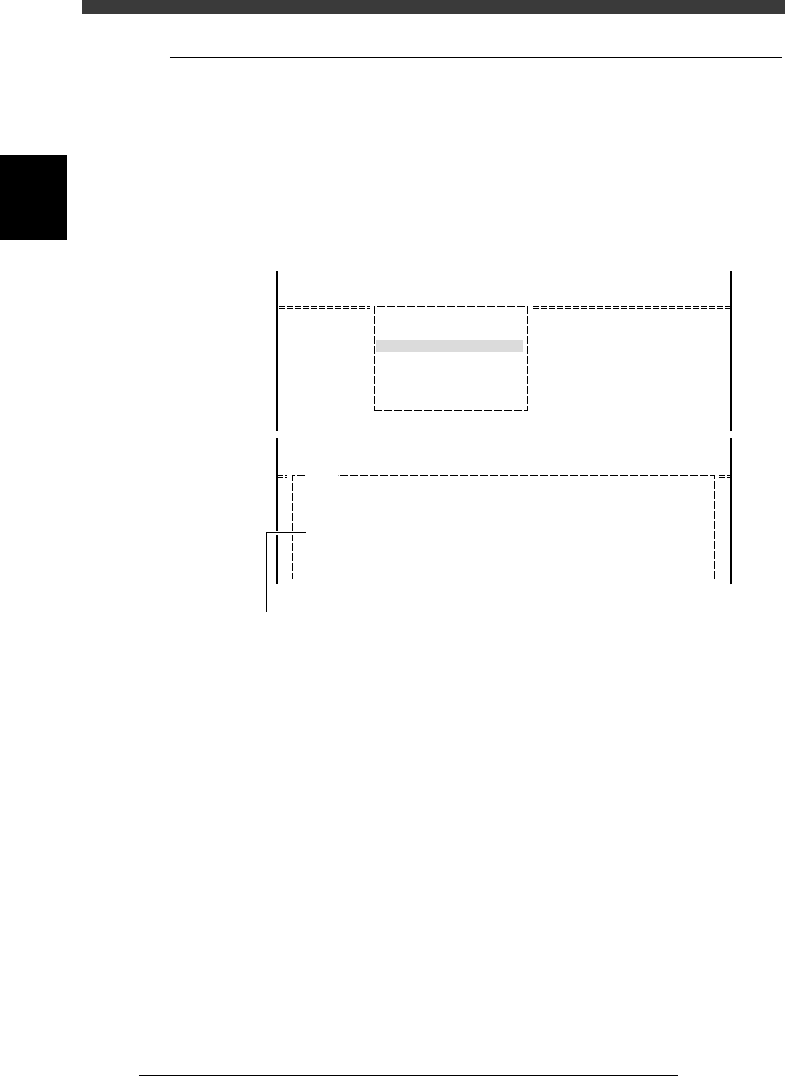
The Help function displays a help message explaining each item on the
VIOS software. To use the Help function, move the cursor to the item you
want to know and press the [F1] key. The help message for the selected
item will be displayed on the operation monitor. To make it disappear and
return to the preceding screen, press the [F1] key again or press the [ESC]
key.
Help message screen example
27204-C0-00
<<<APPLICATION>>>
<<MODE>>
<COMMAND_LIST>
2/DATA/M
1/EDIT_DATA
A/DISPLAY
A3 VIEW DATABASE NO.
<<<APPLICATION>>>
<<MODE>>
<COMMAND_LIST>
H1102
VIEW DATABASE NO.
This command allows you to view a list of the names and database numbers
of every component in the component or mark database.
When the expand area is possible to be used, if pressing with [Shift],
all database in only the espand area is possibke to be referenced.....
2/DATA/M
1/EDIT_DATA
A/DISPLAY
Help message screen appears by pressing [F1] key.