YV180X_Ope_E.pdf - 第195页
5 -119 EPD8013110 Operation Chapter 5 5 Creating the PCB data 3 Check the conveyor setups as follows. Run <1/1/B6 RUNNING CONDITION> and check the PCB clamping method (PcbFixDevice). If you want to change the PCB c…
5
-118
EPD8013110
Operation
Chapter 5
5
Creating the PCB data
10.1 Making setups for mounting test
Before starting mounting test, select the PCB data and make necessary
setups.
1 Enter the <1/1/RUNNING> mode and select the PCB
name.
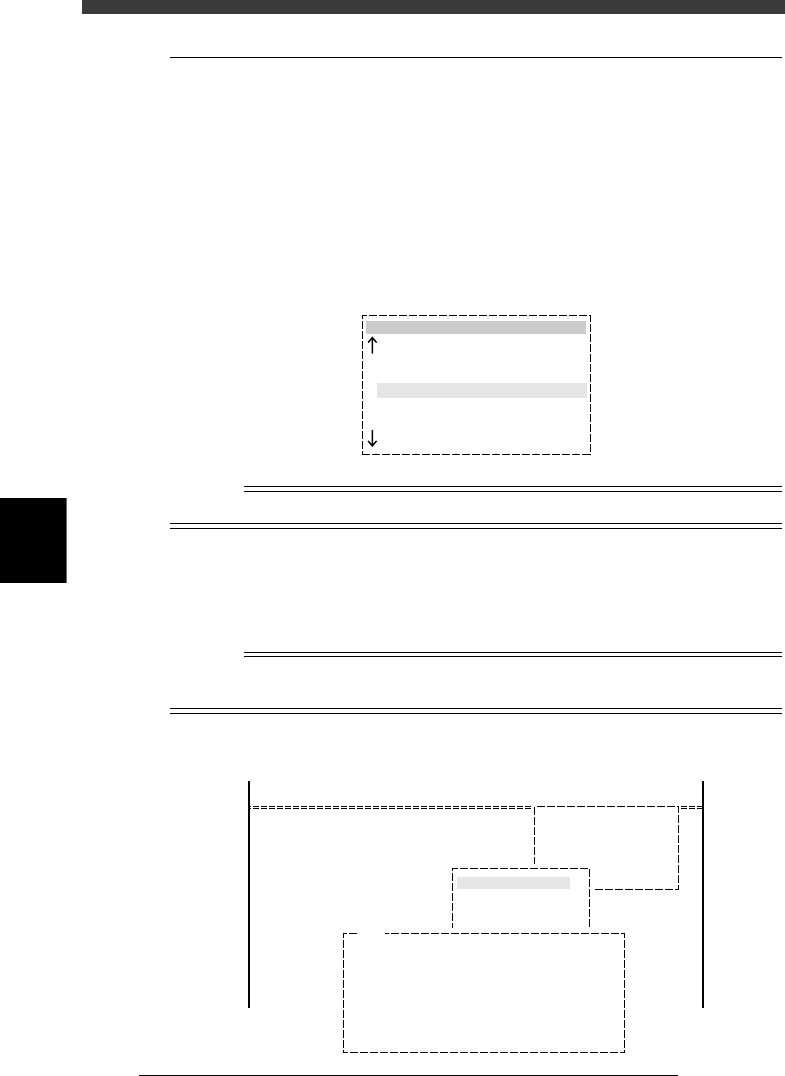
When you enter the <1/1/RUNNING> mode, a list of PCB names appears.
Select the PCB to be produced and press the [ENTER] key, then the PCB
data will be loaded. If an error occurs during data loading, refer to section
“10.3.1 Error countermeasures” in this chapter.
PCB name box
27548-C0-00
pcb name
CONVEYOR
ANC_TEST
PALLET_88
PCB1
1994-08-16
1998-02-11
1998-02-23
1997-11-24
n
NOTE
To change the production PCB, press the [F2] key.
2
e
Check the nozzle type attached to each head.
Check whether the correct nozzle is attached to each head. If not, press
the emergency stop button and fit the correct nozzle to each head by
hand.
Reference
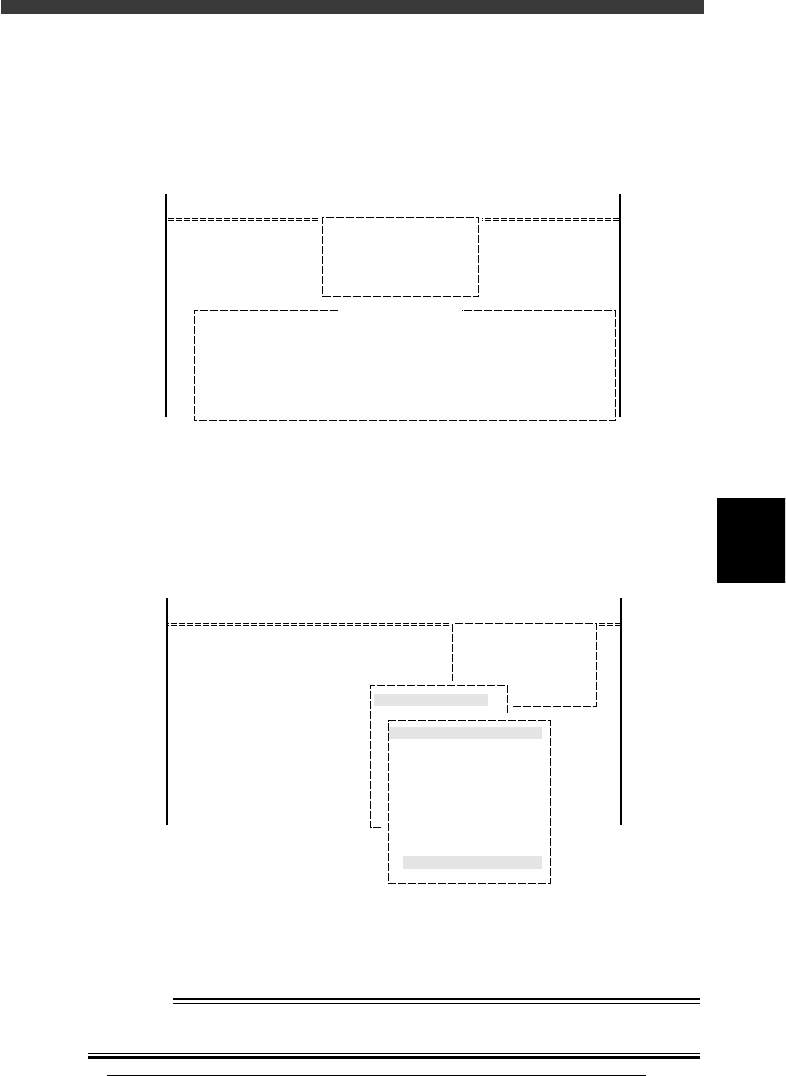
To see the list of nozzles to be used, select <1/1/D4 ASSISTANT UTILITY> - ”REQUIRED
NOZZLE” and press the [ENTER] key.
List of nozzles to be used
27549-C0-00
<<MODE>> 1/RUNNING
<COMMAND_LIST>
D/INITIALIZE
D4 ASSISTANT UTILITY
ASSISTANT UTILITY
REQUIRED NOZZLES
Current nozzles o n heads may be . . .
A TABLE : [ Upper = Head No. , Lower = Nozzle Type ]
Head 1 2 3 4 5 6 7 8
Nzl. 72 0 72 0 72 0 72 0
B TABLE : [ Upper = Head No. , Lower = Nozzle Type ]
Head 1 2 3 4 5 6 7 8
Nzl. 72 0 72 0 72 0 72 0
E151
5
-119
EPD8013110
Operation
Chapter 5
5
Creating the PCB data
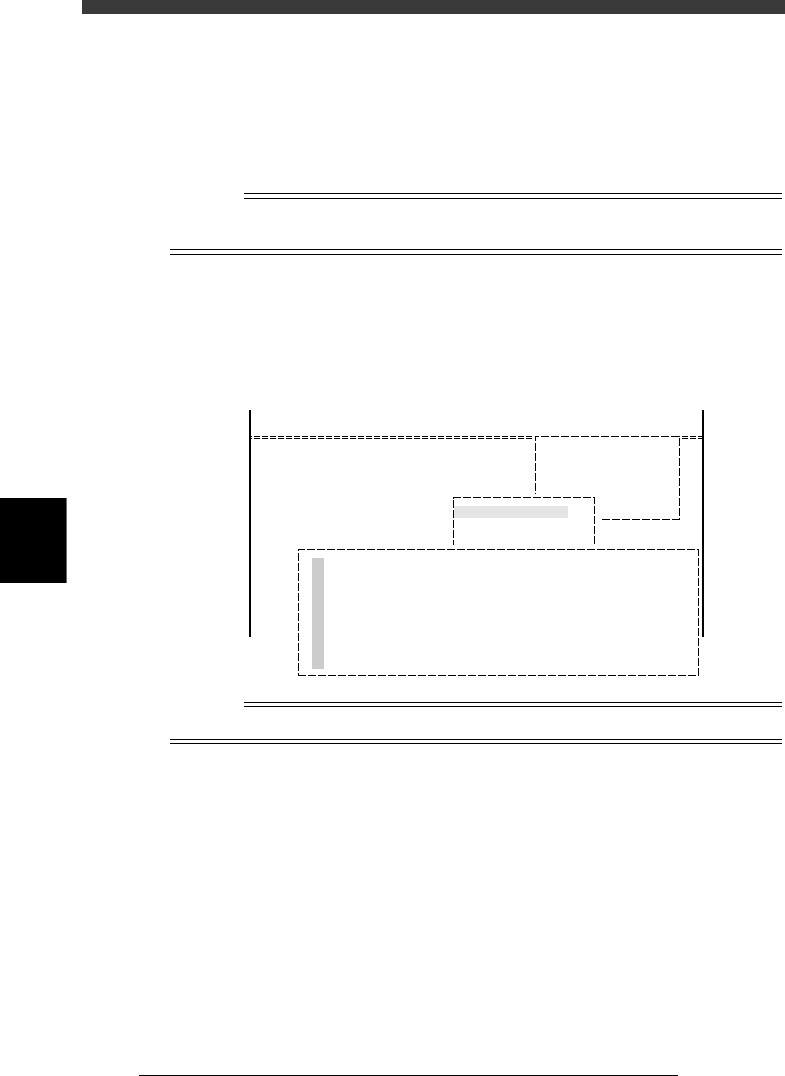
3 Check the conveyor setups as follows.
Run <1/1/B6 RUNNING CONDITION> and check the PCB clamping
method (PcbFixDevice). If you want to change the PCB clamping method,
move the cursor to “PcbFixDevice”, select the desired setting with the
[INS], [DEL] or [SPACE] key, and press the [ENTER] key.
Running Condition Editor box
27550-C0-00
<<MODE>> 1/RUNNING
<COMMAND LIST>
B/CONDITION
B6 RUNNING CONDITION
PcbFixDevice Pin+PushUP
Running Condition Editor
2 Set up the conveyor units.
1. Run the <1/1/D4 ASSISTANT UTILITY> - “CONVEYOR UNITS”
command.
The CONVEYOR UNIT menu box appears.
CONVEYOR UNIT menu box
27551-C0-00
OFF
ON
OFF
OFF
OFF
OFF
OFF
OFF
OFF
OFF
CONVEYOR UNIT (STS.)
LOCATE PIN
PUSH UP
PCB CLAMP
EDGE CLAMP
PUSH IN
MAIN STOPPER
ENT. STOPPER
EXIT STOPPER
CONV. MOTOR
CONV. WIDTH
PROGRAM PIN
RETURN
<<MODE>> 1/RUNNING
<COMMAND_LIST>
D/INITIALIZE
D4 ASSISTANT UTILITY
ASSISTANT UTILITY
CONVEYOR UNITS
2. From the CONVEYOR UNIT menu box, select “CONVEYOR WIDTH”
and press the [ENTER] key.
The conveyor width is automatically adjusted according to the “PCB
Size” Y data in the PCB Information.
w
WARNING
UPON EXECUTING THE “CONVEYOR WIDTH” COMMAND, THE CONVEYOR
RAIL BEGINS TO MOVE, SO USE CAUTION.
5
-120
EPD8013110
Operation
Chapter 5
5
Creating the PCB data
e
3. Press the emergency stop button, and set the PCB on the conveyor to
confirm that the width is correct. If not correct, quit automatic opera-
tion by executing the <1/1/E0 EXIT FROM RUNNING> command, then
select <1/2/PRD. DATA> - ”PCB Info.” to correct the “PCB Size” Y data.
4. After checking the conveyor width, adjust the locate pin and push-up
pin positions so that the PCB can be clamped on the conveyor. Finally,
remove the PCB.
Reference
Refer to “8. Changing the conveyor unit setup” in Chapter 4 for details on the conveyor
unit setups.
4 Set up the components (feeder set).
Run the <1/1/D4 ASSISTANT UTILITY> command, and select “COMPO-
NENT ASSIGNMENT” to check the setup of the components. A list of
feeder mounting positions appears as shown below.
COMPONENT ASSIGNMENT screen
27552-C0-00
No.
15
12
7
13
1
9
5
17
Feeder Type
8mmTape
8mmTape
8mmTape
8mmTape
8mmTape
8mmTape
8mmTape
8mmTape
Component Name
MINI_TR
MINI_TR
R2125
R3126
R1608
R1608
R2125
MINI_TR
SetNo.
F9
F10
F11
F12
F13
F14
F15
F16
Counter / Total
↑
↓
<<MODE>> 1/RUNNING
<COMMAND_LIST> D/INITIALIZE
D4 ASSISTANT UTILITY
ASSISTANT UTILITY
COMPONENT ASSIGNMENT
Reference
For details on the component setups, refer to the separate feeder user’s manual.