YV180X_Ope_E.pdf - 第251页
6 -16 EPD8013110 Operation Chapter 6 6 Using various functions Changing the selected data line with [SHIFT]+[UP/DOWN] arrow keys 27609-C0-00 PCB : 1. BASIC INFO. Database No. COMPONENT NAME R1005 R2125 COMMENT 10 OBJ :Co…
6
-15
EPD8013110
Operation
Chapter 6
6
Using various functions
3.1 Copying from the component or
mark information
You can copy the data registered in the component or mark information
into the user database when you are still in <2/1/EDIT_DATA> mode.
Since this is the reverse of the usual way (called “reverse set”) you have to
use the password of LEVEL D.
c
CAUTION
Reverse set (copying the data registered in the component or mark information into the
user database) is allowed only when the password of LEVEL D is used. See “4. Setting
the password” in Chapter 3) to carry out this operation.
1 Enter the <2/1/EDIT_DATA> mode and select the PCB
name.
2 Open the component or mark information screen.
3 Move the cursor to the copy source.
On the component or mark information screen, move the cursor to the
data line you want to copy from.
4 Specify the copy destination.
1. Press the [TAB] key to move the cursor into the BASIC INFO. sub-
window (for component) or Mark Type Info. sub-window (for mark),
then enter the database number you want to copy to. (See Reference 1
below.)
2. When you want to make copy for multiple items of component data or
mark data, enter the same database number for each item of data. (See
Reference 2 below.)
Reference
1. To check the database number that you want copy to, execute the <2/1/A3 VIEW DATA
BASE NO.> command. A list of registered database numbers then appears.
Data numbers which are not displayed are empty data lines. To return to previous
screen, press the [ESC] key.
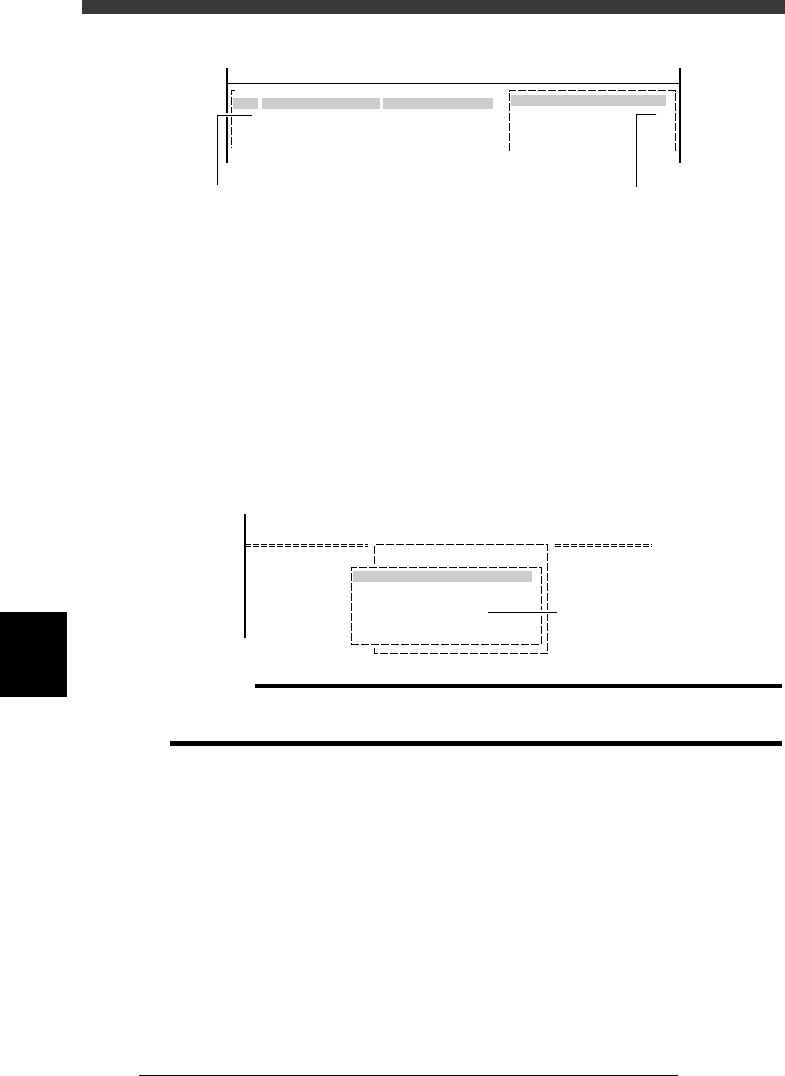
2. With the cursor placed in the sub-window, pressing the [SHIFT]+[UP/DOWN] arrow
keys simultaneously allows the selected data line in the main window to move while
the cursor position in the sub-window is kept unchanged.
6
-16
EPD8013110
Operation
Chapter 6
6
Using various functions
Changing the selected data line with [SHIFT]+[UP/DOWN] arrow keys
27609-C0-00
PCB :
1. BASIC INFO.
Database No.
COMPONENT NAME
R1005
R2125
COMMENT
10
OBJ :Component Info.
No.
1
2
The cursor in the main window
moves down or up.
The cursor in the sub-window
stays when [SHIFT]+ [UP/DOWN]
arrow keys are pressed simultaneously.
5 Perform copy.
1. Press the [ESC] key, then select <2/1/B2 DATABASE UTILITY> and press
the [ENTER] key.
The DATABASE UTILITY box then appears.
2. Select “WRITE DATA INTO DATABASE” and press the [ENTER] key.
An alert message then appears.
3. Press the [Space] bar to perform “reverse set”.
The message “SET FROM/TO DATABASE has been completed” appears,
then press the [ENTER] key to return to the previous screen.
Database “Reverse Set”
27610-C0-00
<<MODE>> 1/EDIT_DATA
<COMMAND LIST>
B/UTILITY
B2 DATABASE UTILITY
DATABASE UTILITY
WRITE INTO DATABASE
Execute this command.
c
CAUTION
When you execute “WRITE DATA INTO DATABASE ALL” from the DATABASE
UTILITY box, all the data in the selected PCB is copied into the database.
6 Check the data you have just copied into the database.
Press the [ESC] key and execute the <2/1/A3 VIEW DATABASE NO.>
command, then check that the database No. specified as copy destination
is included in the list.
6
-17
EPD8013110
Operation
Chapter 6
6
Using various functions
3.2 Copying from the YAMAHA
database
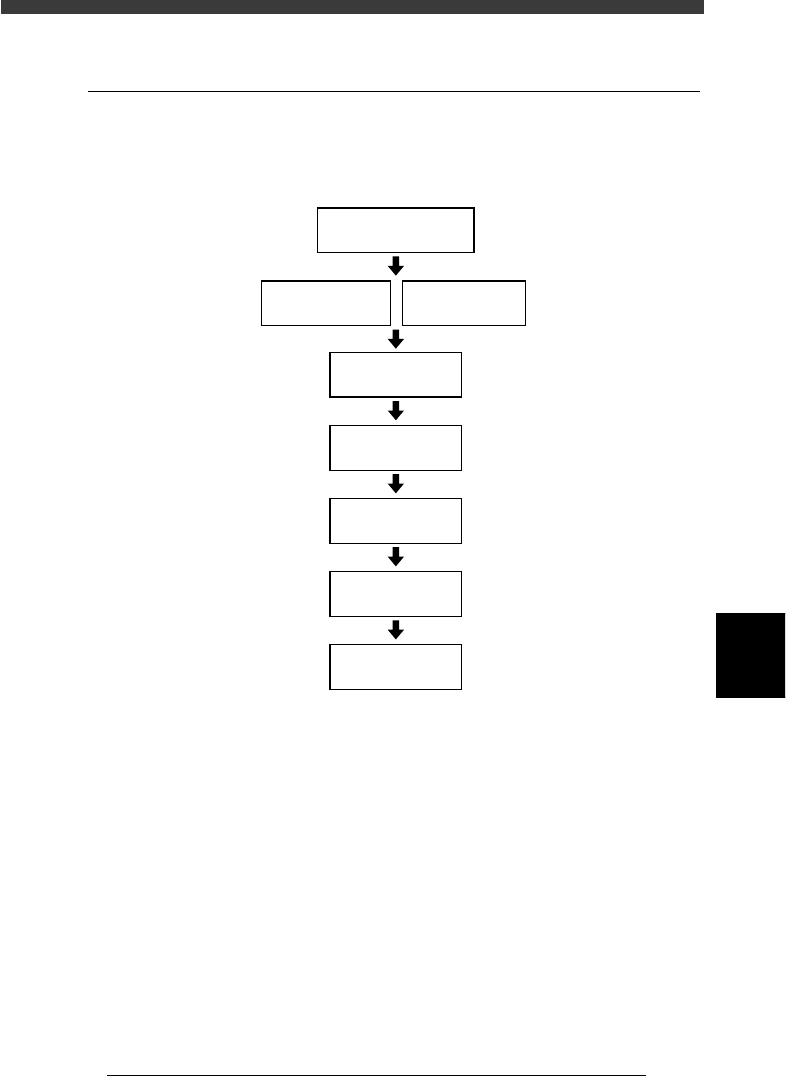
The flow chart below shows the procedure for creating the user database
by copying data from the YAMAHA database.
Flow chart for creating the user database
23605-C0-00
2/3/A1/COMPONENT/
MARK D.B.
Specify the copy
target
Specify the copy
destination
Make copy
Execute Adjust
Assistant
Select Component
Database
Select Mark
Database
Set various
parameters