YV180X_Ope_E.pdf - 第167页
5 -91 EPD8013110 Operation Chapter 5 5 Creating the PCB data 6.1 Creating pr ocedure 1 Open the PCB Info. screen. Select “ PCB Info. ” from the edit item menu box which appears after registering or selecting a PCB name. …
5
-90
EPD8013110
Operation
Chapter 5
5
Creating the PCB data
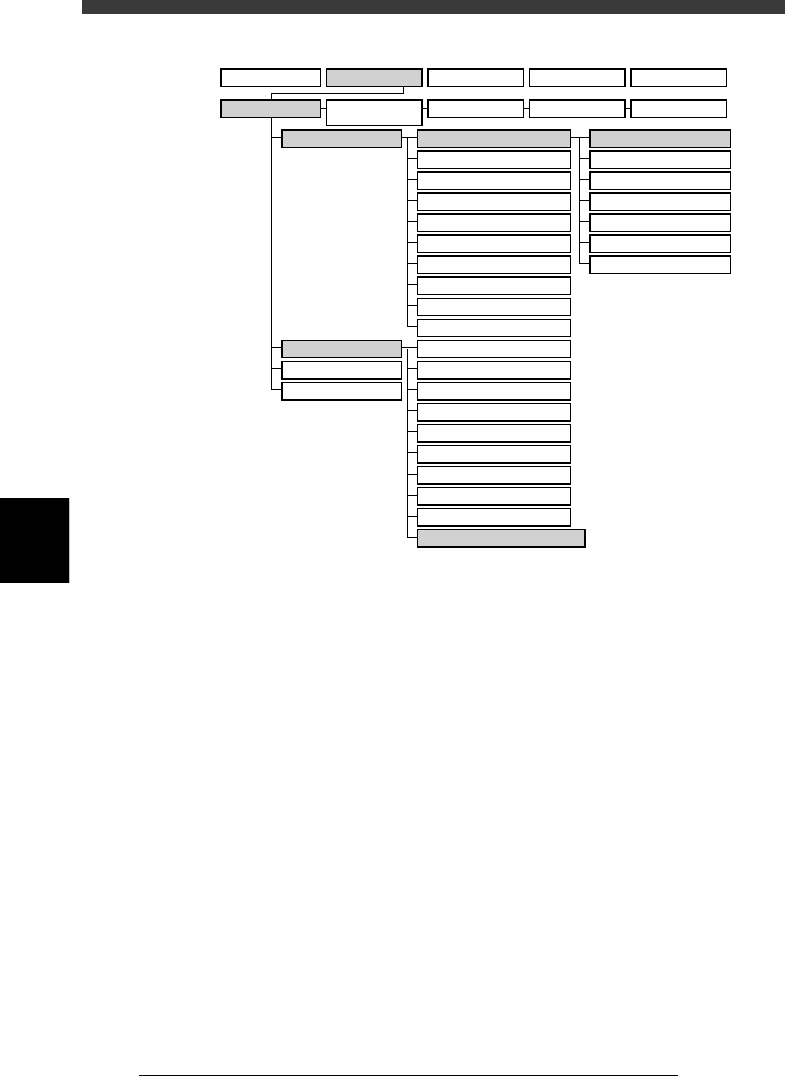
VIOS structure for “PCB Info.”
23539-C0-00
A1 MAIN WINDOW
A2 SUB WINDOW
A3 VIEW DATABASE NO.
A4
VISION ALIGNMENT DIC.
A5
A6
A7 FIND NEXT
A8
A9
A0 RETURN TO EDIT
B1 ADJUST ASSISTANT
B2 DATABASE UTILITY
B3
B4
DRAW THE SHAPE (CMP)
B5
B6 SET PALLET
B7 CONVEYOR UNITS
B8
B9
B0
TEACH, TRACE CONDITION
A/DISPLAY
B/UTILITY
C/EDIT_TOOL
D/FILE
PCB Info.
Mount Info.
Component Info.
Mark Info.
Blk Repeat Info.
Local Fidu.Info.
LocalBadMrkInfo.
1/OPERATION/M 2/DATA/M 3/MAINTE/M 4/SHELL/M 0/EXIT
1/EDIT_DATA
2/DATA_
GENERATOR
3/DATABASE 4/MANUAL 0/EXIT
5
-91
EPD8013110
Operation
Chapter 5
5
Creating the PCB data
6.1 Creating procedure
1 Open the PCB Info. screen.
Select “PCB Info.” from the edit item menu box which appears after
registering or selecting a PCB name. If an edit screen is open, press the
[F3] key (or select <2/1/A1 MAIN WINDOW>) to display the edit item
menu box.
PCB Info. screen
27537-D8-00
PCB: OBJ :PCB Info.
MARK
1
1
1
6
X/X1
0.00
240.00
0.00
5.00
0.00
15.00
0
0
Y/Y1
0.00
175.00
10.00
5.00
0.00
5.00
0
0
MRK2
0
0
X2
1.6
230.00
215.00
Y2
160.00
77.50
Skip?
-1
NotUse
NotUse
NotUse
NotUse
Exec
NoCheck
IgnoreErr
PcbFixDevice
Pre-FixTimer
Trans-Height
Conv. Timer
Precede Pick
Pin+PushUP
0.00
0
0.00
Not Use
Local Fiduc.
LocalBadmark
Retry Seq.
TrayPrecede.
Sp.Function
Not Use
Not Use
Group
USe
Not Use
Mount
Vacuum Check
Aligment
PCB Origin
PCB Size
PCB Fiducial
BLOCK Fiducial
PCB Badmark
BLOCK Badmark
PCB Comment
Pcb/Schedule/Block
Unloader Count/Max
Operation condition
setting area
PCB parameters
2 Enter “PCB Origin”.
The PCB origin is the reference XY position on the PCB. Refer to “6.3 PCB
origin” in this chapter for more details.
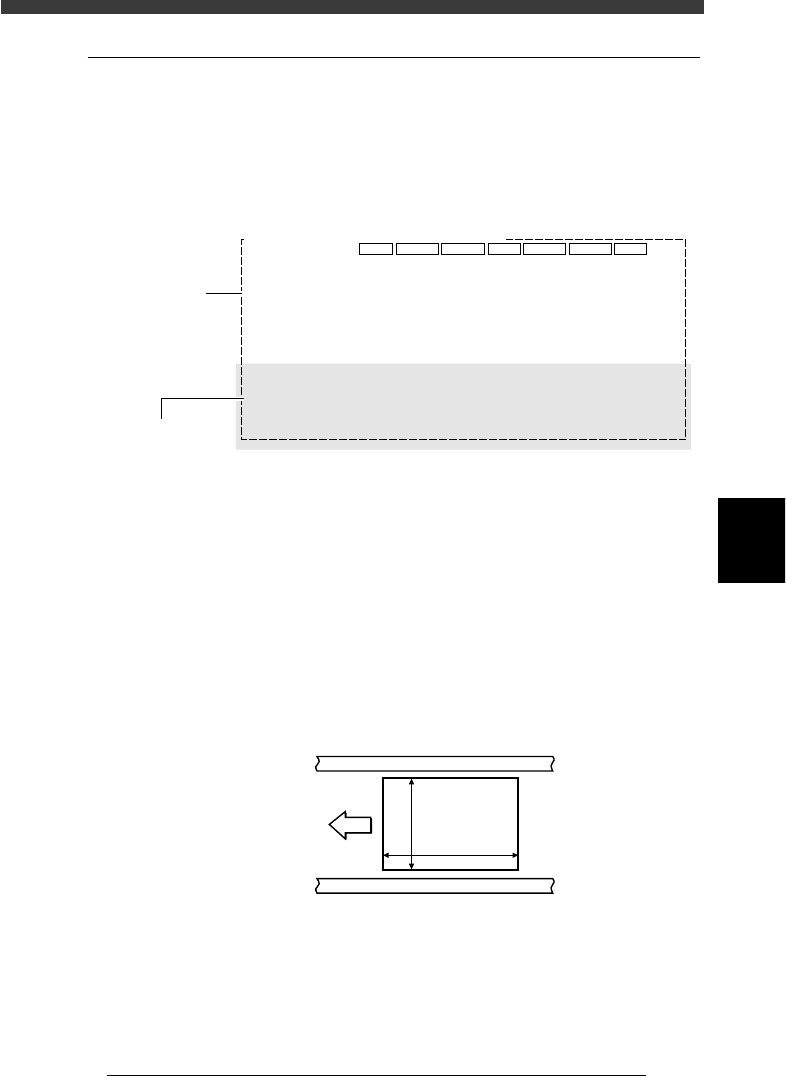
3 Enter “PCB Size”.
Enter the length of the PCB in the XY directions in millimeters. The
conveyor width (W-axis) will be adjusted according to the Y length in
automatic operation.
X coordinate: Length in the PCB flow direction
Y coordinate: Length in the conveyor width direction when the PCB is
set on the conveyor
PCB Size
23540-C0-00
X [mm]
Y [mm]
PCB
Direction of
PCB flow
4 Enter the thickness of the PCB.
Enter the thickness of the PCB in the “X2” column of the PCB Size.

5
-92
EPD8013110
Operation
Chapter 5
5
Creating the PCB data
5 Enter “PCB Fiducial”.
The PCB Fiducial settings correct the position of the entire PCB by using a
pair of fiducial marks. When a pair of fiducial marks are provided for the
entire PCB, make these settings as needed. Refer to “4. Using the fiducial
functions” in Chapter 5 to make the settings.
If you do not use this fiducial function, check that the Skip? column is set
to “NotUse” and advance to the next step.
6 Enter “BLOCK Fiducial”.
The BLOCK Fiducial settings correct the position of each block by using a
pair of fiducial marks. When a pair of fiducial marks are provided for each
block, make these settings. Refer to “4. Using the fiducial functions” in
Chapter 5 to make the settings.
If you do not use this block fiducial function, check that the Skip? column
is set to “NotUse” and advance to the next step.
7 Enter “PCB Badmark”.
The PCB Badmark settings determine whether to search for the badmark or
not. When PCBs with or without a badmark are fed on the conveyor, the
PCB badmark function shortens the production time. Refer to “5. Using the
badmark functions” in Chapter 5 to make the settings.
If you do not use this function, check that the Skip? column is set to
“NotUse” and advance to the next step.
8 Enter “BLOCK Badmark”.
The BLOCK Badmark settings determine whether to perform or to skip
component mount in each block. When you want to mount components
in some blocks, but not on other blocks, the block badmark function is
very useful. Refer to “50. Using the badmark functions” in Chapter 5 to
make the settings.
If you do not use this function, check that the Skip? column is set to
“NotUse” and advance to the next step.
9 Enter a comment in the PCB Comment.
You can enter a comment for the PCB in the Comment column as
necessary.
0 Specify “Pcb/Schedule/Block” for production.
In these columns, specify the PCB count when you want to specify the
quantity of PCB production. Enter a proper figure, referring to the descrip-
tion below.
• Pcb (X/X1)
The number of PCBs already produced is displayed in this column.
Set this to “0” as a start.
• Schedule (Y/Y1)
Enter the number of PCBs that you want to produce. When this is set
to “0”, the machine continues to produce PCBs as long as they are
fed on the conveyor.
• Block (X2)
Enter the number of blocks on a PCB. This setting is used as “BLOCK
NUMBERS” in <1/3/A2 PCB INF.>.
Reference
For details on the block settings, see “2. Using the block repeat function” in Chapter 6.