YV180X_Ope_E.pdf - 第216页
5 -140 EPD8013110 Operation Chapter 5 5 Creating the PCB data 12. T eaching and trace This section explains basic operations of trace and teaching often used when creating or checking new PCB data. 12.1 T race The trace …
5
-139
EPD8013110
Operation
Chapter 5
5
Creating the PCB data
11.2 Data backup
Follow these steps to make a data backup.
1 Insert a PCB data disk into the floppy disk drive.
2 Run the <4/1/A1 SEARCH DRIVE> command.
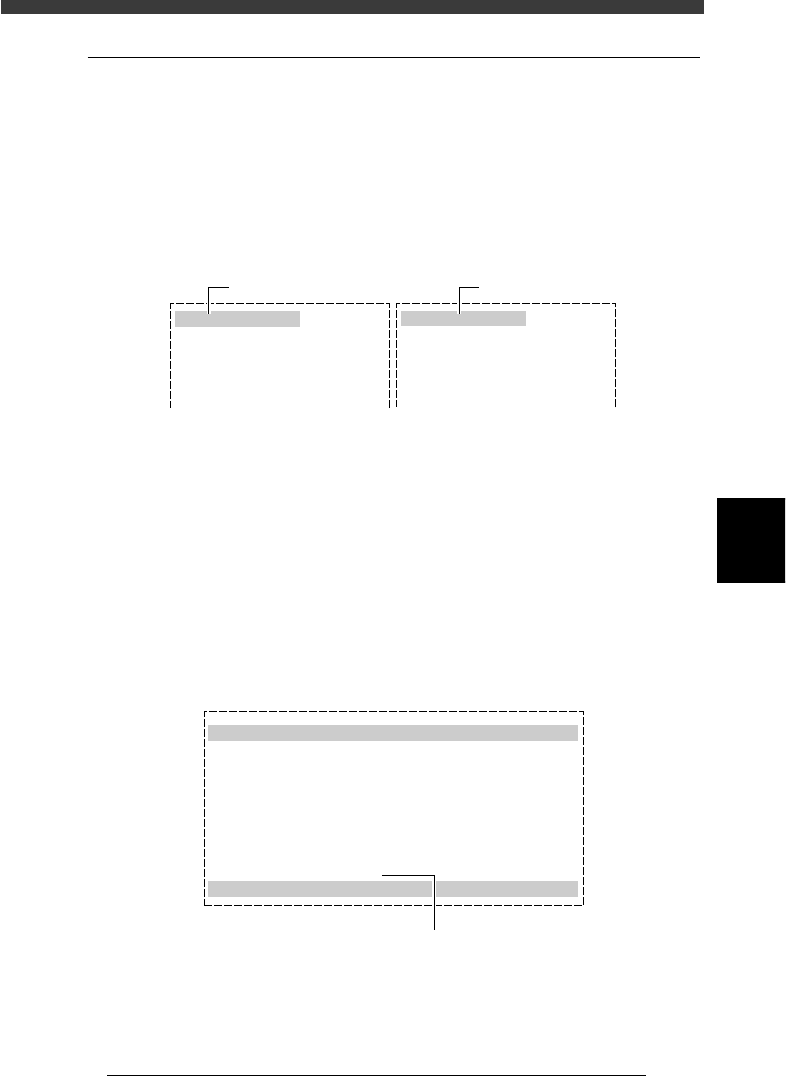
When this command runs, the PCB data registered in the hard disk is
displayed on the left screen, and the PCB data registered in the PCB data
disk on the right screen.
SEARCH DRIVE screen
27564-C0-00
<VIOS PCB> /Drv : C
Vios Pcb Name
STATIC_COMPONENTS_
CONVEYOR
ADJUST
Date
95-09-05
95-12-13
94-02-23
Time
07 : 58
17 : 08
10 : 01
<VIOS PCB> /Drv : C
Vios Pcb Name
Date Time
Hard disk in mounter
Floppy disk drive
3 Select the PCB data to be backed up.
Move the cursor to the PCB data to be backed up on the left screen. When
the [INS] key is pressed, that PCB data will be selected. Repeat this step for
all PCB data items to be backed up. To cancel the selection press the
[DEL] key. After selecting all required data items, press the [ESC] key to
display the command menu window, then select <4/1/B1 COPY PCB FILE>
and press the [ENTER] key.
4 Follow the messages to run the command.
Check the contents, and if they are okay, press the [Space] bar to set the
last item to “EXECUTE”, and then press the [ENTER] key. The data will be
copied onto the PCB data disk.
COPY PCB FILE screen
27565-C0-00
Copy PCB file
Source
Distination
Select Execute
Drive
Machine
PCB NAME
Drive
Machine
PCB NAME
: C
: Machine
: ADJUST
: A
: ___
: ADJUST
: CANCEL
NOT EXIT
Set this item to “EXECUTE”.

5
-140
EPD8013110
Operation
Chapter 5
5
Creating the PCB data
12. Teaching and trace
This section explains basic operations of trace and teaching often used
when creating or checking new PCB data.
12.1 Trace
The trace function allows a teaching unit such as camera or head to auto-
matically move to a specified position. This is mainly used to check the
settings for the XY coordinates. The steps below explain the procedure for
tracing in the DATA Manager.
1 Set trace conditions.
When you select <2/1/B0 TEACH, TRACE CONDITION> and press the
[ENTER] key (or press the [F10] key on a data edit screen), the trace/
teaching conditions setting boxes appear. Make settings referring to the
description below.
TEACH-TABLE SEL. (Teaching/trace table selection):
Use the up/down arrow keys to select the A table or B table to be used
for teaching or trace, and press the [ENTER] key.
TEACH-UNIT SEL. (Teaching/trace unit selection):
Use the up/down arrow keys to select the teaching/trace unit from
among “Head 1”, “Head 8“ or “Camera”, and press the [ENTER] key.
SPEED SELECT (Axis moving speed selection):
Use the up/down arrow keys to select the speed from among “Speed 1”
to “Speed 5”, and press the [ENTER] key.
FIDUCIAL SEL (Fiducial correction option):
Select whether or not to use fiducial correction and press the [ENTER]
key.
Select “Use” when you are going to create or edit PCB data using a
fiducial mark. The machine will automatically recognize the PCB
fiducial mark to obtain corrected data, enabling more accurate trace or
teaching of the position. Note that correct coordinates of the fiducial
mark must be specified in advance when using this function.
Reference
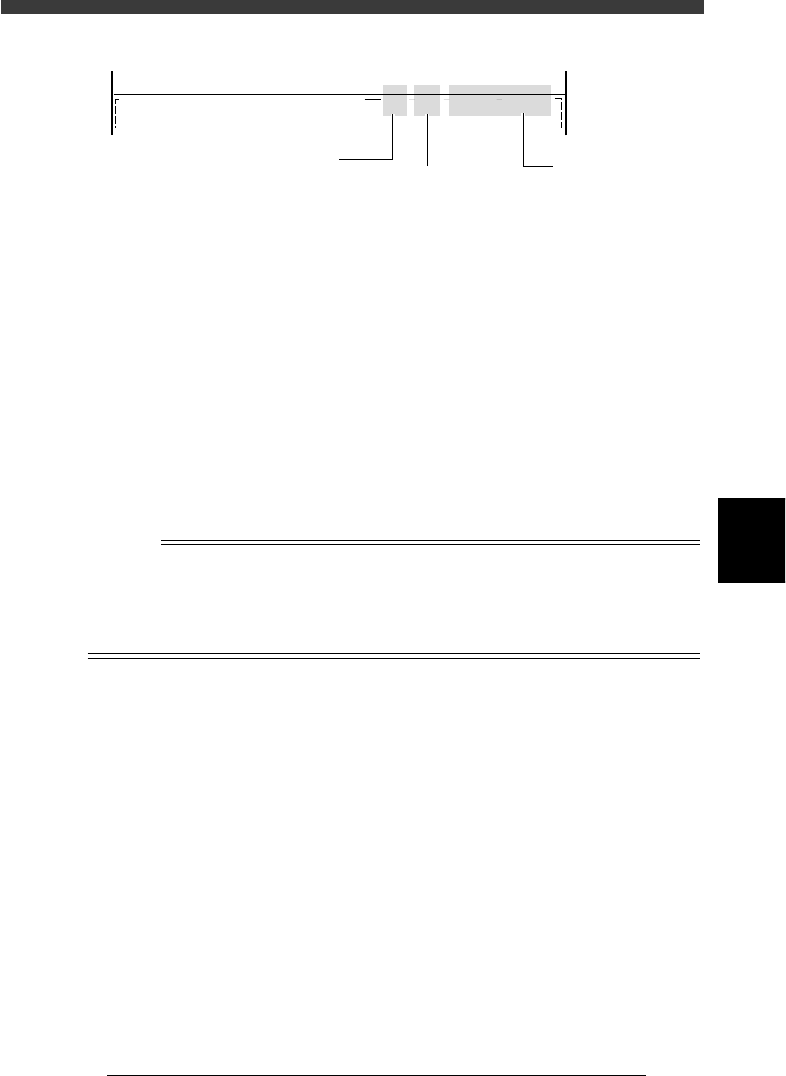
When the teach/trace conditions are set, they are displayed on the upper right of the
screen as shown below.
5
-141
EPD8013110
Operation
Chapter 5
5
Creating the PCB data
Teach/trace condition display
27566-C0-00
PCB :
<<<APPLICATION>>>
<<MODE>> 1/EDIT_DATA
2/DATA/M
CAM 100% X : 17.00 Y : 19.00
OBJ :Mount Info.
Current position
Current position of
teaching unit
Axis moving speed
Displayed in percent
Teaching unit
CAM: Camera
H1: Head 1
H8: Head 8
2 Clamp a PCB on the conveyor.
Use the <2/1/B7 CONVEYOR UNITS> utility to clamp the PCB on the
conveyor.
3 Align the cursor with the item for which you want to
perform trace.
On the Mount Info. screen, for example, move the cursor to the line of the
data to which you want to perform trace.
4 Check the surrounding area for safety.
The teaching unit will immediately move when you perform trace, so
placing any part of your body within the axis movement range can be
hazardous. Be sure to stay out of the movement range.
5 Press the [F9] key to perform trace.
The teaching unit moves to the position you specified in Step 3.
Reference
When you press the [Shift]+[F9] keys, the cursor moves down to the next data line after
performing the trace. You can also perform continuous trace by keeping the [Shift]+[F9]
keys pressed, or automatic trace by pressing the [Ctrl]+[F9] keys starting from the
selected line running towards lower lines until an empty line is reached. (See “12.3
Automatic trace” in this chapter for more details.)