YV180X_Ope_E.pdf - 第187页
5 -111 EPD8013110 Operation Chapter 5 5 Creating the PCB data 9. Data optimization PCB production data you have created can be automatically optimized in the <2/2/D A T A_GENERA T OR> mode, so that the PCB data can…
5
-110
EPD8013110
Operation
Chapter 5
5
Creating the PCB data
0 Save the data
After all mount data have been checked and corrected, press the [ESC] key
to exit the current edit screen, then select <2/1/D8 SAVE PCB DATA> and
press the [ENTER] key. If you have changed correct data by mistake, select
<2/1/D9 ABORT PCB DATA> and press the [ENTER] key.
n
NOTE
When you press the [Ctrl] + [F9] keys, the cursor moves down to the subsequent data
lines while performing continuous trace, until an empty data line is reached or any key is
pressed. This is called the automatic trace.
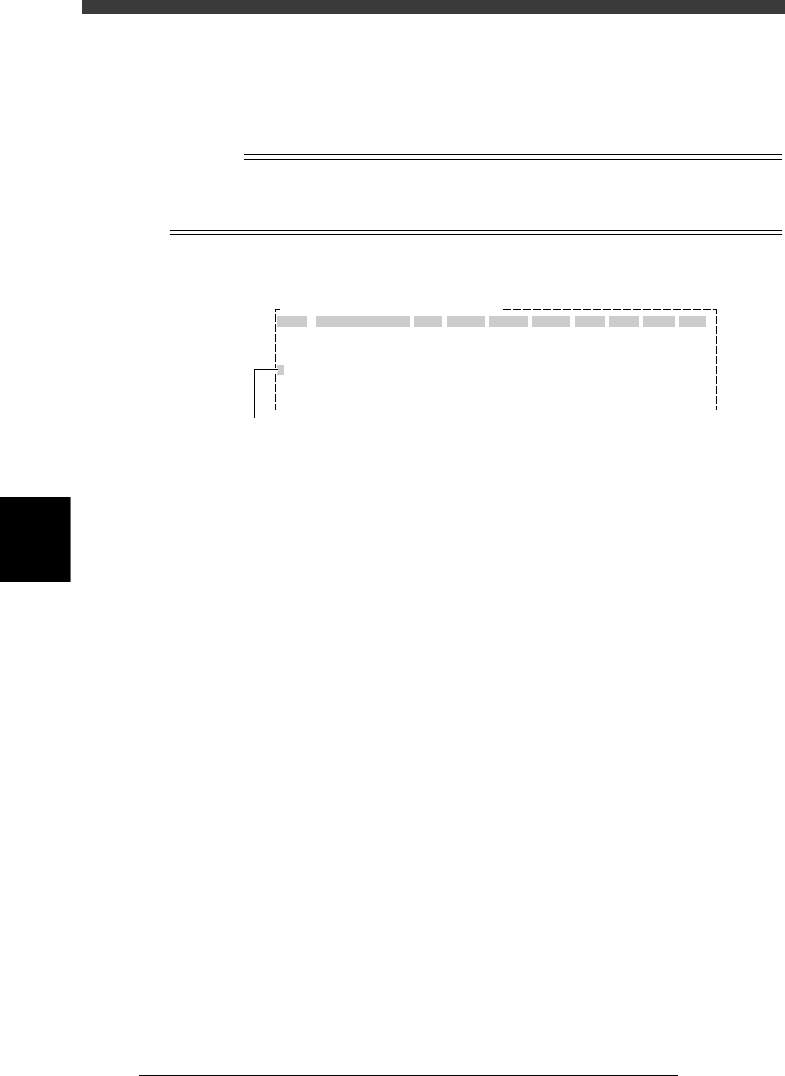
Automatic trace screen
27541-C0-00
OBJ :Mount Info.
No.
1
2
3
4
5
SignOfLandPattern
R1005
Comp
1
1
1
1
1
X
10.75
13.75
22.75
22.75
34.75
Y
8.00
9.50
11.00
8.00
8.00
R
0.00
18.00
0.00
0.00
0.00
Head
3
3
3
3
3
FidMk
0
0
0
0
0
Badmk
0
0
0
0
0
Skip?
Exec
Exec
Exec
Exec
Exec
PCB :
The blinking cursor in the No. column shows
the data number being currently traced.
5
-111
EPD8013110
Operation
Chapter 5
5
Creating the PCB data
9. Data optimization
PCB production data you have created can be automatically optimized in
the <2/2/DATA_GENERATOR> mode, so that the PCB data can be used
more efficiently with a minimum cycle time.
For example, to optimize the PCB data on the feeder set position, head
number and mounting sequence, follow the procedure explained in this
section.
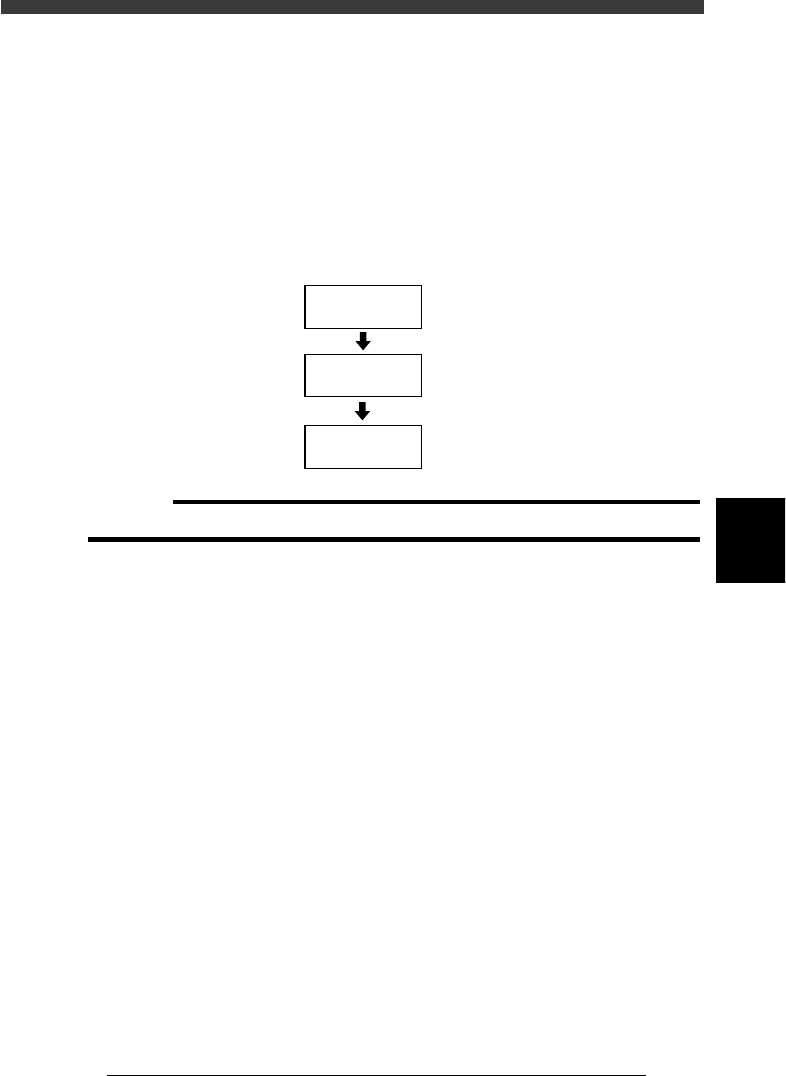
Data optimization flow
23551-C0-00
Set conditions
Select data to be
optimized
Optimize data
9.2
☞
9.1
☞
9.3
☞
c
CAUTION
The PCB data is changed when data optimization is performed.
5
-112
EPD8013110
Operation
Chapter 5
5
Creating the PCB data
9.1 Selecting the data
1 Select the data to be optimized.
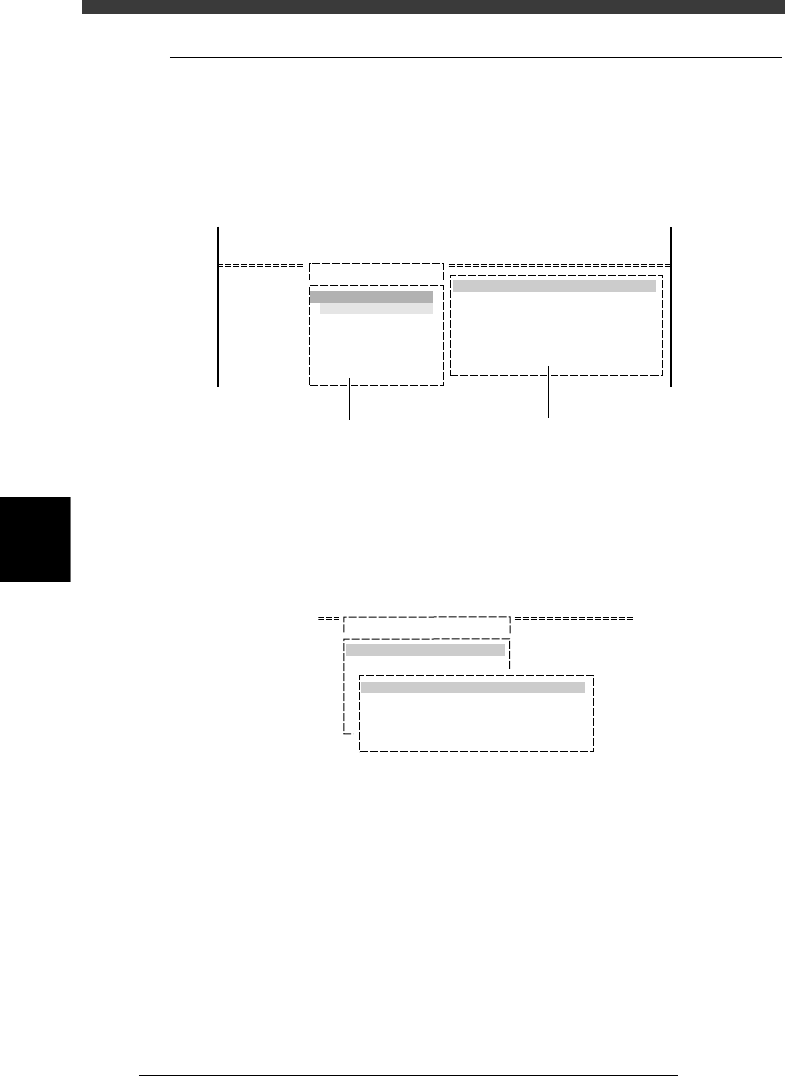
Enter the DATA_GENERATOR mode, then select <2/2/A1 OBJECT
SELECTION> and press the [ENTER] key. The OBJECT SELECTION box
then appears.
OBJECT SELECTION box
27542-C0-00
<<<APPLICATION>>>
<<MODE>>
<COMMAND LIST> A/SETTING&RUN
OBJECT SELECTION
PCB SELECTION
FIXED PCB SELECTION
FIXED COMP. SEL
LOAD LAST SELECTION
QUIT
DATA GENERATOR OBJECT
PCB NAME
FIXED PCB
NZL. COND.
BLK. CONV.
FDR. POS.
A1 OBJECT SELECTION
NON
FREE
0 : NO
0 : NO
2/DATA/M
2/DATA GENERATOR
This menu box appears when
the <A1 OBJECT SELECTION>
command is executed.
The current data generator conditions
are displayed when the <2/2/A1 SETTING&RUN>
command is executed.
2 Select “PCB SELECTION” and press the [ENTER] key.
A list of registered PCB names then appears.
PCB selection box
27543-C0-00
A/SETTING & RUN
A1 OBJECT SELECTION
OBJECT SELECTION
PCB SELECTION
pcb name
PCB 1 1998-08-07
3 Select the PCB data.
Select or enter the PCB name to be optimized and press the [ENTER] key.
The OBJECT SELECTION box then reappears.
4 Quit the settings.
Select “QUIT” from the OBJECT SELECTION box and press the [ENTER]
key. The PCB data to be optimized has now been selected.