YV180X_Ope_E.pdf - 第233页
5 -157 EPD8013110 Operation Chapter 5 5 Creating the PCB data Feeder T ype : Select the Feeder T ype setting in the BASIC INFO. sub-window of the component information. Use the [INS], [DEL] or [Space] key to make the sel…
5
-156
EPD8013110
Operation
Chapter 5
5
Creating the PCB data
13.2.2 Data replace in component information
1 Open the Component Info, screen.
2 Select the REPLACE command in the <2/1/EDIT_DATA>
mode.
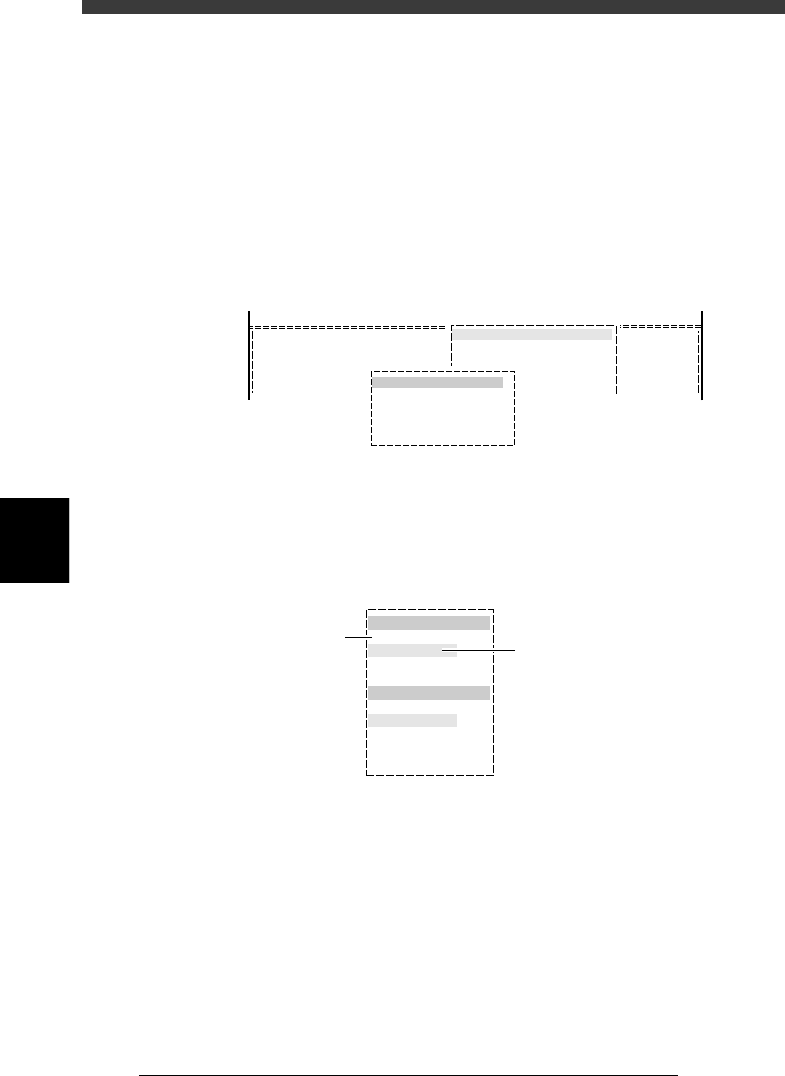
1. Press the [ESC] key , select <2/1/C1 EDITOR ASSISTANT> and press the
[ENTER] key.
The EDITOR ASSISTANT submenu box appears.
2. Select “REPLACE” and press the [ENTER] key.
A box for data replace appears.
REPLACE command
27574-C0-00
<COMMAND_LIST>
R1608
R2125
R3216
1
2
3
C/EDIT_TOOL
C1 EDITOR ASSISTANT
EDITOR ASSISTANT
REPLACE
501
Tape
8mmTape
3 Set “Select condition item”.
1. Use the up/down arrow keys to select the parameter item (shown in
red) and then the setting you want to replace in the blue column just
under the parameter item.
Setting for “Select condition item” (Component Info.)
27575-C0-00
Select condition item
Component name
R1005
Select change item
Retry Times
2
Use arrow keys to
make selection
Use alphanumeric keys, [INS] or
[DEL] key to make setting
Component name : Select the COMPONENT name in the
component
information with the [INS], [DEL] or [Space]
key.
Nozzle Type : Select the Required Nozzle setting in the
BASIC INFO. sub-window of the component
information.
Use the [INS], [DEL] or [Space] key to make
the
selection.
5
-157
EPD8013110
Operation
Chapter 5
5
Creating the PCB data
Feeder Type : Select the Feeder Type setting in the BASIC
INFO.
sub-window of the component information.
Use the [INS], [DEL] or [Space] key to make
the selection.
Data Base No. : Select the Database No. setting in the BASIC
INFO. sub-window of the component
informatL/n. Use the number keys to make the
selection.
Comment : Select the COMMENT column setting in the
component information. Use the character
keys to make a selection.
2. When you have made necessary selections, press the [ENTER] key.
The editing cursor now moves down to the light blue column.
4 Set “Select change item”.
Press the [ENTER] key to move the cursor down to the lower items and
make changes as follows.
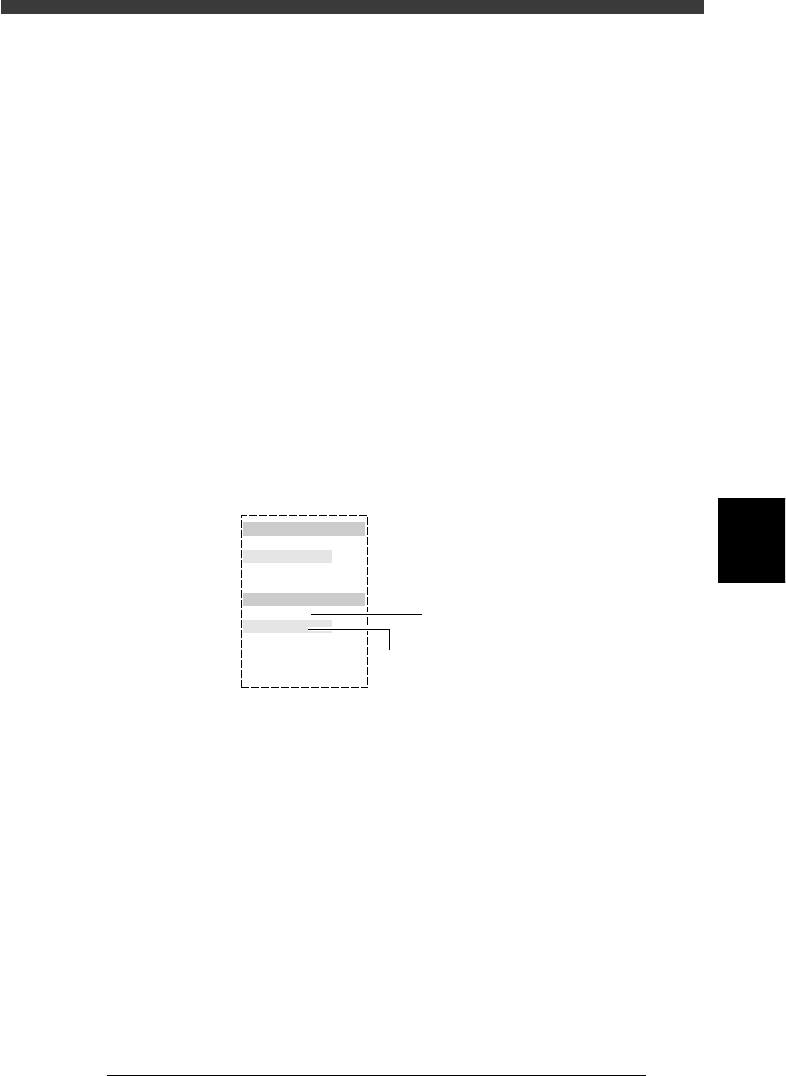
1. Use the up/down arrow keys to select the parameter (shown in red) you
want to change. Then, enter or select the new setting for the selected
parameter with the number keys, or [INS], [DEL] or [Space] key.
Setting for “Select change item” (Component Info.)
27576-C0-00
Select condition item
Component name
R1005
Select change item
Retry Times
2
Use arrow keys to
make selection
Use number keys, [INS] or
[DEL] key to make setting
Pick Angle Deg : Specify the Pick Angle deg setting in the
PICK&MOUNT INFO. sub-window
of the component information. Use the [INS],
[DEL] or [Space] key to make the setting.
Pick /Mount Timer : Specify the Pick Timer or Mount Timer setting
in the PICK&MOUNT INFO. sub-window of
the
component information. Use the [INS], [DEL]
or [Space] key to make the setting.
Pick /Mnt Height : Specify the Mount Height or Mnt Height
setting in the PICK&MOUNT INFO. sub-
window of the component information. Use
the number keys to make the setting.
Dump Way : Specify the Dump Way setting in the
PICK&MOUNT INFO. sub-window of the
component information. Use the [INS], [DEL]
or [Space] key to make the setting.

5
-158
EPD8013110
Operation
Chapter 5
5
Creating the PCB data
Retry Times : Specify the Retry Times setting in the
PICK&MOUNT INFO. sub-window of the
component information. Use the [INS], [DEL]
or [Space] key to make the setting.
Mount Action : Specify the Mount Action setting in the
PICK&MOUNT INFO. sub-window of the
component information. Use the [INS], [DEL]
or [Space] key to make the setting.
Mount/Pickup Speed: Specify the Mount Speed or Pickup Speed
setting in the PICK&MOUNT INFO. sub-
window of the component information. Use
the [INS], [DEL] or [Space] key to make the
setting.
Vacuum Check : Specify the Vacuum Check setting in the
PICK&MOUNT INFO. sub-window of the
component information. Use the [INS], [DEL]
or [Space] key to make the setting.
Pick/Mount Vacuum : Specify the Pick Vacuum or Mount Vacuum
setting in the PICK&MOUNT INFO. sub-
window of the component information. Use
the number keys to make the setting.
Pick/Mount Timer offset : Enter the desired offset to add to or
subtract from the current Pick Timer or
Mount Timer data in the PICK&MOUNT
INFO. sub-window of the component
information. Use the number keys to make
the setting.
Pick/Mount Height offset : Enter the desired offset to add to or
subtract from the current Pick Height or
Mount Height data in the PICK&MOUNT
INFO. sub-window of the component
information. Use the number keys to make
the setting.
Database No. : Specify the Database No. in the BASIC INFO.
sub-window. Use the number keys to make
the setting.
Nozzle Type : Specify the Required Nozzle in the BASIC
INFO.
sub-window. Use the [INS], [DEL] or [Space]
key to make the setting.
Feeder Type : Specify the Feeder Type in the BASIC INFO.
sub-window. Use the [INS], [DEL] or [Space]
key to make the setting.
Comment : Enter a comment for the component informa-
tion,
using the alphanumeric keys.
2. When all the necessary settings are complete, press the [ENTER] key to
perform replace.