YV180X_Ope_E.pdf - 第207页
5 -131 EPD8013110 Operation Chapter 5 5 Creating the PCB data 10.3.5 Component mount error If the component bounces on the PCB or drops off the nozzle before reaching the PCB, inspect the cause first. T o do this, press …

5
-130
EPD8013110
Operation
Chapter 5
5
Creating the PCB data
Checkpoint 5: Nozzle
If the component cannot be still picked up even after taking corrective
action according to checkpoints 1 to 4, check and correct the following
points.
• Check if the nozzle tip is worn or nicked.
• Try to specify another nozzle type for “Required Nozzle” in the
BASIC INFO. sub-window of the component information.
10.3.4 Component recognition error
If a component cannot be recognized correctly, the VISION or SHAPE
INFO. sub-window parameter settings may be incorrect, or adjustments
with the Adjust Assistant commands may not be satisfactory.
1 Exit the RUNNING mode.
1. If the mounter operation is interrupted by error, press the [ENTER] key
to reset the error.
2. Run the <1/1/E0 EXIT FROM RUNNING> command.
2 Select the data line.
Select “Component Info.” in the <1/2/PRD.DATA> mode, and move the
cursor to the data line of the corresponding component.
3 Check the data.
Press the [F4] key to change the sub-window to the VISION and SHAPE
INFO. screens, and check that the parameters on each screen are correct.
To
correct the data, press the [TAB] key to move the cursor to the sub-
window.
4 Perform the Adjust Assistant.
Press the [F6] key to select the <1/2/B1/ADJUST ASSISTANT> command.
Refer to “3. Creating the component information” in this chapter for details
on the Adjust Assistant. When the component has been recognized
properly, exit the Adjust Assistant mode.
5 Update the corrected data.
Run the <1/2/C7 UPDATE VISION DATA> command.
6 Quit the data correction.
Press the [ESC] key twice, then select <1/2/C0 SAVE & EXIT> and press the
[ENTER] key. The corrected data will be saved.
7 Resume automatic operation.
Run the <1/1/A2 AUTO RUNNING> command to resume automatic
operation.
5
-131
EPD8013110
Operation
Chapter 5
5
Creating the PCB data
10.3.5 Component mount error
If the component bounces on the PCB or drops off the nozzle before
reaching the PCB, inspect the cause first. To do this, press the [Space] bar
to temporarily stop the machine at the instant the nozzle picks up a compo-
nent, to see if it properly reaches the component. As an alternative, set the
operating speed to 10% or less by using the <1/1/B1 RUNNING SPEED>
command or pressing the [SPEED] key on the YPU, then observe the
nozzle movement over the feeder and check the following points.
Checkpoint 1: Component height
Open the Component Info. screen and check the Body Size Z parameter
in the SHAPE INFO. sub-window. Correct it if not appropriate.
Checkpoint 2: Air blow
Immediately after a component has been mounted on the PCB, an
instantaneous air blow is performed to separate the component smoothly
from the nozzle tip. If this air blow timer is not correct, the component
may bounce on the PCB or the nozzle may take the component back
without mounting it. The air blow timer must therefore be set correctly.
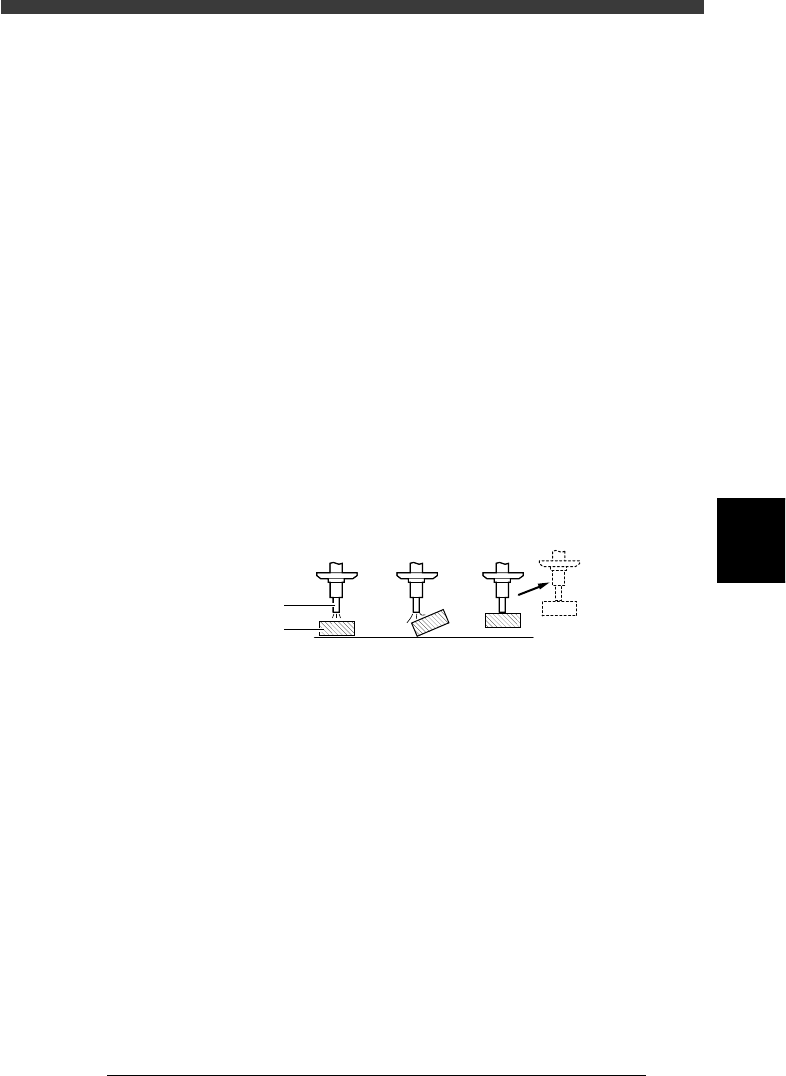
Air blow for component mounting
21503-C0-00
2
3
1
Nozzle
Component
In the above drawing:
1. Air blow amount and timer are correct.
2. Air blow pressure is too high or timer is too long, causing the
component to bounce on the PCB.
3. Air blow amount is too low or timer is too short, causing the nozzle
to take the component back before mounting it.
Air blow timer
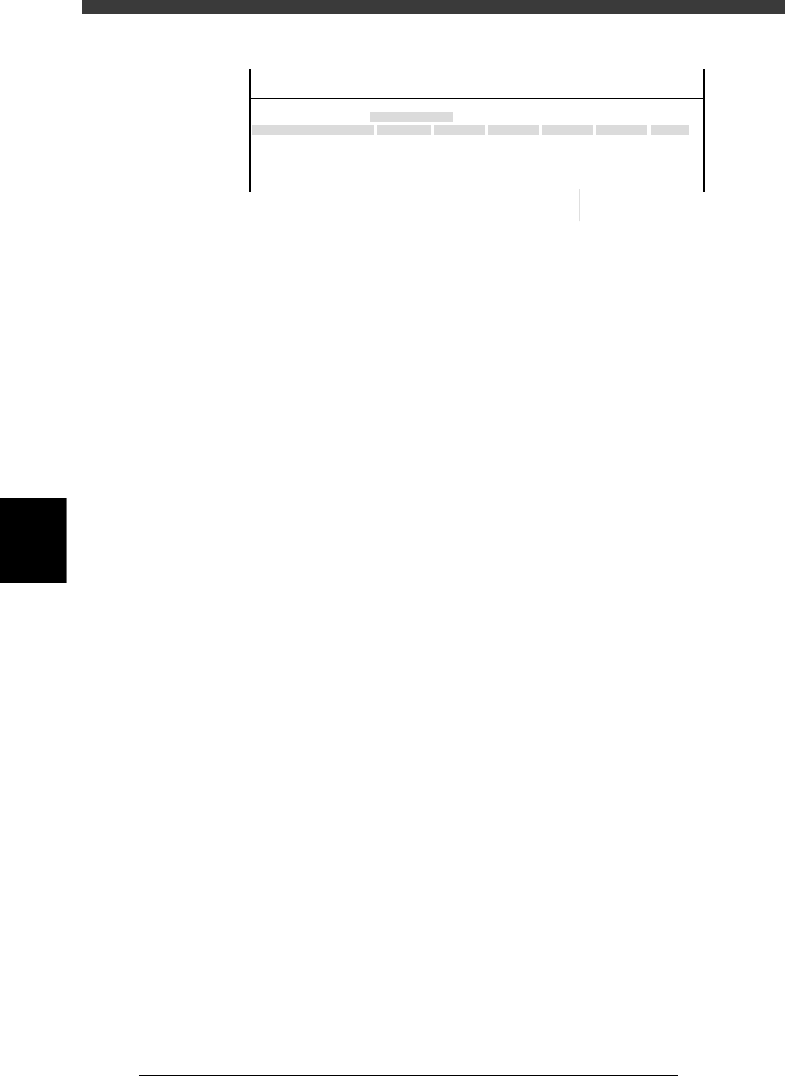
To check and correct the air blow timer, proceed as follows.
1. Select <3/3/B1 ADJUST TARGET> and then “Position”.
2. Move the cursor to the Feeder column in the Discard Point row, and
adjust the setting as follows.
If the component bounces on the PCB, enter a value smaller than
the current setting. If the component is brought back with the
nozzle, enter a value larger than the current setting.
5
-132
EPD8013110
Operation
Chapter 5
5
Creating the PCB data
Position screen (for air blow timer setting)
27559-C0-00
Object
Position
Object
Feeder
Discard point
<<<APPLICATION>>>
<<MODE>>
3/MAINTE/M
3/MCH_ADJUST
50
TCH.UNIT SPEED
Enter here
Checkpoint 3: PICK & MOUNT INFO. parameters
Open the PICK & MOUNT INFO. sub-window in the component
information and adjust the following parameters.
• Mount Timer
Set to a value larger than the current setting.
• Mount Speed
Set to a value smaller than the current setting.
Checkpoint 4: Reference pickup/mount vacuum pressures
Referring to ”3.7 Executing the Adjust Assistant commands” in this
chapter, check and adjust the settings for reference pickup and mount
vacuum pressures.
Checkpoint 5: Nozzle
If mount errors still occur even after checking all the above points and
making necessary corrections, the nozzle may have problems. Check the
following points.
Check to see if the nozzle tip is worn or nicked.
Try using another nozzle type by changing the Required Nozzle setting
on the BASIC INFO. sub-window in the component information.