YV180X_Ope_E.pdf - 第184页
5 -108 EPD8013110 Operation Chapter 5 5 Creating the PCB data 1 Open the Mount Info. screen. When the Mount Info. screen is already displayed, skip this step. When another edit screen is open, press the [F3] key (or sele…
5
-107
EPD8013110
Operation
Chapter 5
5
Creating the PCB data
8.2 Checking the mount information
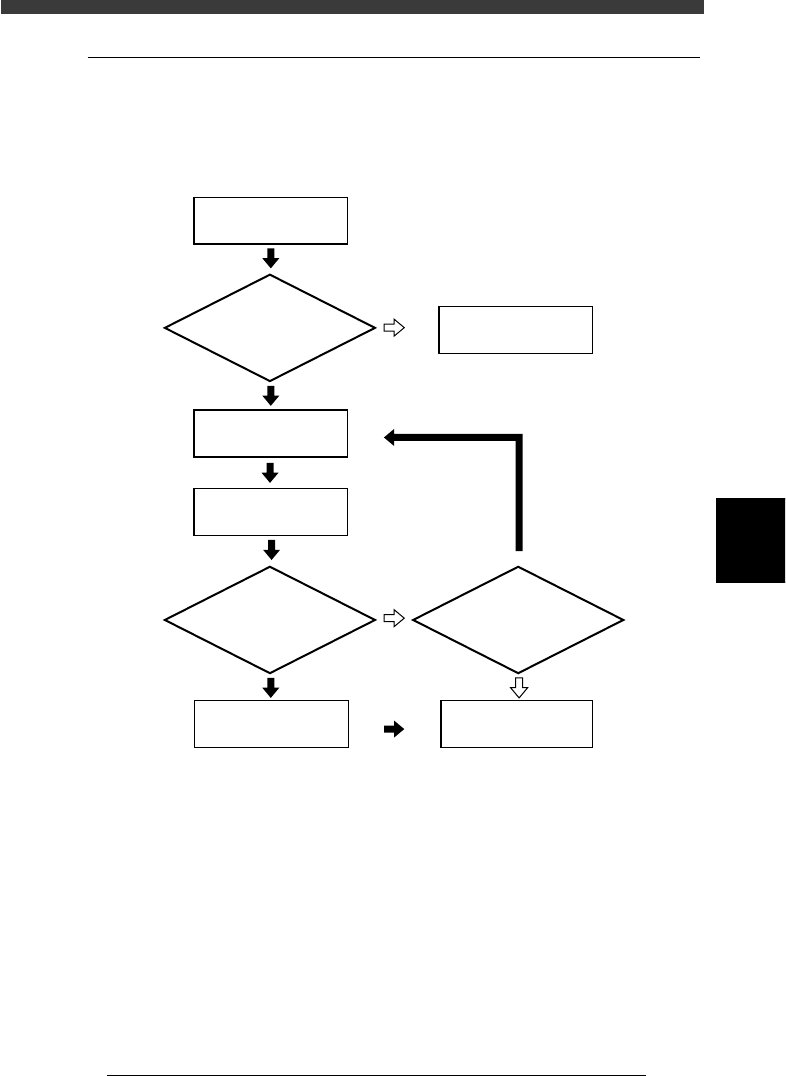
While displaying the component mounting position on the vision monitor,
check and correct the mounting position, land pattern names and compo-
nent numbers.
Flow chart for checking and correcting the mounting position
23549-C0-00
5
☞
Select mount number
whose mounting position
you want to check
Open Mount Info.
Check
mounting position
Teach optimum
coordinate data
Save data
Is PCB clamped?
Correct component
mounting position ?
Continue?
Clamp the PCB
YES
YES
YES
NO
NO
NO
5
-108
EPD8013110
Operation
Chapter 5
5
Creating the PCB data
1 Open the Mount Info. screen.
When the Mount Info. screen is already displayed, skip this step.
When another edit screen is open, press the [F3] key (or select <2/1/A1>)
to display the edit item menu box, then select “Mount Info.” and press the
[ENTER] key.
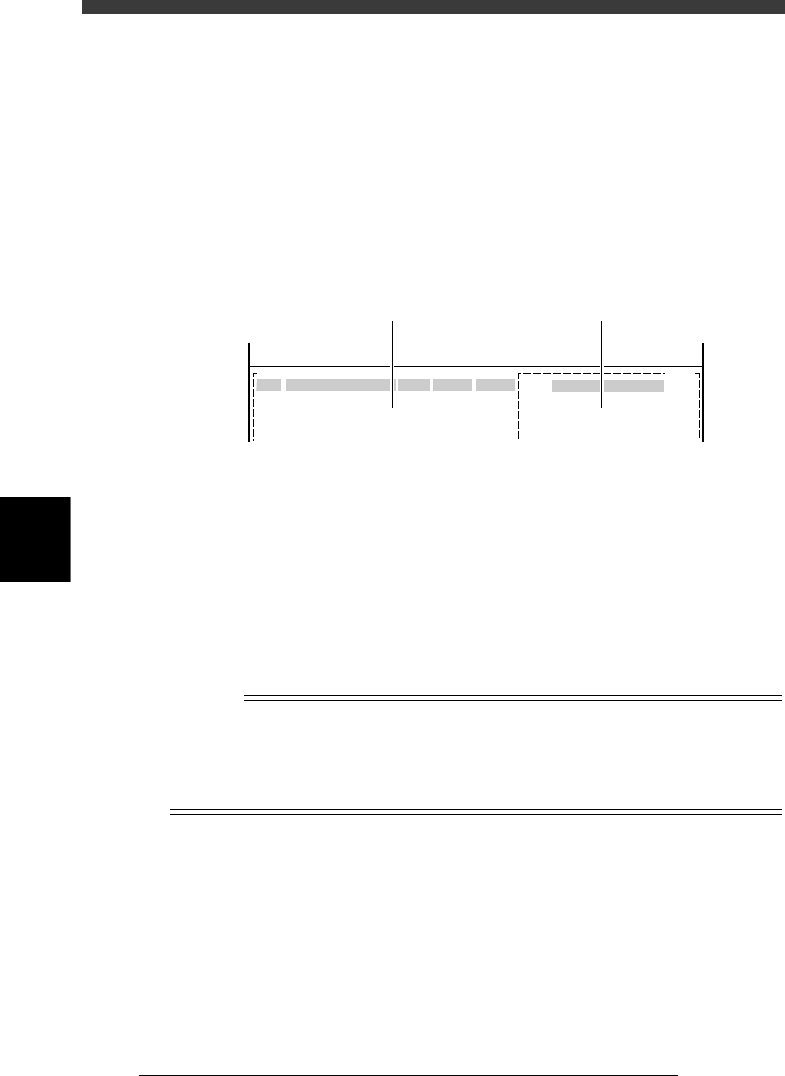
2 Press the [F4] key to co-display the Component Info.
screen.
Pressing the [F4] key displays part of the Component Info. on the right of
the screen. Use the [TAB] key to move the cursor between the Mount Info.
on the left and the Component Info. on the right of the screen.
Mount Info. and Component Info. screen
27540-C0-00
No.
1
2
3
COMPONENT NAME
R1608
R2125
R3126
OBJ:
F 20
F 21
F 22
PCB :
SignOfLandPattern Comp
X
Y
OBJ :Mount Info
No.
1
2
3
<<<APPLICATION>>> 2/DATA/M
<<MODE>>1/EDIT_DATA
Mount Info. Component Info.
3 Set the conditions to check the position.
Press the [F10] key (or run the <2/1/B0 TEACH, TRACE CONDITION>
command) and then set the following conditions.
Teaching table : A or B table
Teaching unit : Camera
Speed : 20 to 40
Fiducial correction : For PCB data using fiducial mark, select
“Use”.
For PCB data using no fiducial mark, select “NotUse”.
After setting the teaching conditions, the display returns to the Mount Info.
screen.
n
NOTE
When you correct, add or create the PCB data using fiducial marks, setting “FIDUCIAL
SEL” (fiducial correction) to “Use” allows the machine to recognize fiducial marks on the
PCB so that corrected mount data is automatically obtained. This makes it possible to
perform accurate teaching or tracing of the specified position. To use this function, the
fiducial mark coordinates and mark data must be set correctly in advance.
5
-109
EPD8013110
Operation
Chapter 5
5
Creating the PCB data
4 Move the cursor to the first data line on the Mount Info.
screen (left screen).
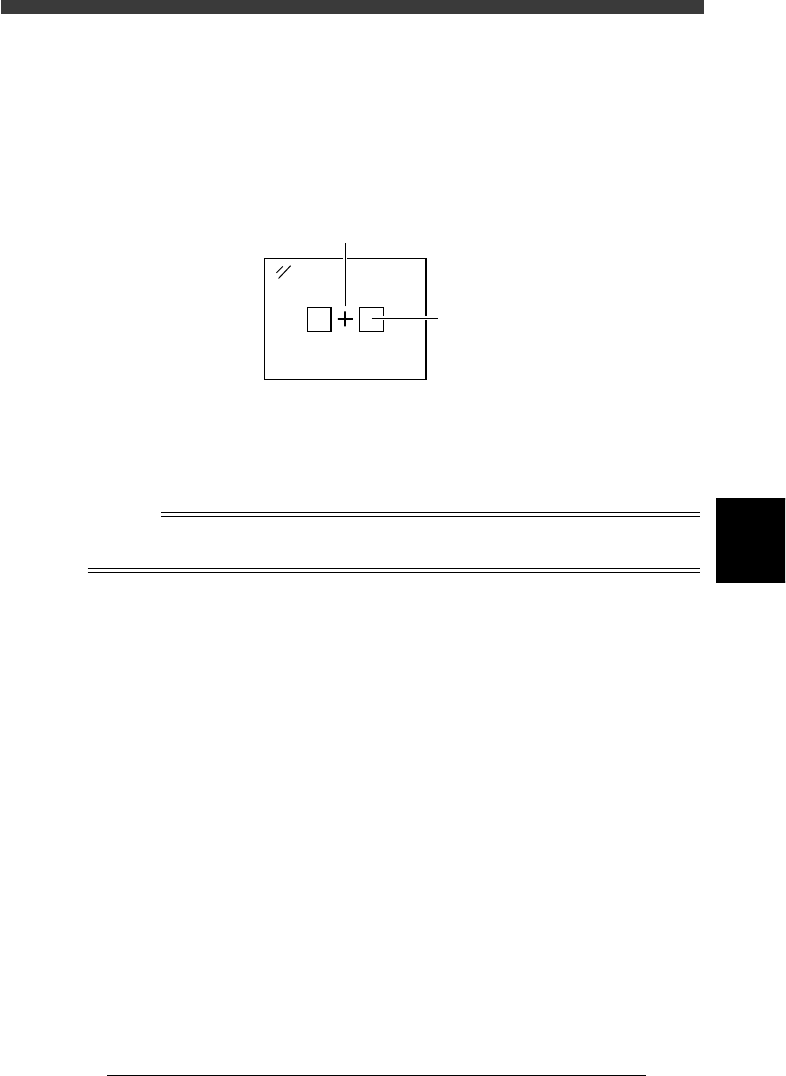
5 Press the [F9] key to check the mounting position by trace.
Pressing the [F9] key starts trace. The camera moves to over the position of
the selected mount data. Check that the cross cursor on the vision monitor
is aligned with the center of the mounting position.
Vision display during trace
23550-C0-00
Cross cursor
Land pattern
6 Correct the XY data.
If the cross cursor on the vision monitor shifts from the center of the
component mounting position, correct the XY data by teaching. Manipu-
late the YPU joystick to move the camera to the center of the mounting
position and press the [F10] key twice to perform teaching.
Reference
If you want to perform teaching input more accurately, use multi-point teaching or vision
cursor teaching. For details, refer to “12. Teaching and trace” in this chapter.
7 Check the land pattern name.
Check that the land pattern name or symbol (ex., R23, U12, etc.) printed
on the PCB matches the land pattern name entered in “SignOfLandPattern”
on the Mount Info. screen. If no land pattern names are entered, enter the
name here. If necessary, use the joystick to move the camera so that the
land pattern name printed on the PCB is brought into view.
8 Check the component number.
Check that the mounting position displayed on the vision monitor and the
component of the input component number are correct. You can refer to
the component No. and name list displayed on the right of the screen.
9 Press the [SHIFT] + [F9] keys to perform trace to the next
point.
The cursor moves down to the next data line to perform another trace.
Check the mounting position in the same manner.