YV180X_Ope_E.pdf - 第91页
5 -15 EPD8008100 Operation Chapter 5 5 Creating the PCB data 3.2 V arious parameter settings Y ou must check and make necessary settings to the data copied from the database, so that it matches the actual component you a…

5
-14
EPD8008100
Operation
Chapter 5
5
Creating the PCB data
5 Set necessary parameters in the sub-windows.
Press the [TAB] key to move the cursor into the sub-window and set other
parameters as necessary. For more details, refer to the next sections “3.2”
to “3.7” in this chapter. (To switch the sub-windows, press the [F4] key.)
Reference
When using stick feeders, refer to “3.8 Setting the stick feeder component data” in this
chapter.
6 Run the Adjust Assistant.
Press the [F6] key or run the <2/1B1 ADJUST ASSISTANT> command to
enter the Adjust Assistant mode.
The commands in the Adjust Assistant mode are used to check or optimize
the data copied or registered. (Refer to “3.7 Adjust Assistant commands” in
this chapter for more details.)
7 Save the PCB data.
Exit the Adjust Assistant mode, then press the [ESC] key twice, select <2/1/
D8 SAVE PCB DATA> and press the [ENTER] key.
8 Repeat the above steps for other components.
Use the same procedure from Step 2 to register all components to be
mounted on the PCB.
5
-15
EPD8008100
Operation
Chapter 5
5
Creating the PCB data
3.2 Various parameter settings
You must check and make necessary settings to the data copied from the
database, so that it matches the actual component you are going to use. The
subsequent sections from 3.3 to 3.6 explain how to set or check basic
parameters in the sub-windows according to typical component types.
Since precise settings can be made by actually recognizing each
component (with the Adjust Assistant commands described later in “3.7”),
the following description is for parameters which should be set manually in
each sub-window. For parameters not explained here, refer to the help
message which appears by pressing the [F1] key.
n
NOTE
When you use the component data copied from the YAMAHA database, first use the default
settings and then adjust or optimize them while checking the recognition status monitored
with the Adjust Assistant commands (described in “3.7” in this chapter). However,
parameters such as “Feeder Type” and Feeder Set No.” should be set to match the actual
machine.
Reference
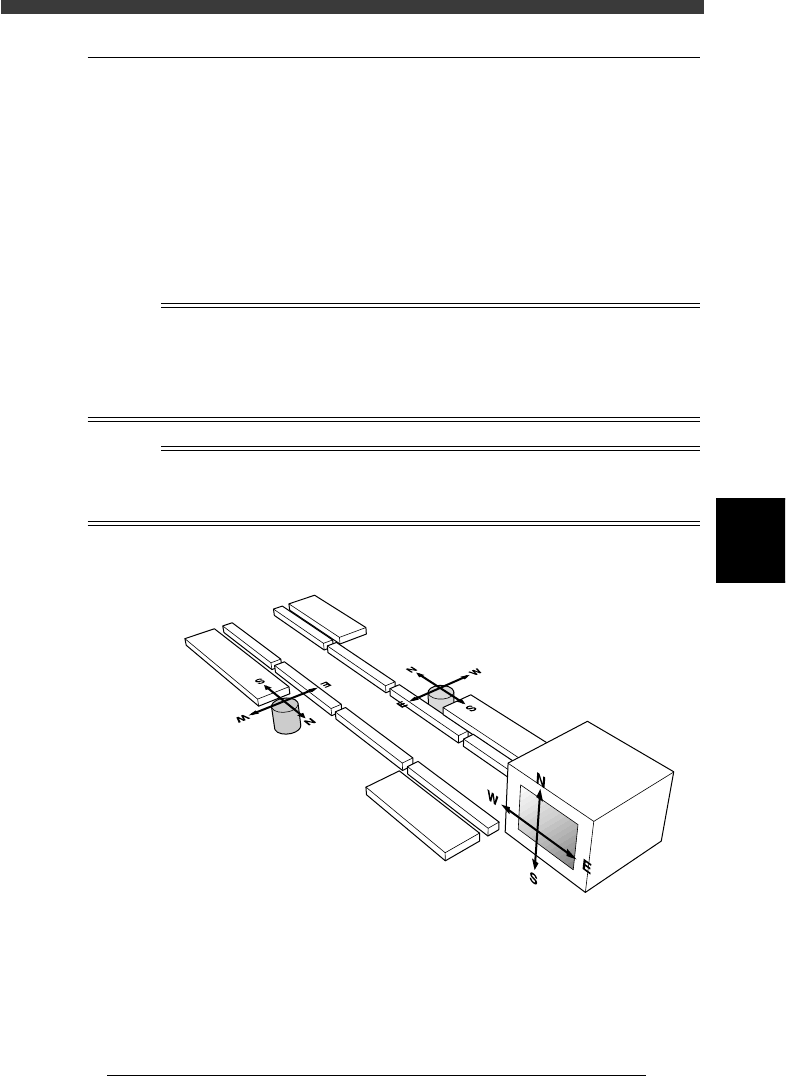
When making parameter settings, you will notice four kinds of alphabet letters “N, S, E
and W” which are indicated following certain parameters. These letters stand for the
directions in which the component is recognized with a vision system.
Component recognition directions
23507-D8-00
Vision display
A-table multi-vision camera
B-table multi-vision camera
5
-16
EPD8008100
Operation
Chapter 5
5
Creating the PCB data
3.3 Chip components
3.3.1 Standard chip components
(box type chip resistors and capacitors)
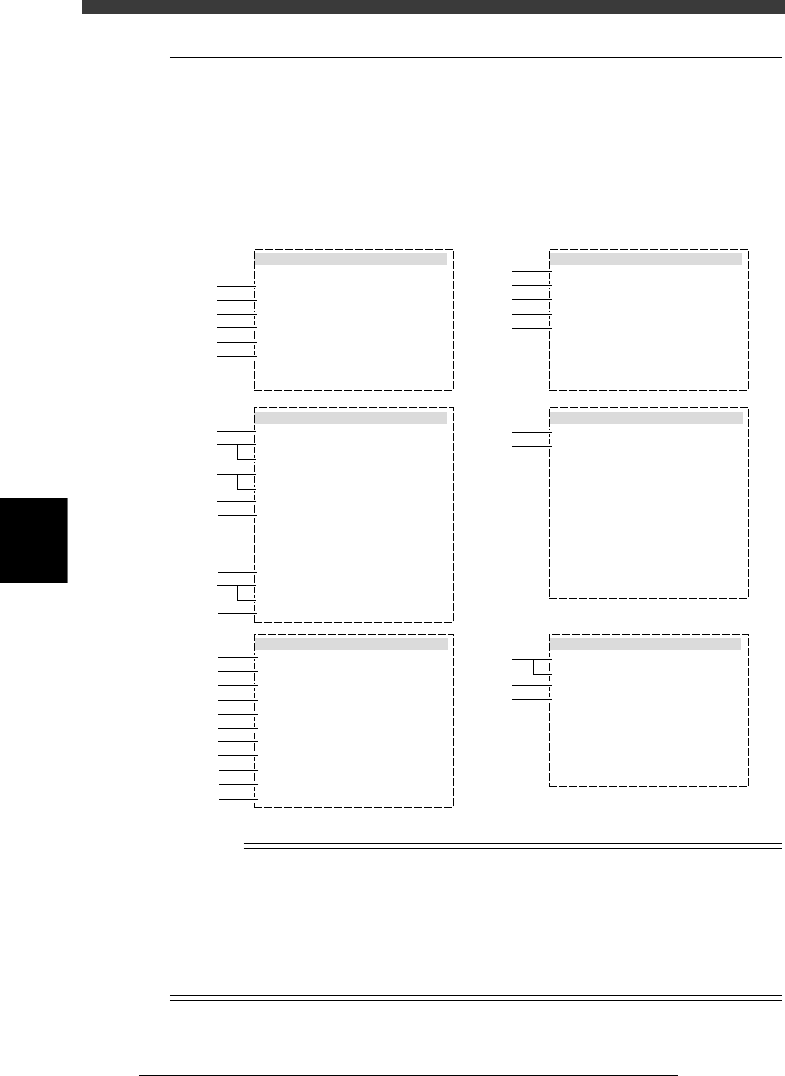
Box type chip resistors and capacitors are registered with the parameters
shown below.
Chip component parameters
27510-D8-00
6. SHAPE INFO.
Body Size X mm
Body Size Y mm
Body Size Z mm
Ruler Offset
:
:
:
:
0.80
1.60
0.45
3
5. VISION INFO.
Alignment Group
Alignment Type
AlignmentModule
Light Selection
Lighting Level
Comp. Threshold
Comp. Tolerance
Search Area mm
Datum Angle
Comp. Intensity
MultiCam. Marker
:
:
:
:
:
:
:
:
:
:
:
Chip
Std.Chip
Fore&Back&Las
Main + Coax
6/8
Normal
NotUse
30
30
1.50
0
1. BASIC INFO.
Database No.
Comp. Package
Feeder Type
Required Nozzle
Feeder Set No.
Pos. Definition
Feeder Pos_X mm
:
:
:
:
:
:
:
Tape
8mmTape
For1608Chp72
Automatic
501
16
135.79
2. OPTION INFO.
FixCmpRef.
AIt.Cmp
Use feeder opt.
Comp. Group No.
Correct Pickpos
:
:
:
:
:
Yes
Not Use
0
0
0
3. PICK AND MOUNT INFO.
Pick Angle deg
Pick Timer
Mount Timer
Pick Height
Mnt Height
Pick Sequence
Mount Action
Mount Speed
PickupSpeed
XY Speed
Vacuum Check
Pick Vacuum
Mount Vacuum
Conv. Y Speed
:
:
:
:
:
:
:
:
:
:
:
:
:
:
4. DUMP INFO.
Dump Way
Retry Times
:
:
Dump POS
2
s
s
mm
mm
%
%
%
%
%
0
0.00
0.00
Normal
NORMAL
100
100
100
NORMAL CHK
FAST
0.0
0.2
30
30
1
2
3
4
5
6
11
12
13
14
15
31
32
61
62
63
21
22
23
24
25
26
27
28
29
41
42
43
44
45
46
47
48
49
50
51
n
NOTE
When setting the parameters shown in the sub-windows above, use the number keys to set
the parameters aligned on the right, while using the [INS], [DEL] or [Space] key to set
the parameters aligned on the left. However, there are some parameters which should be
set or optimized with the Adjust Assistant commands described later in “3.7” in this
chapter.
The displayed parameters differ slightly depending on the <3/1/A1 OPTION CONFIG>
settings.