YV180X_Ope_E.pdf - 第285页
6 -50 EPD8013110 Operation Chapter 6 6 Using various functions 6 7 Create the mount information. Open the Mount Info. screen of the “ SELF_PROD_EXAMPLE ” and register all the mount data used for the “ PCB1 ” and “ PCB2 ”…
6
-49
EPD8013110
Operation
Chapter 6
6
Using various functions
4 Create the PCB information.
Referring to “6. Creating the PCB information” in Chapter 5, enter the
necessary settings for the PCB information.
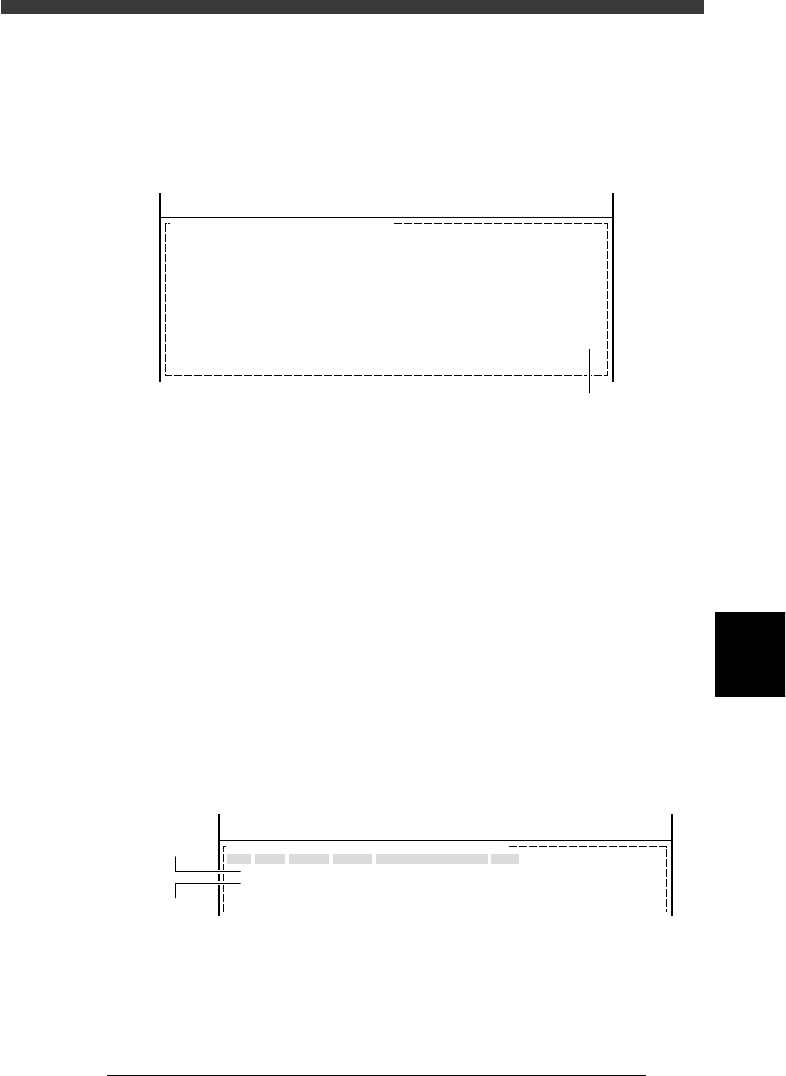
Set to “Use” for the “LocalBadmark” parameter displayed on the lower
right of the PCB Info. screen.
Local badmark information settings for self production
27631-C0-00
PCB :
LocalBadmark Use
OBJ : PCB Info.
<<<APPLICATION>>> 2/DATA/M
<<MODE>> 1/EDIT_DATA
Set to “Use”.
5 Create the block repeat information.
When you are using multi-block PCBs, set the block repeat information.
Refer to “2.1 Creating the block repeat data” in this chapter. Skip this step
when you are using single PCBs.
6 Create the local badmark information.
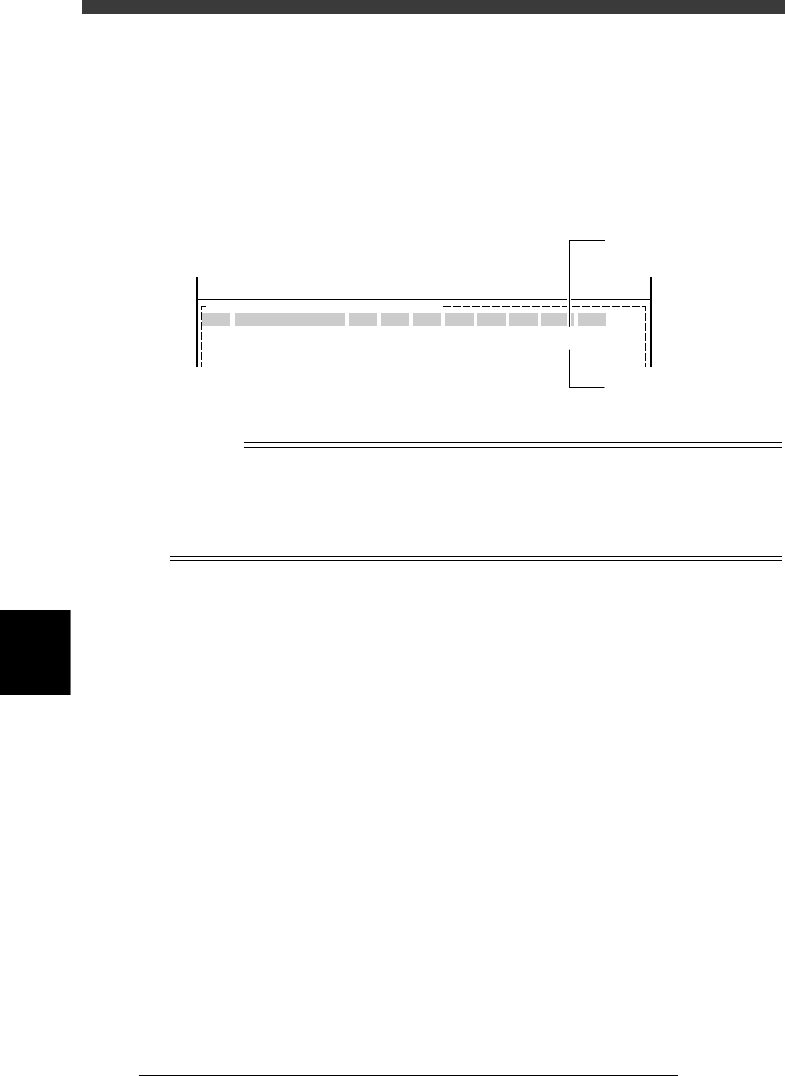
Open the “LocalBadmrk Info.” screen and create the local badmark data
for each of “PCB1” and “PCB2” as follows.
Mark : Enter the mark No. registered for self produc-
tion in the mark information.
XY : Enter the XY coordinates of the center of the
mark relative Sœ the PCB origin (or block
origin in the case of block repeat reference).
Badmark Comment : Enter a comment so that you can identify the
PCB data for which this badmark is used.
Skip : Set to “Exec” (initial setting).
Local badmark information settings for self production
27632-C0-00
<<<APPLICATION>>> 2/DATA/M
<<MODE>> 1/EDIT_DATA
OBJ : LocalBadMrkInfo.
No.
1
2
Mark
1
2
X
5.00
230.00
Y
5.00
5.00
Badmark Comment
For PCB 1
For PCB 2
Skip
Exec
Exec
PCB:SELF_PROD_EXAMPLE
Data for PCB1
Data for PCB2
6
-50
EPD8013110
Operation
Chapter 6
6
Using various functions
6
7 Create the mount information.
Open the Mount Info. screen of the “SELF_PROD_EXAMPLE” and register
all the mount data used for the “PCB1” and “PCB2”. Be sure to enter the
local badmark No. for the “PCB1” registered in Step 6, in the “BadMk”
column for the “PCB1”, and enter the local badmark No. for the “PCB2” in
the “BadMk” column for the “PCB2”. For more details, refer to “7.
Creating the mount information” in Chapter 5.
Mount information settings for self production
27633-C0-00
PCB :
SignOfLandPattern
R1005
R2125
BadMk
1
2
OBJ :Mount Info.
No.
1
2
<<<APPLICATION>>> 2/DATA/M
<<MODE>> 1/EDIT_DATA
Comp
10
12
X
30.00
20.50
Y
45.00
10.00
R
0.00
0.00
Head
1
2
FidMk
0
0
Skip?
Exec
Exec
LocalBadMrk Info. data
No. for PCB1
LocalBadMrk Info. data
No. for PCB2
Reference
If the “PCB1” and “PCB2” mount data are already registered, copy each of the mount
data and paste them into the “SELF_PROD_EXAMPLE”. In this case, be sure to confirm
that all mount data on the “PCB1” and “PCB2” is registered with reference to the PCB
origin at the same coordinates. If not, change each piece of the mount data so that all
mount data refers to the PCB origin at the same coordinates.
6
-51
EPD8013110
Operation
Chapter 6
6
Using various functions
8. Alternative component function
When components in a feeder are used up during operation, the alternative
component function allows the head to pick up components from another
feeder specified as an alternative component.
For example, set the same type of components in three different feeders A,
B and C, then register them as an “alternative component” group. The
machine first picks up the components from the feeder A, and when they
are used up, it automatically begins to use the components in the feeder B.
Likewise, the machine uses the components in the feeder C as soon as the
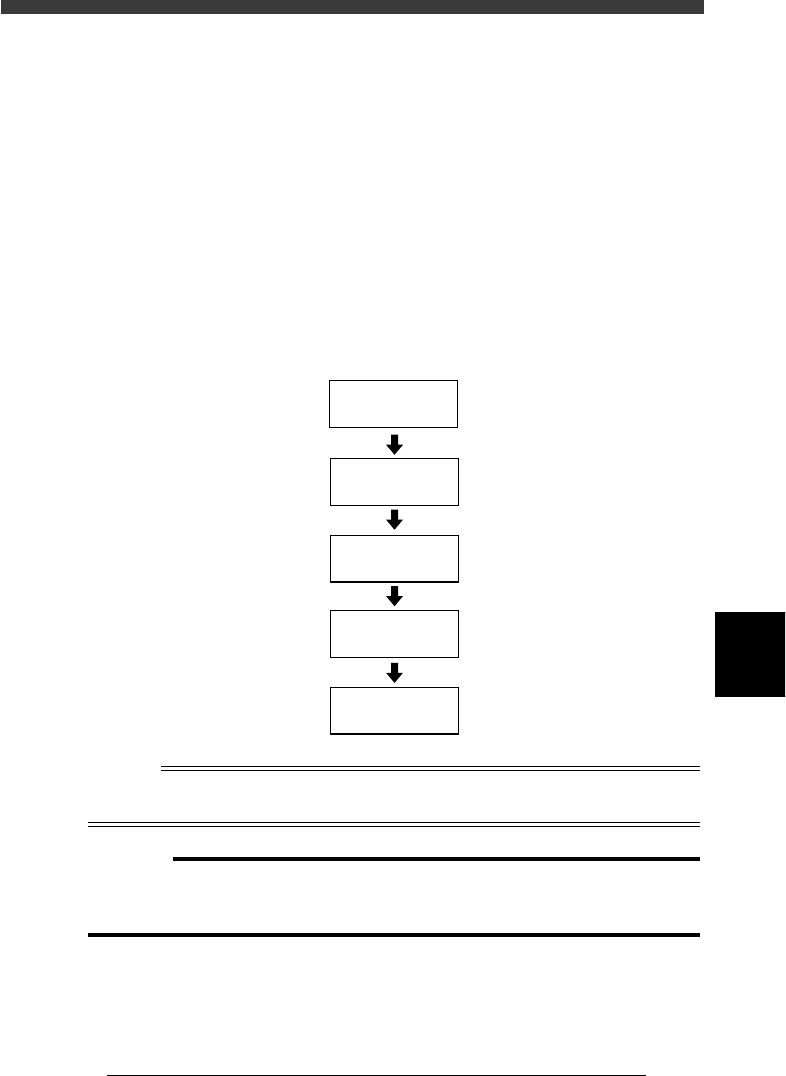
components in the feeder B run out. The operation flow for this function is
as follows.
Alternative component function
23619-C0-00
Check data
Select component
switching method
Save data
Create data
Multiply
component data
Reference
In machines equipped with a “nonstop feeder system” (option), components can be
resupplied without interrupting operation.
c
CAUTION
The alternative component function cannot be used for tray feeder components if the
“Dump Way” parameter in the PICK & MOUNT sub-window is set to “Sp. Dump
Back”.