YV180X_Ope_E.pdf - 第87页
5 -11 EPD8008100 Operation Chapter 5 5 Creating the PCB data VIOS hierarchical structure (f or creating component inf ormation) 23506-D8-00 A1 MAIN WINDOW A2 SUB WINDOW A3 VIEW DATABASE NO. A4 VISION ALIGNMENT DIC. A5 A6…
5
-10
EPD8008100
Operation
Chapter 5
5
Creating the PCB data
3. Creating the component information
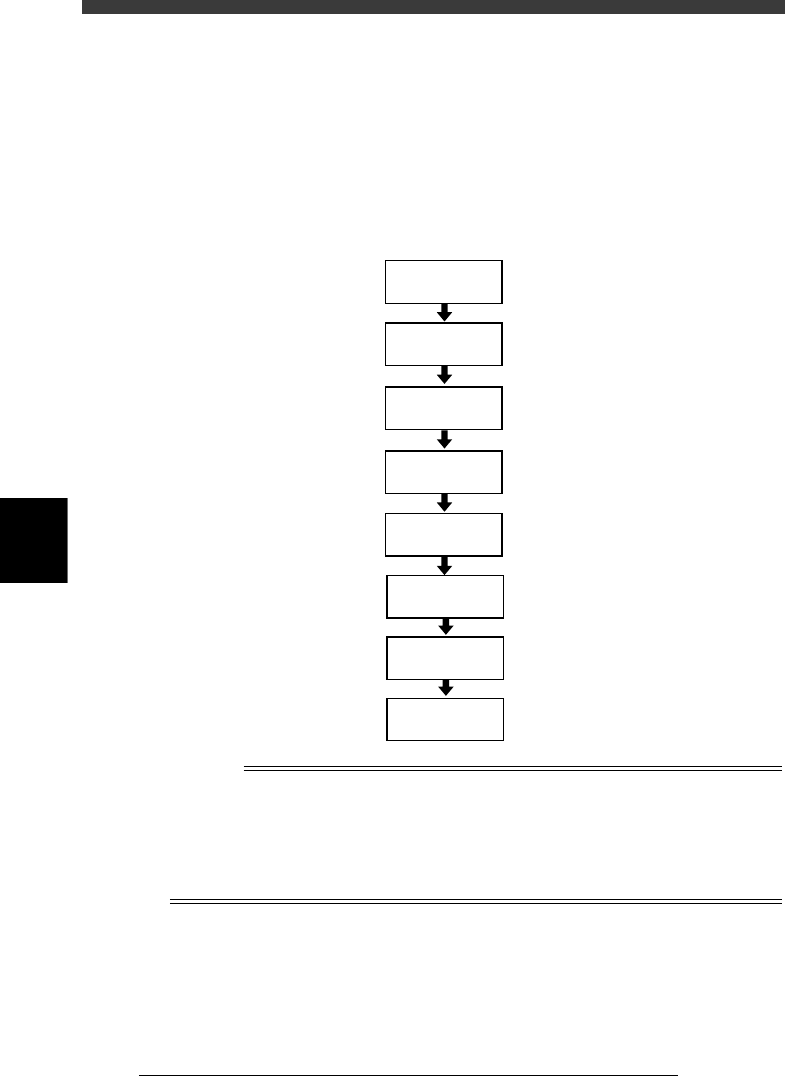
The flow chart below shows the procedure for creating data on components
to be mounted on a PCB. Component data has various parameters for each
of the component names registered. To set these parameters, it is conve-
nient to copy sample data of a component with a similar shape from the
database (<2/3 DATABASE>) and then edit only the different parameters.
Flow chart for creating component data
23505-C0-00
Save data
Execute Adjust
Assistant
3.7
☞
Set various
parameters
3.2
☞
Enter feeder
set No.
Copy information
from database
Enter comment
Enter component
name
Open
component info.
Reference
In <2/3/DATABASE>, various kinds of component data are pre-registered as the YAMAHA
database. You can also create the user database for your own purpose. (See “3. Creating
the user database” in Chapter 6.)
To create PCB data more efficiently, it is advisable to register the component data in the
appropriate location by considering how the component is to be used. Refer to “3.9
Registration location of component data” in this chapter for more details.
5
-11
EPD8008100
Operation
Chapter 5
5
Creating the PCB data
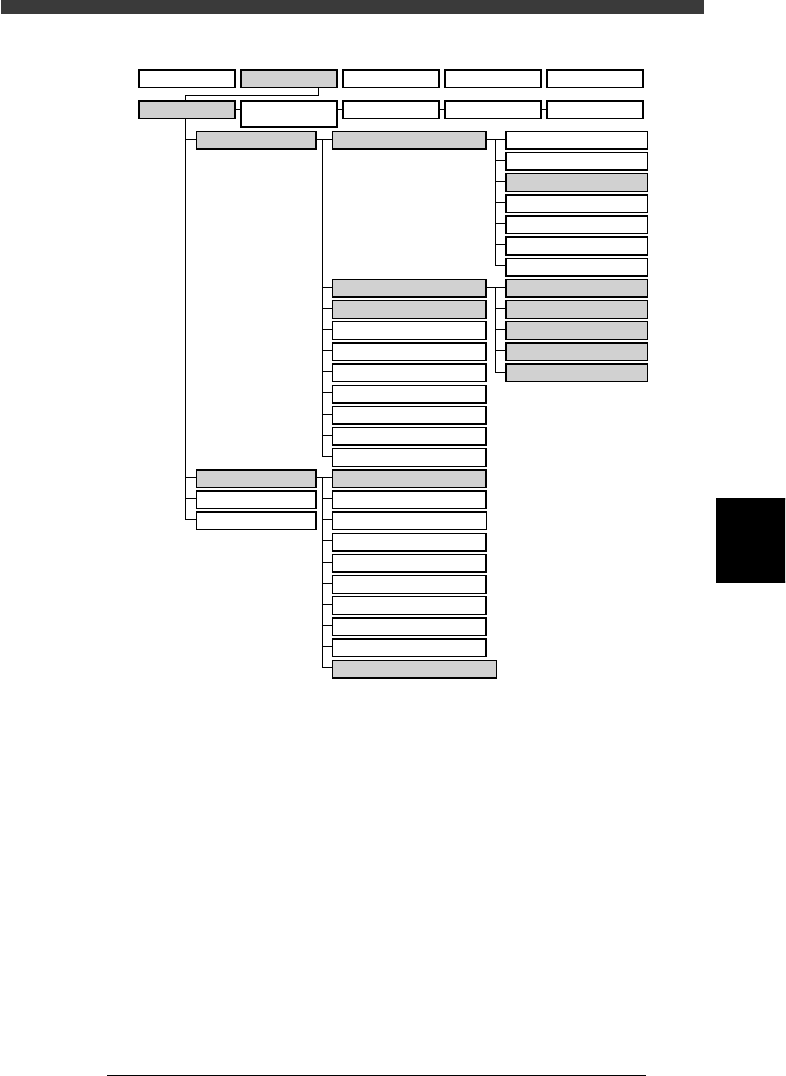
VIOS hierarchical structure (for creating component information)
23506-D8-00
A1 MAIN WINDOW
A2 SUB WINDOW
A3 VIEW DATABASE NO.
A4
VISION ALIGNMENT DIC.
A5
A6
A7 FIND NEXT
A8
A9
A0 RETURN TO EDIT
B1 ADJUST ASSISTANT
B2
DATABASE UTILITY
B3
B4
DRAW THE SHAPE(CMP)
B5
B6 SET PALLET
B7 CONVEYOR UNIT
B8
B9
B0
TEACH,TRACE CONDITION
A/DISPLAY
B/UTILITY
C/EDIT_TOOL
D/FILE
PCB Info.
Mount Info.
Component Info.
Mark Info.
Blk Repeat Info.
Local Fidu.Info.
LocalBadMrkInfo.
BASIC &OPTION
PICK, MOUNT & DUMP
VISION & SHAPE
*TRAY
*DISPENSE
1/OPERATION/M
2/DATA/M 3/MAINTE/M 4/SHELL/M 0/EXIT
1/EDIT_DATA
2/DATA_
GENERATOR
3/DATABASE 4/MANUAL 0/EXIT
5
-12
EPD8008100
Operation
Chapter 5
5
Creating the PCB data
3.1 Creating procedure
When you have registered or selected the PCB name, create PCB data with
the following procedure.
1 Open the Component Info. screen.
Select “Component Info.” from the edit item menu box which appears
after registering or selecting a PCB name. If an edit screen is open, press
the [F3] key (or select <2/1/A1 MAIN WINDOW>) to display the edit item
menu box and select “Component Info.” .
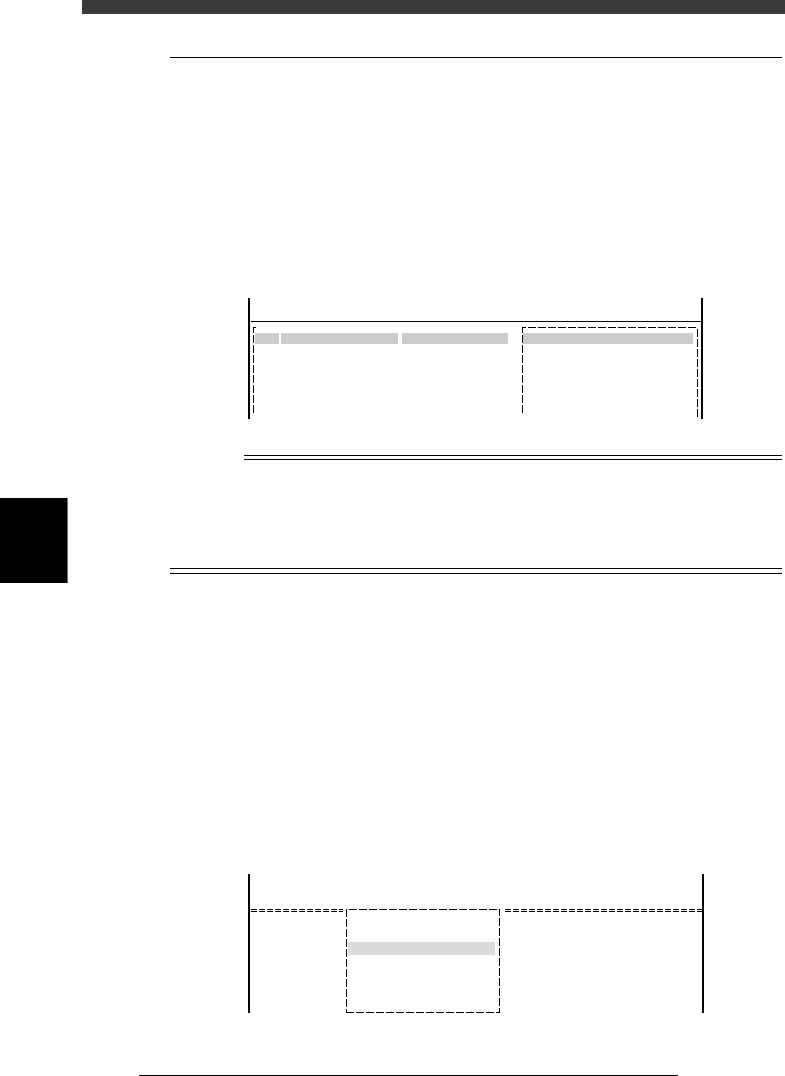
Component Info. screen
27506-C0-00
<<<APPLICATION>>>
<<MODE>> 1/EDIT_DATA
PCB :
2/DATA/M
OBJ :Component Info.
COMMENTNo.
1
2
3
COMPONENT NAME
:
:
:
Main window
Sub-window
n
NOTE
Enter the component name and comment in the main window and various parameter
values in the sub-window. Parameter items in the sub-window appear when you press the
[ENTER] key after entering the component name. The sub-window consists of several
groups of information which are switched with the [F4] key. Press the [TAB] key to switch
between the main and sub windows.
2 Enter the component name and press the [ENTER] key.
Enter the name printed on the tape reel or on the component itself in the
COMPONENT NAME column on the main window within 20 alphanu-
meric characters. A space cannot be included in the name.
3 Enter a comment and press the [ENTER] key.
Type any desired comment in the COMMENT column as necessary. You
can omit entering comments here.
4 Copy sample data from the database.
1. Press the [ESC] key to display the <A/DISPLAY> menu window and
select the <A3 VIEW DATABASE NO.> command.
VIEW DATABASE NO. command
27507-C0-00
<<<APPLICATION>>>
<<MODE>>
<COMMAND_LIST>
2/DATA/M
1/EDIT_DATA
A/DISPLAY
A3 VIEW DATABASE NO.