YV180X_Ope_E.pdf - 第210页
5 -134 EPD8013110 Operation Chapter 5 5 Creating the PCB data 4 Perform teaching to correct the mounting position. 1. Manipulate the YPU joystick so that the cross cursor is aligned with the center of the land patterns. …
5
-133
EPD8013110
Operation
Chapter 5
5
Creating the PCB data
10.4 Correcting the data after mounting
test
This section explains countermeasures you should take when mounting
position errors are found in the mounting test.
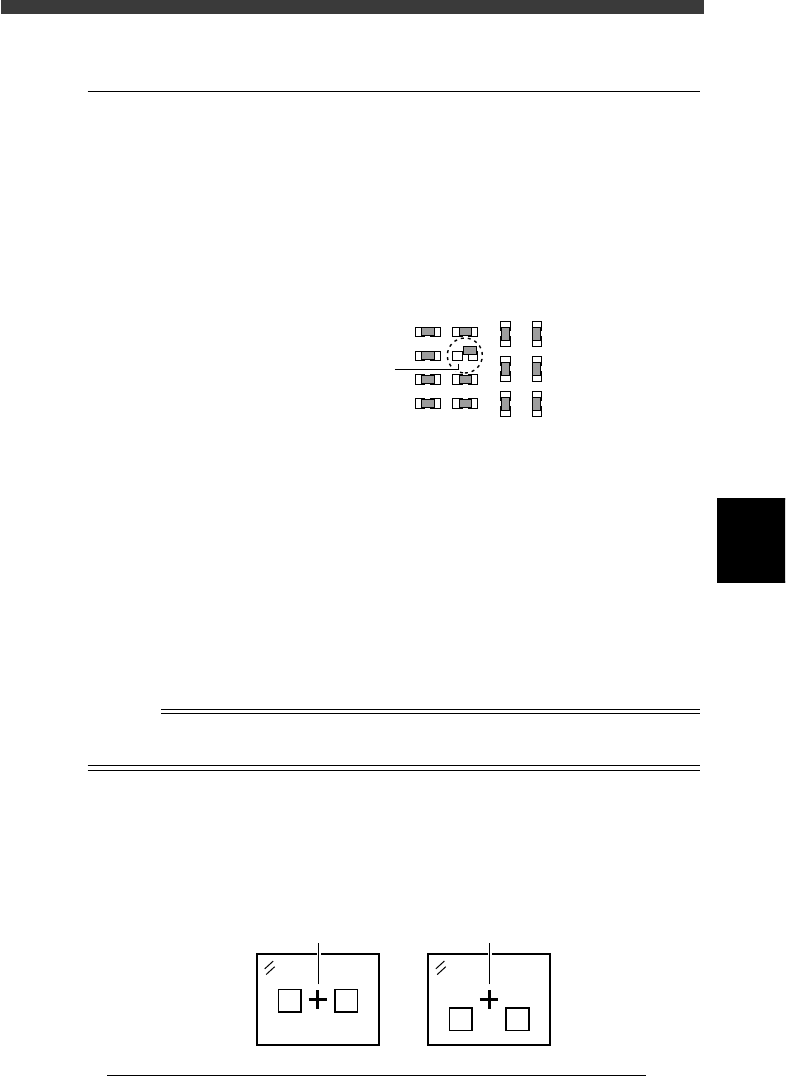
1. Mounting position errors at a specific point
When mounting position errors occur at a specific point on the PCB, the
component mount coordinate data is probably incorrect. Correct the data
as follows.
Mounting position error at a specific point
23557-C0-00
Mounting position error
1 Open the Mount Info. screen in the <1/2/PRD.DATA>
mode.
2 Perform trace to the mounting position.
1. Move the cursor to the “X” or “Y” column of the data line whose
mounting position deviates.
2. Set the trace/teaching conditions and perform trace.
Press the [F9] key (or select the <1/2/B0 TEACH, TRACE CONDITION>
command), then select “A table” (or B table), “Camera” for the teaching
unit, a slow speed, and a fiducial correction setting as necessary.
Then, press the [F9] key again to perform trace. The moving camera
moves to above the mounting position. The cross cursor displayed on
the vision monitor indicates the current mounting position.
Reference
For details on the trace and teaching functions, refer to “12. Teaching and trace” in this
chapter.
3 Check the data.
If the cross cursor shifts from the center of the land patterns as shown in B,
you must correct the mount data by teaching. (You do not need to correct
the data when the cross cursor is at the center as shown in A.)
Mounting position indicated on the vision monitor
23558-C0-00
A
B
Cross cursor
Cross cursor
5
-134
EPD8013110
Operation
Chapter 5
5
Creating the PCB data
4 Perform teaching to correct the mounting position.
1. Manipulate the YPU joystick so that the cross cursor is aligned with the
center of the land patterns.
2. Press the [F10] key twice to enter the correct coordinates of the center
of the land patterns.
2. Particular component shift from the mounting positions
When a particular component shifts from its mounting position, the
component may not be recognized correctly. Open the Component Info.
screen in the <1/2/PRD.DATA> mode and run the Adjust Assistant for
the data you want to check.
Refer to “3. Creating the component information” for details on the
Adjust Assistant.
3. Mounting position shift on the entire PCB or in a particular
block
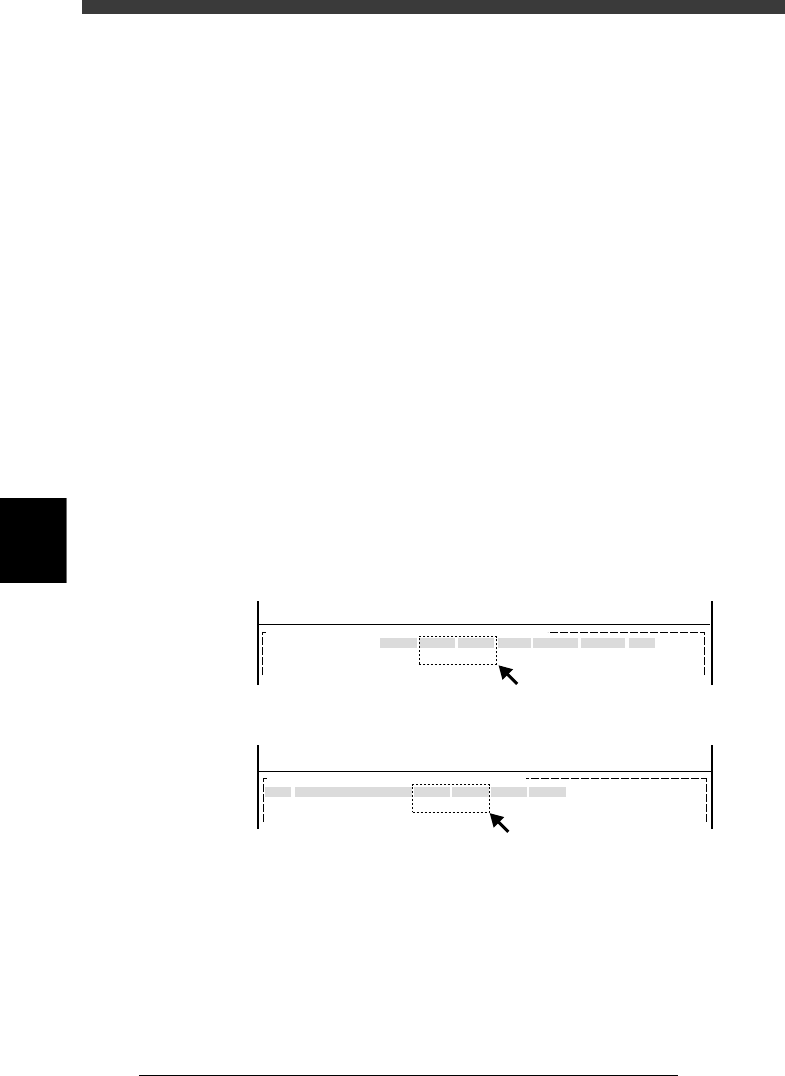
When the mounting position for the entire PCB shifts, the “PCB Origin”
settings in the PCB Info. are probably incorrect (A in the figure below).
When the mounting position for a particular block shifts, the coordinate
settings in the Blk Repeat Info. are probably incorrect (B in the figure
below).
Correcting mounting position errors
27560-C0-00
MARK
X/X1
10.00
Y/Y1
10.00
MRK2 X2
Y2 Skip?
<<<APPLICATION>>> 2/DATA/M
<<MODE>> 1/EDIT_DATA
OBJ :PCB Info.PCB :
PCB Origin
No.
1
2
X
0.00
Y
0.00
Block Comment Skip?
Exec
R
0.00
<<<APPLICATION>>> 2/DATA/M
<<MODE>> 1/EDIT_DATA
OBJ : Blk Repeat Info.PCB :
A: When mounting position shift occurs on the entire PCB :
B: When mounting position shift occurs in particular block:
A
B
5
-135
EPD8013110
Operation
Chapter 5
5
Creating the PCB data
1 Open the corresponding screen.
In the <1/2/PRD.DATA> mode, open the PCB Info. screen to correct the
PCB origin, and open the Blk Repeat Info. screen to correct the block
repeat settings.
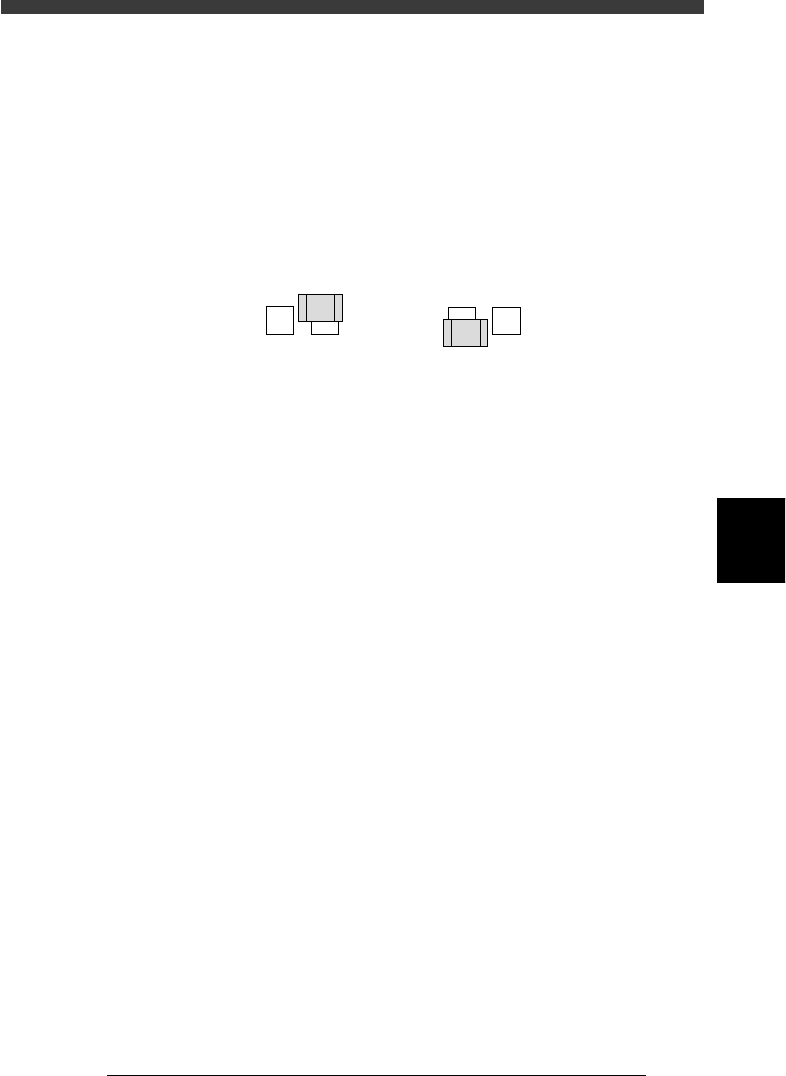
2 Enter the mounting error.
If the position shifts in the plus direction (A in the figure below), subtract
the error from the current coordinate value, and add the error if the
position shifts in the minus direction (B in the figure below).
Mounting position error
21504-C0-00
AB
3 Save the data.
When you have corrected the data, select <1/2/C0 SAVE & EXECUTE> and
press the [ENTER] key. The corrected data will be saved.
4. Mounting position errors even when fiducial marks are used
When the mounting position of the entire PCB or a particular block has
shifted even if the PCB corrections have been made by using the
fiducial marks, an extraneous mark may be recognized due to incorrect
settings for the fiducial mark coordinates. Open the Mark Info. screen in
the <1/2/PRD.DATA> mode, and perform the Adjust Assistant to adjust
the data you want to check. Refer to “4. Creating the mark information”
in this chapter for details on the Adjust Assistant.