YV180X_Ope_E.pdf - 第154页
5 -78 EPD8013110 Operation Chapter 5 5 Creating the PCB data 3. Surface T ype This specifies the bright and dark relation between the mark surf ace and PCB (surrounding area). Select “ NonReflect ” when the mark is darke…
5
-77
EPD8013110
Operation
Chapter 5
5
Creating the PCB data
Mark Type Info. parameters
1. Mark Type
The “Mark Type” parameter in the Mark Type Info. sub-window should be
set to “Fiducial”.
Vision Info. parameters
2. Shape Type
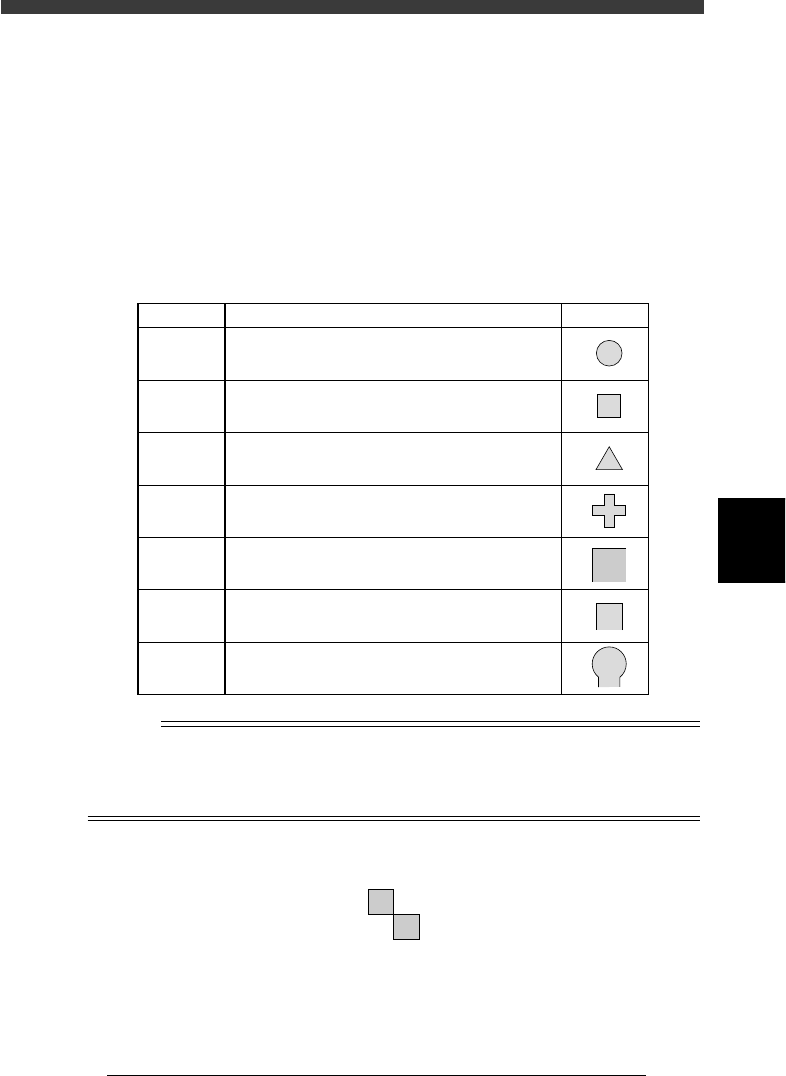
The Shape Type in the Vision Info. sub-window can be selected from the
following 7 types.
Shape Type settings
25512-C0-00
Setting Description
Example
Circle
Square
Triangle
Sp. Shape
Corner
TopEdge
CirEdge
Select to detect a circular mark.
Select to detect a square mark.
Select to detect an equilateral triangular mark.
Select to detect a special mark other than above.
Select to detect a corner of a pattern as a mark.
Select to detect an edge of a pattern as a mark.
This setting is effective in detecting a square edge.
Select to detect an edge of a pattern as a mark.
This setting is effective in detecting a round edge.
Reference
If you use a special mark composed of two or more objects as shown below, set the
Algorithm Type parameter (described later) to “Pattern”. In this case, the “Shape”
parameter is ignored during recognition, so you can set this parameter to any type. (For
more details, see “9. Pattern matching” in Chapter 6.)
Example of special mark
21502-C0-00
5
-78
EPD8013110
Operation
Chapter 5
5
Creating the PCB data
3. Surface Type
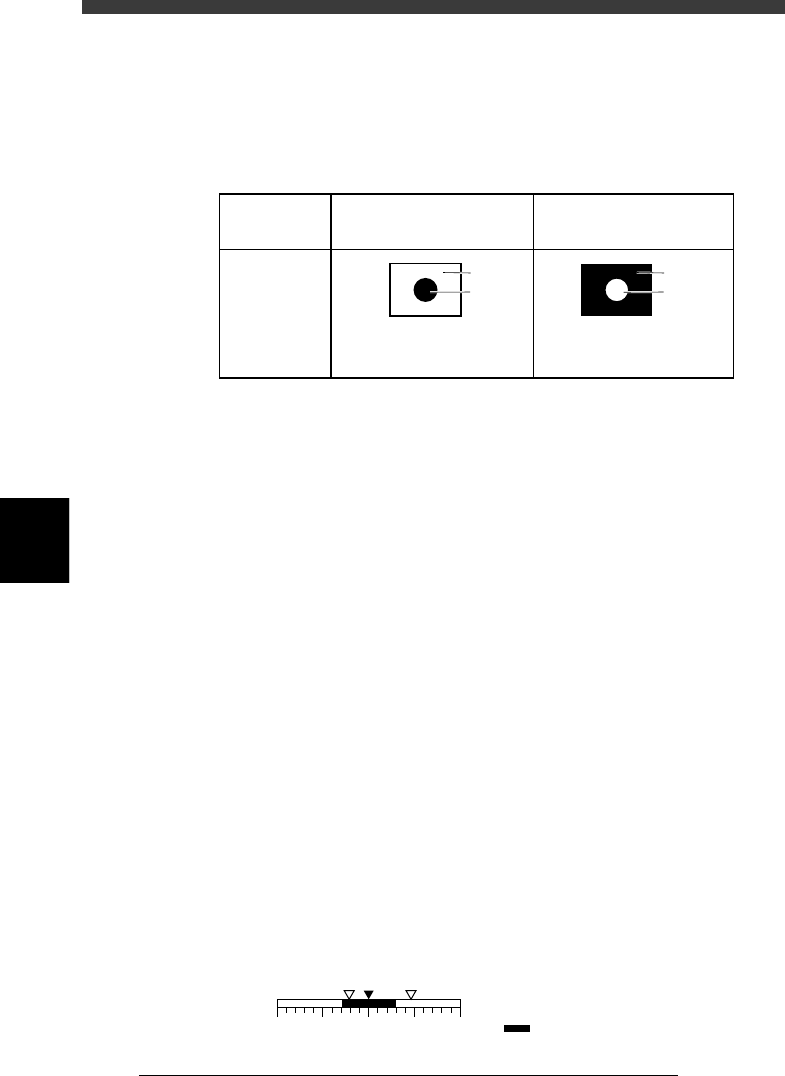
This specifies the bright and dark relation between the mark surface and
PCB (surrounding area). Select “NonReflect” when the mark is darker than
the surrounding area, and select “Reflect” when the mark is brighter than
the surrounding area, as shown below.
Surface Type settings
25513-C0-00
NonReflect
PCB is brighter than mark.
Reflect
Mark is brighter than PCB.
Parameter
setting
Displayed
image
PCB
Mark
PCB
Mark
4. Algorithm Type
There are 5 algorithm types selectable for mark recognition.
• Normal
In typical recognition, all types of marks should be set to “Normal”. Try
setting to other parameters if the mark cannot be recognized with the
“Normal” setting.
• Special 1
Select this if the mark cannot be recognized by the “Normal” setting.
• Special 2
Select this if the mark which cannot be recognized by the “Normal”
setting has a cutout area.
• PTRN Outline, PTRN GrayLev
Select these parameters when the Shape Type parameter is set to
“Pattern”. For more details, refer to “9. Pattern matching” in Chapter 6.
5. Tolerance
This specifies a tolerance percentage for the mark size when the mark is
recognized with the vision system. (Typically this should be set to “30”.)
For example, suppose as shown below that the tolerance is set to 30 (%)
with respect to point A representing the mark size setting, and points B and
C are the actually measured mark sizes. Point B is okay since it is recog-
nized within the allowable range, but point C is treated as an error since it
is outside the allowable range.
Tolerance
23530-C0-00
0
ABC
+100 (%)-100
A: Mark size setting
B, C: Vision recognition result
: Allowable range
5
-79
EPD8013110
Operation
Chapter 5
5
Creating the PCB data
6. Search Area
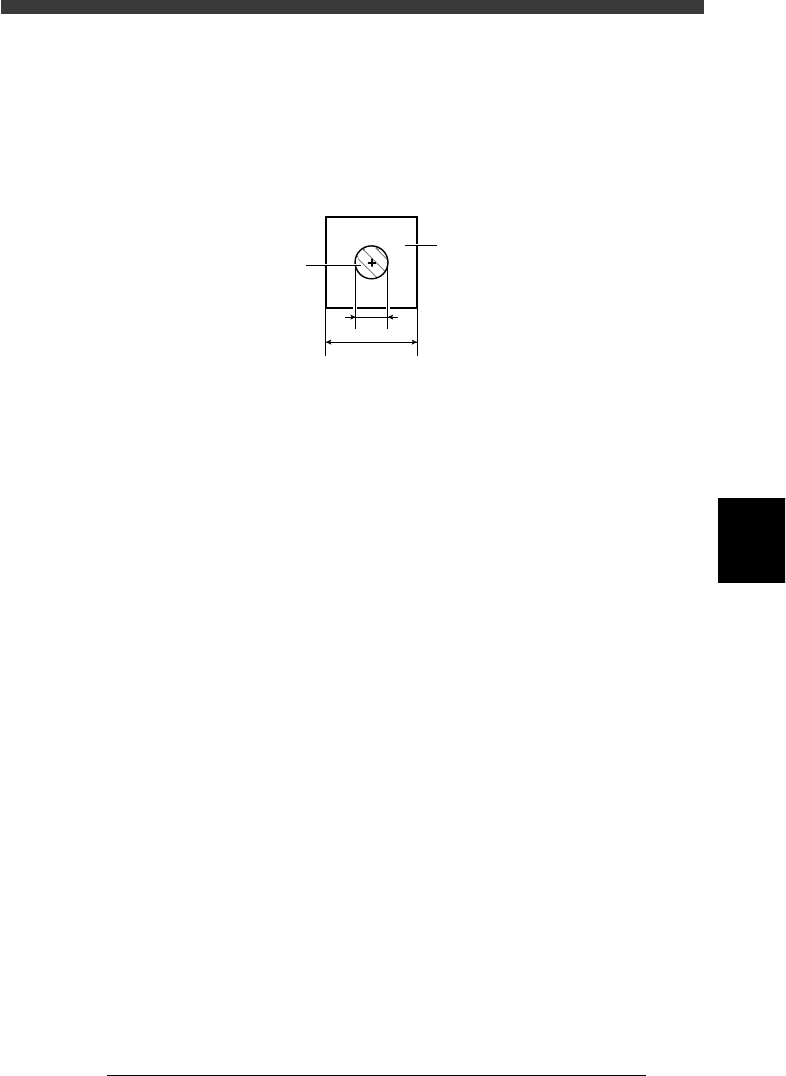
It is recommended that this parameter be set to the mark diameter plus
3mm. For example, when the mark diameter is 1mm, set this parameter to
“4mm” as shown below.
If other marks (such as resist, screen print, other patterns) exist in this
search area, make the Search Area setting smaller.
Search Area
23531-C0-00
1
4
Search Area
Mark
7. Sequence
This parameter appears only when the Option Edit parameter on the <3/1/
A1 OPTION CONFIG.> menu is set to “EXIST”. There are 3 choices:
“Normal”, “Quick” and “Fine”. Select “Quick” when the cycle time is
more important, but select “Fine” when accuracy is more important.