YV180X_Ope_E.pdf - 第53页
4 -14 EPD8013110 Operation Chapter 4 4 Daily operation 4 1 Select <1/1/RUNNING> and press the [ENTER] key . A PCB name selection box is displayed when you have not yet selected a PCB name. 2 Select the PCB name and…
4
-13
EPD8013110
Operation
Chapter 4
4
Daily operation
5. Starting PCB production
This section describes how to select the PCB data which is already regis-
tered and perform component mounting.
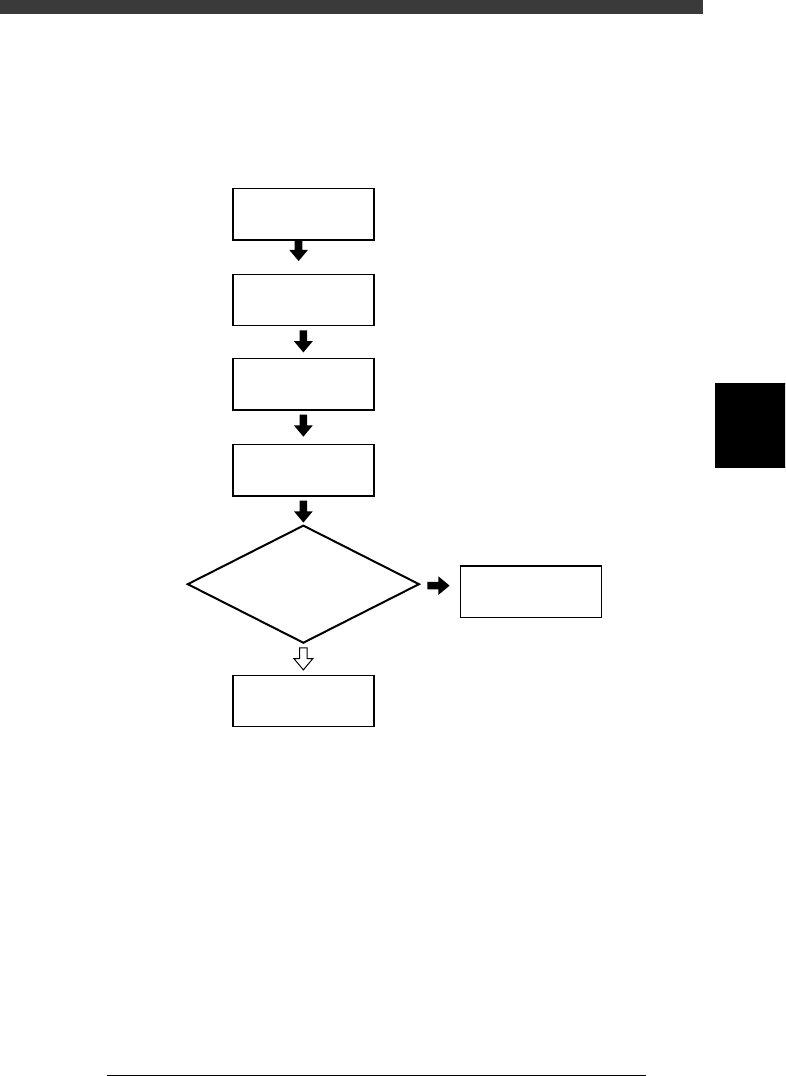
Flow chart for starting PCB production
23405-C0-00
Press [F4]
1/1/RUNNING
Display information
monitor during operation?
YES
NO
Select PCB name
1/1/D4
ASSISTANT UTILITY
Select
operation speed
Start operation
4
-14
EPD8013110
Operation
Chapter 4
4
Daily operation
4
1
Select <1/1/RUNNING> and press the [ENTER] key.
A PCB name selection box is displayed when you have not yet selected a
PCB name.
2
Select the PCB name and press the [ENTER] key.
1. Press the [F2] key (or execute <1/1/E1 SWITCH PCB>) when the list of
PCB names is not directly displayed.
2. Select the PCB name for production and press the [ENTER] key.
The machine then loads the selected PCB data.
3. When you select PCB data which uses bulk feeder components, the
message “Now machine will set BULK component to the top of the
feeder guide” appears. Press the [SPACE] bar to allow setting the bulk
components to the top of feeder guide when the bulk feeder is already
installed on the feeder plate. If not yet installed, press a key other than
the [SPACE] bar.
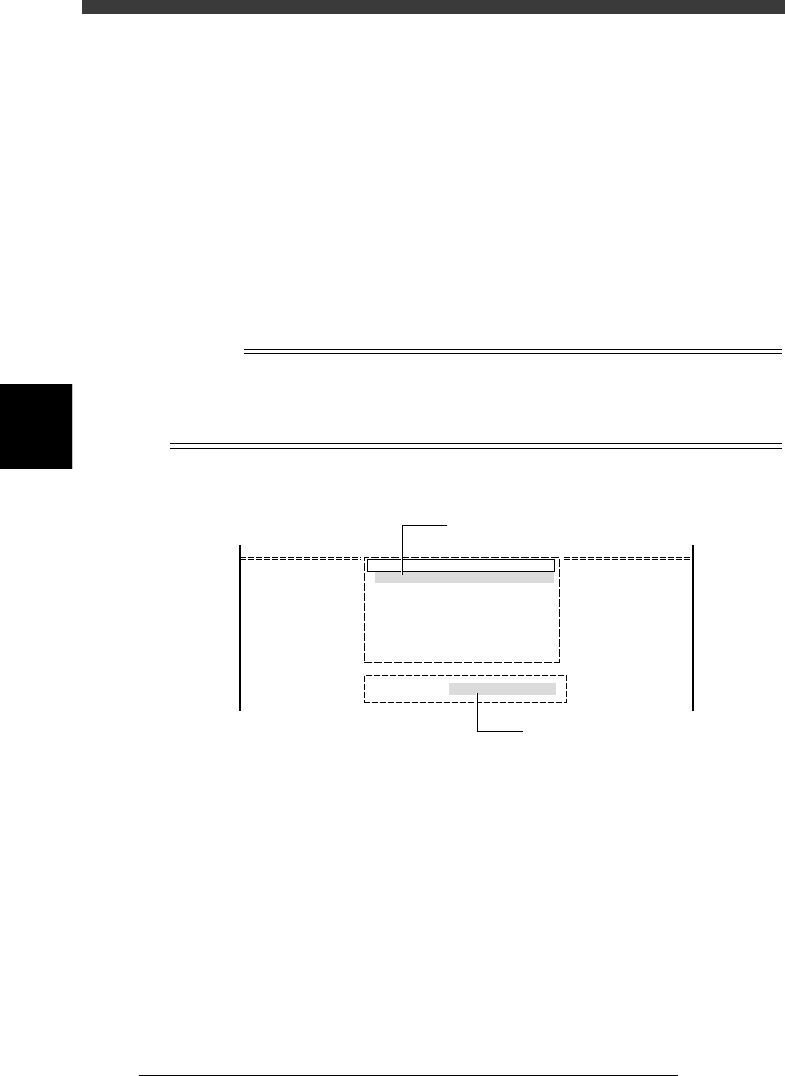
Reference
On the screen showing the PCB name selection box, you can select the PCB name by
typing its first few letters from the keyboard, into the INPUT PCB box which appears upon
typing the first letter of the PCB name. At the same time, the cursor in the PCB name
selection box moves to a PCB name that matches the letters you typed.
INPUT PCB box
27405-C0-00
pcb name
CUK_92001_1
TCO1M2
TCO1M1
TCO1M1_P
1997-03-08
1997-03-22
1997-03-22
1997-03-25
Search PCB : CUK
Cursor moves as you type the PCB name.
Type the PCB name here.

4
-15
EPD8013110
Operation
Chapter 4
4
Daily operation
3
Select <1/1/D4 ASSISTANT UTILITY> and press the [EN-
TER] key.
The ASSISTANT UTILITY menu box then appears, so select the commands
to check or adjust the necessary items.
w
WARNING
BEFORE CHECKING OR ADJUSTING EACH ITEM, ALWAYS PRESS THE
EMERGENCY STOP BUTTON.
CONVEYOR UNITS
Use this utility to change the conveyor unit setups. Select this only
when you have switched the production PCB (in other words, only
when you have selected PCB data which is different from the PCB data
previously selected). See “8. Changing the conveyor unit setup” in this
chapter for more details.
COMPONENT ASSIGNMENT
This utility lists the feeder types and components to be mounted, so
check whether the necessary feeders are installed in the correct feeder
set positions on the feeder plate. For more details on changing the
feeder setups, refer to the separate feeder user’s manual or tray changer
user’s manual.
REQUIRED NOZZLE
This utility shows the nozzle type that can be attached to each head
only when your machine has no nozzle station or uses a head which is
not designed for auto nozzle change. Referring to the display, check
that the correct nozzle is attached to each head. Flying nozzle change
can be performed for heads showing the nozzle number (Nzl.) set to
“0”.
EDIT TRAY COUNTER
This utility can be selected only when a tray changer or tray feeder is
used. (Invalid for the YV180X)
EDIT PRD. HISTORY
Use this utility to reset the production history data or production PCB
counter, or change the maximum number of production PCBs.
FEED BULK COMPONENT
This utility feeds bulk components to the top of a bulk feeder guide.
Use this command when a bulk feeder is used and the bulk compo-
nents have not been set to the top of the feeder guide (see Step 2). In
this case, the bulk feeder must be installed in the correct feeder set
position.
CHECK NOZZLE CONDITION
The machine checks the nozzle tip conditions with the multi-vision
camera. If any error is found, clean the nozzle tip, then execute this
command again to recheck the nozzle tip conditions.
RETURN
Exits the ASSISTANT UTILITY and returns to the previous menu
window.