YV180X_Ope_E.pdf - 第135页
5 -59 EPD8013110 Operation Chapter 5 5 Creating the PCB data 1 Set up the component feeder . Install the feeder with components you want to check, onto the feeder plate. Be sure that the feeder set position matches the n…
5
-58
EPD8013110
Operation
Chapter 5
5
Creating the PCB data
3.7 Adjust Assistant commands
The Adjust Assistant commands allow you to check whether the parameter
settings are correct. While performing the recognition test with the Adjust
Assistant commands, you can also find and determine an optimum value
for parameters which have not yet been set.
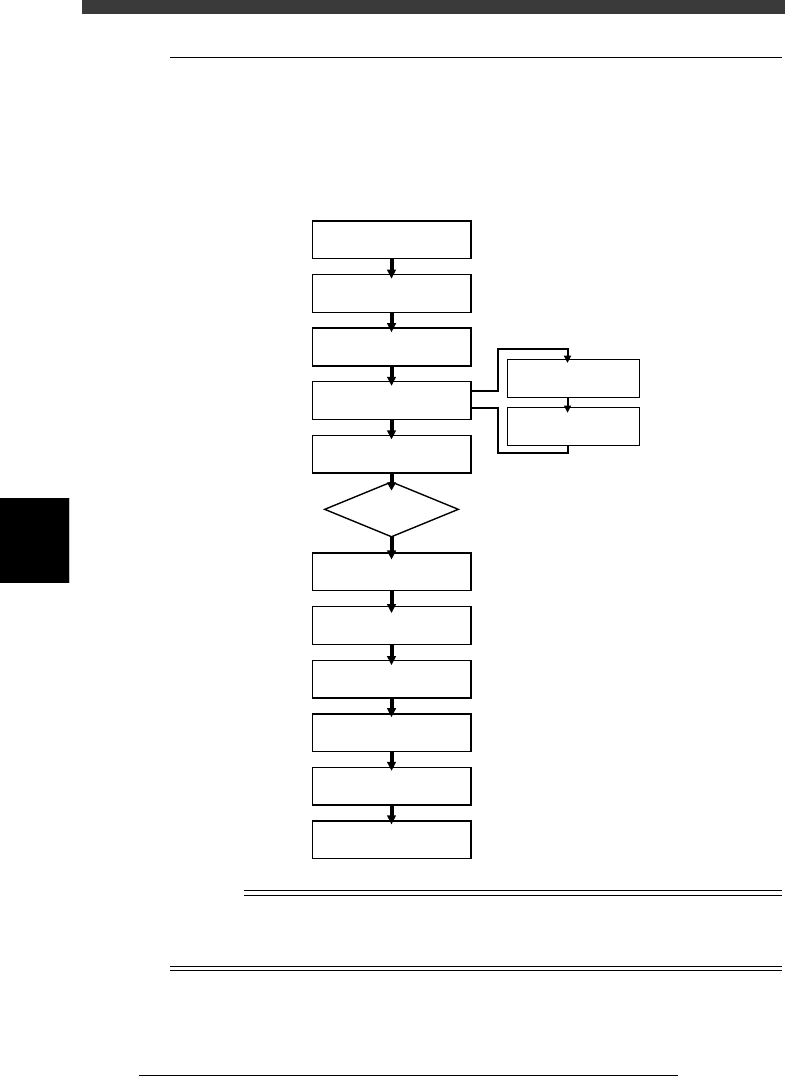
Typical flow chart using the Adjust Assistant commands
23518-C0-00
Select component data
Open Adjust
Assistant screen
Set feeder position
Execute PICK UP COMP.
Execute VISION TEST
Check head & nozzle
to be used
Check pickup/mount
vacuum levels
Execute
DRAW THE SHAPE
Execute PARAM SEARCH
Execute
VISION TEST again
No error
Discard component
Quit Adjust Assistant
ERROR
n
NOTE
The A-table head picks up a component installed in the feeder set positions from No. 1 to
40, while the B-table head picks up a component from the feeder set positions from No.
101 to 140.
5
-59
EPD8013110
Operation
Chapter 5
5
Creating the PCB data
1 Set up the component feeder.
Install the feeder with components you want to check, onto the feeder
plate. Be sure that the feeder set position matches the number previously
set for the Feeder Set No. in the BASIC INFO. sub-window. If the Feeder
Set No. has not yet been determined, you can specify it on the Adjust
Assistant screen, so install the feeder at a position you can easily access.
Reference
To see a list of all the feeder set positions for components registered in the selected PCB
data, select <2/1/C1 EDITOR ASSISTANT>→”COMP. ASSIGNMENT”→”PUT IN
SET_NO” and press the [ENTER] key.
2 Select the component data.
On the Component Info. screen, move the cursor to the component data
you want to check.
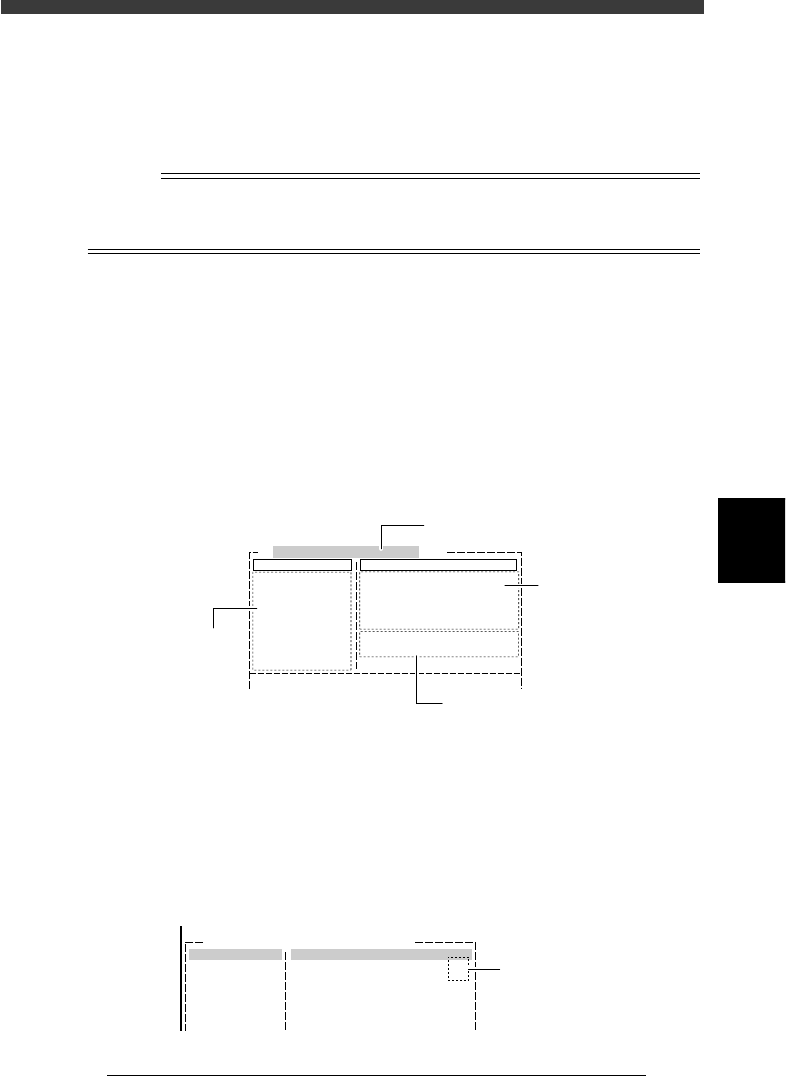
3 Open the Adjust Assistant screen.
Press the [F6] key or run the <2/1/B1 ADJUST ASSISTANT> command. The
Adjust Assistant screen then appears. This screen consists of the Command
window showing various commands used during adjustment and the
Adjust Assist Items window showing component parameters as shown
below.
Adjust Assistant screen
27522-D8-00
Comp. Name : R1005
Command
PICK UP COMP.
*
VISION TEST
PARM. SEARCH
DISCARD COMP.
DRAW THE SHAPE
CHK GRAY VALUE
EXIT
Adjust Assist Items
Feeder set No.
Comp. Tolerance
Comp. Threshold
Lighting Level
Search Area
Monitor Mode
Condition Chk.Mode
20
30
30
9.00
Nothing
ROW
(%)
(mm)
6 / 8
Selected component name
Adjust Assistant
commands
Vision display status
Parameters in
Component Info.
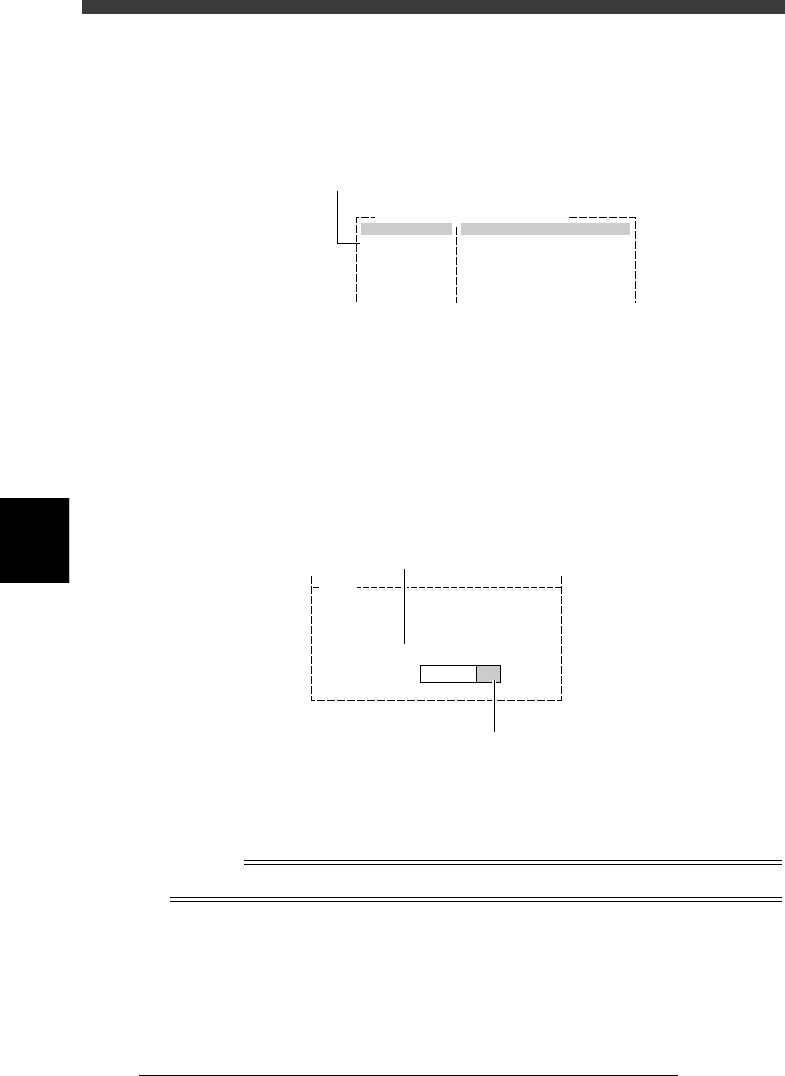
4 Enter the feeder set number.
Enter this parameter only for components whose feeder position is
unspecified. Press the right arrow key to move the cursor to “Feeder Set
No.” in the Adjust Assist Items window, then enter the number of the
feeder plate position at which the feeder is installed. When a feeder set
No. larger than “101” is specified, the B-table head assembly will pick up
the component.
Feeder position input screen
27523-C0-00
Comp.Name:
Command
Adjust Assistant Items
Feeder Set No.
20
Enter feeder set
number here
5
-60
EPD8013110
Operation
Chapter 5
5
Creating the PCB data
5 Run the PICK UP COMP. command.
Press the left arrow key to move the cursor back to the PICK UP COMP.
command and press the [ENTER] key. The head and nozzle check screen
then appears.
PICK UP COMP. command
27524-C0-00
Comp.Name : QFP208-P0.50
Command
PICK UP COMP.
Adjust Assistant Items
Move the cursor here and press the [ENTER] key.
6 Check the head and nozzle to be used.
The head number and nozzle type to be used are shown on the screen.
Press the [ENTER] key to dvance to the next step when the display is okay.
To change the head number, press the [Space], [INS] or [DEL] key. If you
want to change the nozzle type, select the EXIT command to return to the
Component Info. edit screen, then change the “Required Nozzle” setting
in the BASIC INFO. sub-window.
Head and nozzle check screen
27525-C0-00
V120
Please specify number of head to pick
up a component.
Required type of nozzle is
TYPE-72
HEAD NO. : 1
If you want to change the nozzle type,
change the “Required Nozzle” setting
in the BASIC INFO. sub-window.
To change the head No.
press the [Space], [INS] or [DEL] key.
7 Press the [ENTER] key to perform component pickup.
The head assembly moves to pick up a component, and the pickup and
mount vacuum levels are displayed on the message display area.
Reference
If the component could not be picked up, refer to “10.3.3 Pickup errors” in this chapter.