YV180X_Ope_E.pdf - 第244页
6 -9 EPD8013110 Operation Chapter 6 6 Using various functions 2.2 Block conversion The Block Con v ersion function con verts the block repeat reference PCB data consisting of multiple blocks into a PCB origin reference d…
6
-8
EPD8013110
Operation
Chapter 6
6
Using various functions
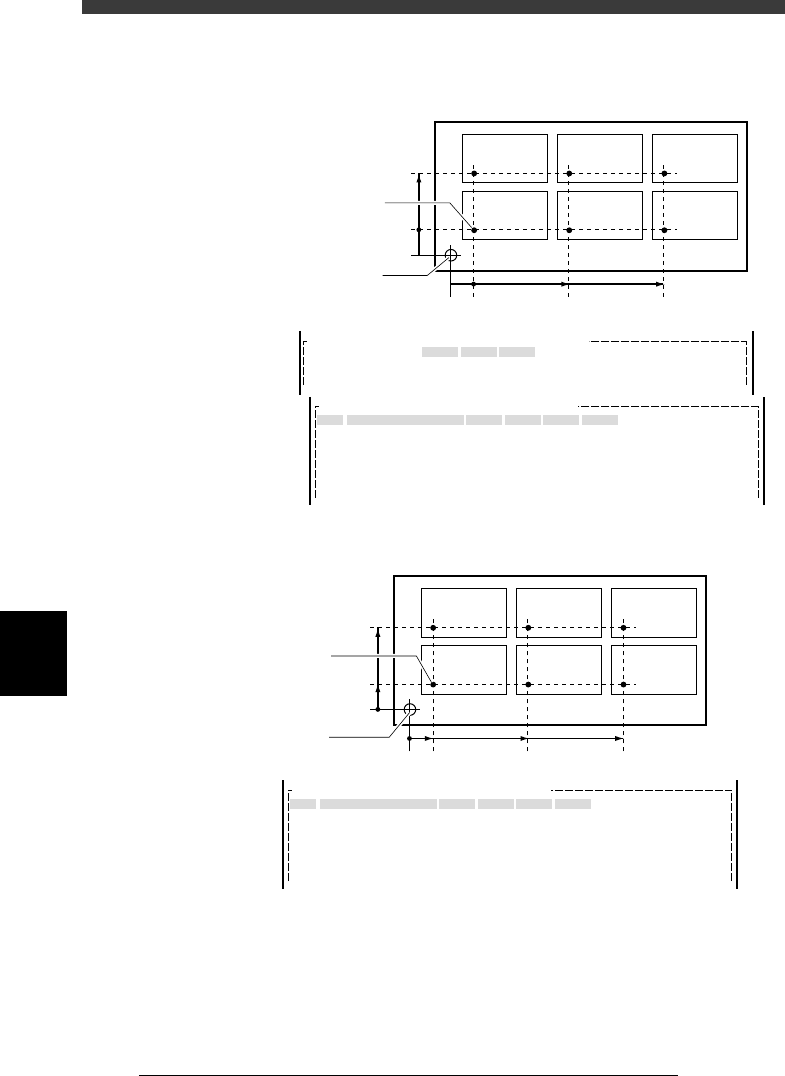
The illustrations below show examples for block repeat settings.
When the PCB origin is at the same position as block repeat No.1
27602-C0-00
-5
-5
0
0
40
50 100
BLOCK
1
BLOCK
2
BLOCK
3
BLOCK
4
BLOCK
5
BLOCK
6
No.
1
2
3
4
5
6
X
0.00
50.00
100.00
0.00
50.00
100.00
Y
0.00
0.00
0.00
40.00
40.00
40.00
Block Comment
BLOCK_1
BLOCK_2
BLOCK_3
BLOCK_4
BLOCK_5
BLOCK_6
Skip?
Exec
Exec
Exec
Exec
Exec
Exec
R
0.00
0.00
0.00
0.00
0.00
0.00
OBJ : Blk Repeat Info.PCB :
MARK
X/X1
5.00
Y/Y1
5.00
OBJ :PCB Info.PCB :
PCB Origin
PCB origin = block repeat No.1
Locate pin position
When the PCB origin is at the same position other than block repeat No.1
27603-C0-00
100
0
15
55
60 110
BLOCK
1
BLOCK
2
BLOCK
3
BLOCK
4
BLOCK
5
BLOCK
6
No.
1
2
3
4
5
6
X
0.00
50.00
100.00
0.00
50.00
100.00
Y
0.00
0.00
0.00
40.00
40.00
40.00
Block Comment
BLOCK_1
BLOCK_2
BLOCK_3
BLOCK_4
BLOCK_5
BLOCK_6
Skip?
Exec
Exec
Exec
Exec
Exec
Exec
R
0.00
0.00
0.00
0.00
0.00
0.00
OBJ : Blk Repeat Info.PCB :
Block repeat No.1
PCB origin
6
-9
EPD8013110
Operation
Chapter 6
6
Using various functions
2.2 Block conversion
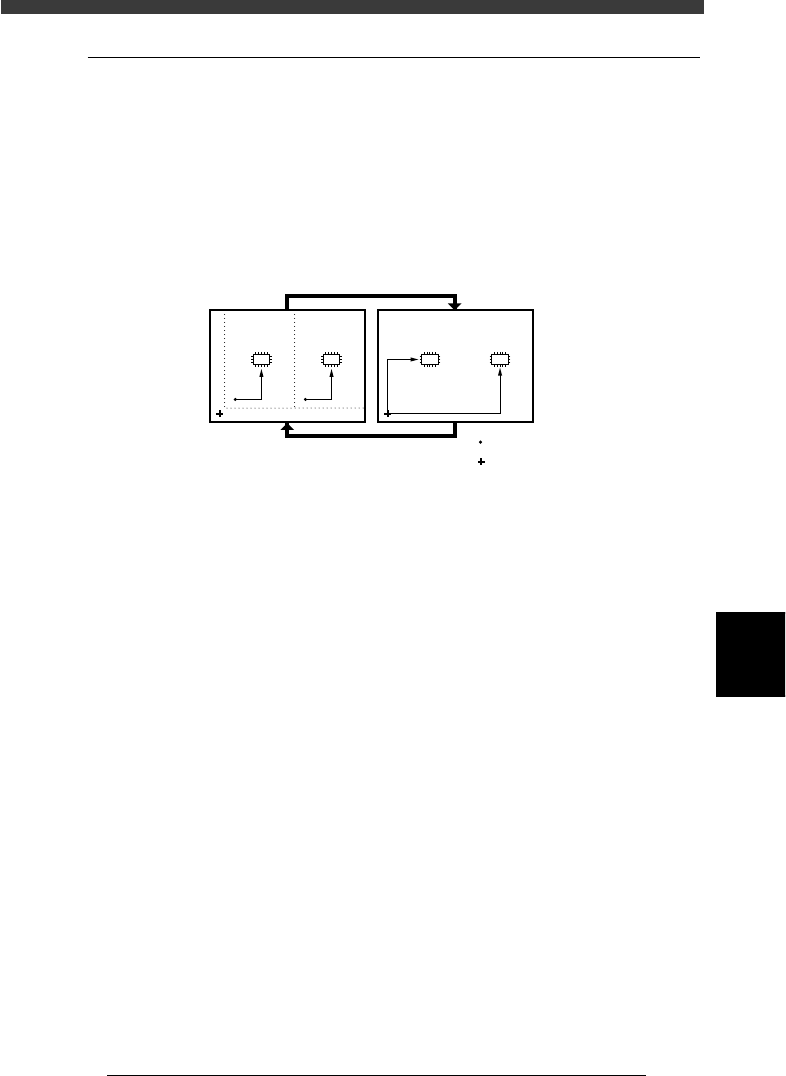
The Block Conversion function converts the block repeat reference PCB
data consisting of multiple blocks into a PCB origin reference data with
one block. This shortens the production cycle time. The data can be
reconverted into the block repeat data to allow you to edit or correct the
data. Block conversion can be executed in the <2/2/DATA_GENERATOR>
mode.
Block conversion
23604-C0-00
:
:
Block repeat
PCB origin
Component mounting
Data editing, correction
6
-10
EPD8013110
Operation
Chapter 6
6
Using various functions
2.2.1 Executing the block conversion
1 Select <2/2/A1 OBJECT SELECTION> and press the [EN-
TER] key.
The OBJECT SELECTION menu box then appears, along with the box
showing the initial settings for data generator.
2 Execute the PCB SELECTION command and select the PCB
name.
When a list of the registered PCB names appears, select the PCB to
execute block conversion, then select “QUIT” and press the [ENTER] key.
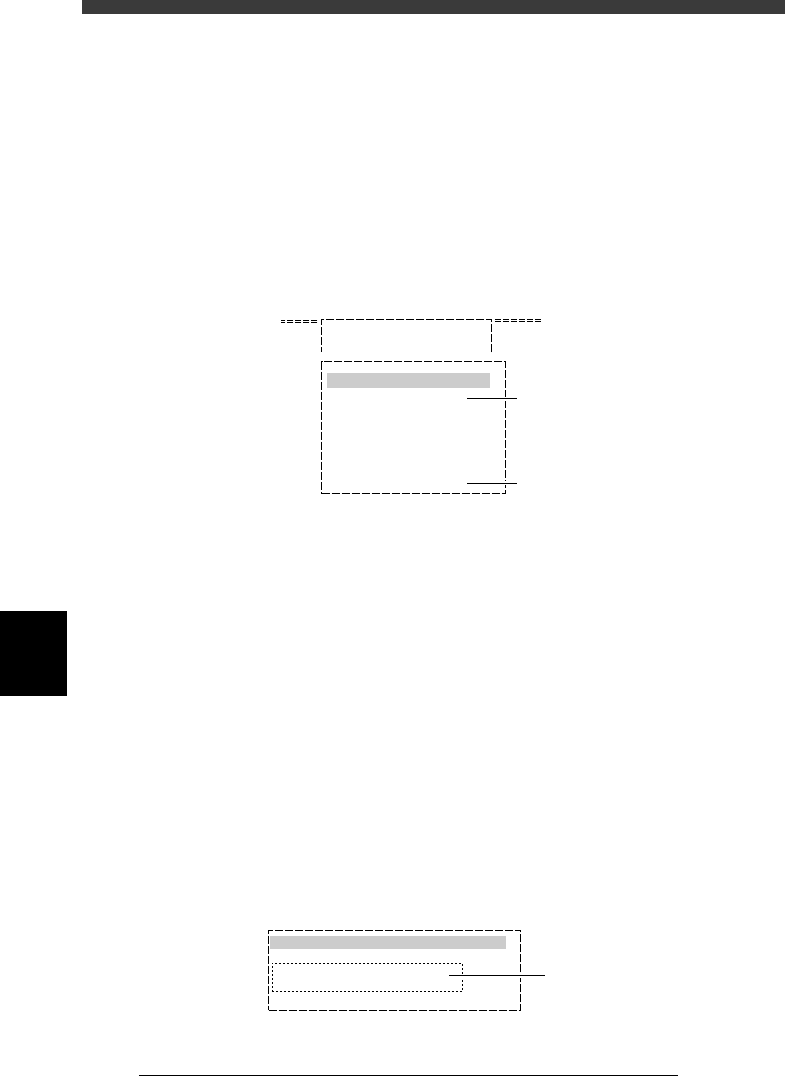
OBJECT SELECTION menu box in DATA_GENERATOR mode
27604-C0-00
A/ SETTING & RUN
A1 OBJECT SELECTION
OBJECT SELECTION
PCB SELECTION
FIXED PCB SELECTION
FIXED COMP. SEL.
LOAD LAST SELECTION
QUIT
Use this command
to select the PCB.
Execute this command
after selecting the PCB.
3 Select <2/2/A4 CONDITION SETTING> and press the
[ENTER] key.
The DATA GENERATOR CONDITION menu box then appears.
4 Select “BLOCK CONVERSION CONDITION” to set the
conditions.
The submenu box then appears, so line up the cursor with “1: CONV.
WITH NOTE DATA” or “2: CONV. WITHOUT NOTE DATA” and press the
[ENTER] key, while referring to the description below.
1: CONV. WITH NOTE DATA :
Block repeat data is converted into data for a single PCB with the
original data still remaining. In this case, the single PCB data can be
reconverted back into the original block data.
2: CONV. WITHOUT NOTE DATA :
Block repeat data is converted into data for a single PCB data,
without the original data remaining. The single PCB data cannot be
reconverted back into the block data.
BLOCK CONVERSION COND. setting box
27605-C0-00
0: NO
1: CONV. WITH NOTE DATA
2: CONV. WITHOUT NOTE DATA
3: CONV. BACK TO BLOCK
BLOCK CONVERSION CONDITION
Select either of these
conditions.