YV180X_Ope_E.pdf - 第28页
2 -3 EPD8013110 Operation Chapter 2 2 About VIOS 1. VIOS The VIOS is the software specificall y programmed to operate Y AMAHA surface mounters and related machines. The VIOS allows y ou to select the target command, para…

Chapter 2
About VIOS
This chapter explains basic structures of the VIOS software used to
operate the YAMAHA surface mounters and also describes how to
select the command menues.
1. VIOS 2-3
1.1 Basic operations .........................................................................................2-4
1.2 VIOS screen structure ................................................................................. 2-5
1.3 Help function .............................................................................................2-6
2. Password 2-7
2
-3
EPD8013110
Operation
Chapter 2
2
About VIOS
1. VIOS
The VIOS is the software specifically programmed to operate YAMAHA
surface mounters and related machines. The VIOS allows you to select the
target command, parameter or item you want to run, check or change the
data through an easy-to-use hierarchical structure divided into 4 application
managers as explained below.
1. OPERATION manager
The OPERATION manager deals with commands and data relating to
automatic operation and production history in routine PCB production.
2. DATA manager
The DATA manager allows you to create, edit and optimize data on
PCBs and components.
3. MAINTENANCE manager
The MAINTENANCE manager is used to handle commands for
maintenance such as machine data adjustment, repair and accuracy
improvement. For detailed information, refer to the mounter service
manual.
4. SHELL manager
The SHELL manager contains various utilities that enable you to
perform a variety of data maintenance tasks.
You can call up the on-line help message by pressing the [F1] key at any
hierarchical level. (See “1.3 Help function” in this chapter.) The illustration
below shows the VIOS software main menu.
VIOS main window
27201-C0-00
<<<APPLICATION>>> 1/OPERATION/M 2/DATA/M 3/MAINTE/M 4/SHELL/M 0/EXIT
DATA[non ]
RUNNING
PRD.DATA
PRD.HISTORY
MANUAL
:Production, Warming up
:PCB data modification
:Production history
:Manual operation
<<<OPERATION MANAGER>>>
supports daily production.
MODE
2
-4
EPD8013110
Operation
Chapter 2
2
About VIOS
1.1 Basic operations
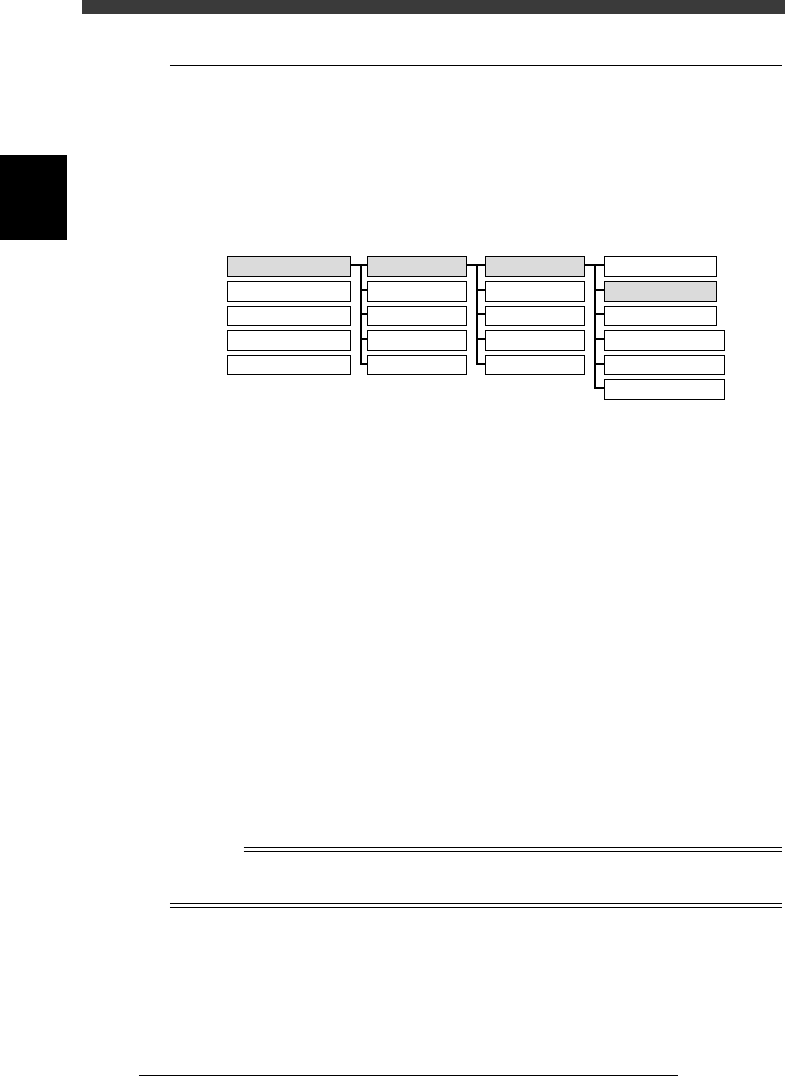
The VIOS software runs from hierarchical menus comprised of APPLICA-
TION, MODE, COMMAND LIST and COMMAND. To start automatic
operation, for example, select <1/ OPERATION/M > - <1/RUNNING> -
<A/RUNNING> and <A2 AUTO RUNNING> as shown below.
Starting automatic operation
23201-C0-00
1/RUNNING
2/PRD.DATA
3/PRD.HISTORY
4/MANUAL
0/EXIT
A/RUNNING
B/CONDITION
C/MONITOR
D/INITIALIZE
E/SKIP&EXIT
A1 STOP RUNNING
A2 AUTO RUNNING
A3 STEP RUNNING
A4 A_TABLE ON/OFF
A5 B_TABLE ON/OFF
A6 PCB TBL ON/OFF
1/OPERATION/M
2/DATA/M
3/MAINTE/M
4/SHELL/M
0/EXIT
APPLICATION MODE COMMAND_LIST COMMAND
There are three methods for selecting each item.
1. Using the arrow keys and [ENTER] key
Use the arrow keys to move the cursor to the item (application, mode
or command) you want to select and press the [ENTER] key.
2. Using the number keys
Directly hit the number or alphabet key for the item you want to select.
For example, instead of executing the <1/1/A2 AUTO RUNNING>
command as explained above, hit the number key in order “1” (1/
OPERATION/M), “1” (1/RUNNING), alphabet key “A” and number
key “2” (A2 AUTO RUNNING).
3. Using function keys and YPU keys
Some commands can be directly executed by pressing the specified
function key. For example, you can directly execute the <B1 ADJUST
ASSISTANT [F6]> command by pressing the [F6] key.
The YPU keys can also be used to directly execute some special
commands by pressing the corresponding keys. (See “5. Data input and
operation devices” in Chapter 1.)
Reference
This manual shows hierarchical menu commands as in <1/1/A2 AUTO RUNNING> which
stands for <Application number/Mode number/Command name>.