YV180X_Ope_E.pdf - 第177页
5 -101 EPD8013110 Operation Chapter 5 5 Creating the PCB data VIOS structure for Mount Info. 23547-C0-00 A1 MAIN WINDOW A2 SUB WINDOW A3 VIEW DATABASE NO. A4 VISION ALIGNMENT DIC. A5 A6 A7 FIND NEXT A8 A9 A0 RETURN TO ED…
5
-100
EPD8013110
Operation
Chapter 5
5
Creating the PCB data
7. Creating the mount information
The mount information specifies the data on mounting position coordi-
nates, component numbers to be mounted and other information related to
mounting.
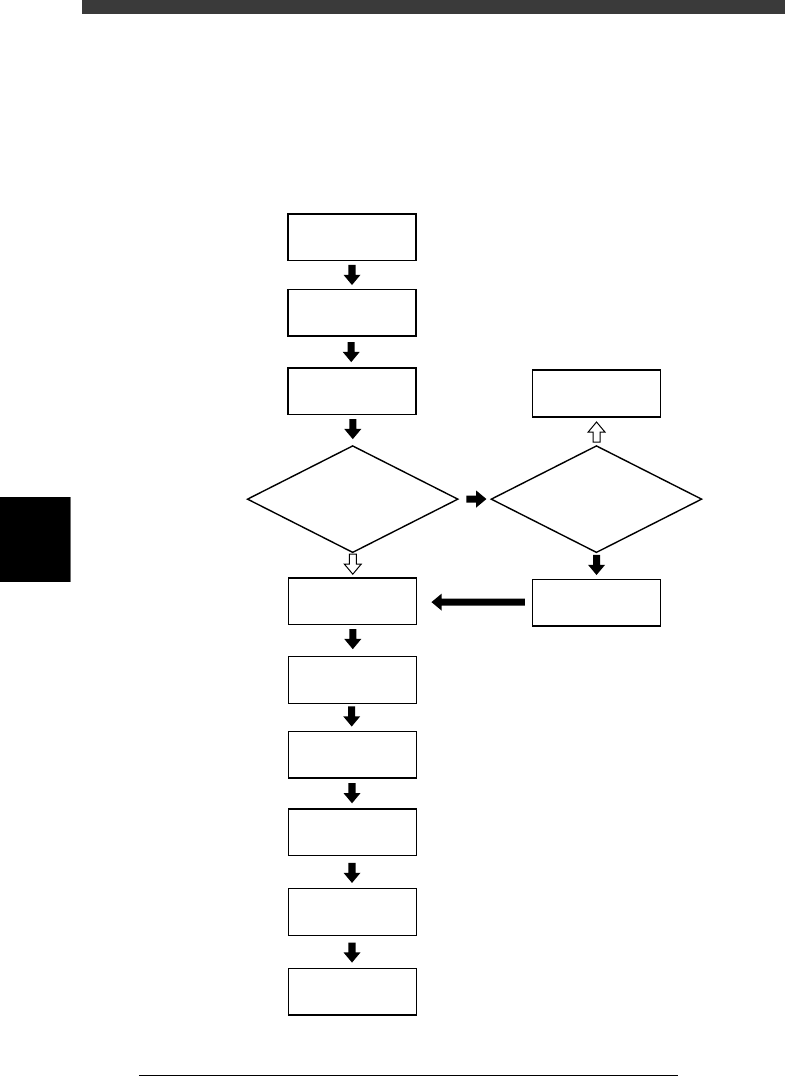
Flow chart for creating the mount information
23546-C0-00
Enter
land pattern name
Open Mount Info.
Enter
component number
Teach
mounting position
Enter XY data
Enter R data
Check head No.
Set fiducial mark
Chapter 6
☞
5
☞
Enter XY data
by teaching?
Is PCB clamped?
Set badmark
Set to "Exec"
Clamp PCB
YES
NO
YES
NO
Chapter 6
☞
7.3
☞
5
-101
EPD8013110
Operation
Chapter 5
5
Creating the PCB data
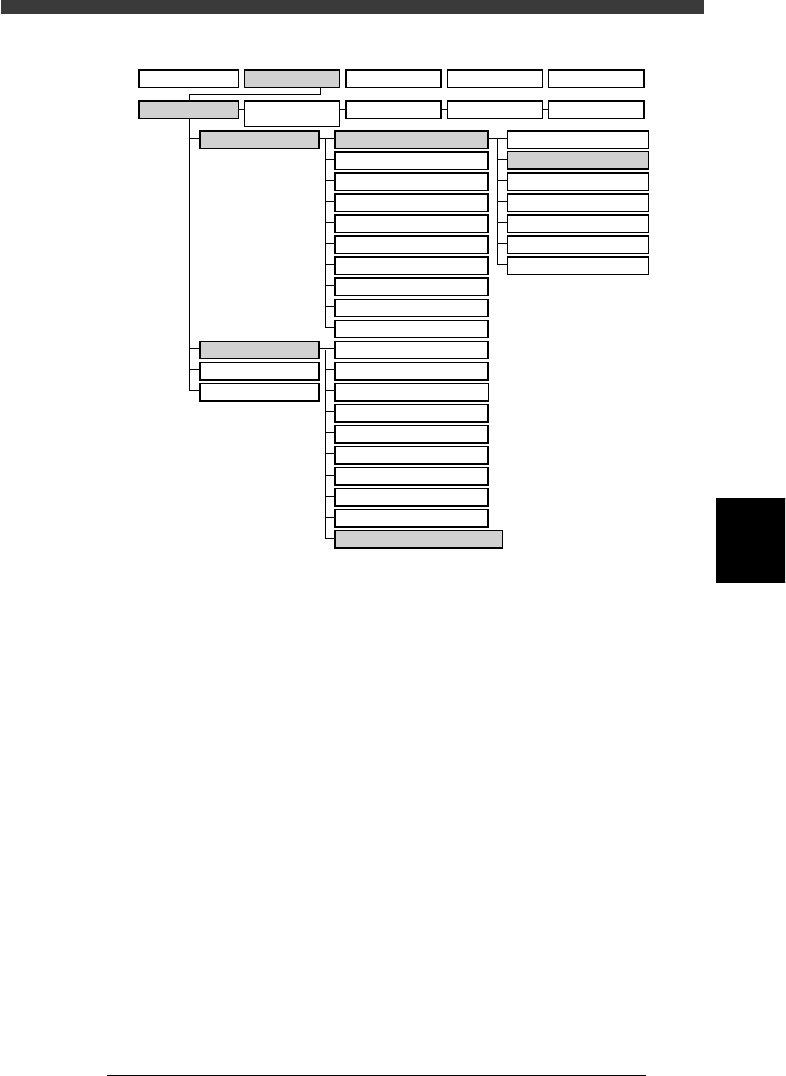
VIOS structure for Mount Info.
23547-C0-00
A1 MAIN WINDOW
A2 SUB WINDOW
A3 VIEW DATABASE NO.
A4
VISION ALIGNMENT DIC.
A5
A6
A7 FIND NEXT
A8
A9
A0 RETURN TO EDIT
B1 ADJUST ASSISTANT
B2 DATABASE UTILITY
B3
B4
DRAW THE SHAPE (CMP)
B5
B6 SET PALLET
B7 CONVEYOR UNITS
B8
B9
B0
TEACH, TRACE CONDITION
A/DISPLAY
B/UTILITY
C/EDIT_TOOL
D/FILE
PCB Info.
Mount Info.
Component Info.
Mark Info.
Blk Repeat Info.
Local Fidu.Info.
LocalBadMrkInfo.
1/OPERATION/M 2/DATA/M 3/MAINTE/M 4/SHELL/M 0/EXIT
1/EDIT_DATA
2/DATA_
GENERATOR
3/DATABASE 4/MANUAL 0/EXIT
5
-102
EPD8013110
Operation
Chapter 5
5
Creating the PCB data
1 Open the Mount Info. screen.
Select “Mount Info.” from the edit item menu box which appears after
registering or selecting a PCB name. If an edit screen is open, press the
[F3] key (or select <2/1/A1 MAIN WINDOW>) to display the edit item
menu box.
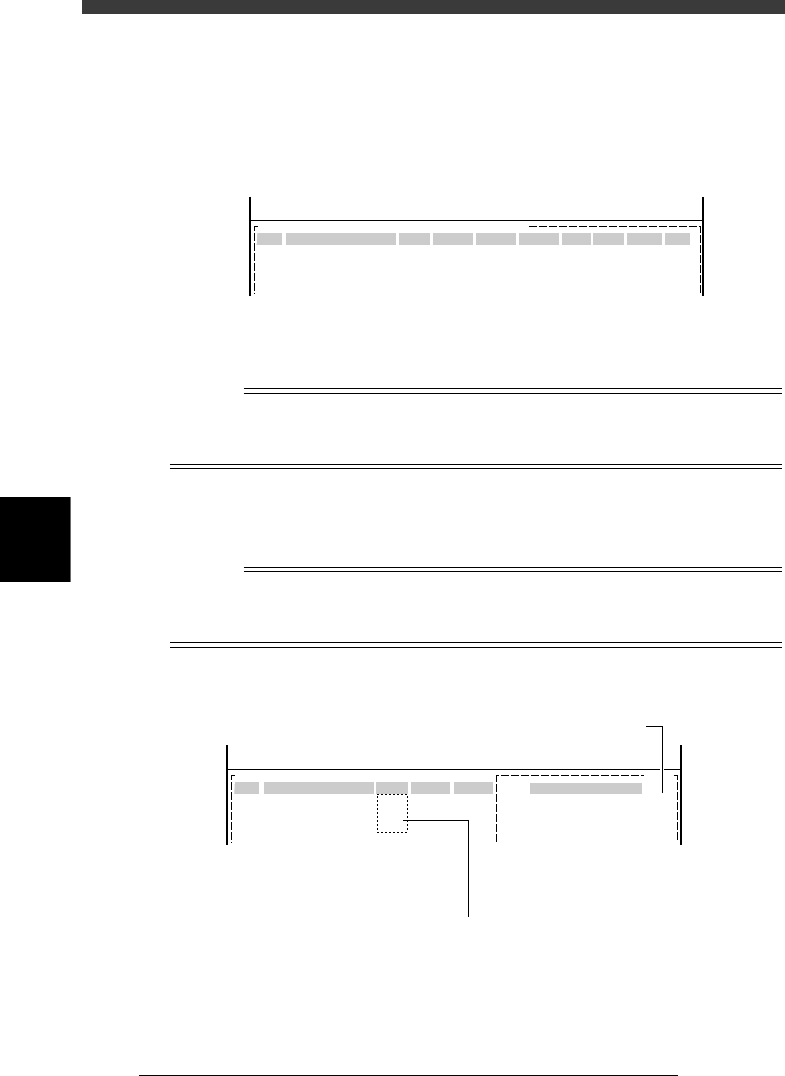
Mount Info. screen
27538-C0-00
PCB :
SignOfLandPattern Comp
X
YR
Head
FidMk
BadMk Skip?
OBJ :Mount Info
No.
1
2
3
<<<APPLICATION>>> 2/DATA/M
<<MODE>>1/EDIT_DATA
2 Enter the land pattern name.
Enter the land pattern name or symbol (ex., R23, U12, etc.) printed on the
PCB in the SignOfLandPattern column.
Reference
If you have no material showing the land pattern names in this step, you can enter them
when you confirm and correct the mounting position as described later in “8.2 Checking
the mount information”.
3 Enter the component number.
Enter the number of the component (data No. in the component informa-
tion) to be mounted in the Comp column.
Reference
Pressing the [F4] key displays part of the Component Info. (component No., component
name, feeder set No.) in the sub-window on the right of the screen as shown below. To
close the Component Info. display, press the [F4] key again
Mount Info. and Component Info. screen
27539-C0-00
Main window: mount information Sub-window: component informatio
n
No.
1
2
3
COMPONENT NAME
R1608
R2125
R3126
OBJ:
F 20
F 21
F 22
PCB :
SignOfLandPattern
R3126
Comp
3
X
Y
OBJ :Mount Info
No.
1
2
3
<<<APPLICATION>>> 2/DATA/M
<<MODE>>1/EDIT_DATA
Feeder Set No.
Enter component No. while referring to the sub-window.