XP-142E System Reference-SYS-XP142-2.0E.pdf.pdf - 第122页
Browse Destination Combo Box Use this box to select the file directory from the following options. Local Hard disk installed in the machine. FDD Floppy disk drive. Operation Button Explanations Use the file type selectio…
7.3 File Operations
(ESR0712b)
This function is used to copy and delete files. Production programs and part data files
which were created on the machine can be copied to floppy disks, and unnecessary files
can be deleted. Moreover, files saved on floppies can be copied to the machine.
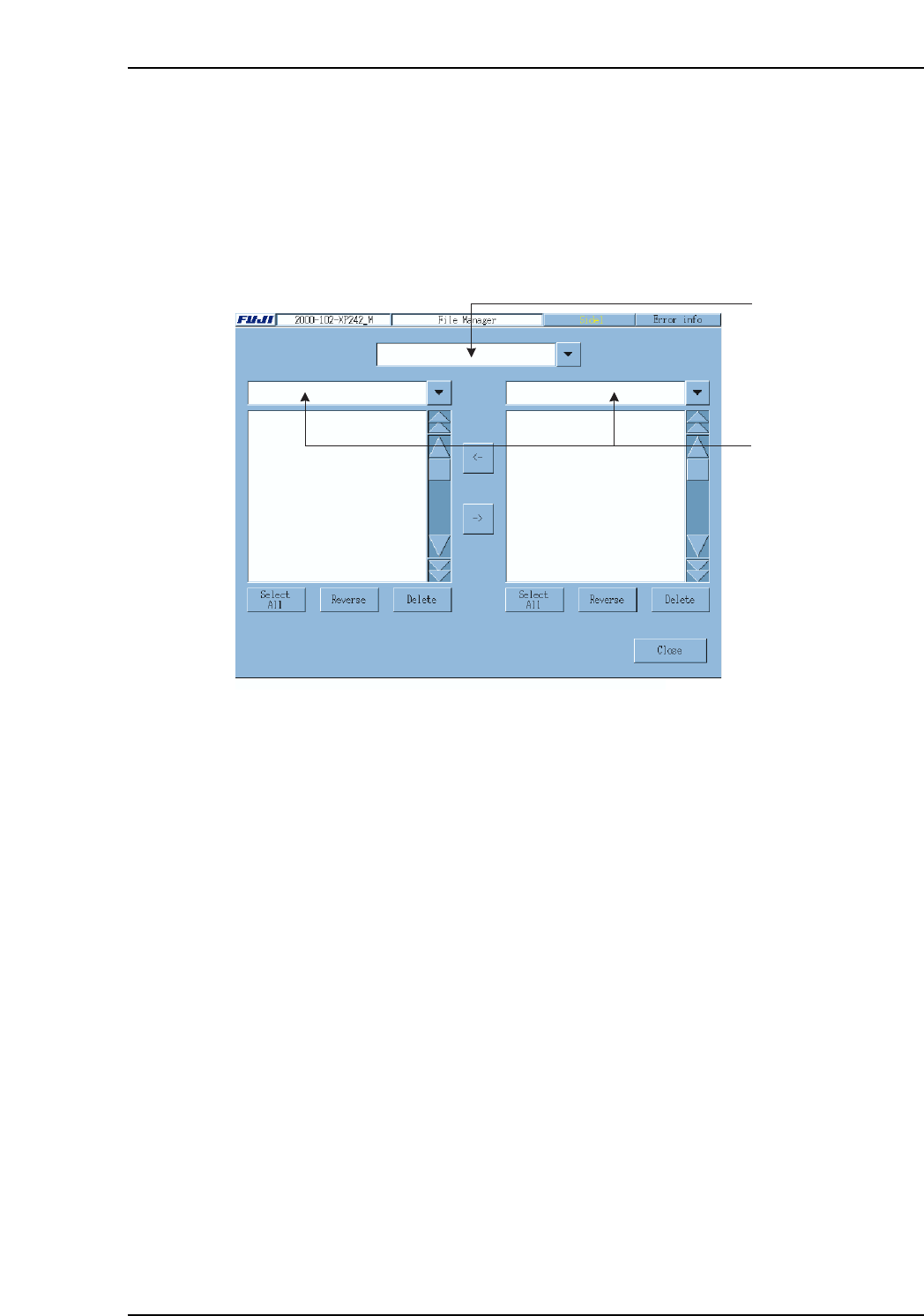
Selecting [Program], then [File Manager] to display the following screen.
Note: File overwriting will occur if a file already exists with the same name as that being copied.
Be sure to verify the file name before copying.
File Type Selection Combo Box
Select the required file type in this box. File type and extensions are described below.
Program (.PGO)
Production program file.
Part Number (.PDH)
Part Number file.
Part Type (.PDS)
Part Type file.
Packaging (.PDP)
Packaging file.
Fiducial Mark (.FMK)
Fiducial Mark file.
Board Skip Mark (.BMK)
Board Skip Mark file.
Label Mark (.LMK)
Label Mark file.
Template (.TPL)
Template file.
Image.PNG
Image file for template.
Browse destination
combo box
File type selection
combo box
XP2S2214Ea
Part 2 Chapter 7 Data Administration
Edition 2.0 2-7-9 XP-142E System Reference
Browse Destination Combo Box
Use this box to select the file directory from the following options.
Local
Hard disk installed in the machine.
FDD
Floppy disk drive.
Operation Button Explanations
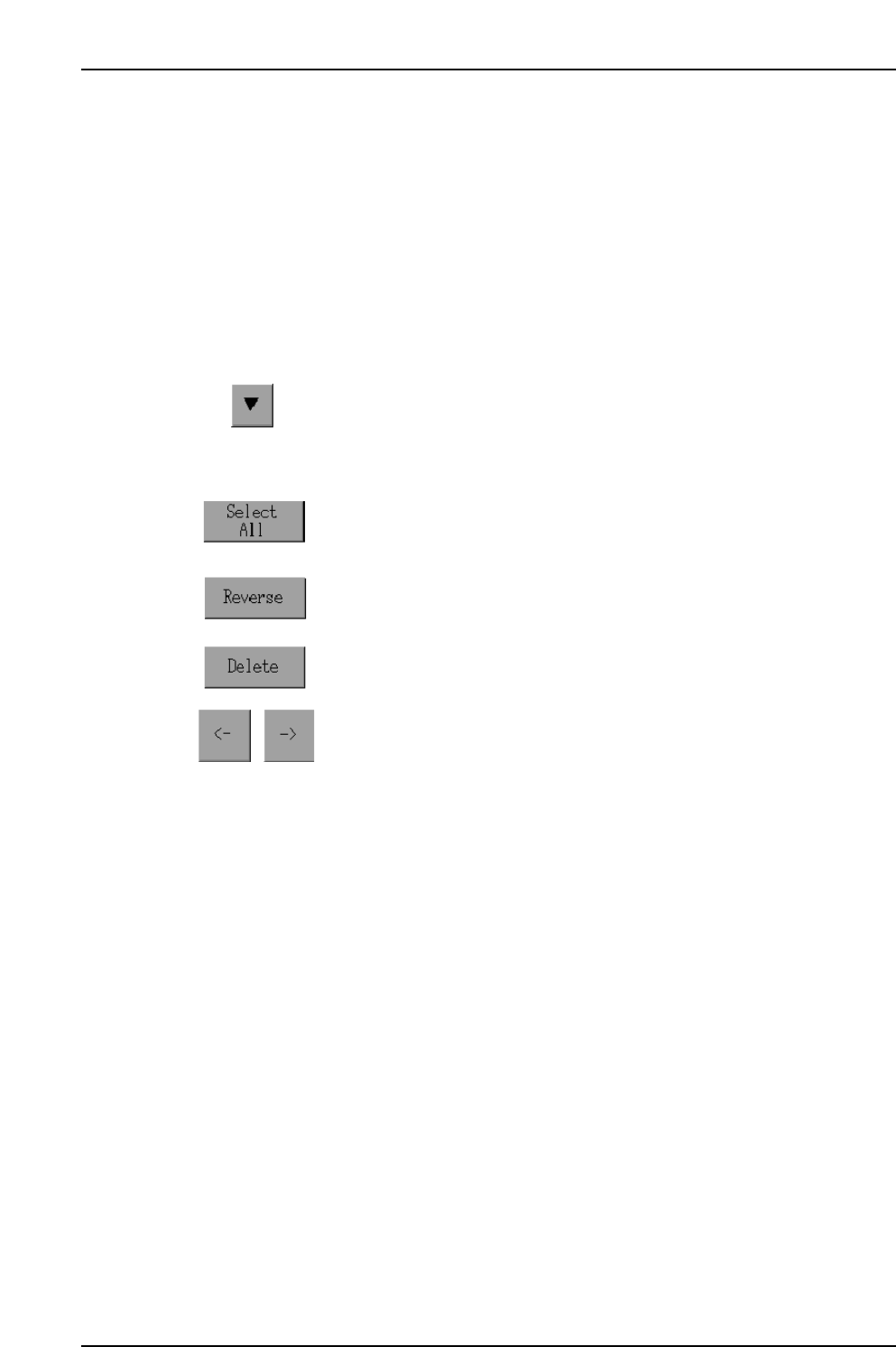
Use the file type selection combo box to specify the type of files you
would like to have listed.
Select the file browse location using the browse destination combo
box.
Press to select all the displayed file types.
Press to select (highlight) files which are not selected.
Press to delete a selected file.
Click these buttons to copy files in the direction of the arrow.
Part 2 Chapter 7 Data Administration
Edition 2.0 2-7-10 XP-142E System Reference
7.3.1 Copying Files To and From Floppy Disks
Procedure
1. Insert the copy source floppy disk into the floppy disk drive.
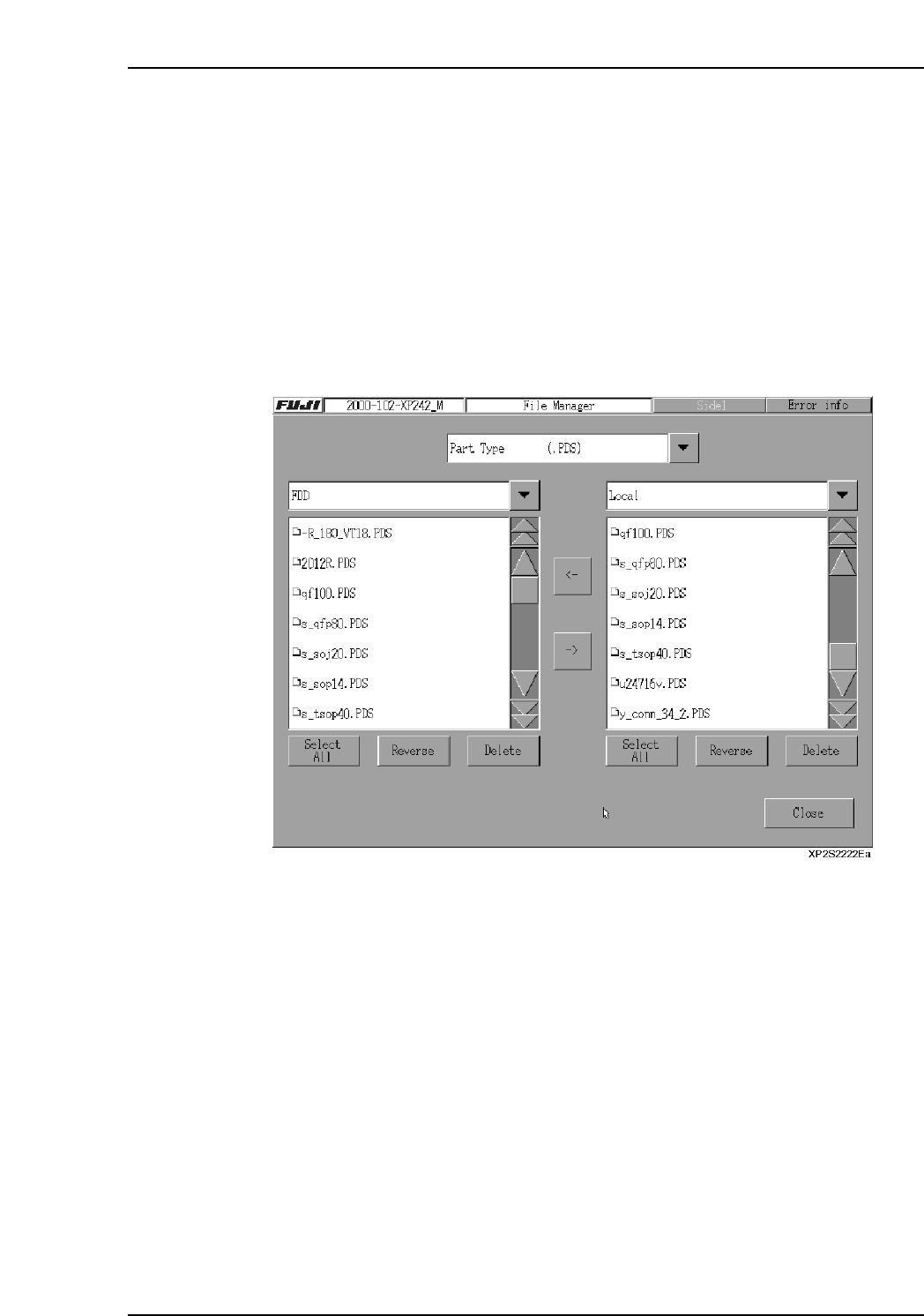
2. Press [Program] then [File] to display the [File Manager] screen.
3. Select the [▼] button at the top center of the screen to specify the type of file to be
copied.
4. Press the [▼] key at the left side, then select [FDD] from the displayed list.
“FDD” then displays in the left-side text box, and the names of files stored on the
floppy disk display in the left pane beneath the text box.
5. Select the [▼] button at the right of the screen to specify [Local] and the list of files
in the machine is displayed in the right column.
Part 2 Chapter 7 Data Administration
Edition 2.0 2-7-11 XP-142E System Reference