XP-142E System Reference-SYS-XP142-2.0E.pdf.pdf - 第139页
8.4 Boot-up Settings (ESR0605) The machine accesses the “Boot file” when the machine boots up. It is possible to specify the location of the boot-up file on the machine’s hard disk or even a computer on the network. Proc…
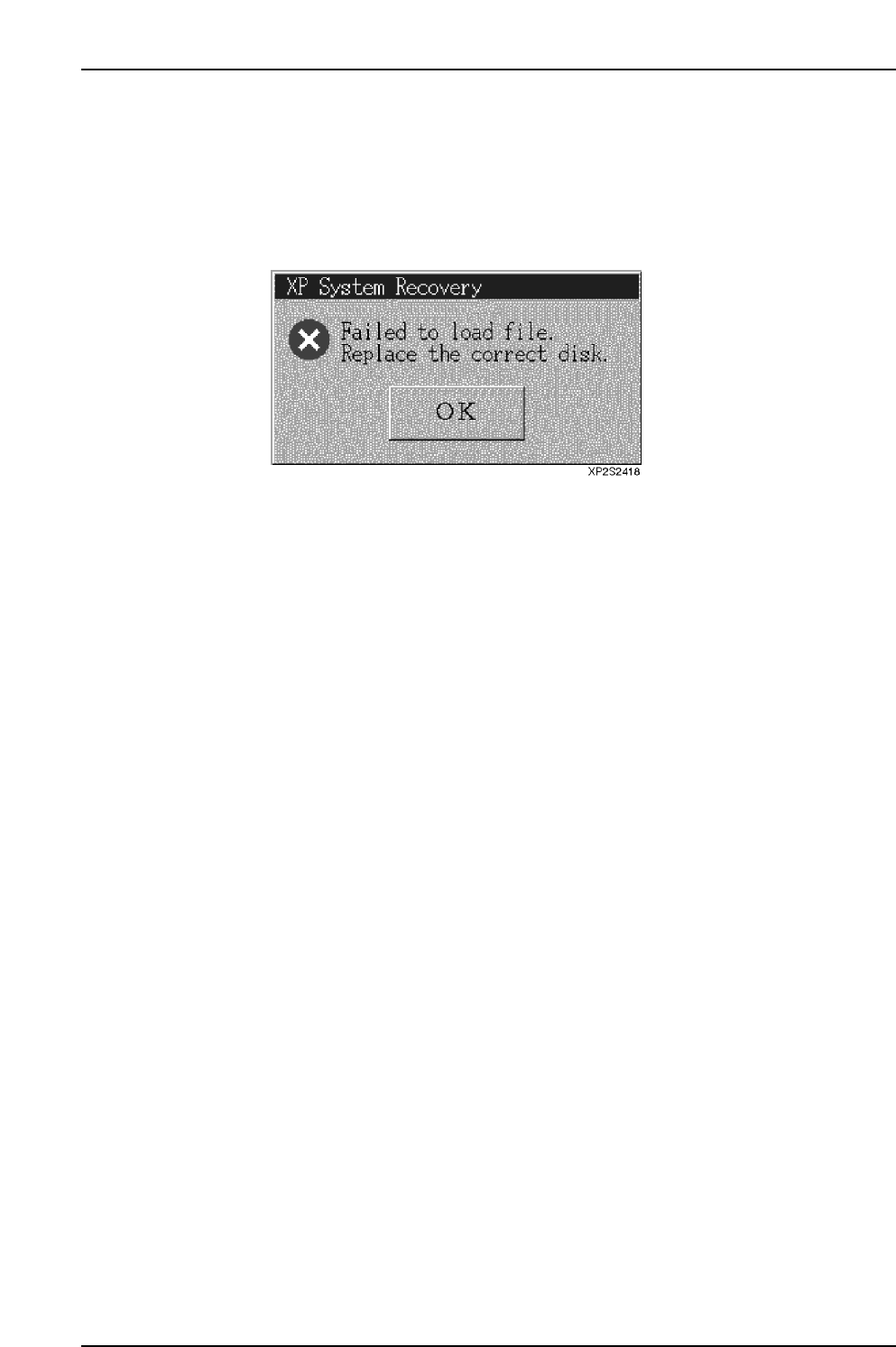
8.3.6 Error Message Dialog Box
The error dialog box shown below displays at any of the above steps if the wrong floppy
disk is inserted.
Click [OK] to close this dialog box and return to the dialog box requesting that the disk
be inserted.
Part 2 Chapter 8 System Administration
Edition 2.0 2-8-12 XP-142E System Reference
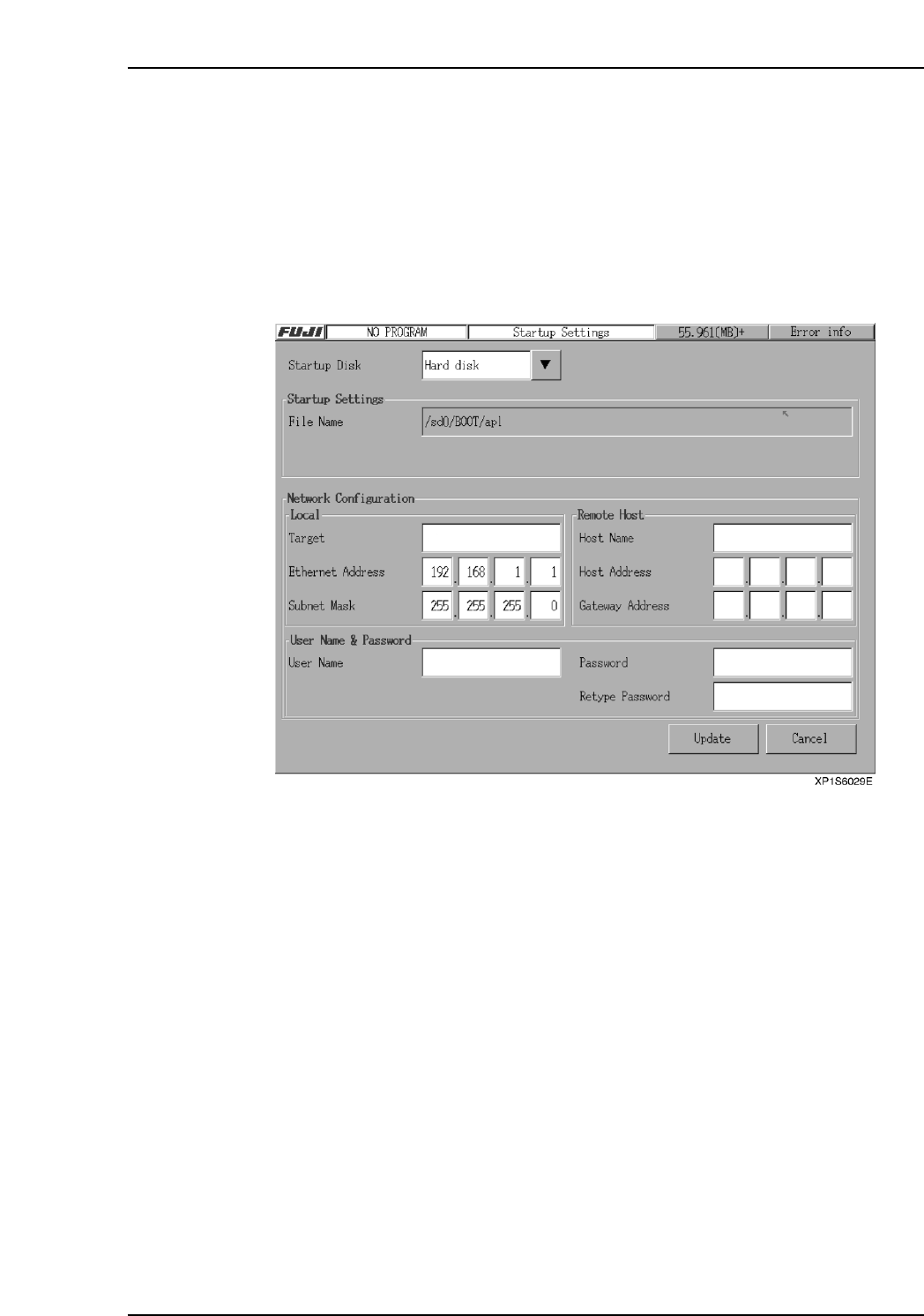
8.4 Boot-up Settings
(ESR0605)
The machine accesses the “Boot file” when the machine boots up. It is possible to specify
the location of the boot-up file on the machine’s hard disk or even a computer on the
network.
Procedure
1. At the [Main] screen, press [Maintenance B] then [Boot Up Configuration] to
display the [Boot Up Configuration] screen.
2. After all settings are made, press [Update] to return to the [Main] screen.
3. Press [Shutdown] at the [Main] screen then restart the machine.
Note: If the [Network] setting is specified, the following three additional settings must be specified:
[Local Configuration (Machine)], [Remote Host Configuration (Network Computer)], [User
Identification (For FTP Server Connection)].
Part 2 Chapter 8 System Administration
Edition 2.0 2-8-13 XP-142E System Reference
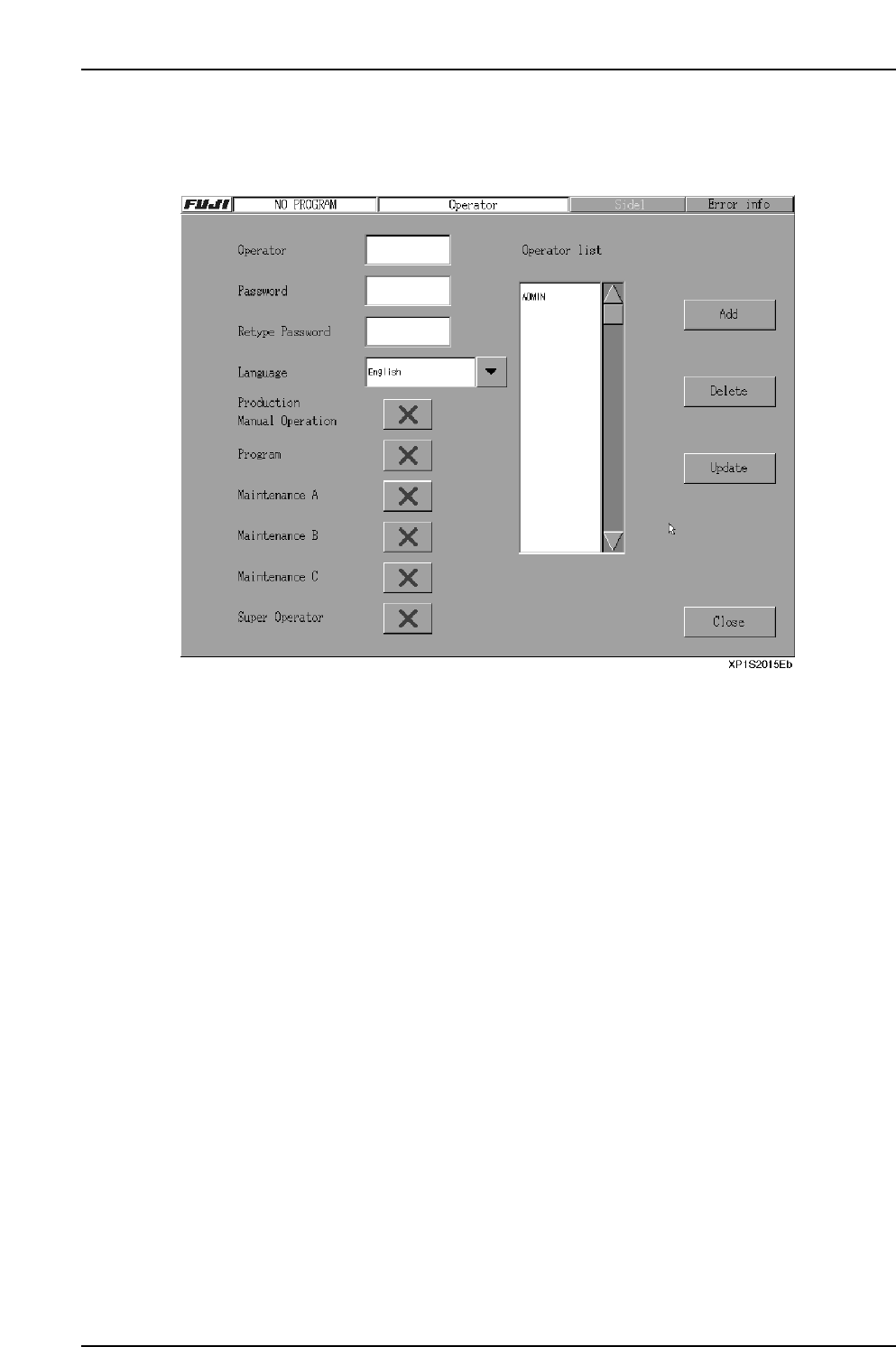
8.5 Setting Up a New User
Procedure
Note: Operator settings can be specified only by those with a “Super User” status.
1. At the [Main] screen, press [Operator Config] to display the [Operator Config]
screen.
2. Press [Operator] to display the keyboard, then enter the operator name.
3. Press [Password] to display the keyboard, then enter the password. Enter the
same password again at the [Retype Password] item.
4. Press the [Language] button to select the desired language.
5. Specify the “access rights” settings for the [Production], [Program],
[Maintenance A], [Maintenance B], [Maintenance C] then [Super Operator] items.
6. Press [Add] then [OK] to add the new operator.
7. Press [Close] to end the Operator settings operation.
The name added appears in the user list when the machine starts up. Refer to the
following section for details of how to customize the settings for a user name.
Part 2 Chapter 8 System Administration
Edition 2.0 2-8-14 XP-142E System Reference