XP-142E System Reference-SYS-XP142-2.0E.pdf.pdf - 第175页
Part 3 Chapter 3 Editor Edition 2.0 3-3-20 XP-142E System Reference 3.5.2 Panel ID (2D Code) Editor Screen The functions in this screen are not currently supported by the machine. • [Mark Name] textbox Enter the mark nam…
Part 3 Chapter 3 Editor
Edition 2.0 3-3-19 XP-142E System Reference
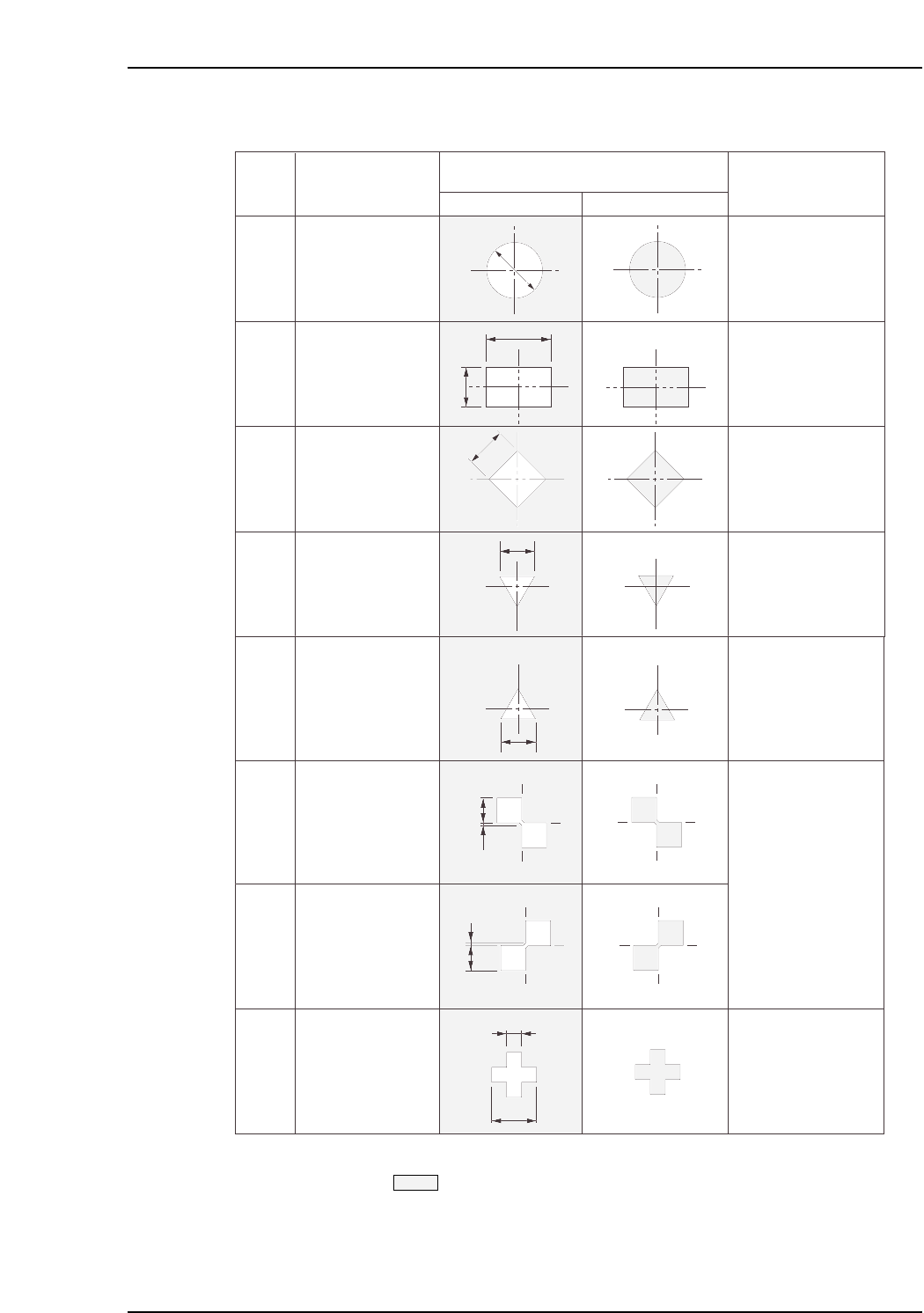
■ Mark Size Table
Notes: 1. Shaded area indicates the panel base.
2. The tolerance for mark dimensions A and B should be
±
10%.
A
A
B
A
A
0.2 ≤ A ≤ 3.5 mm
0.2 ≤ A ≤ 3.5 mm
0.2 ≤ B ≤ 3.5 mm
0.2 ≤ A ≤ 3.5 mm
0.2 ≤ A ≤ 3.5 mm
Ptn
XP2S2236Ea
0
1
2
3
Shape
Circle
Rectangle
Square diamond
Downward facing
equilateral triangle
Mark
White Black
Tolerance range
0.2 ≤ A ≤ 3.5 mm
A
B
A
B
0.2 ≤ A ≤ 3.5 mm
B ≤ 0.5 mm
4
5
6
A
B
7
0.2 ≤ A ≤ 3.5 mm
0.05 ≤ B ≤ 3.5 mm
Upward facing
equilateral triangle
Double square
(upper left)
Double square
(upper right)
Cross
A
Part 3 Chapter 3 Editor
Edition 2.0 3-3-20 XP-142E System Reference
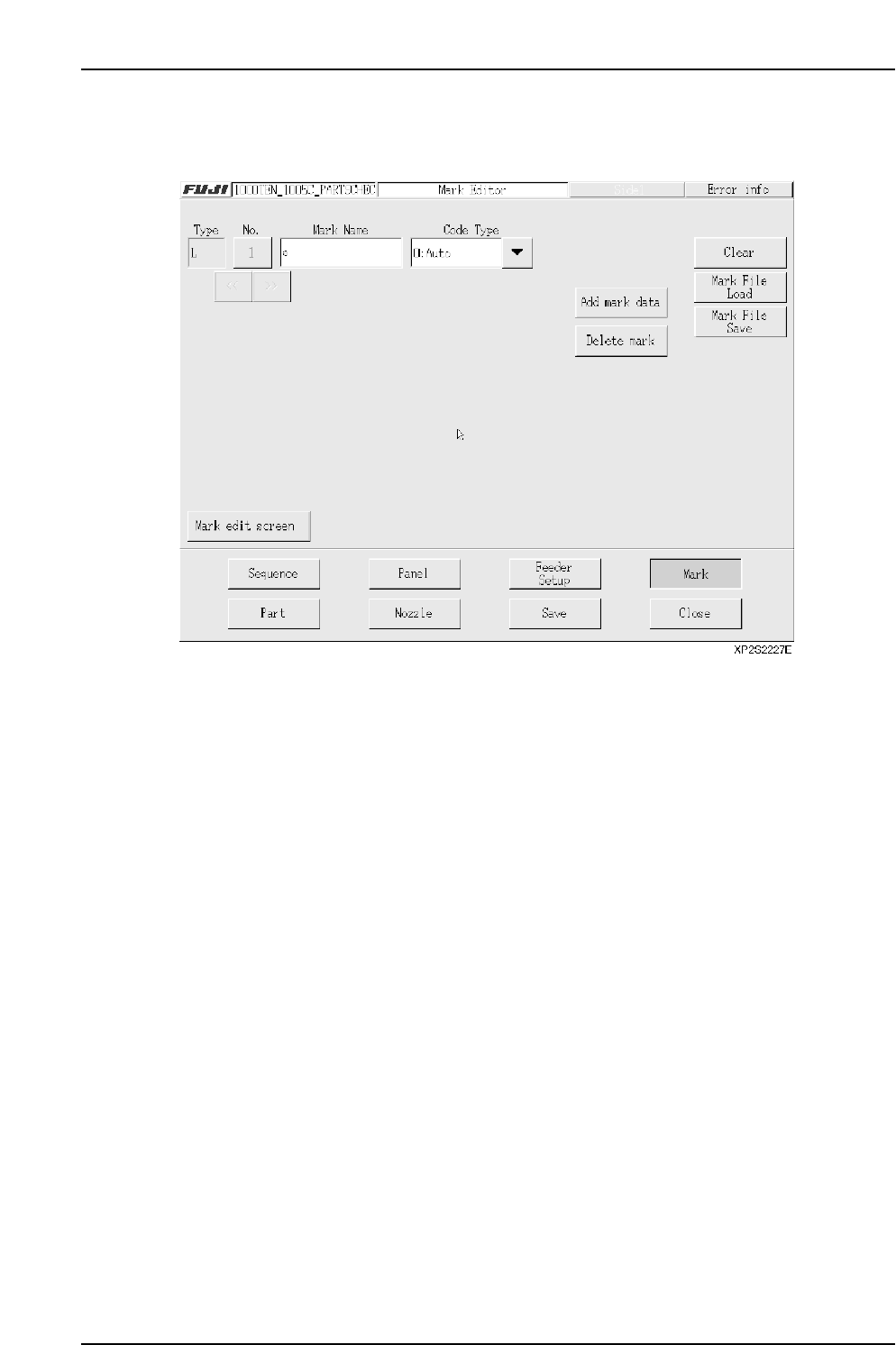
3.5.2 Panel ID (2D Code) Editor Screen
The functions in this screen are not currently supported by the machine.
• [Mark Name] textbox
Enter the mark name in this textbox. (Max. 23 characters)
Note: The following characters cannot be used in the mark name: (:¥/;*?”<>|). Also, a tilde (~)
cannot be used as the first character of the name.
• [>>] button
Displays the next mark data specified in the data being edited.
• [<<] button
Displays the previous mark data specified in the data being edited.
• [No.] button
Displays the panel ID number. A panel ID list screen displays when this button is
pressed. When a panel ID is selected from this list, the data for that panel ID
displays.
Note: This number is used only at the mark editor screen. It is not registered in the
production program.

• [Code Type] drop-down list
The code type can be selected from the following.
• [Add mark data] button
When this button is pressed, one vacant panel ID data area is added after the final
existing panel ID data being edited.
• [Delete mark] button
Deletes the currently displayed panel ID data. After the deletion, the next mark data
displays.
• [Clear] button
Clears the currently displayed panel ID data. When the editor screen is closed, the
cleared mark data is deleted. (Cleared mark data cannot be saved at the production
program.)
• [Mark File Load] button
Loads panel ID data from the library.
• [Mark File Save] button
Saves the currently displayed panel ID data to the library.
• [Mark Edit Screen] button
Press to switch to the fiducial mark editor screen.
Input value
0
1
2
Type
Auto
Data Matrix
QR Code
XP2S2228E
Part 3 Chapter 3 Editor
Edition 2.0 3-3-21 XP-142E System Reference