XP-142E System Reference-SYS-XP142-2.0E.pdf.pdf - 第172页
<Board Skip Mark Editing Area> • [Mark Name] textbox Enter the mark name in this textbox. (Max. 23 characters) Note: The following characters cannot be used in the mark name: (:¥/;*?”<>|). Also, a tilde (~) c…
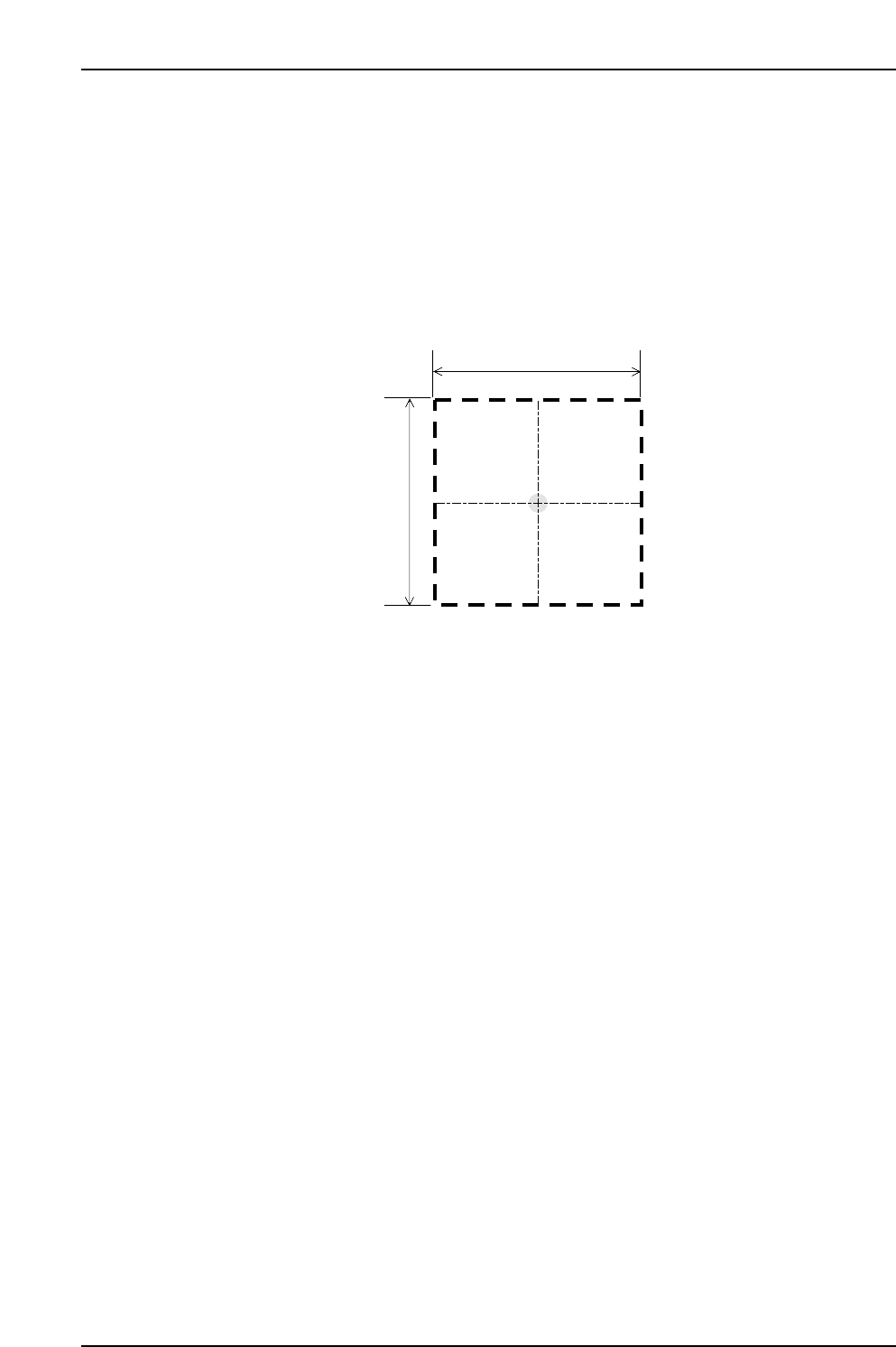
• [Size A] textbox
Enter the Size A dimension in this textbox. (Input range: 0.20 ~ 3.50 mm)
• [Size B] textbox
Enter the Size B dimension in this textbox. (Input range: 0.20 ~ 3.50 mm)
This textbox is disabled when not required for the specified mark pattern.
• [Scan Area]
Enter the area where the camera is to search for the mark.
(Input range: 0.00 ~ 12.50 mm)
• [>>] button
Displays the next mark data specified in the data being edited.
• [<<] button
Displays the previous mark data specified in the data being edited.
• [Add mark data] button
When this button is pressed, one vacant fiducial mark data area is added after the
final existing fiducial mark data.
• [Delete mark] button
Deletes the currently displayed fiducial mark data. After the deletion, the next mark
data displays.
• [Clear] button
Clears the currently displayed fiducial mark data. When the editor screen is closed,
the cleared mark data is deleted. (Cleared mark data cannot be saved at the
production program.)
• [Mark File Load] button
Loads a saved mark file from the library.
• [Mark File Save] button
Saves the currently displayed mark data to the library.
"Scan Area" setting value
"Scan Area" setting value
XP1S2155E
Part 3 Chapter 3 Editor
Edition 2.0 3-3-16 XP-142E System Reference

<Board Skip Mark Editing Area>
• [Mark Name] textbox
Enter the mark name in this textbox. (Max. 23 characters)
Note: The following characters cannot be used in the mark name: (:¥/;*?”<>|). Also, a tilde (~)
cannot be used as the first character of the name.
• [Pattern] button
This button is disabled if the mark is a board skip mark.
• [Color] button
Press to select the mark color.
W: white
B: black
• [Size X] textbox
Enter the Size X dimension in this textbox. (Input range: 1.00 ~ 3.50 mm)
• [Size Y] textbox
Enter the Size Y dimension in this textbox. (Input range: 1.00 ~ 3.50 mm)
• [Clear] button
Clears the currently displayed board skip mark data.
• [Mark File Load] button
Loads a saved mark file from the library.
• [Mark File Save] button
Saves the currently displayed mark data to the library.
• [Edit Panel ID (2D Code) screen] button
Press to switch to the Panel ID (2D code) editor screen.
Part 3 Chapter 3 Editor
Edition 2.0 3-3-17 XP-142E System Reference
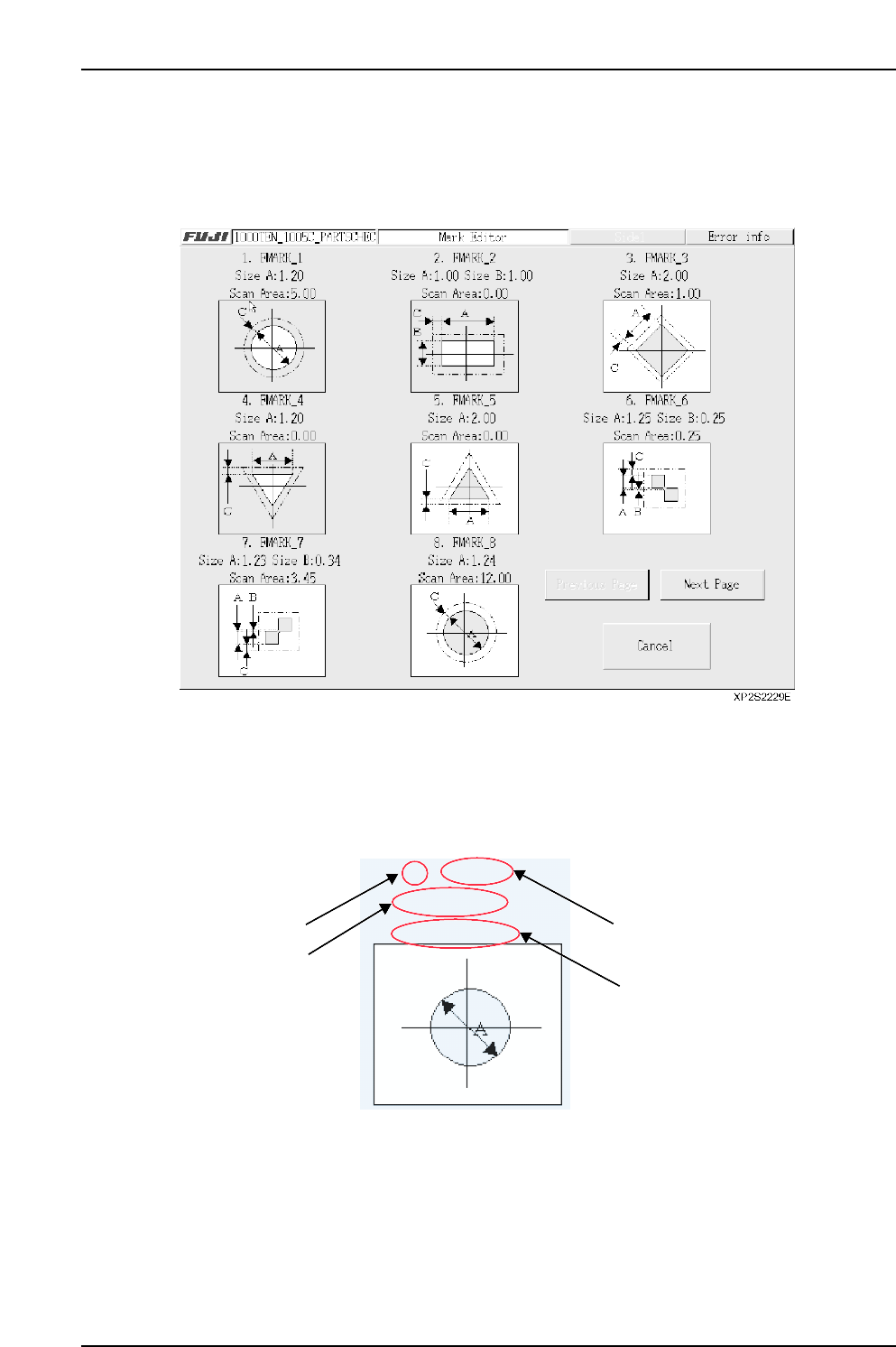
■ Fiducial Mark Editor Screen
A list of fiducial marks which are registered in the data currently being edited displays at
this screen.
[Example]
• Current editing mark data display
The fiducial mark number, “Mark Name”, “Size A” and “Size B” dimensions, and
“Scan Area” are displayed.
The pattern graphic (with “color” white/black indicated) displays below the 3rd line.
Click on this graphic to edit the selected mark data.
• [Cancel] button
Closes this screen.
• [Previous Page] / [Next Page] buttons
Press to switch display screens. If all the mark data is contained on a single screen,
these buttons do not display.
XP2S2230E
1. FMARK
Size A: 1.00
Scan Area: 0.00
No.
Size A
Fiducial mark name
Scan area
Part 3 Chapter 3 Editor
Edition 2.0 3-3-18 XP-142E System Reference