XP-142E System Reference-SYS-XP142-2.0E.pdf.pdf - 第155页
Notes: Part 3 Chapter 2 Program Menu Edition 2.0 3-2-2 XP-142E System Reference
2. Program Menu
(ESR0702b)
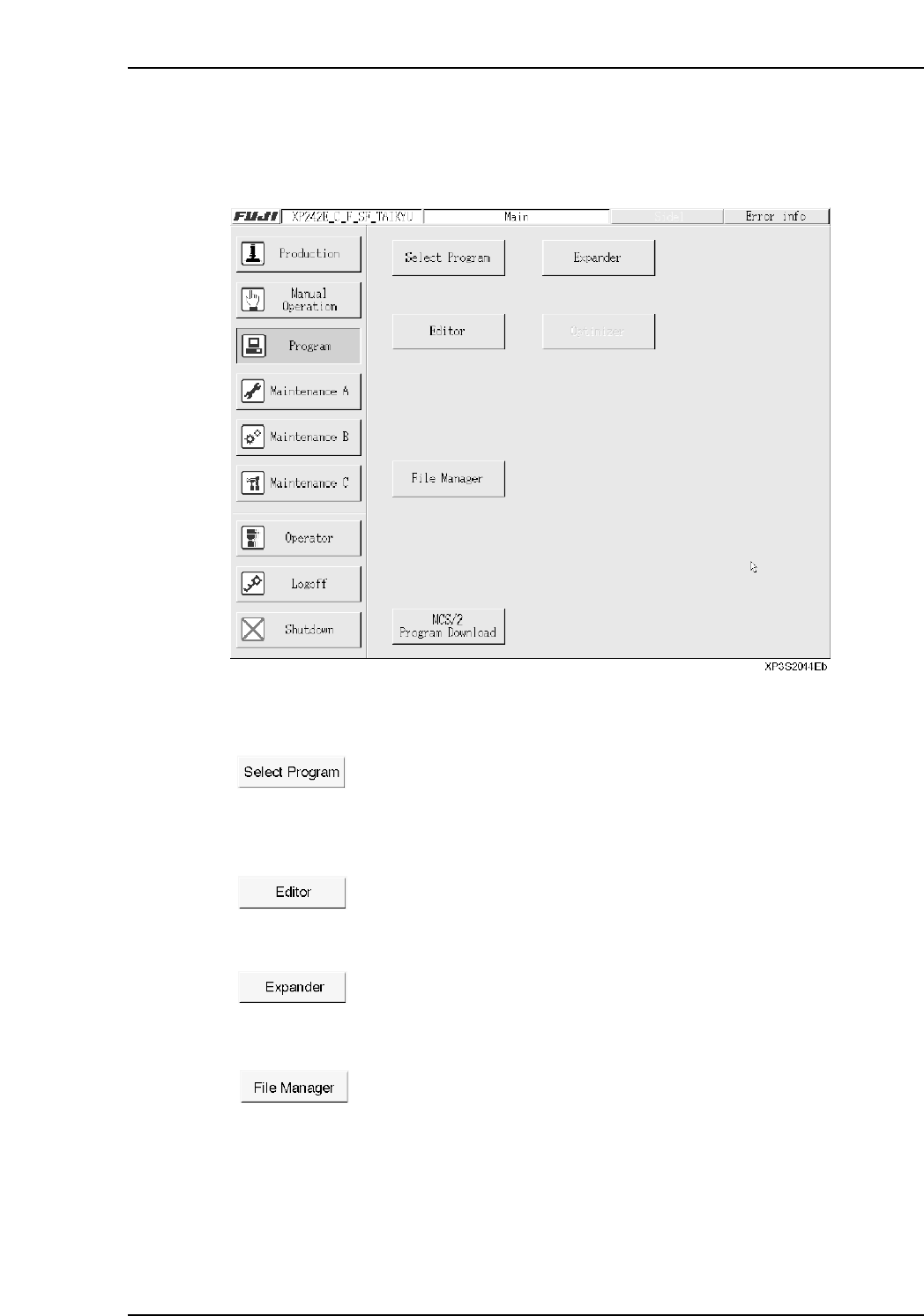
The XP program menu is shown below. It is displayed by pressing [Program] at the [Main] screen.
Operation Button Explanations
Press this button to proceed to the selection window where the desired
program can be selected (for production or editing). To create a new
program, press [New] at the selection window. Program names may
consist of no more than 23 characters.
Press this button to proceed to the editing window for the currently
selected program.
Press this button to create multiple PCBs on a single panel, with the
program’s sequence data handled as 1 PCB.
Press this button to open a window for handling machine or floppy disk
files. Use this button to copy files and delete unneeded file.
Part 3 Chapter 2 Program Menu
Edition 2.0 3-2-1 XP-142E System Reference

Notes:
Part 3 Chapter 2 Program Menu
Edition 2.0 3-2-2 XP-142E System Reference
3. Editor
Note: The value entry fields where settings can be changed are enclosed in brackets here. However, the
settings shown in this manual are not necessarily the same as your machine specifications, so confirm the
value before making any setting changes.
3.1 Editor Screen
(ESR0703a)
This screen is used to edit sequence, panel, feeder setup, mark, part, and nozzle data.
Procedure
1. At the [Main] screen, press [Program], [Select Program], then select the program
where editing is to occur.
2. Press [Editor] to display the following buttons at the bottom of the touch screen.
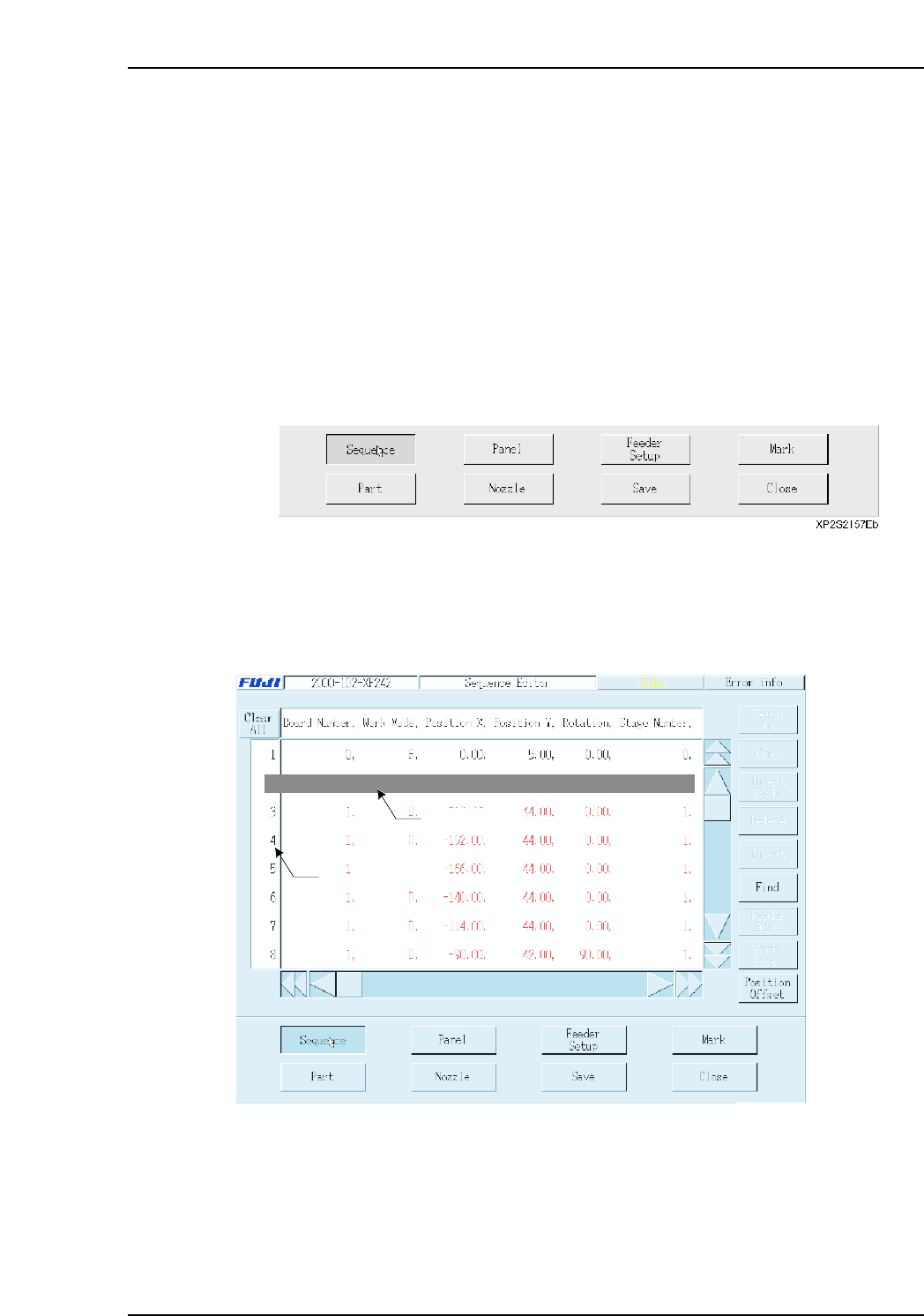
3.2 Sequence Data
(ESR0704f)
Press [Sequence] to display the following screen.
Note: When a setting is made to skip a sequence, the letters in that row appear in red.
2 0, F, -99.59, 82.96, 0.00, 0,
Data input line
Selecting area
XP2S2157Eb
Part 3 Chapter 3 Editor
Edition 2.0 3-3-1 XP-142E System Reference