XP-142E System Reference-SYS-XP142-2.0E.pdf.pdf - 第145页
9. Other Settings 9.1 T ouch Screen Calibration (ESR0226b) This function adjusts the position of the mouse cursor when the touch panel is displayed. Complete this calibration when the cursor appears in a different locati…

Notes:
Part 2 Chapter 8 System Administration
Edition 2.0 2-8-18 XP-142E System Reference
9. Other Settings
9.1 Touch Screen Calibration
(ESR0226b)
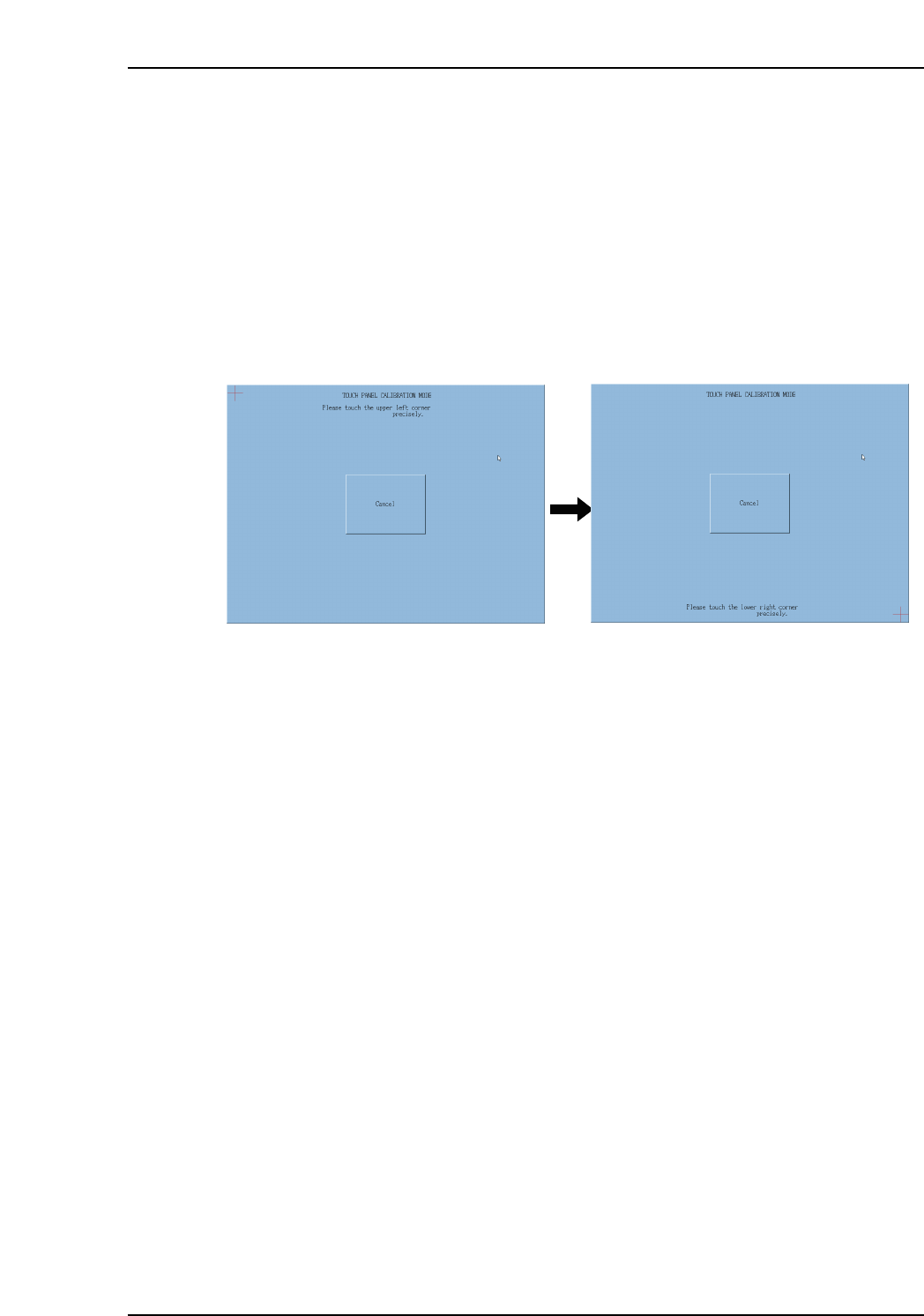
This function adjusts the position of the mouse cursor when the touch panel is displayed.
Complete this calibration when the cursor appears in a different location than where the
screen was touched.
Procedure
1. At the [Maintenance A] screen, select [Touch Screen Calibration] to display the
screen shown to the left below.
2. Touch the red crosshair at the top left of the screen. Another red crosshair appears
at the lower right of the screen.
Click [Cancel] to terminate the calibration and exit the screen.
Note: The mouse must be used to select [Cancel].
XP1S2253E
Part 2 Chapter 9 Other Settings
Edition 2.0 2-9-1 XP-142E System Reference
9.2 Proper Data Editor
(ESR0229)
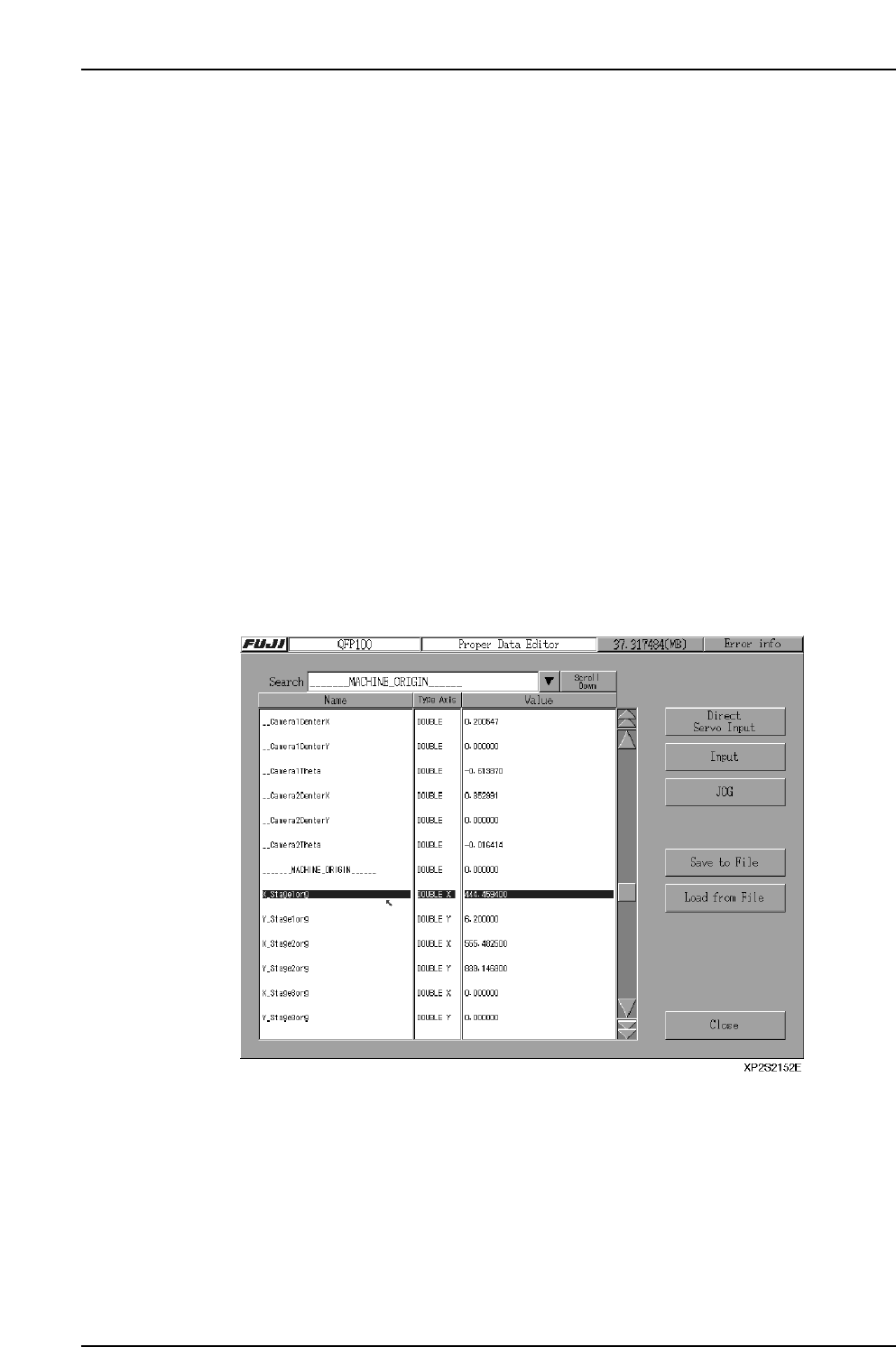
This is the Proper data editing screen. Only qualified maintenance personnel should
make changes in this data, as an incorrect setting could result in an erroneous machine
operation. Use caution when editing the Proper data.
Procedure
1. At the [Main] screen, press [Maintenance C] then [Proper Data Editor].
2. Select the data item to be changed.
3. Press the [Input] button, or press the [Value] item twice in rapid succession to
display a numeric keypad. Enter the desired value, then press [CR] to register it.
4. Press [JOG Operation] to display the screen where a JOG operation can be
performed.
5. Press [Save to Disk] to save the data to a floppy disk. Press [Load from Disk] to
read the data from a floppy disk.
6. Searches can be performed by “title” or by “name”. The “title” search performs
searches for individual Proper data titles within a title list which displays by
pressing the search item’s [▼] button. The “name” search performs searches for
Proper data names which contain the specified search characters. To specify the
search characters, press the search item’s text box to display a numeric keypad,
then enter the Proper data name to be found and press [RET] to begin the search
from the top. Press the [Scroll Down] key to execute a search in the “top to
bottom” direction.
Part 2 Chapter 9 Other Settings
Edition 2.0 2-9-2 XP-142E System Reference